---
title: "How to set up the Measure tool on a map"
description: "Let viewers draw a line to read its length or a polygon to read its area. Choose Metric or Imperial units for the map."
seo:
title: "Set up the Measure tool"
sidebar:
label: "Measure tool"
---
Enabled by default
The Measure tool is on for new maps. Viewers can draw a line to read its length or draw a polygon to read its area. They can measure without leaving the map or exporting data. Open its settings from the map's Extensions page to pick `Metric` or `Imperial`.
**[See it on an example map](https://mangomap-staging.com/examples-staging/maps/xawapsxc/interlaken-raster-lab)**
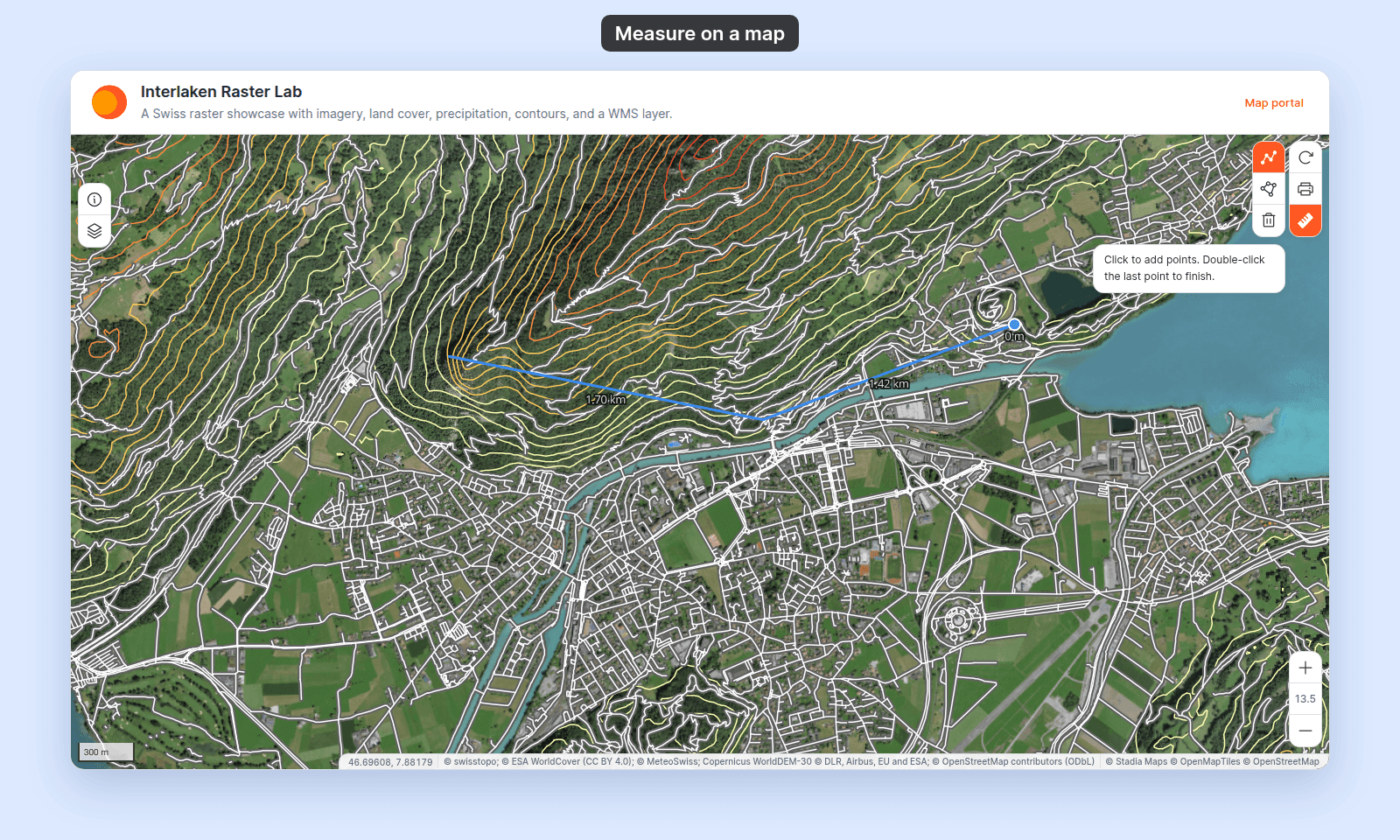
Open the Interlaken Raster Lab. Click `Measure` in the toolbar. Click `Measure distance` or `Measure area`, then click points on the map. The tool shows the length or the area.
## Before you start
- You need edit access to the map.
- Decide which units fit your audience:
- **Metric** — metres / kilometres for distance, square metres / hectares / square kilometres for area. Default for most regions.
- **Imperial** — feet / miles for distance, acres / square miles for area. Use for US audiences and engineering applications that work in imperial.
- The Measure tool doesn't have a "user can choose" option; the unit set is fixed for the map. If you need both, you'll need to pick the one that matches the primary audience.
## Open the Extensions page
From the map's admin sidebar, click `Extensions`. The Measure card is in the row below Print, below the data-discovery tools, and on new maps it already shows `Settings` and `Remove`.
## Configure Measure
Click `Settings` on the Measure card. If the card shows `Add` instead, click it to turn Measure back on and open the settings page.
## Pick units
The settings page has one control — a radio with two options:
- `Metric` — length in metres / kilometres, area in square metres / hectares / square kilometres.
- `Imperial` — length in feet / miles, area in acres / square miles.
The unit displayed on a given measurement scales with the size of what you draw — small distances show in metres / feet; long distances scale up automatically.
## Save
Click `Save changes` at the bottom of the page. The page returns to the map view.
If you try to leave the page with unsaved changes, the `Unsaved changes` dialog opens:
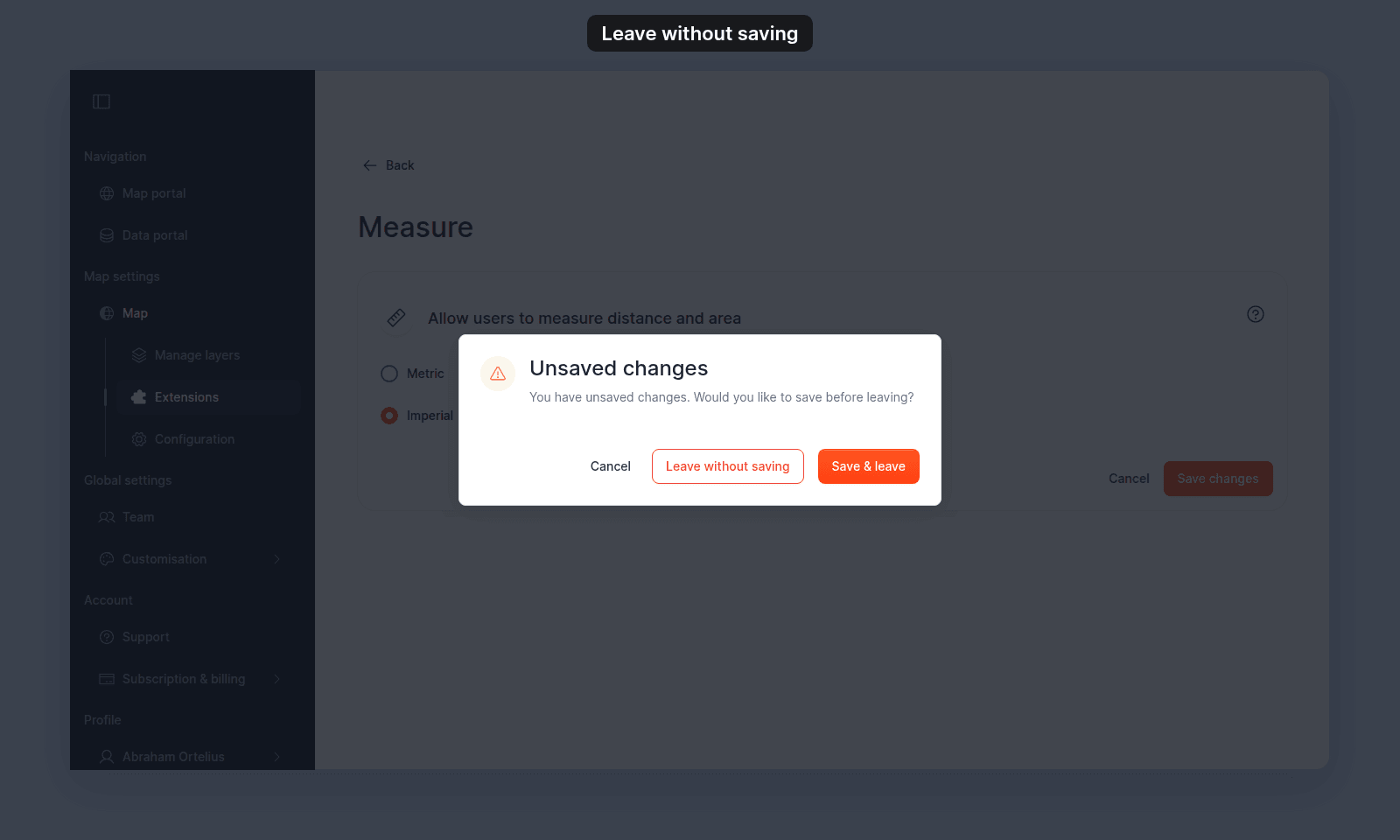 - `Save & leave` saves your change and leaves the page.
- `Cancel` keeps you on the settings page.
- `Leave without saving` discards the change and leaves the page.
## Turning the Measure tool off or back on
Click `Remove` on the Measure card to turn the tool off. If you want it back, click `Add` and choose Metric or Imperial again.
## Verify the result
Open the map in a viewer-state session (a new tab or incognito window). The `Measure` button appears in the toolbar. Click it to show the Measure controls:
- Click `Measure distance` to measure a line, or `Measure area` to measure a polygon.
- Click points on the map to build the shape. While you draw, a hint below the controls tells you how to finish.
- To finish a line, double-click the last point. To finish a polygon, click the first point, or double-click the last point.
- Read the labels on the map. Each segment shows its length, a line shows `Total:` and its length at the last point, and a polygon shows its area in the middle. The values use the units you configured.
- Click `Clear` to remove the measurement.
- `Save & leave` saves your change and leaves the page.
- `Cancel` keeps you on the settings page.
- `Leave without saving` discards the change and leaves the page.
## Turning the Measure tool off or back on
Click `Remove` on the Measure card to turn the tool off. If you want it back, click `Add` and choose Metric or Imperial again.
## Verify the result
Open the map in a viewer-state session (a new tab or incognito window). The `Measure` button appears in the toolbar. Click it to show the Measure controls:
- Click `Measure distance` to measure a line, or `Measure area` to measure a polygon.
- Click points on the map to build the shape. While you draw, a hint below the controls tells you how to finish.
- To finish a line, double-click the last point. To finish a polygon, click the first point, or double-click the last point.
- Read the labels on the map. Each segment shows its length, a line shows `Total:` and its length at the last point, and a polygon shows its area in the middle. The values use the units you configured.
- Click `Clear` to remove the measurement.
 If the units displayed are wrong, return to the Measure settings page and confirm the radio matches what you expect. Save again if needed.
## What this doesn't cover
- **The Scale bar** (a fixed scale indicator at the corner of the map) — separate tool; see [Scale bar](/docs/map-extensions/set-up-the-scale-bar). The Scale bar shows scale regardless of whether the viewer measures; Measure is the interactive ruler.
- **Saving measurements with the map** — there's no save / export from the Measure tool. Measurements are one-session. For persistent annotations, use [Sketch](/docs/map-extensions/enable-sketch).
- **Measuring on raster or WMS layers** — It applies to whatever's visible.
If the units displayed are wrong, return to the Measure settings page and confirm the radio matches what you expect. Save again if needed.
## What this doesn't cover
- **The Scale bar** (a fixed scale indicator at the corner of the map) — separate tool; see [Scale bar](/docs/map-extensions/set-up-the-scale-bar). The Scale bar shows scale regardless of whether the viewer measures; Measure is the interactive ruler.
- **Saving measurements with the map** — there's no save / export from the Measure tool. Measurements are one-session. For persistent annotations, use [Sketch](/docs/map-extensions/enable-sketch).
- **Measuring on raster or WMS layers** — It applies to whatever's visible.