---
title: "How to set up the Legend on a map"
description: "Show viewers a legend that names every layer next to its colour swatch. It is on for new maps. Change its title or default state."
sidebar:
label: "Legend"
search:
keywords: [layer list]
boost: 2
---
Enabled by default
The Legend is already on for new maps. It lets viewers decode your colour-coded map by naming every layer next to its colour swatch — so the green polygons on your risk map read as `High risk` instead of decorative colour. Open its settings from the map's Extensions page to change the title or default state; click `Remove` to turn it off and `Add` to turn it back on. The Legend reads each layer's style as-is, so renaming swatches, hiding break ranges, and reordering entries happen at the layer level, not in this tool.
**[See it on an example map](https://mangomap-staging.com/examples-staging/maps/vi0nznxp/world-atlas)**
Open the World Atlas. The legend opens when the map loads. It lists each layer and folder, and shows the colour swatches next to the layer names.
## Before you start
- You need edit access to the map.
- The Legend works best on maps with at least one styled layer — see [Styling layers](/docs/styling-layers) for the per-layer styling that the Legend describes.
- Decide whether the Legend should be `Expanded` or `Collapsed` on first load. Use Expanded for short lists and Collapsed for long lists.
## Open the Extensions page
From the map's admin sidebar, click `Extensions`. You land on the card grid; on new maps the Legend card is already active and shows `Settings`, `Remove`, and an `Open on load` chip.
## Configure the Legend
Click `Settings` on the Legend card. If the card shows `Add` instead, click it to turn the Legend back on and open the settings page.
## Configure the title and default state
{/* TODO: screenshot - recapture the Legend settings page if the product changes its description to "colours". Staging shows "colors" (checked 2026-10-15): the rendered text comes from `packages/ui-components/src/components/templates/tools/index.tsx:37` (card grid) and `packages/ui-components/src/components/templates/tools-legend/index.tsx:26` (settings page), and both say "colors"; the "colours" copies in `packages/mangomap-ui` are not rendered */}
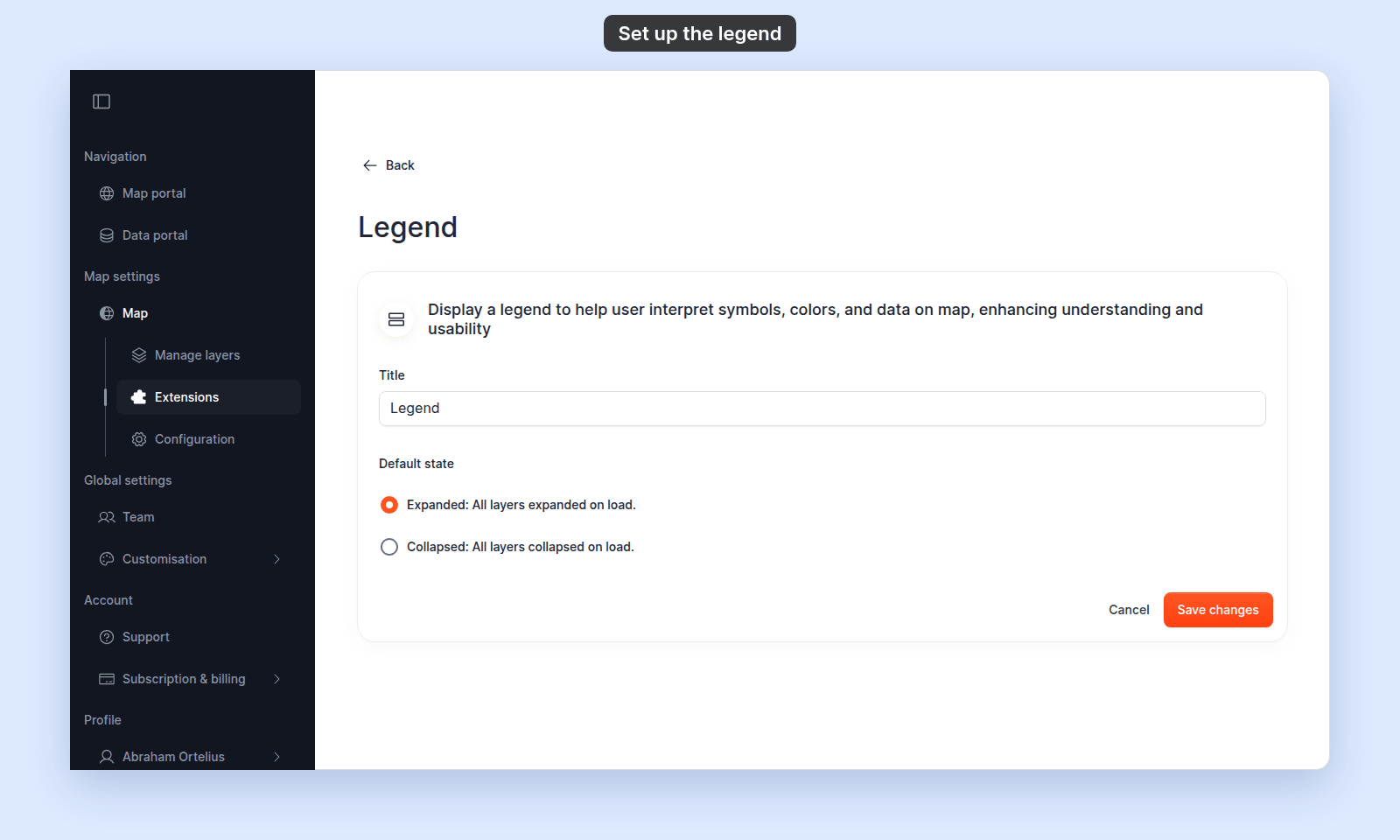 The settings page has two fields:
- **`Title`** — the heading shown above the Legend panel. Defaults to `Legend`. Use a custom name if your map has a domain-specific term ("Map key", "Symbology", "Risk zones").
- **`Default state`** — radio with two choices:
- `Expanded: All layers expanded on load.` — every layer's swatches and labels are visible when the Legend first opens.
- `Collapsed: All layers collapsed on load.` — only layer names are visible; viewers click each one to expand.
## Save
Click `Save changes` at the bottom of the page. The page returns to the map view.
## (Optional) Set the Legend to open on load
Back on the Extensions page, the Legend card already shows a filled `Opens on load` chip on new maps. Click the chip to clear it if you want a different panel to open first. If you turn the Legend off and back on later, click the chip again to restore the default-open behavior.
## Turning the Legend off or back on
Click `Remove` on the Legend card to turn the tool off. If you want it back later, click `Add`; the Legend settings page opens again so you can set the title and default state.
## Verify the result
Open the map in a viewer-state session (a new tab or incognito window). The Legend should appear:
- As a clickable panel in the map toolbar.
- Open automatically if you set `Open on load`.
- With the title you configured.
- With layers shown in the default state you picked.
The settings page has two fields:
- **`Title`** — the heading shown above the Legend panel. Defaults to `Legend`. Use a custom name if your map has a domain-specific term ("Map key", "Symbology", "Risk zones").
- **`Default state`** — radio with two choices:
- `Expanded: All layers expanded on load.` — every layer's swatches and labels are visible when the Legend first opens.
- `Collapsed: All layers collapsed on load.` — only layer names are visible; viewers click each one to expand.
## Save
Click `Save changes` at the bottom of the page. The page returns to the map view.
## (Optional) Set the Legend to open on load
Back on the Extensions page, the Legend card already shows a filled `Opens on load` chip on new maps. Click the chip to clear it if you want a different panel to open first. If you turn the Legend off and back on later, click the chip again to restore the default-open behavior.
## Turning the Legend off or back on
Click `Remove` on the Legend card to turn the tool off. If you want it back later, click `Add`; the Legend settings page opens again so you can set the title and default state.
## Verify the result
Open the map in a viewer-state session (a new tab or incognito window). The Legend should appear:
- As a clickable panel in the map toolbar.
- Open automatically if you set `Open on load`.
- With the title you configured.
- With layers shown in the default state you picked.
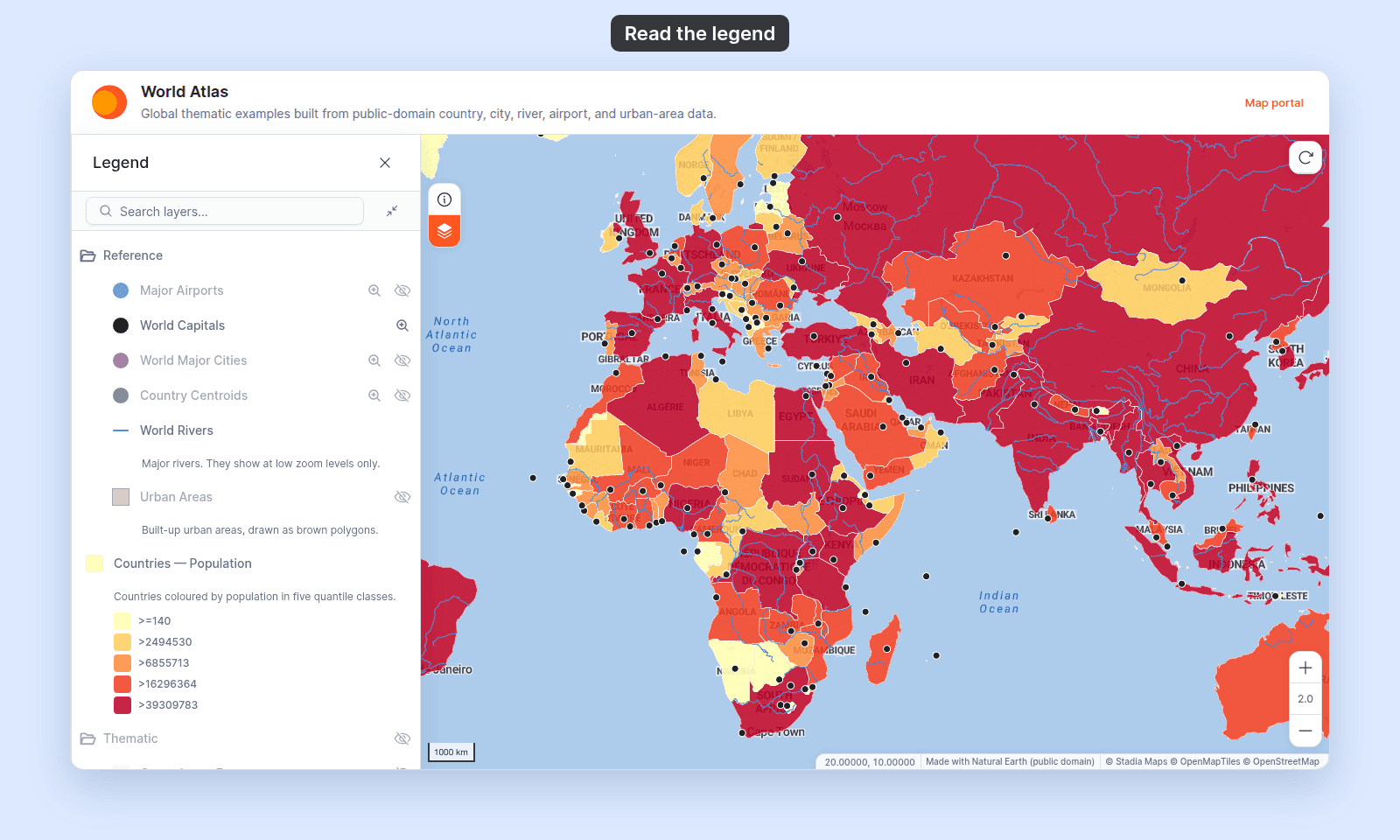 Click a layer's eye icon inside the Legend to toggle that layer's visibility for the current session — the change doesn't save, since viewers only have per-session control. (For the persistent toggle, see [How the layer panel works in MangoMap](/docs/managing-layers/concepts-layer-panel).)
## What this doesn't cover
- **Hiding individual layers from the Legend permanently** — see [How to hide a layer from the legend](/docs/managing-layers/hide-layer-from-legend). The Legend tool here renders every layer the map has; the layer panel decides which layers appear.
- **Renaming a single layer or its style swatches inside the Legend** — the layer's name is its name on the map; rename it via the layer panel.
- **Reordering Legend entries** — the order follows the layer panel's draw order. Reorder layers there to reorder the Legend; see [How to reorder layers on the map](/docs/managing-layers/reorder-layers).
- **Customising per-break legend entries** (colours, labels, ranges for a Category or Quantity layer) — that's per-layer; see [How to customise category and class break symbology](/docs/styling-layers/customise-category-and-class-break-symbology).
Click a layer's eye icon inside the Legend to toggle that layer's visibility for the current session — the change doesn't save, since viewers only have per-session control. (For the persistent toggle, see [How the layer panel works in MangoMap](/docs/managing-layers/concepts-layer-panel).)
## What this doesn't cover
- **Hiding individual layers from the Legend permanently** — see [How to hide a layer from the legend](/docs/managing-layers/hide-layer-from-legend). The Legend tool here renders every layer the map has; the layer panel decides which layers appear.
- **Renaming a single layer or its style swatches inside the Legend** — the layer's name is its name on the map; rename it via the layer panel.
- **Reordering Legend entries** — the order follows the layer panel's draw order. Reorder layers there to reorder the Legend; see [How to reorder layers on the map](/docs/managing-layers/reorder-layers).
- **Customising per-break legend entries** (colours, labels, ranges for a Category or Quantity layer) — that's per-layer; see [How to customise category and class break symbology](/docs/styling-layers/customise-category-and-class-break-symbology).