---
title: "How to set up Search on a map"
description: "Set up the Search tool so viewers can find places, values in your data, or a lat, lon coordinate, and move the map to the result."
sidebar:
label: "Search"
search:
keywords: [geocoder, find address]
---
Enabled by default
Search is on for new maps. Its toolbar bar finds places, values in your data, or a `lat, lon` coordinate, then moves the map to the result. Open `Extensions` to choose the search types. The page saves each change, and only vector layers can support data search.
**[See it on an example map](https://mangomap-staging.com/examples-staging/maps/kcc4s8o5/singapore-search-query-lab)**
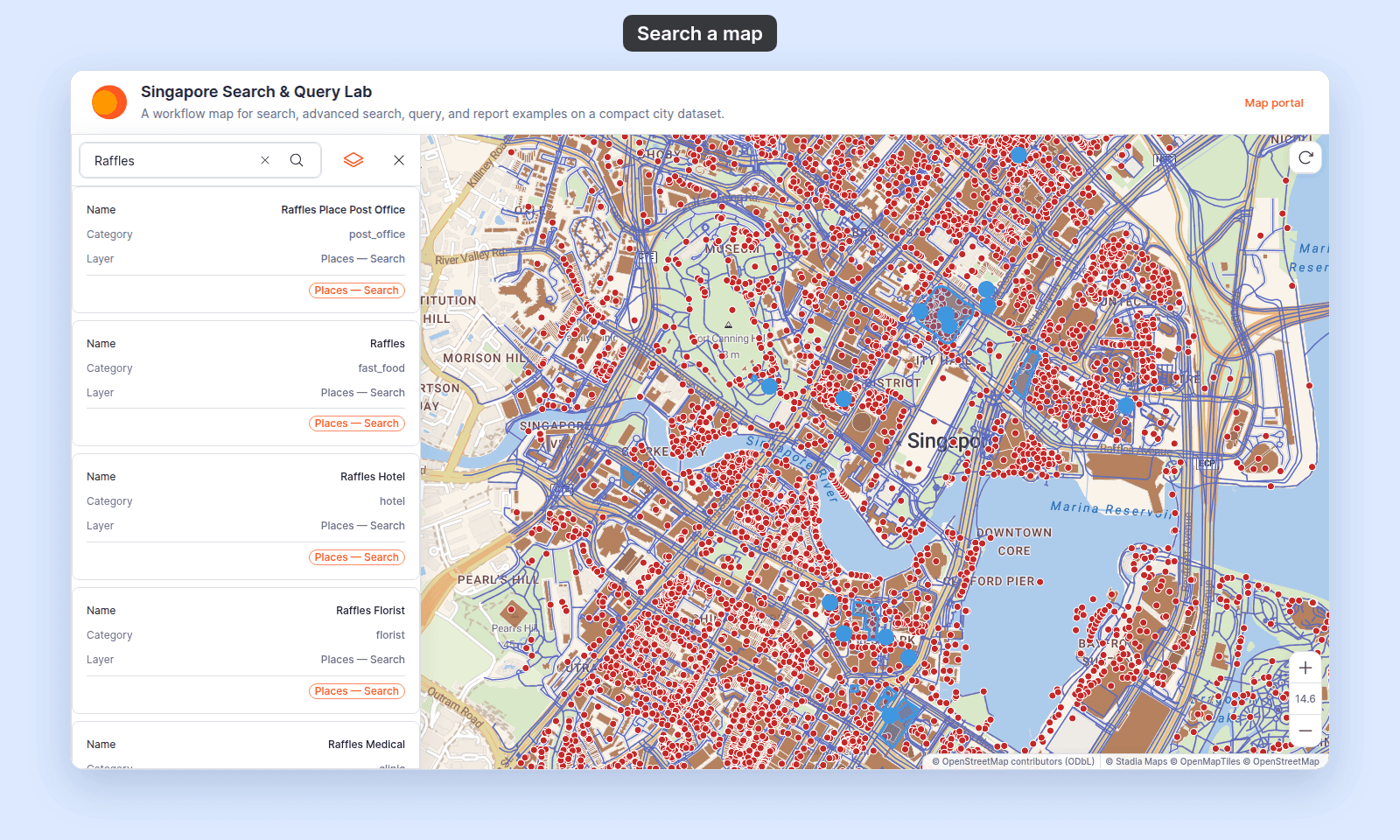
Open the Singapore Search & Query Lab. Type `Raffles` in the search box in the toolbar and press `Enter`. The results list shows places and buildings with that name, and the map highlights the matches.
## Before you start
- You need edit access to the map.
- For Data search, decide which layers viewers should be able to search. You'll add them to an `Indexed layers` list — only vector layers (point, line, polygon) can be indexed; raster and WMS layers can't.
- If your map is country-specific, decide whether to **restrict** the address search to one or more countries. This narrows results but disables `Prioritise results in current view`.
- If your map's audience is non-English, pick a preferred results language. Address results use that language when available, with English as the fallback.
## Open the Extensions page
From the map's admin sidebar, click `Extensions`. The Search card is the second row, below Legend, and on new maps it already shows `Settings` and `Remove`.
## Configure Search
Click `Settings` on the Search card. If the card shows `Add` instead, click it to turn Search back on and open the settings page.
> The Search page **saves each change**. It has no `Save changes` button. A small save indicator appears next to each field.
## Set the default search type
At the top of the page, the `Default search type` dropdown picks which search a viewer's first keystroke triggers when more than one type is enabled. On new maps, `Address search` is already on and selected as the default search type. Choices:
- `Address search`
- `Data search`
- `Coordinate search`
## (Optional) Configure Address search
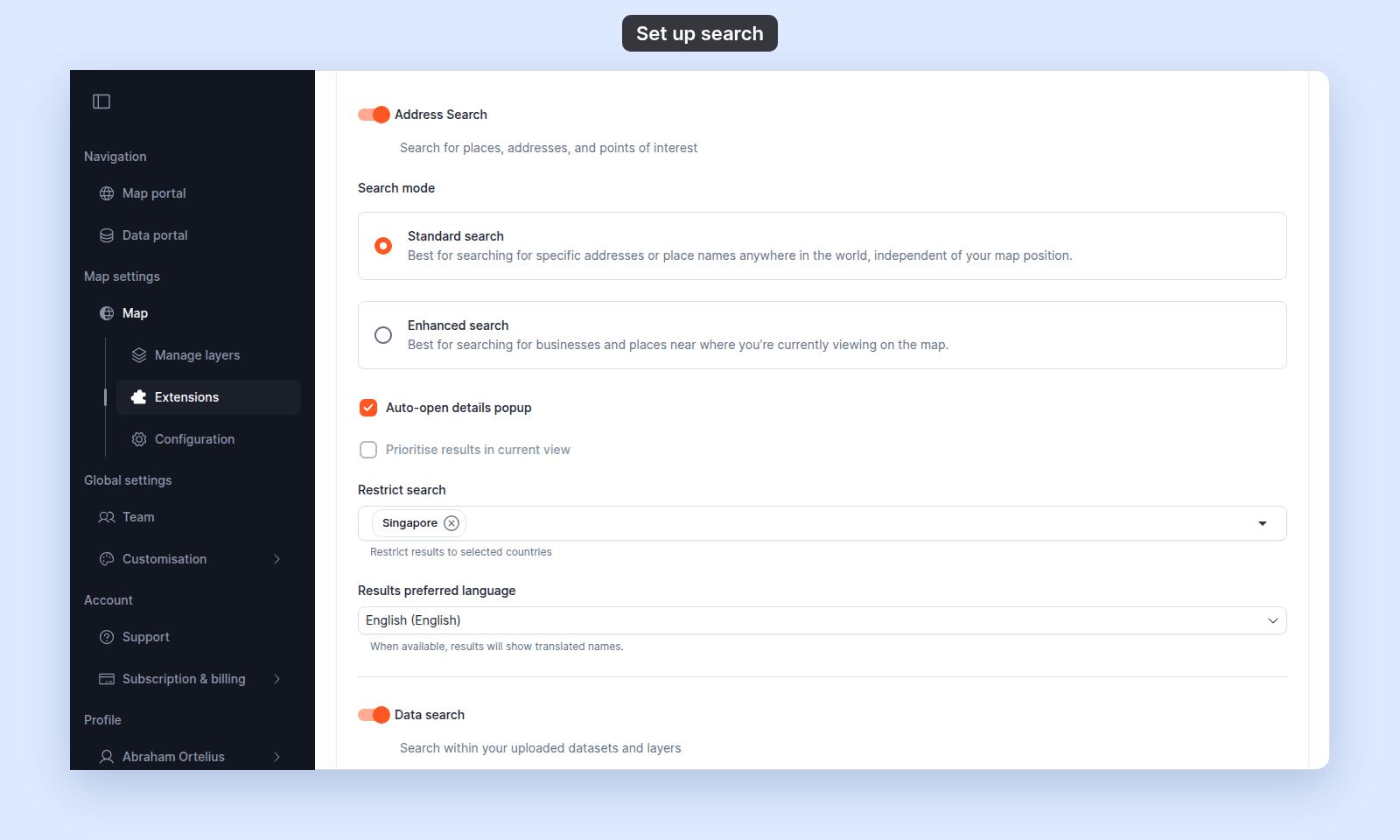 Toggle `Address Search` on. The description reads `Search for places, addresses, and points of interest`. Underneath:
- **`Search mode`** — radio with two options:
- `Standard search` — best for finding specific addresses or place names anywhere in the world. The result rank is independent of the current map view.
- `Enhanced search` — best for finding businesses and places near where the viewer is currently looking on the map. Use this on operational maps where local matters more than global.
- **`Auto-open details popup`** — when on, picking an address-search result also opens the details popup automatically. Off by default.
- **`Prioritise results in current view`** — when on, results closer to the map's current viewport rank higher. On by default. **Disabled** when one or more countries are selected in `Restrict search` (the two options conflict).
- **`Restrict search`** — a multi-select of countries. When empty, search is world-wide. Selecting one or more countries narrows the search to those countries and automatically turns off `Prioritise results in current view`.
- **`Results preferred language`** — a dropdown of supported languages. Result names show in the chosen language when available.
## (Optional) Configure Data search
Toggle `Data search` on. In `Indexed layers`, click `Add` next to each layer viewers can search. Click `Remove` to take a layer out of the search.
Toggle `Address Search` on. The description reads `Search for places, addresses, and points of interest`. Underneath:
- **`Search mode`** — radio with two options:
- `Standard search` — best for finding specific addresses or place names anywhere in the world. The result rank is independent of the current map view.
- `Enhanced search` — best for finding businesses and places near where the viewer is currently looking on the map. Use this on operational maps where local matters more than global.
- **`Auto-open details popup`** — when on, picking an address-search result also opens the details popup automatically. Off by default.
- **`Prioritise results in current view`** — when on, results closer to the map's current viewport rank higher. On by default. **Disabled** when one or more countries are selected in `Restrict search` (the two options conflict).
- **`Restrict search`** — a multi-select of countries. When empty, search is world-wide. Selecting one or more countries narrows the search to those countries and automatically turns off `Prioritise results in current view`.
- **`Results preferred language`** — a dropdown of supported languages. Result names show in the chosen language when available.
## (Optional) Configure Data search
Toggle `Data search` on. In `Indexed layers`, click `Add` next to each layer viewers can search. Click `Remove` to take a layer out of the search.
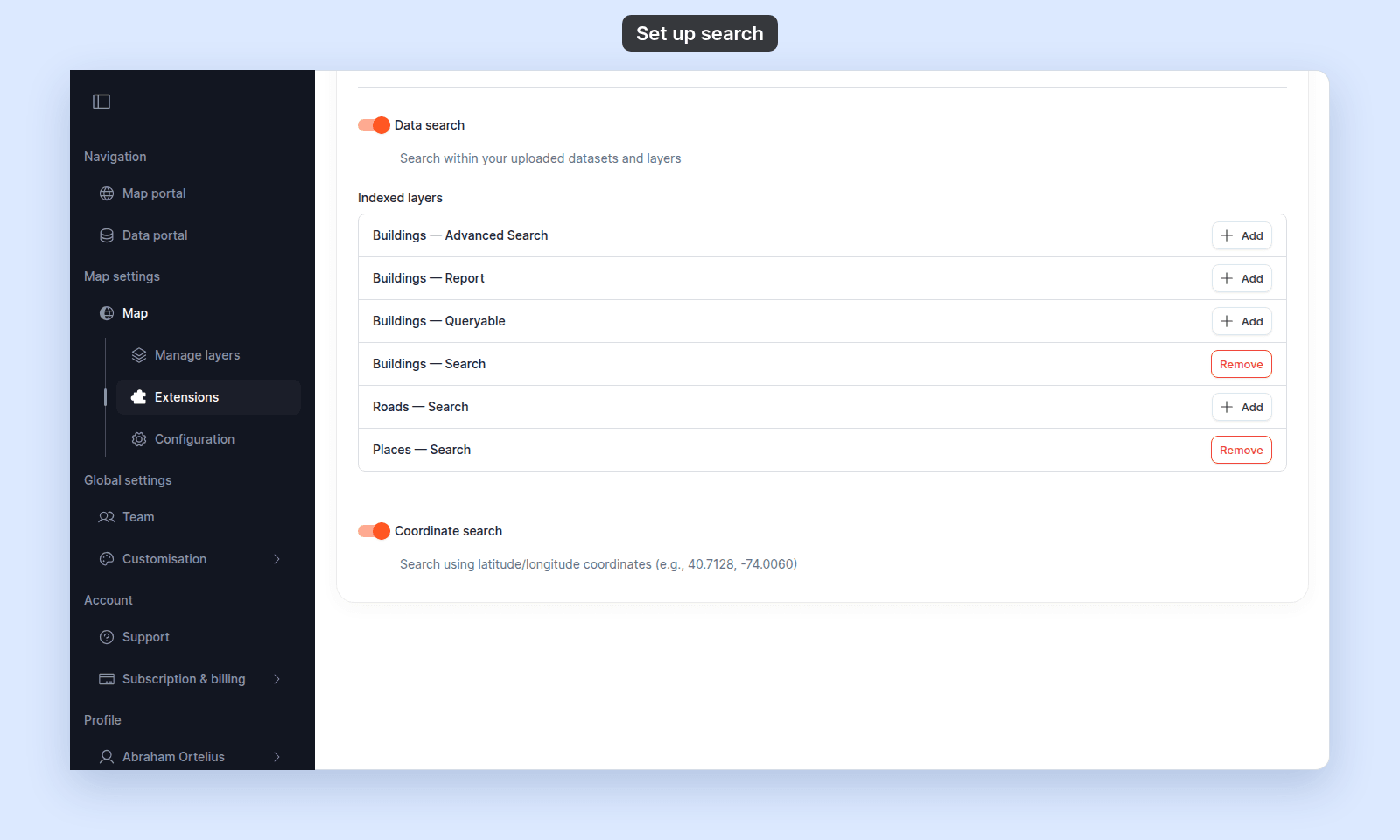 Viewers can see non-indexed layers on the map, but cannot search their attributes from the Search bar. Index the layers viewers most need to look up — usually the ones with a meaningful name or ID field.
## (Optional) Configure Coordinate search
Toggle `Coordinate search` on. The description reads `Search using latitude/longitude coordinates (e.g., 40.7128, -74.0060)`. There are no sub-settings — when on, viewers can paste comma-separated coordinates into the bar to jump to that point.
## Turning Search off or back on
Click `Remove` on the Search card to turn the tool off. If you want it back, click `Add` and open the settings page again; Search will start from the default address-search state.
## Verify the result
Open the map in a viewer-state session (a new tab or incognito window). The Search bar should already appear in the map toolbar. Try each enabled type:
- **Address** — type a city or landmark. Pick a result; the map should zoom to it. If `Auto-open details popup` is on, the popup also opens.
- **Data** — type a value you expect to match an indexed layer's attribute, and press `Enter`. The results list shows each match with its layer, and the map highlights the matches. Pick a result; the map should zoom to the feature. Data results show 25 at a time. Use `Previous` and `Next` to move between pages, or show 50 or 100 per page.
- **Coordinate** — paste `40.7128, -74.0060` (or any valid lat, lon). The map should jump to that point.
Viewers can see non-indexed layers on the map, but cannot search their attributes from the Search bar. Index the layers viewers most need to look up — usually the ones with a meaningful name or ID field.
## (Optional) Configure Coordinate search
Toggle `Coordinate search` on. The description reads `Search using latitude/longitude coordinates (e.g., 40.7128, -74.0060)`. There are no sub-settings — when on, viewers can paste comma-separated coordinates into the bar to jump to that point.
## Turning Search off or back on
Click `Remove` on the Search card to turn the tool off. If you want it back, click `Add` and open the settings page again; Search will start from the default address-search state.
## Verify the result
Open the map in a viewer-state session (a new tab or incognito window). The Search bar should already appear in the map toolbar. Try each enabled type:
- **Address** — type a city or landmark. Pick a result; the map should zoom to it. If `Auto-open details popup` is on, the popup also opens.
- **Data** — type a value you expect to match an indexed layer's attribute, and press `Enter`. The results list shows each match with its layer, and the map highlights the matches. Pick a result; the map should zoom to the feature. Data results show 25 at a time. Use `Previous` and `Next` to move between pages, or show 50 or 100 per page.
- **Coordinate** — paste `40.7128, -74.0060` (or any valid lat, lon). The map should jump to that point.
 If a search type produces no results when you expect some:
- For Address: check `Restrict search` doesn't exclude the region you're searching, and that `Search mode` matches your use case.
- For Data: confirm the layer is in `Indexed layers` and is vector, not raster.
- For Coordinate: confirm the format is `lat, lon` (latitude first), comma-separated, in decimal degrees.
If you pick a Data result and the message `Feature not found` appears, the feature was deleted after the search ran. Search again. If the panel shows `Details could not be loaded`, the feature's values did not load. See [A popup says “Details could not be loaded”](/docs/configuring-popups/troubleshoot-popup-details-not-loaded).
## What this doesn't cover
- **Advanced Search** (filter a layer by one or more attributes with a richer UI than the Search bar) — separate tool; see [How to set up Advanced Search](/docs/map-extensions/set-up-advanced-search).
- **The Query tool** (find features by attribute and location together) — separate tool; see [How to set up the Query tool](/docs/map-extensions/set-up-the-query-tool).
- **Per-layer popups that open after a search match** — search opens the layer's existing popup; configure the popup in [Configuring popups](/docs/configuring-popups).
If a search type produces no results when you expect some:
- For Address: check `Restrict search` doesn't exclude the region you're searching, and that `Search mode` matches your use case.
- For Data: confirm the layer is in `Indexed layers` and is vector, not raster.
- For Coordinate: confirm the format is `lat, lon` (latitude first), comma-separated, in decimal degrees.
If you pick a Data result and the message `Feature not found` appears, the feature was deleted after the search ran. Search again. If the panel shows `Details could not be loaded`, the feature's values did not load. See [A popup says “Details could not be loaded”](/docs/configuring-popups/troubleshoot-popup-details-not-loaded).
## What this doesn't cover
- **Advanced Search** (filter a layer by one or more attributes with a richer UI than the Search bar) — separate tool; see [How to set up Advanced Search](/docs/map-extensions/set-up-advanced-search).
- **The Query tool** (find features by attribute and location together) — separate tool; see [How to set up the Query tool](/docs/map-extensions/set-up-the-query-tool).
- **Per-layer popups that open after a search match** — search opens the layer's existing popup; configure the popup in [Configuring popups](/docs/configuring-popups).