---
title: "How to set up Proximity Analysis on a map"
description: "Let viewers find features within a set distance of a reference layer, and see the matches on the map, in a results table, and in a report."
seo:
title: "Set up Proximity Analysis"
sidebar:
label: "Proximity Analysis"
---
Proximity Analysis lets viewers find features within a set distance. They pick a layer to search, a relationship and distance, and a reference layer, then see the matching features on the map, in a results table, and in a report. Add it from the map's Extensions page. It supports vector layers and one layer per configuration. A single tool can hold many configurations in one panel.
**[See it on an example map](https://mangomap-staging.com/examples-staging/maps/cwtdkao3/proximity-analysis-lab)**
Open the Proximity Analysis Lab. The `Nearby buildings` panel is open when the map loads. Set `Find features in` to `Buildings`, `That are` to `closer than`, and `Features in` to `Buildings`. Choose `Feature Selection`, click a building, and click `Search`. The map highlights the buildings near it, and the panel shows a report and a results table.
## Before you start
- You need edit access to the map.
- The map needs at least one **vector** layer per dataset configuration. Raster and WMS layers can't be searched.
- Choose the layers viewers can search. Each layer has a separate configuration, and viewers can choose one at a time.
- For each configuration, decide the **measurement unit** default — `Meters`, `Kilometers`, `Feet`, or `Miles`. It's required; you can't save a configuration without picking one.
- For each configuration, decide whether you need a **report**. Reports are rich-text outputs that can include variable placeholders (drawn from the result set) and aggregate functions (sum, count, average, min, max, median). For just a list of matches, leave the report off.
## Open the Extensions page
From the map's admin sidebar, click `Extensions`. The Proximity Analysis card is in the row below Query.
## Enable Proximity Analysis
Click the `Add` button on the Proximity Analysis card. The page routes to the Proximity Analysis settings page.
## Configure the tool name, description, and highlight colour
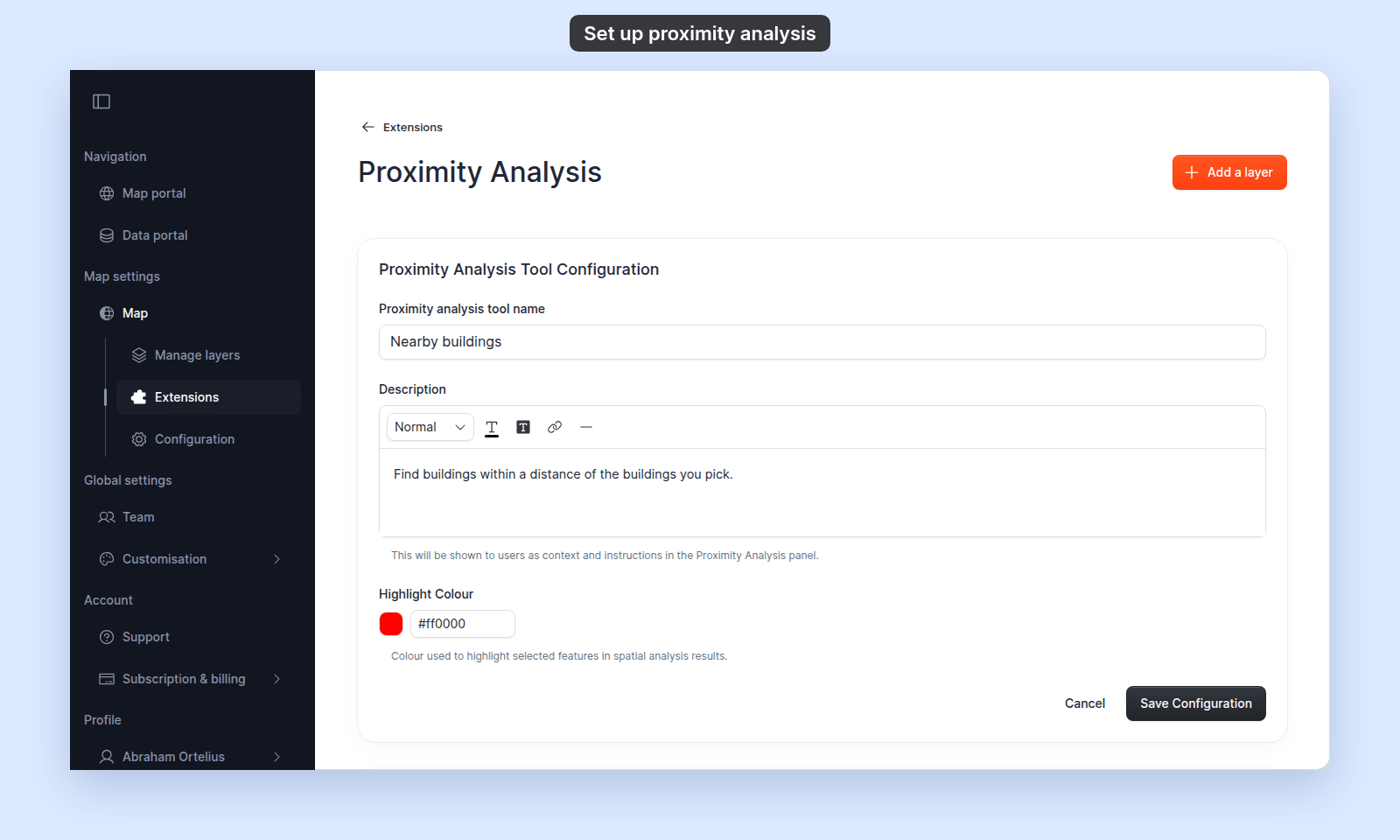 The first card on the page is `Proximity Analysis Tool Configuration`. Three fields:
- **`Proximity analysis tool name`** — required. Defaults to `Proximity Analysis`. Change it to something map-specific ("Nearby assets", "Buffer search") so viewers know what the panel does quickly.
- **`Description`** — optional rich-text shown at the top of the Proximity panel.
- **`Highlight Colour`** — the colour MangoMap uses to highlight matching features on the map after a proximity search runs. Defaults to red. Helper text: `Colour used to highlight selected features in spatial analysis results.`
Click `Save Configuration` at the bottom of this card to save tool-level changes.
## Add a dataset configuration
Add at least one dataset before viewers can use the tool. Click `Add a layer` in the page header (top-right). A modal opens listing the map's vector datasets. Click the dataset you want this configuration to use.
The page opens the per-layer form, `Add a proximity query`.
The first card on the page is `Proximity Analysis Tool Configuration`. Three fields:
- **`Proximity analysis tool name`** — required. Defaults to `Proximity Analysis`. Change it to something map-specific ("Nearby assets", "Buffer search") so viewers know what the panel does quickly.
- **`Description`** — optional rich-text shown at the top of the Proximity panel.
- **`Highlight Colour`** — the colour MangoMap uses to highlight matching features on the map after a proximity search runs. Defaults to red. Helper text: `Colour used to highlight selected features in spatial analysis results.`
Click `Save Configuration` at the bottom of this card to save tool-level changes.
## Add a dataset configuration
Add at least one dataset before viewers can use the tool. Click `Add a layer` in the page header (top-right). A modal opens listing the map's vector datasets. Click the dataset you want this configuration to use.
The page opens the per-layer form, `Add a proximity query`.
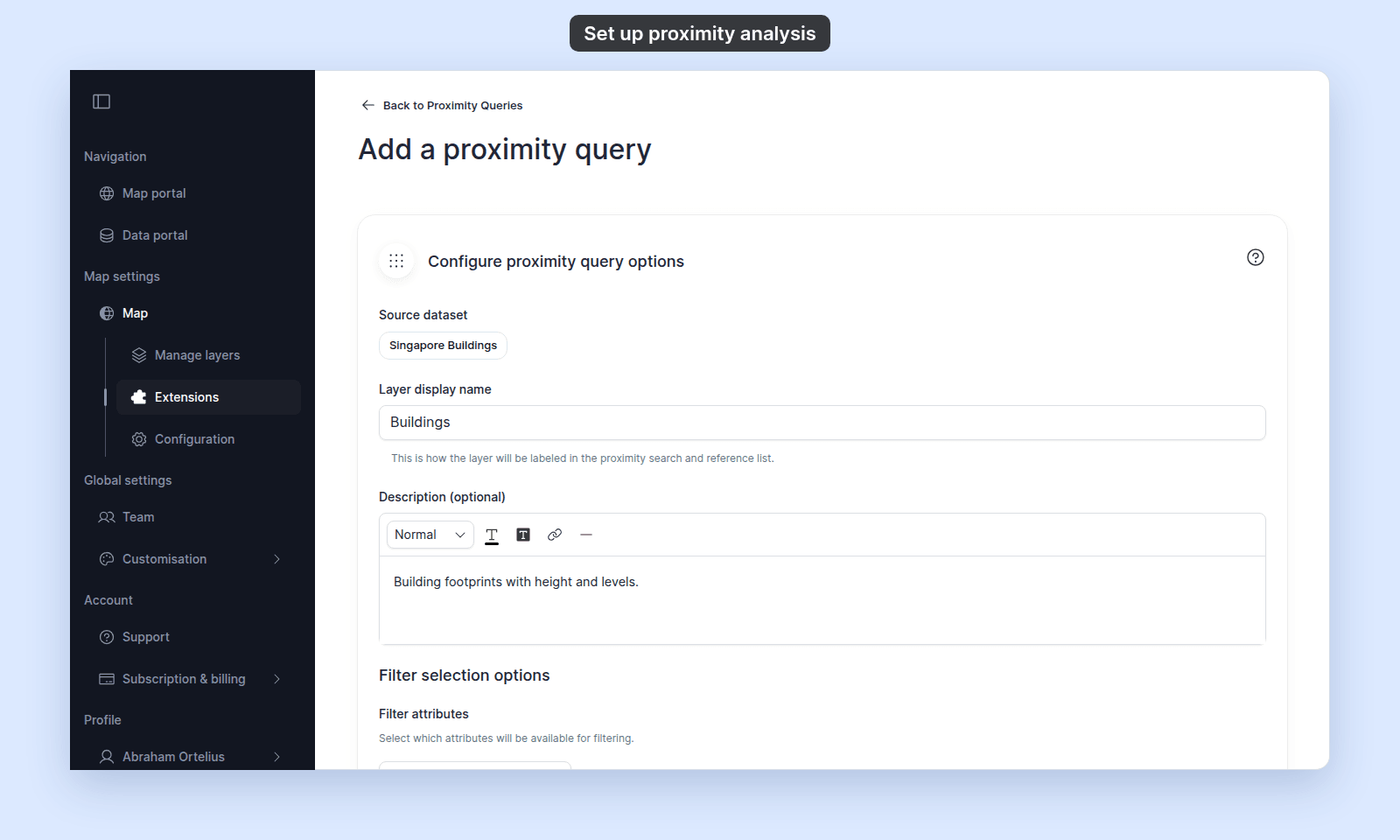 Configure:
- **`Source dataset`** — the dataset you picked. You can't change it; to use another dataset, delete the configuration and add a new one.
- **`Layer display name`** — the name viewers see for this layer in the Proximity panel's layer lists. Defaults to the dataset's layer name.
- **`Description (optional)`** — rich text shown in the Proximity panel.
- **`Filter attributes`** — pick the attribute fields viewers can also filter on.
- **`Spatial selection tools`** — tick the tools viewers can use under `Within area` when this layer is in `Find features in`: `Point Selection`, `Rectangle Selection`, `Circle Selection`, `Polygon Selection`, and `Select All`.
- **`Measurement units`** — required. Choices: `Meters`, `Kilometers`, `Feet`, `Miles`. The viewer's panel does not use this setting yet: the distance always starts at 500 m.
- **`Results`**:
- **`Generate results table`** — the `Results Table` tab always shows.
- **`Generate report`** — tick to add a report to the results panel. This shows the `Report content` editor and the `Report preview`.
- **`Report content`** — rich text editor with aggregate variables (sum, count, average, min, max, median), equations, charts, and conditional content. See [Report templating syntax](/docs/map-extensions/report-templating-reference).
{/* TODO: product - Since PR 591 (story 123) the Report preview shows plain text with no headings or line breaks, so lines run together ("Building summaryTotal height (m): …"). The previews return tempDiv.textContent (packages/mangomap-ui/src/templates/query-settings-template/components/query-layer-config-form/query-layer-config-form.tsx:297 and proximity-analysis-settings-template/components/proximity-layer-config-form/proximity-layer-config-form.tsx:294). Update this line if the product brings the formatting back. */}
- **`Report preview`** — shows the text of the report, without its headings, styles, or line breaks. It does not read your data: an aggregate variable such as `{gid:count}` shows as you typed it. An equation shows a message such as `No sample value for gid:count`.
- **`Results export`** — same checkboxes as Query: `CSV` (with `Include coordinates`), `Shapefile`, `KML`. The viewer's `Download results` menu offers all three formats whatever you tick.
When you finish the configuration, click `Save Changes` at the bottom of the form. Validation requires the measurement unit (`Measurement unit is required`).
The page returns to the main Proximity Analysis settings, and the new dataset configuration appears in the list.
## Edit, reorder, or delete a dataset configuration
The configured-datasets list shows each configuration as a card with controls:
- **Drag handle** — drag to reorder. The order is the order viewers see in the Proximity panel's layer lists.
- **Edit (pencil)** — opens the per-layer form with current values. Save Changes to apply.
- **Delete (trash)** — removes the configuration after a confirmation dialog.
The empty state shows the heading `No proximity queries configured` with the prompt `Add proximity queries to enable spatial analysis between layers`.
## (Optional) Set Proximity Analysis to open on load
Back on the Extensions page, the Proximity Analysis card now shows `Settings`, `Remove`, and an `Open on load` chip. Click it to make Proximity Analysis the panel that opens automatically. Only one tool can be `Open on load` at a time.
For maps where proximity is the main task, `Open on load` takes viewers straight to the tool.
## Verify the result
Open the map in a viewer-state session. The Proximity Analysis tool button should appear in the toolbar — or the panel should be open if you set `Open on load`. To run an analysis, a viewer picks the layer to search in `Find features in`, a relationship (for example `closer than`) with a distance and unit in `That are`, the reference layer in `Features in`, and a selection tool in `Within area`, then clicks `Search`. `Search` stays off until a selection tool is picked.
For now, pick the same layer in `Find features in` and `Features in`. With two different layers, the panel shows `Analysis Failed` with `Properties query failed: Unauthorized`.
Configure:
- **`Source dataset`** — the dataset you picked. You can't change it; to use another dataset, delete the configuration and add a new one.
- **`Layer display name`** — the name viewers see for this layer in the Proximity panel's layer lists. Defaults to the dataset's layer name.
- **`Description (optional)`** — rich text shown in the Proximity panel.
- **`Filter attributes`** — pick the attribute fields viewers can also filter on.
- **`Spatial selection tools`** — tick the tools viewers can use under `Within area` when this layer is in `Find features in`: `Point Selection`, `Rectangle Selection`, `Circle Selection`, `Polygon Selection`, and `Select All`.
- **`Measurement units`** — required. Choices: `Meters`, `Kilometers`, `Feet`, `Miles`. The viewer's panel does not use this setting yet: the distance always starts at 500 m.
- **`Results`**:
- **`Generate results table`** — the `Results Table` tab always shows.
- **`Generate report`** — tick to add a report to the results panel. This shows the `Report content` editor and the `Report preview`.
- **`Report content`** — rich text editor with aggregate variables (sum, count, average, min, max, median), equations, charts, and conditional content. See [Report templating syntax](/docs/map-extensions/report-templating-reference).
{/* TODO: product - Since PR 591 (story 123) the Report preview shows plain text with no headings or line breaks, so lines run together ("Building summaryTotal height (m): …"). The previews return tempDiv.textContent (packages/mangomap-ui/src/templates/query-settings-template/components/query-layer-config-form/query-layer-config-form.tsx:297 and proximity-analysis-settings-template/components/proximity-layer-config-form/proximity-layer-config-form.tsx:294). Update this line if the product brings the formatting back. */}
- **`Report preview`** — shows the text of the report, without its headings, styles, or line breaks. It does not read your data: an aggregate variable such as `{gid:count}` shows as you typed it. An equation shows a message such as `No sample value for gid:count`.
- **`Results export`** — same checkboxes as Query: `CSV` (with `Include coordinates`), `Shapefile`, `KML`. The viewer's `Download results` menu offers all three formats whatever you tick.
When you finish the configuration, click `Save Changes` at the bottom of the form. Validation requires the measurement unit (`Measurement unit is required`).
The page returns to the main Proximity Analysis settings, and the new dataset configuration appears in the list.
## Edit, reorder, or delete a dataset configuration
The configured-datasets list shows each configuration as a card with controls:
- **Drag handle** — drag to reorder. The order is the order viewers see in the Proximity panel's layer lists.
- **Edit (pencil)** — opens the per-layer form with current values. Save Changes to apply.
- **Delete (trash)** — removes the configuration after a confirmation dialog.
The empty state shows the heading `No proximity queries configured` with the prompt `Add proximity queries to enable spatial analysis between layers`.
## (Optional) Set Proximity Analysis to open on load
Back on the Extensions page, the Proximity Analysis card now shows `Settings`, `Remove`, and an `Open on load` chip. Click it to make Proximity Analysis the panel that opens automatically. Only one tool can be `Open on load` at a time.
For maps where proximity is the main task, `Open on load` takes viewers straight to the tool.
## Verify the result
Open the map in a viewer-state session. The Proximity Analysis tool button should appear in the toolbar — or the panel should be open if you set `Open on load`. To run an analysis, a viewer picks the layer to search in `Find features in`, a relationship (for example `closer than`) with a distance and unit in `That are`, the reference layer in `Features in`, and a selection tool in `Within area`, then clicks `Search`. `Search` stays off until a selection tool is picked.
For now, pick the same layer in `Find features in` and `Features in`. With two different layers, the panel shows `Analysis Failed` with `Properties query failed: Unauthorized`.
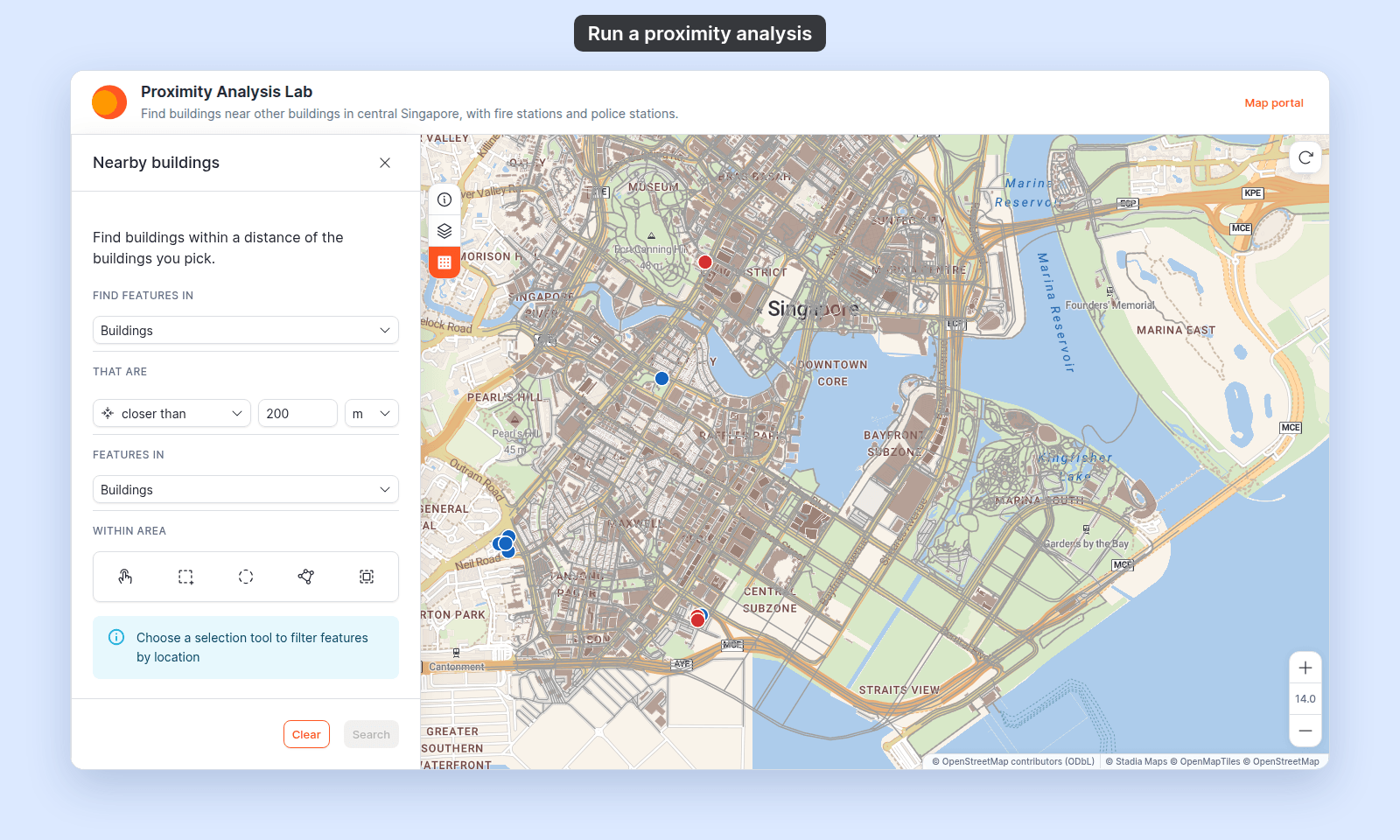 With `Feature Selection`, the viewer clicks a feature of the `Features in` layer on the map. After `Search`, the panel shows `Query Results`: the tool name, the number of results, and the run time, then the `Report` and `Results Table` tabs. The map zooms to the results and highlights them in your colour.
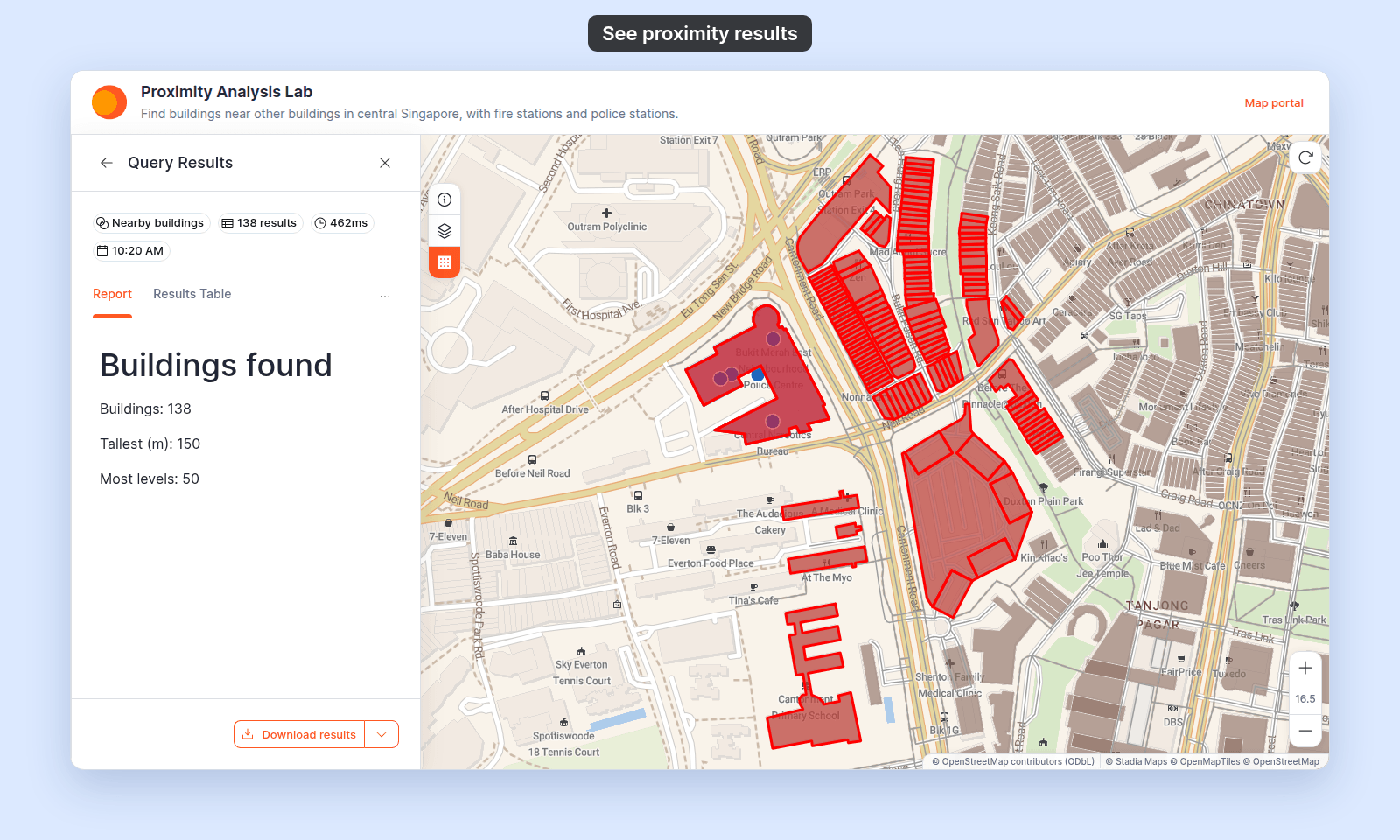 Confirm:
- The tool name and description match what you configured.
- The layer lists show every configured layer, in the order you set, with the display names you chose.
- Each spatial selection tool you ticked is available under `Within area`.
- Running a search highlights matching features on the map in your configured colour.
- The `Report` tab appears when `Generate report` is on.
If a spatial tool is missing, return to the per-layer form and confirm it's ticked. If the report shows its `{field:function}` placeholders instead of values, check each field name against the dataset; the `Report preview` does not catch a wrong field name.
## What this doesn't cover
- **Attribute-only filtering on a single layer** — use Advanced Search ([`/docs/map-extensions/set-up-advanced-search`](/docs/map-extensions/set-up-advanced-search)). No spatial dimension.
- **Spatial selection inside a drawn area** — use the Query tool ([`/docs/map-extensions/set-up-the-query-tool`](/docs/map-extensions/set-up-the-query-tool)). The difference: Query finds features *inside* a drawn area; Proximity Analysis finds features *near* a reference, with a distance dial.
- **Multi-layer proximity** (find features in two different layers from one reference) — not supported directly. Set up two proximity configurations (one per layer) and have viewers run each separately.
- **Per-feature popups** — Proximity opens the layer's popup on click. Configure popups in [Configuring popups](/docs/configuring-popups).
- **The report templating syntax** — aggregate variables, equations, and operators are documented in [Report templating syntax](/docs/map-extensions/report-templating-reference), shared with Query reports.
Confirm:
- The tool name and description match what you configured.
- The layer lists show every configured layer, in the order you set, with the display names you chose.
- Each spatial selection tool you ticked is available under `Within area`.
- Running a search highlights matching features on the map in your configured colour.
- The `Report` tab appears when `Generate report` is on.
If a spatial tool is missing, return to the per-layer form and confirm it's ticked. If the report shows its `{field:function}` placeholders instead of values, check each field name against the dataset; the `Report preview` does not catch a wrong field name.
## What this doesn't cover
- **Attribute-only filtering on a single layer** — use Advanced Search ([`/docs/map-extensions/set-up-advanced-search`](/docs/map-extensions/set-up-advanced-search)). No spatial dimension.
- **Spatial selection inside a drawn area** — use the Query tool ([`/docs/map-extensions/set-up-the-query-tool`](/docs/map-extensions/set-up-the-query-tool)). The difference: Query finds features *inside* a drawn area; Proximity Analysis finds features *near* a reference, with a distance dial.
- **Multi-layer proximity** (find features in two different layers from one reference) — not supported directly. Set up two proximity configurations (one per layer) and have viewers run each separately.
- **Per-feature popups** — Proximity opens the layer's popup on click. Configure popups in [Configuring popups](/docs/configuring-popups).
- **The report templating syntax** — aggregate variables, equations, and operators are documented in [Report templating syntax](/docs/map-extensions/report-templating-reference), shared with Query reports.