---
title: "How to set up Mouse highlight on a map"
description: "Colour a feature when a viewer hovers over it. Pick one vector layer to highlight, which helps viewers identify features on dense maps."
seo:
title: "Set up Mouse highlight"
sidebar:
label: "Mouse highlight"
---
Mouse highlight colours a feature when a viewer hovers over it. This helps viewers identify features on dense maps. You pick one layer to highlight; hovering any feature in that layer highlights it. Add it from the map's Extensions page and choose the layer.
**[See it on an example map](https://mangomap-staging.com/examples-staging/maps/zlnhacsa/singapore-style-lab)**
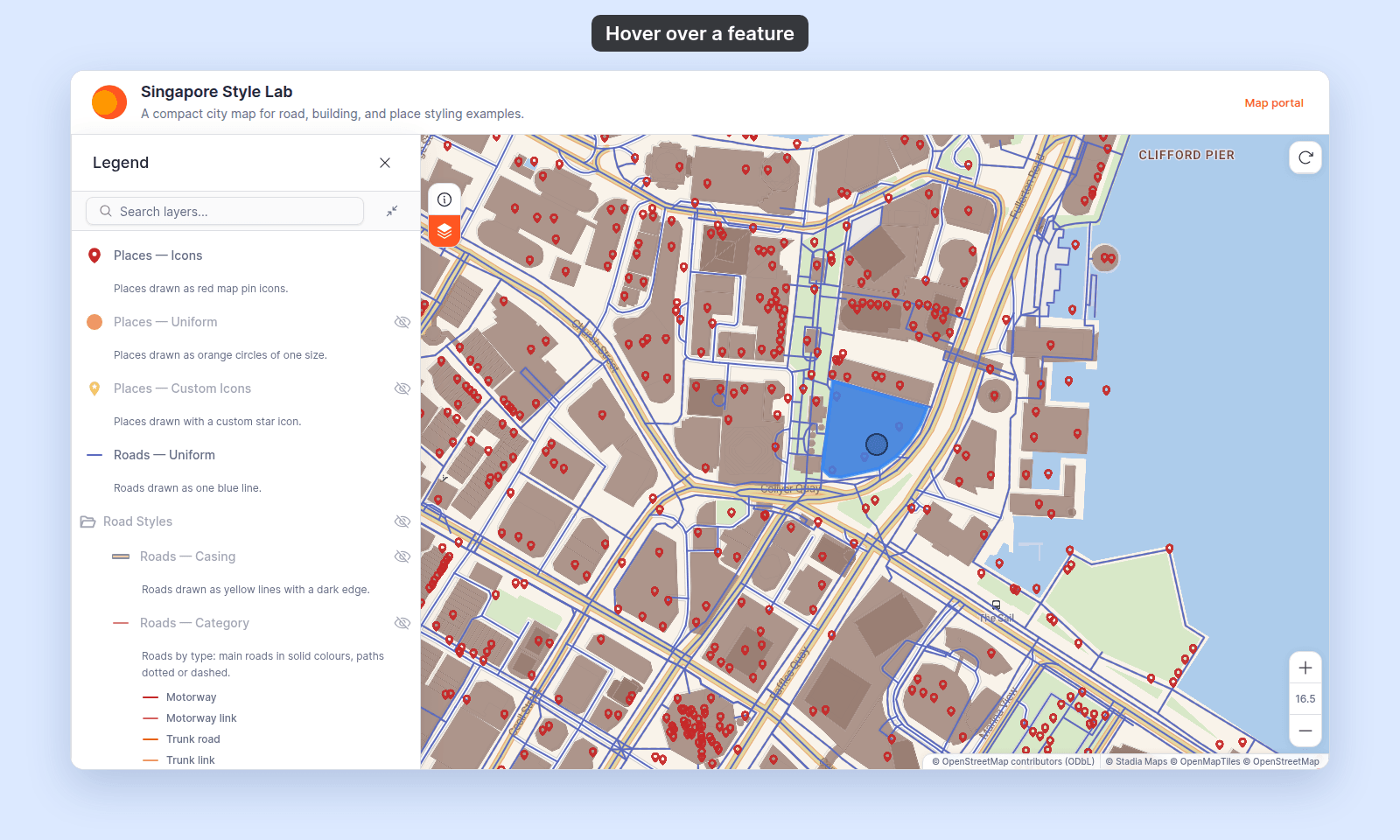
Open the Singapore Style Lab. Zoom to level 14 or closer. Move the mouse over a building. The `Hover Highlight` layer shows the building in blue.
## Before you start
- You need edit access to the map.
- Decide which one layer should highlight on hover. Mouse highlight targets a single layer — you can't highlight more than one.
- The layer must be a vector layer. Heatmap, raster, and WMS layers aren't eligible and won't appear in the layer list.
- Mouse highlight is a hover effect, so it's a pointer interaction — it shows on desktop with a mouse or trackpad. There's no hover on touch devices.
## Open the Extensions page
From the map's admin sidebar, click `Extensions`. The Mouse highlight card is in the row below Copyright.
## Enable Mouse highlight
Click the `Add` button on the Mouse highlight card. This opens the Mouse highlight settings page — the tool isn't active until you pick a layer and save. You can also reach this page later with the `Settings` button on the card.
## Choose the layer
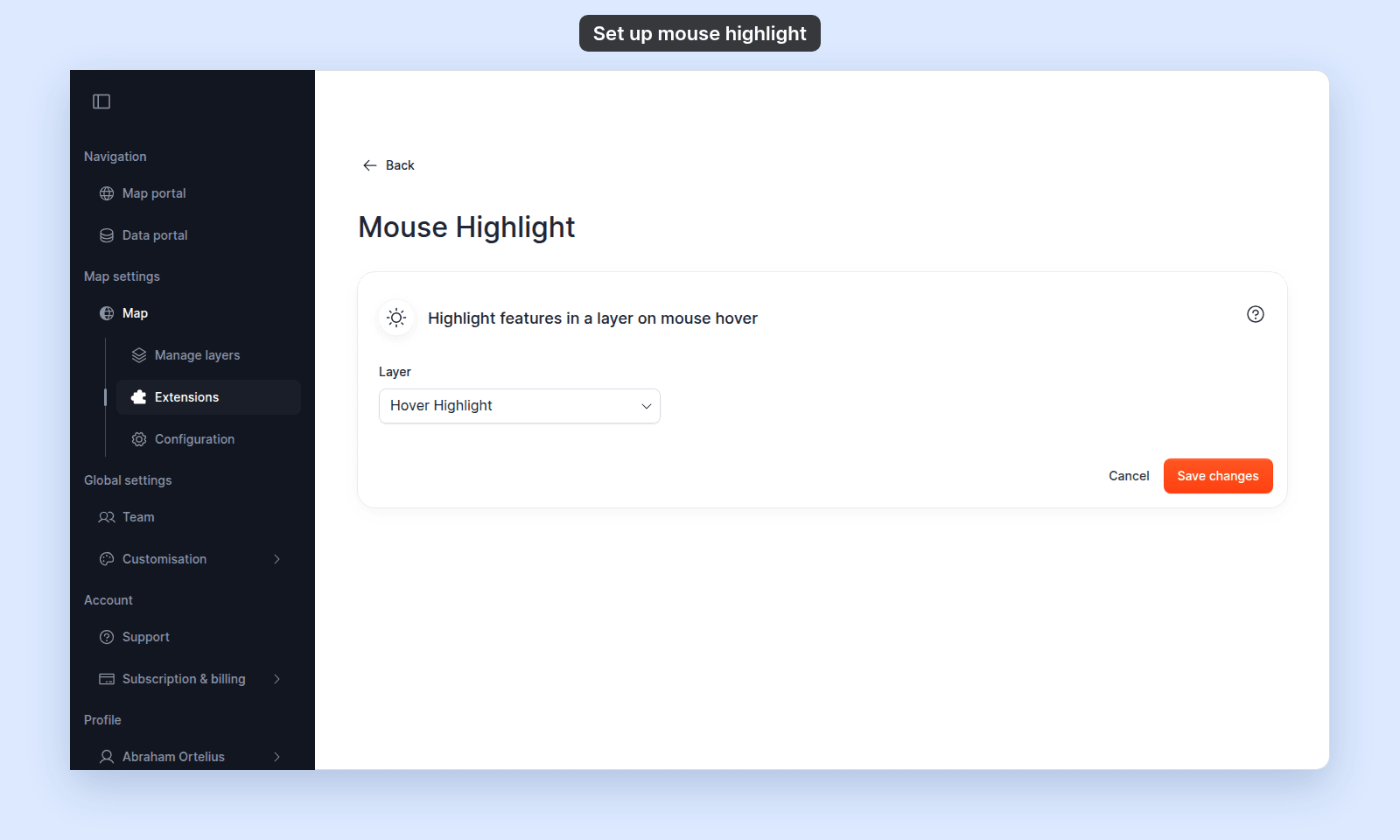 The settings page has one field — **`Layer`**, a dropdown that reads `Select layer` until you choose one. It's required: the `Save changes` button stays disabled until a layer is selected.
Open the dropdown and pick the layer whose features should highlight on hover.
## Save
Click `Save changes`. To change the layer later, click `Settings` on the Mouse highlight card, pick a different layer, and save again.
## Verify the result
Open the map in a viewer-state session (a new tab or incognito window). Move the cursor over a feature in the layer you chose. Confirm:
- Hovering a feature in the target layer highlights it; moving off clears the highlight.
- Features in other layers don't highlight.
The settings page has one field — **`Layer`**, a dropdown that reads `Select layer` until you choose one. It's required: the `Save changes` button stays disabled until a layer is selected.
Open the dropdown and pick the layer whose features should highlight on hover.
## Save
Click `Save changes`. To change the layer later, click `Settings` on the Mouse highlight card, pick a different layer, and save again.
## Verify the result
Open the map in a viewer-state session (a new tab or incognito window). Move the cursor over a feature in the layer you chose. Confirm:
- Hovering a feature in the target layer highlights it; moving off clears the highlight.
- Features in other layers don't highlight.
 ## Removing Mouse highlight
To turn it off, click `Remove` on the Mouse highlight card. The hover highlight stops for viewers.
Unlike most tools, `Remove` here **deletes** the configuration rather than keeping it for next time — re-adding Mouse highlight starts with an empty `Layer` field, so you'll need to pick the layer again.
## What this doesn't cover
- **Highlighting more than one layer** — Mouse highlight targets a single layer per map. There's no multi-layer option.
- **Customising the highlight colour or style** — the settings page has only the `Layer` field; the highlight appearance isn't configurable.
- **Opening on load** — Mouse highlight is a hover behaviour, not a panel, so it doesn't support `Open on load`.
- **Click-to-select or popups** — highlighting on hover is separate from what happens on click. For click behaviour, see [Configuring popups](/docs/configuring-popups).
## Removing Mouse highlight
To turn it off, click `Remove` on the Mouse highlight card. The hover highlight stops for viewers.
Unlike most tools, `Remove` here **deletes** the configuration rather than keeping it for next time — re-adding Mouse highlight starts with an empty `Layer` field, so you'll need to pick the layer again.
## What this doesn't cover
- **Highlighting more than one layer** — Mouse highlight targets a single layer per map. There's no multi-layer option.
- **Customising the highlight colour or style** — the settings page has only the `Layer` field; the highlight appearance isn't configurable.
- **Opening on load** — Mouse highlight is a hover behaviour, not a panel, so it doesn't support `Open on load`.
- **Click-to-select or popups** — highlighting on hover is separate from what happens on click. For click behaviour, see [Configuring popups](/docs/configuring-popups).