---
title: "How to enable the Basemap chooser on a map"
description: "Turn the Basemap chooser on or off for a map. Viewers can switch between satellite, street, terrain, and other basemaps."
seo:
title: "Enable the Basemap chooser"
sidebar:
label: "Basemap chooser"
search:
keywords: [base map, background map]
---
Enabled by default
The Basemap chooser is on for new maps. Viewers can switch between satellite, street, terrain, and other available basemaps. Open it from the map's Extensions page to change whether it's available. Viewer choices reset when the page reloads. The layer panel sets the default basemap separately — see [How to set the default basemap](/docs/managing-layers/set-default-basemap).
**[See it on an example map](https://mangomap-staging.com/examples-staging/maps/4jwk0nxy/utilities-showcase)**
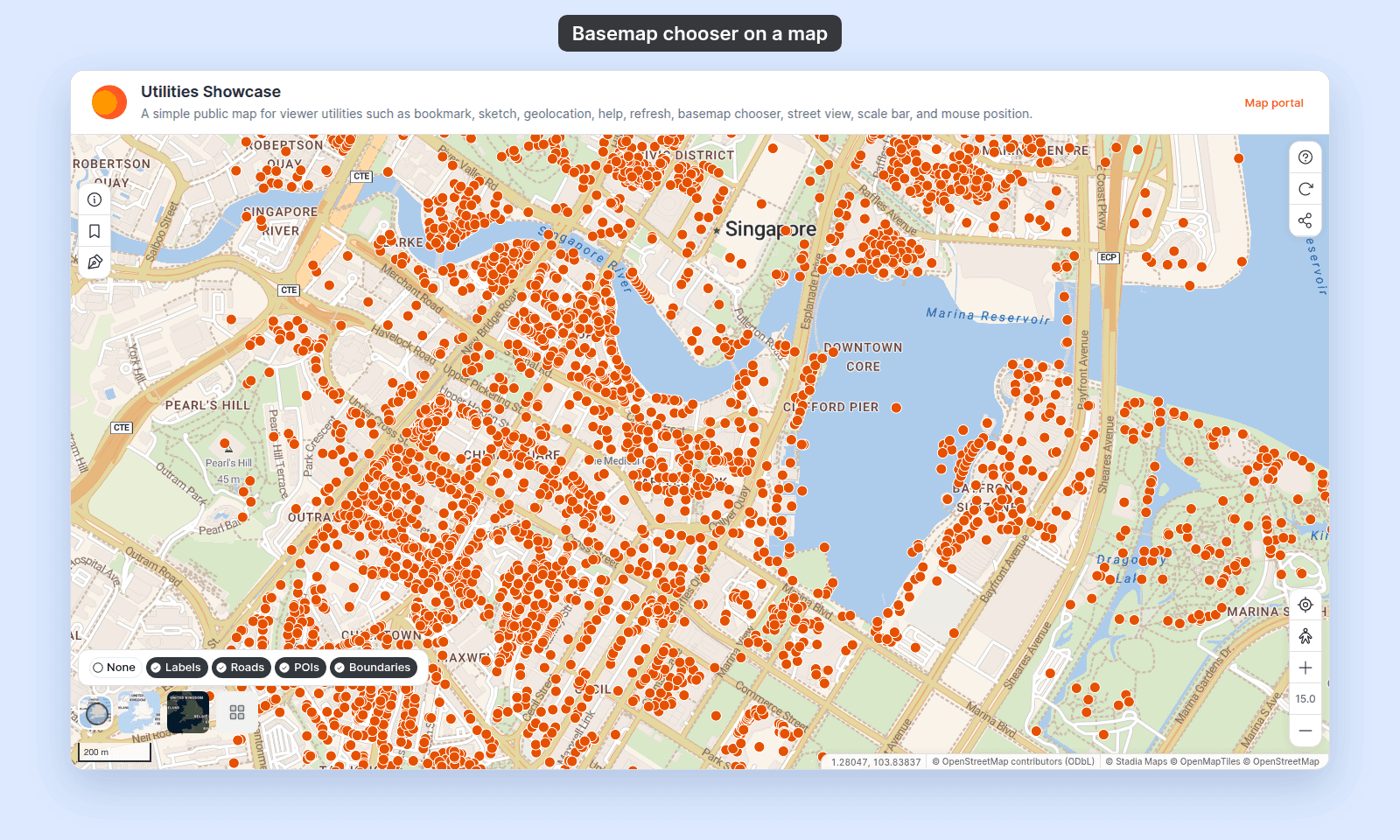
Open the Utilities Showcase. Point at the basemap thumbnail at the bottom left of the map. A strip of basemaps opens, with chips for labels, roads, POIs, and boundaries.
## Before you start
- You need edit access to the map.
- Basemap chooser has no settings — there's nothing to configure on this page. The list of basemaps it offers comes from MangoMap's built-in basemap catalogue (see [Available basemaps](/docs/managing-layers/available-basemaps-reference)).
- Set your map's default basemap first if you haven't — see [How to set the default basemap](/docs/managing-layers/set-default-basemap). The default is what viewers see before they use the chooser.
## Open the Extensions page
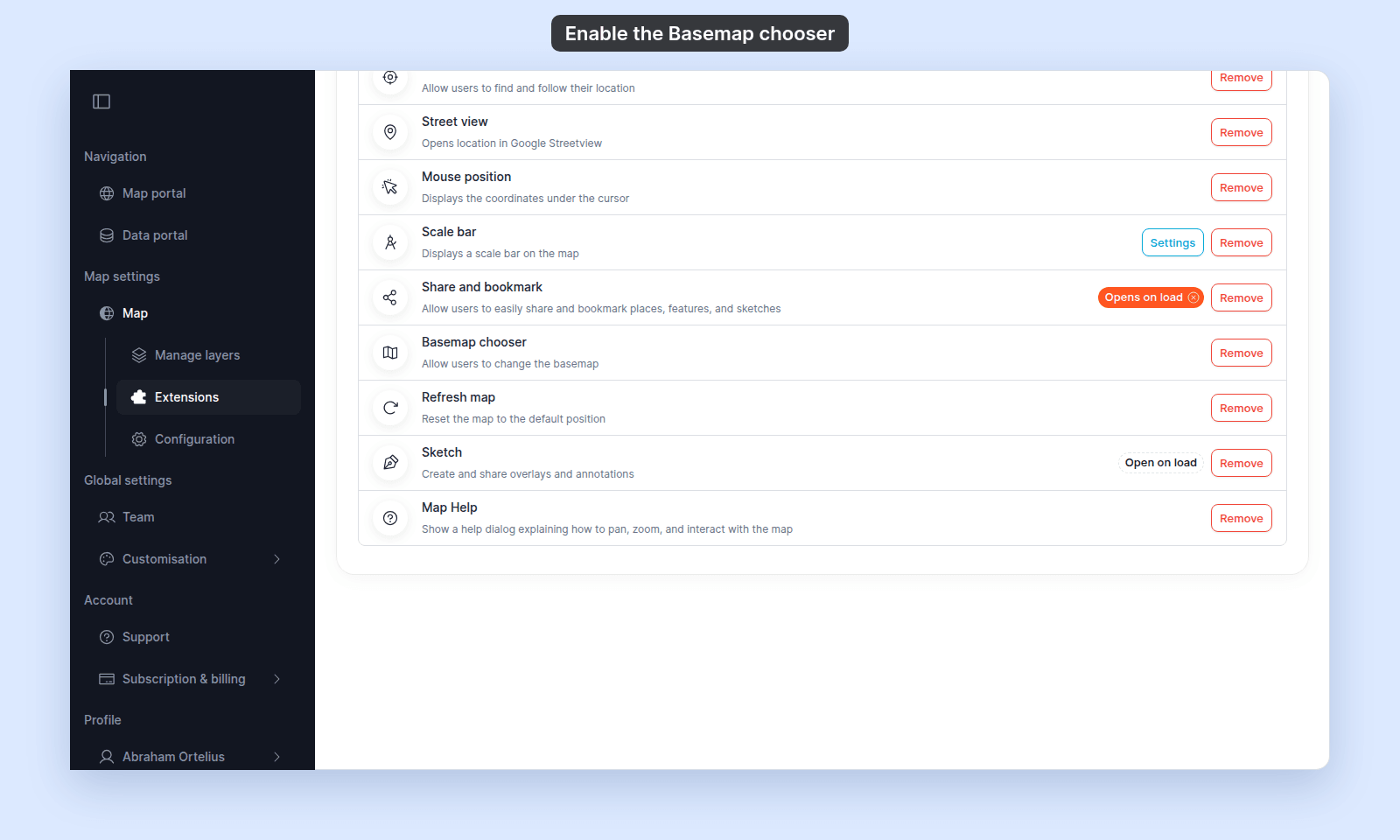
From the map's admin sidebar, click `Extensions`. The Basemap chooser card is below Share and bookmark, and on new maps it already shows `Remove`.
## Basemap chooser is on by default
If the card shows `Add`, click it to turn the Basemap chooser back on. On a new map, the card already shows `Remove`; click `Remove` to turn it off.
 ## Verify the result
Open the map in a viewer-state session (a new tab or incognito window). Point at the basemap thumbnail at the bottom left of the map. A strip of basemaps opens, with chips to show or hide the basemap's labels, roads, POIs, and boundaries.
## Verify the result
Open the map in a viewer-state session (a new tab or incognito window). Point at the basemap thumbnail at the bottom left of the map. A strip of basemaps opens, with chips to show or hide the basemap's labels, roads, POIs, and boundaries.
 Click the last tile in the strip to see every basemap. The current basemap is highlighted.
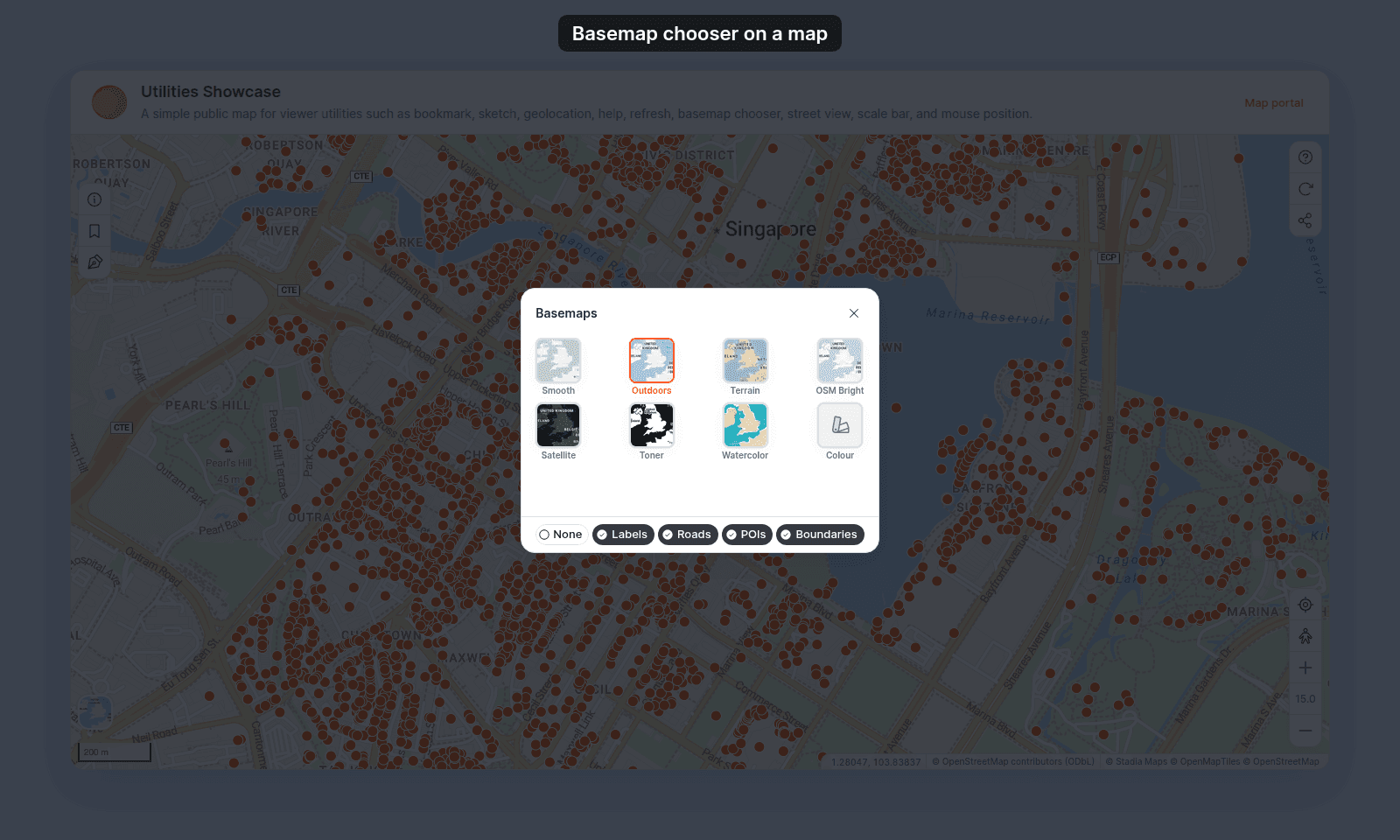 Picking another basemap swaps the map's background. The change lasts until the viewer reloads the page, which returns them to the default.
## Turning the Basemap chooser off or back on
To turn it off, click `Remove` on the Basemap chooser card. To turn it back on, click `Add` on the card. The button is removed from the map for viewers, and they see only the saved default basemap with no way to switch while it is off.
## What this doesn't cover
- **Setting which basemap is the default** — that's the layer panel's `Default basemap` section, not the Basemap chooser tool. See [How to set the default basemap](/docs/managing-layers/set-default-basemap).
- **Restricting which basemaps viewers can pick** — the Basemap chooser exposes the full available-basemaps catalogue. There's no per-map subset configuration.
- **Custom basemaps** — the catalogue is built-in; there's no way to add a custom basemap source.
Picking another basemap swaps the map's background. The change lasts until the viewer reloads the page, which returns them to the default.
## Turning the Basemap chooser off or back on
To turn it off, click `Remove` on the Basemap chooser card. To turn it back on, click `Add` on the card. The button is removed from the map for viewers, and they see only the saved default basemap with no way to switch while it is off.
## What this doesn't cover
- **Setting which basemap is the default** — that's the layer panel's `Default basemap` section, not the Basemap chooser tool. See [How to set the default basemap](/docs/managing-layers/set-default-basemap).
- **Restricting which basemaps viewers can pick** — the Basemap chooser exposes the full available-basemaps catalogue. There's no per-map subset configuration.
- **Custom basemaps** — the catalogue is built-in; there's no way to add a custom basemap source.