---
title: "How to enable Sketch on a map"
description: "Add Sketch to a map so viewers can draw shapes, mark places, add text, and save the result. It has one on and off toggle."
sidebar:
label: "Sketch"
---
Sketch lets viewers draw shapes, mark places, add text, and save the result. Use it when viewers need to mark up a map. Add it from the map's Extensions page; it has one on/off toggle and no settings.
## Before you start
- You need edit access to the map.
- Sketch has no settings — there's nothing to configure.
- Sketch works best on desktop with a mouse or trackpad. See [Supported browsers and devices](/docs/getting-started/supported-browsers) for mobile caveats.
## Open the Extensions page
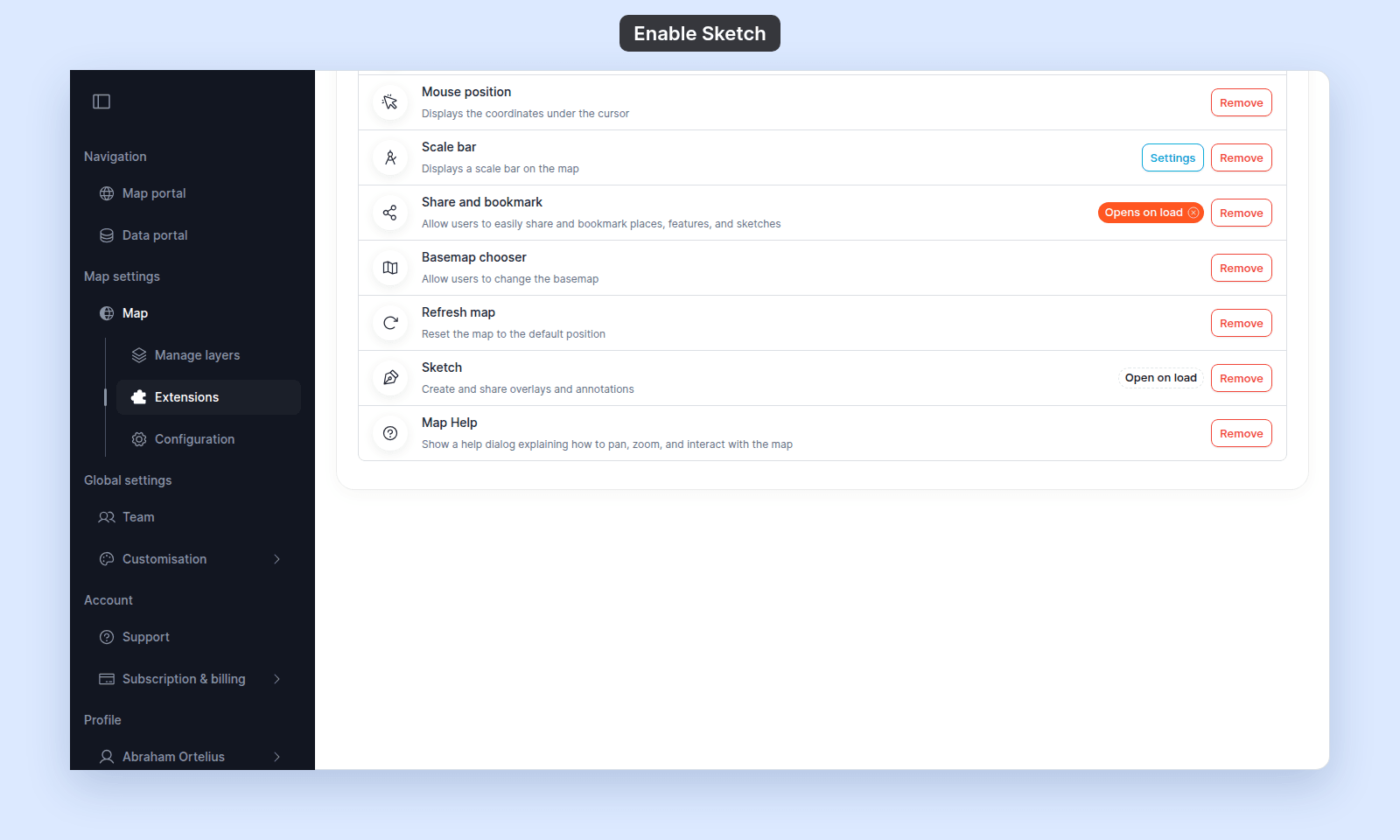
From the map's admin sidebar, click `Extensions`. The Sketch card is near the bottom of the list, between Refresh map and Map Help.
## Enable Sketch
Click the `Add` button on the Sketch card. The card now shows a `Remove` button (no `Settings` button — there are no settings).
### (Optional) Open Sketch on load
Sketch supports `Open on load`: click the `Open on load` chip on the card to make the Sketch panel the one that opens automatically when a viewer first loads the map. The chip then reads `Opens on load`. Only one tool can be the default-open tool at a time — setting it here clears it from any other tool. Click the filled chip to turn it off.
 ## Verify the result
Open the map while you are signed in to your account. The Sketch tool should appear in the map's controls. Open it, click `Create`, and confirm:
## Verify the result
Open the map while you are signed in to your account. The Sketch tool should appear in the map's controls. Open it, click `Create`, and confirm:
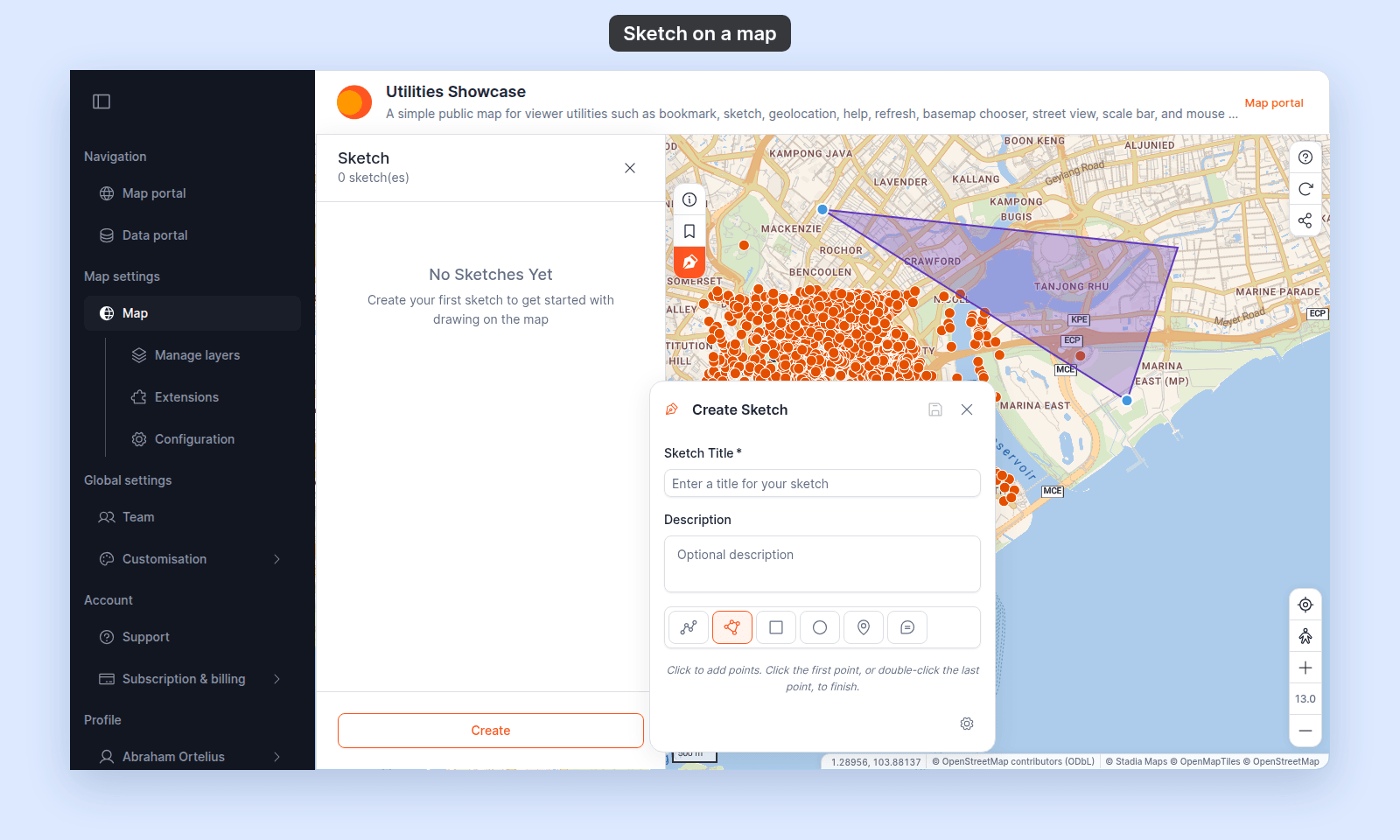 - You can draw a shape or annotation on the map. When you pick a drawing tool, a hint below the tools tells you how to use it. For example, `Rectangle` and `Radius` take a click, a pointer move, and a second click, not a drag.
- The drawing stays on the map as you pan and zoom.
- You can save the sketch.
- In the list of saved sketches, a click on a sketch shows it on the map and moves the map to it. A second click hides it again, and the map stays where it is.
If you set `Open on load`, the Sketch panel should open by itself when the map first loads.
Only people signed in as members of your account can create and save sketches. A visitor who is not signed in sees the Sketch panel, but has no `Create` button and cannot draw.
## Removing Sketch
To turn it off, click `Remove` on the Sketch card. The tool is removed from the map for viewers.
## What this doesn't cover
- **Creator annotations baked into the map** — Sketch is a *viewer* tool for marking up the map at view time. To add permanent annotations the map ships with, add them as a layer instead — see [Managing layers](/docs/managing-layers) and [Editing features](/docs/editing-features).
- **Reviewing or moderating viewer sketches** — there's no admin panel on the Extensions page for managing sketches viewers create.
- **Sharing a sketch** — viewers share and bookmark their sketches through the Share and bookmark tool. Enable it too if you want that — see [How to enable Share and bookmark](/docs/map-extensions/enable-share-and-bookmark).
- You can draw a shape or annotation on the map. When you pick a drawing tool, a hint below the tools tells you how to use it. For example, `Rectangle` and `Radius` take a click, a pointer move, and a second click, not a drag.
- The drawing stays on the map as you pan and zoom.
- You can save the sketch.
- In the list of saved sketches, a click on a sketch shows it on the map and moves the map to it. A second click hides it again, and the map stays where it is.
If you set `Open on load`, the Sketch panel should open by itself when the map first loads.
Only people signed in as members of your account can create and save sketches. A visitor who is not signed in sees the Sketch panel, but has no `Create` button and cannot draw.
## Removing Sketch
To turn it off, click `Remove` on the Sketch card. The tool is removed from the map for viewers.
## What this doesn't cover
- **Creator annotations baked into the map** — Sketch is a *viewer* tool for marking up the map at view time. To add permanent annotations the map ships with, add them as a layer instead — see [Managing layers](/docs/managing-layers) and [Editing features](/docs/editing-features).
- **Reviewing or moderating viewer sketches** — there's no admin panel on the Extensions page for managing sketches viewers create.
- **Sharing a sketch** — viewers share and bookmark their sketches through the Share and bookmark tool. Enable it too if you want that — see [How to enable Share and bookmark](/docs/map-extensions/enable-share-and-bookmark).