---
title: "How to enable Share and bookmark on a map"
description: "Turn Share and bookmark on or off for a map. One toggle lets viewers share the current map and save views as bookmarks."
seo:
title: "Enable Share and bookmark"
sidebar:
label: "Share and bookmark"
---
Enabled by default
Share and bookmark is on for new maps. It lets viewers share the current map and save views as bookmarks. Open it from the map's Extensions page to change whether it's available; one toggle controls both features.
**[See it on an example map](https://mangomap-staging.com/examples-staging/maps/4jwk0nxy/utilities-showcase)**
Open the Utilities Showcase. Click the `Share` button at the top right of the map. The Share dialog has `Default Map` and `Current View`. The `Bookmarks` panel is open when the map loads.
## Before you start
- You need edit access to the map.
- Share and bookmark has no settings — there's nothing to configure. Sharing and bookmarks are enabled together as one toggle; you can't turn on one without the other.
- Sharing respects the map's access settings. A private or password-protected map shared by a viewer still requires the recipient to have access — see [Map access](/docs/map-access).
## Open the Extensions page
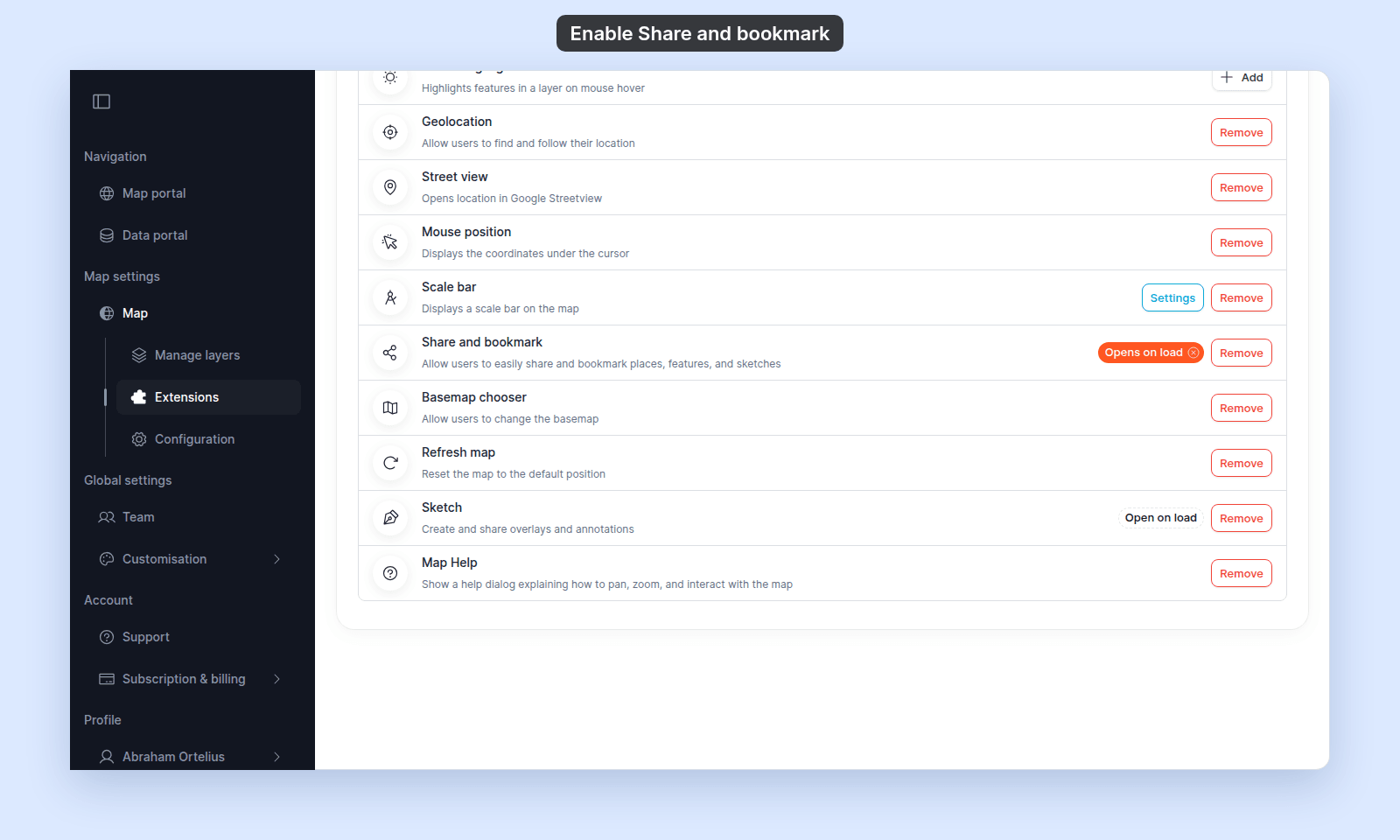
From the map's admin sidebar, click `Extensions`. The Share and bookmark card is below Scale bar and, on new maps, already shows `Remove`.
## Share and bookmark is on by default
If the card shows `Add`, click it to turn Share and bookmark back on. On a new map, the card already shows `Remove`; click `Remove` to turn it off.
### (Optional) Open on load
Share and bookmark supports `Open on load`: click the `Open on load` chip on the card to make the Bookmarks panel the one that opens automatically when a viewer first loads the map. The chip then reads `Opens on load`. Only one tool can be the default-open tool at a time — setting it here clears it from any other tool. Click the filled chip to turn it off.
 ## Verify the result
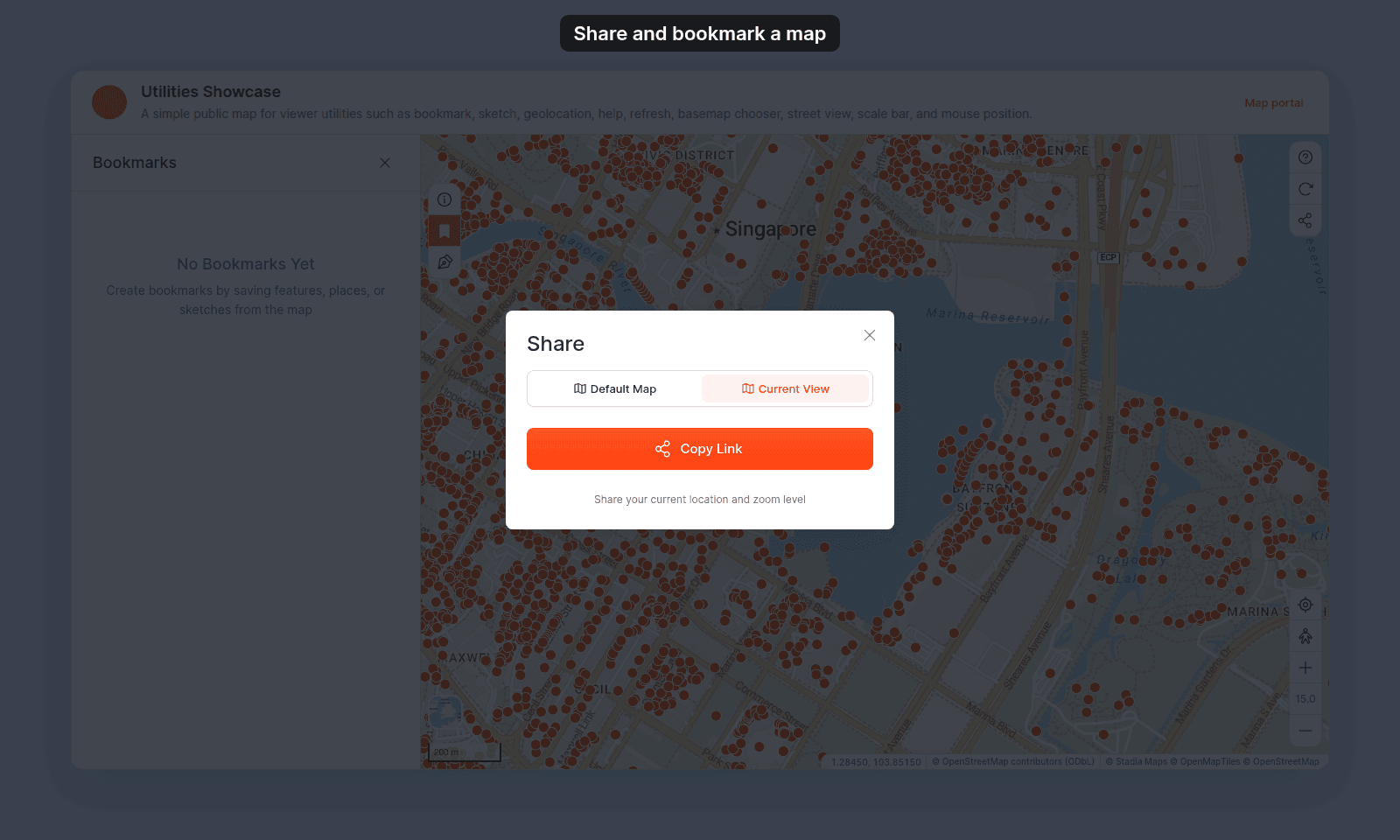
Open the map in a viewer-state session (a new tab or incognito window). Click the `Share` button at the top right of the map. In the Share dialog, `Default Map` copies a link to the map as it opens, and `Current View` copies a link to the place and zoom on screen.
## Verify the result
Open the map in a viewer-state session (a new tab or incognito window). Click the `Share` button at the top right of the map. In the Share dialog, `Default Map` copies a link to the map as it opens, and `Current View` copies a link to the place and zoom on screen.
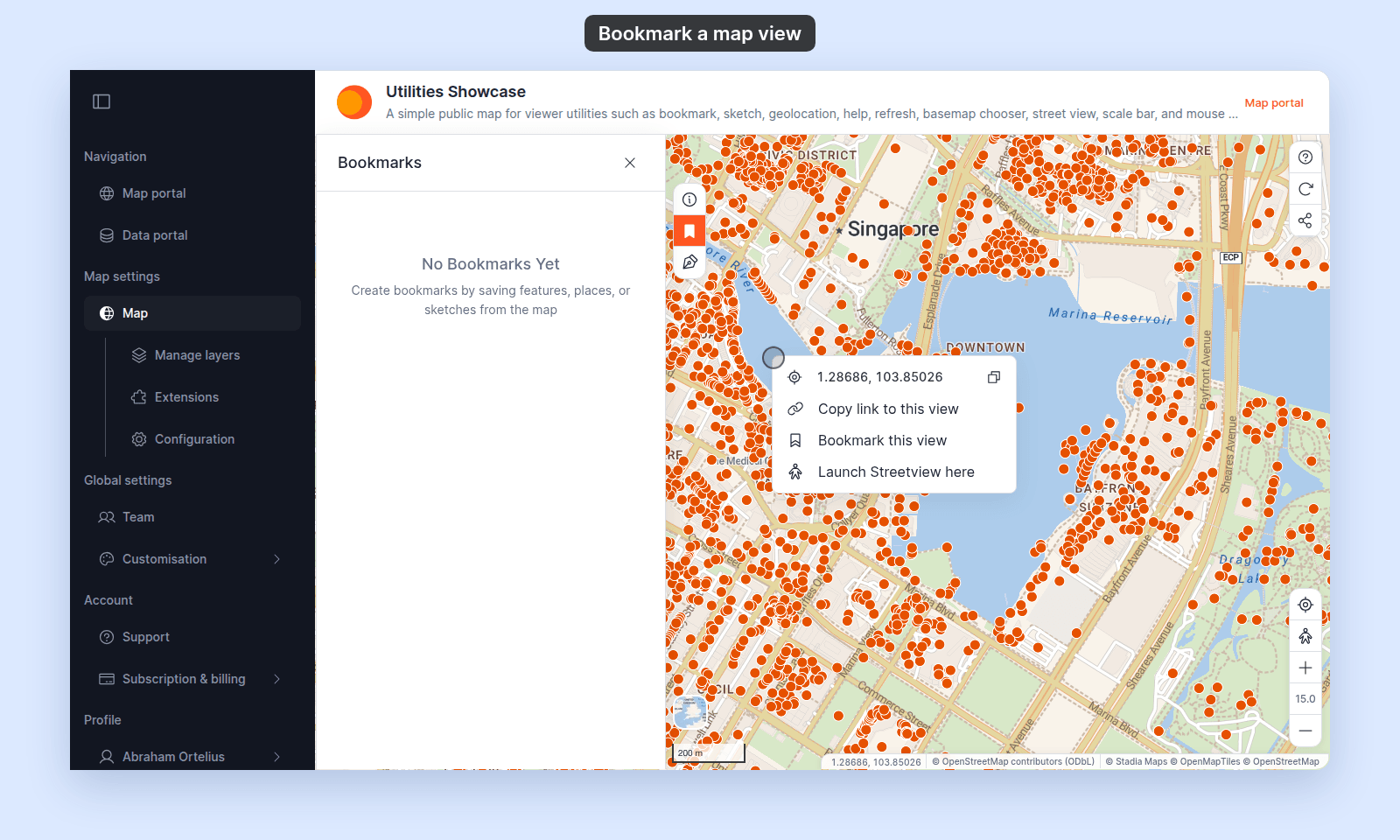
 The `Bookmarks` button on the left of the map opens the Bookmarks panel. To save the view as a bookmark, right-click the map and click `Bookmark this view`. Only people signed in as members of your account can save bookmarks.
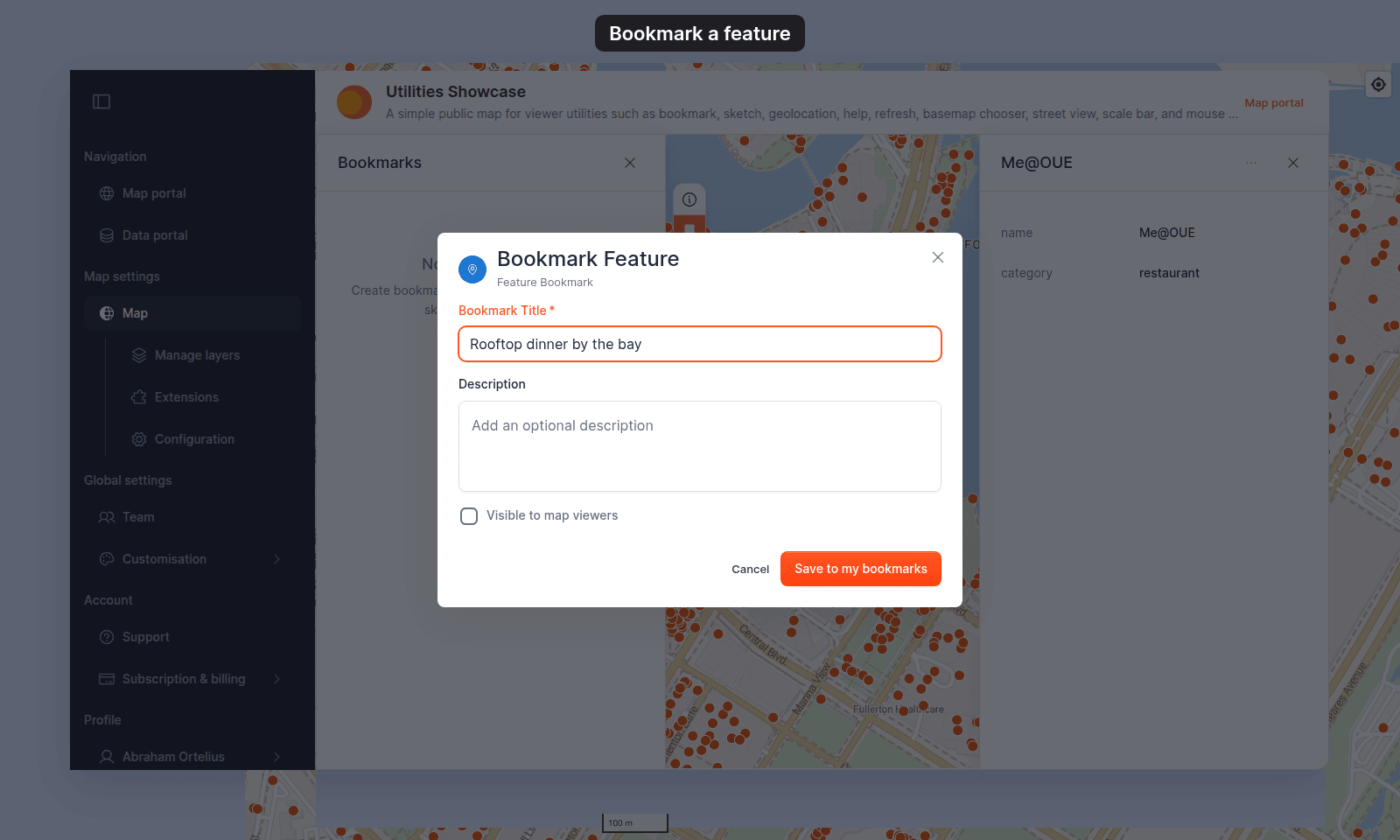
 To share or bookmark one feature, click it on the map and open its popup's three-dot menu. The menu shows `Share` and `Bookmark` only while Share and bookmark is on. `Share` gives a link that opens the map with that feature selected. It opens your device's share options, or copies the link when the browser has none. `Bookmark` opens a form: enter a `Bookmark Title`, add a `Description` if you want one, and tick `Visible to map viewers` to show the bookmark to people who view the map. Then click `Save to my bookmarks`.
 {/* TODO: product - After a feature bookmark is saved, the popup menu item reads Unbookmark, but clicking it opens the same Bookmark form again; it does not remove the bookmark (packages/maps-portal/src/views/map-view/tools-overlay/components/features-info/hooks/use-features-info-handlers.ts, handleBookmarkToggle). Document how to remove a feature bookmark after a fix. */}
If the controls don't appear, refresh the map.
## Turning Share and bookmark off or back on
To turn it off, click `Remove` on the Share and bookmark card. To turn it back on, click `Add` on the card. Both sharing and bookmarks are removed from the map for viewers when it is off, including `Share` and `Bookmark` in feature popup menus.
## What this doesn't cover
- **Choosing which share channels are offered** — The tool has no per-channel settings. You cannot limit sharing to direct URL, embed code, or social media.
- **Bookmark limits or expiry** — there's no setting for a maximum number of bookmarks per viewer or a bookmark expiry window.
- **Embedding the map** — the share control is for viewers sharing a live view. To get an iframe snippet for embedding the map in your own site, build it from the map's public link — see [How to embed a map in another website](/docs/map-access/embed-a-map).
{/* TODO: product - After a feature bookmark is saved, the popup menu item reads Unbookmark, but clicking it opens the same Bookmark form again; it does not remove the bookmark (packages/maps-portal/src/views/map-view/tools-overlay/components/features-info/hooks/use-features-info-handlers.ts, handleBookmarkToggle). Document how to remove a feature bookmark after a fix. */}
If the controls don't appear, refresh the map.
## Turning Share and bookmark off or back on
To turn it off, click `Remove` on the Share and bookmark card. To turn it back on, click `Add` on the card. Both sharing and bookmarks are removed from the map for viewers when it is off, including `Share` and `Bookmark` in feature popup menus.
## What this doesn't cover
- **Choosing which share channels are offered** — The tool has no per-channel settings. You cannot limit sharing to direct URL, embed code, or social media.
- **Bookmark limits or expiry** — there's no setting for a maximum number of bookmarks per viewer or a bookmark expiry window.
- **Embedding the map** — the share control is for viewers sharing a live view. To get an iframe snippet for embedding the map in your own site, build it from the map's public link — see [How to embed a map in another website](/docs/map-access/embed-a-map).