---
title: "How to enable Map Help on a map"
description: "Turn Map Help on or off for a map. It shows viewers basic pan, zoom, and click instructions behind a question mark button."
sidebar:
label: "Map Help"
---
Enabled by default
Map Help is on for new maps. It gives viewers basic pan, zoom, and click instructions behind a `?` button. Open it from the map's Extensions page to change whether it's available; the dialog content is fixed, so for map-specific instructions use the [Information sidebar](/docs/map-extensions/set-up-the-information-sidebar) instead.
**[See it on an example map](https://mangomap-staging.com/examples-staging/maps/4jwk0nxy/utilities-showcase)**
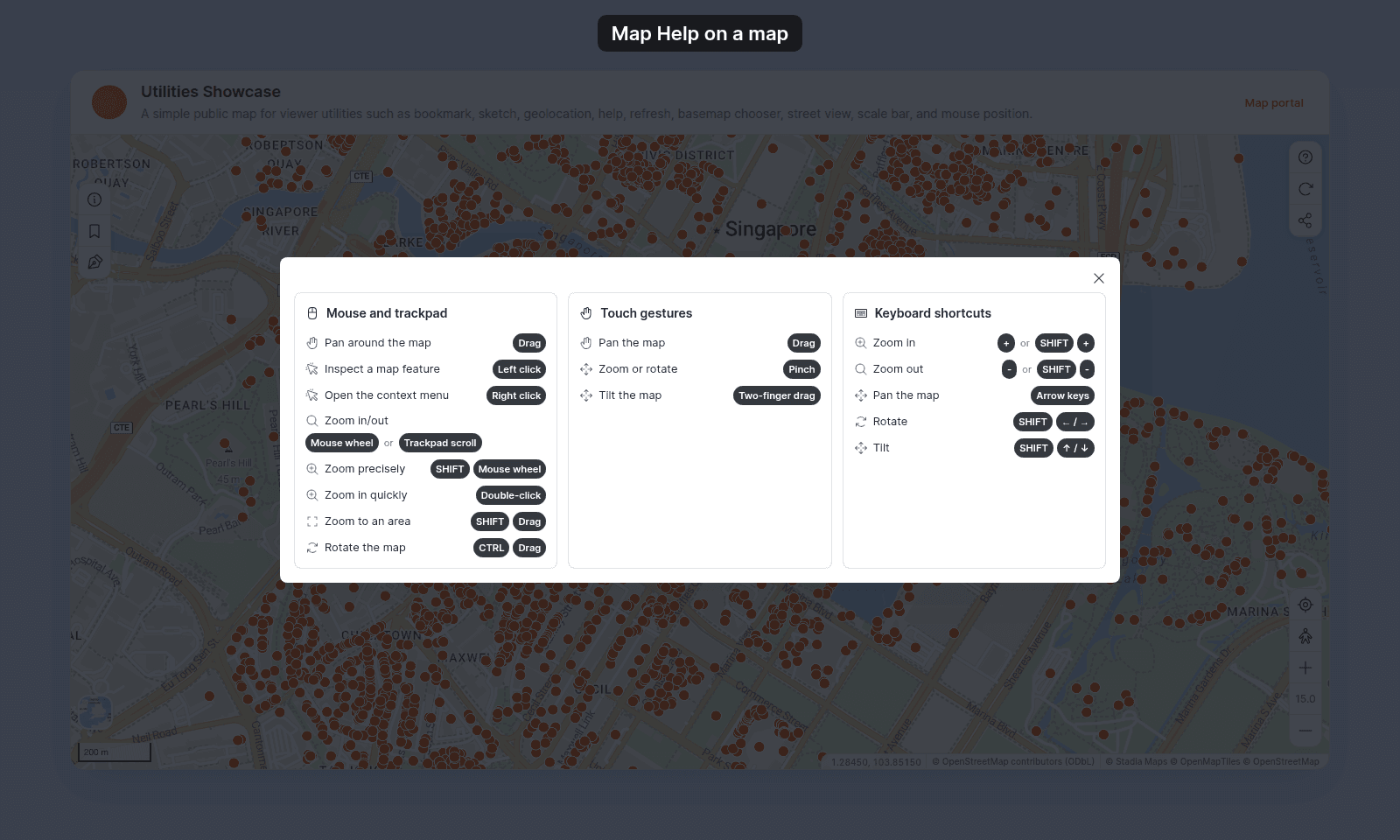
Open the Utilities Showcase. Click the `Map help` button (`?`) at the top right of the map. The dialog lists the mouse, touch, and keyboard controls.
## Before you start
- You need edit access to the map.
- Map Help has no settings. The content of the dialog is built-in and not editable.
## Open the Extensions page
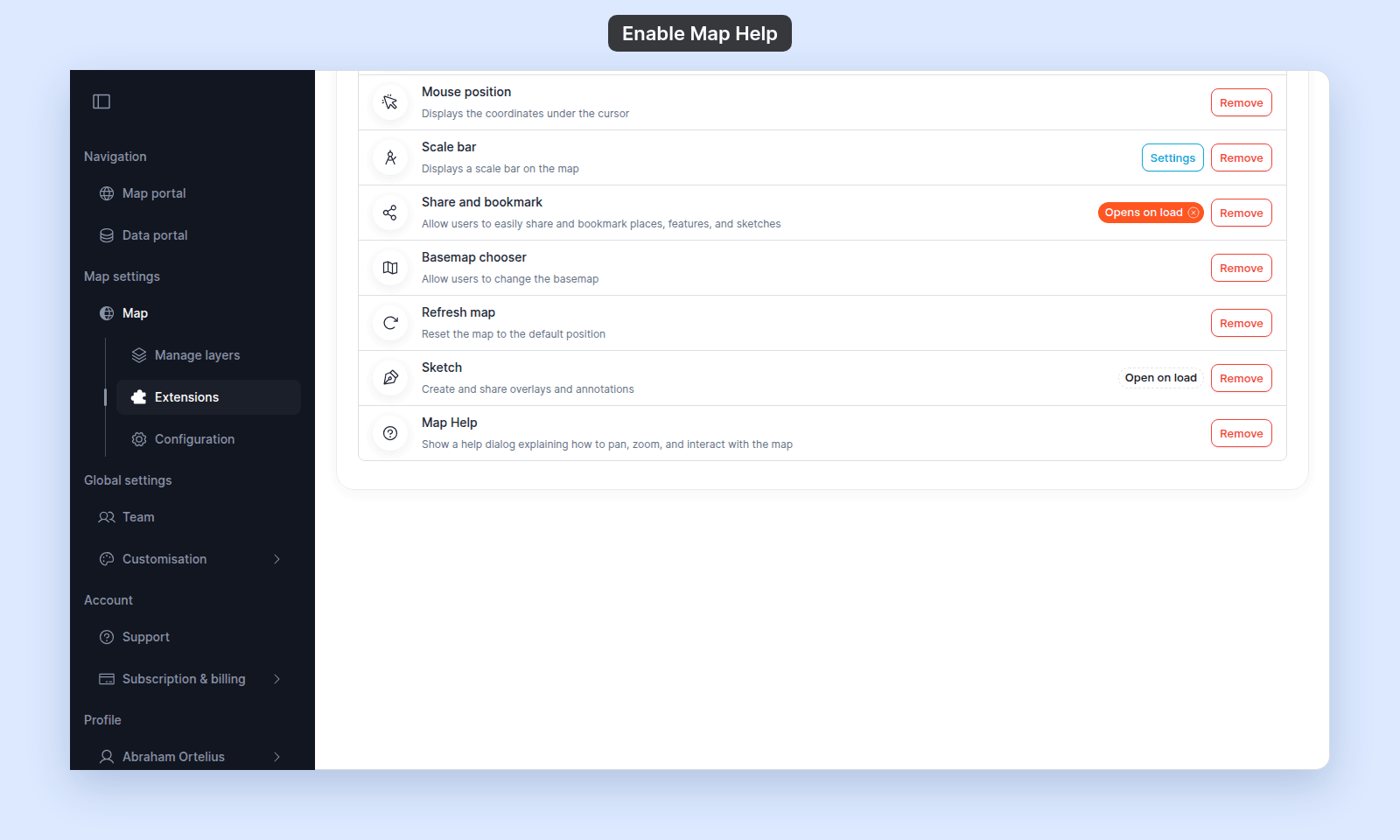
From the map's admin sidebar, click `Extensions`. The Map Help card is at the bottom of the list and, on new maps, already shows `Remove`.
## Map Help is on by default
If the card shows `Add`, click it to turn Map Help back on. On a new map, the card already shows `Remove`; click `Remove` to turn it off.
 ## Verify the result
Open the map in a viewer-state session (a new tab or incognito window). Click the `Map help` button (`?`) at the top right of the map. The dialog lists the mouse, touch, and keyboard controls for the map.
## Verify the result
Open the map in a viewer-state session (a new tab or incognito window). Click the `Map help` button (`?`) at the top right of the map. The dialog lists the mouse, touch, and keyboard controls for the map.
 ## Turning Map Help off or back on
To turn it off, click `Remove` on the Map Help card. To turn it back on, click `Add` on the card. The button is removed for viewers while it is off.
## What this doesn't cover
- **Custom help content** — Map Help shows a fixed built-in dialog; the text isn't editable. For map-specific instructions, use the [Information sidebar](/docs/map-extensions/set-up-the-information-sidebar).
- **Walkthrough / guided tour** — there's no built-in tour or step-by-step viewer onboarding.
- **Per-tool help** — Map Help is about the map itself (pan / zoom / interact). Individual tools (Search, Measure, etc.) have their own panel UI; there's no per-tool help text feature.
## Turning Map Help off or back on
To turn it off, click `Remove` on the Map Help card. To turn it back on, click `Add` on the card. The button is removed for viewers while it is off.
## What this doesn't cover
- **Custom help content** — Map Help shows a fixed built-in dialog; the text isn't editable. For map-specific instructions, use the [Information sidebar](/docs/map-extensions/set-up-the-information-sidebar).
- **Walkthrough / guided tour** — there's no built-in tour or step-by-step viewer onboarding.
- **Per-tool help** — Map Help is about the map itself (pan / zoom / interact). Individual tools (Search, Measure, etc.) have their own panel UI; there's no per-tool help text feature.