---
title: "How the Extensions page works in MangoMap"
description: "Understand how the Extensions page turns viewer tools on or off for one map, what Open on load does, and why some tools have settings."
seo:
title: "How the Extensions page works"
sidebar:
label: "How extensions work"
---
This page explains the **Extensions** page: how to turn tools on or off, how `Open on load` works, how it differs from the layer panel and custom navigation menu, and why some tools have settings while others are simple toggles. Read this once before the per-tool how-tos.
## What the Extensions page is
Use the Extensions page to choose which tools viewers see on one map. Each map has its own page, and its choices affect only that map.
The page lists every built-in tool — Legend, Search, Advanced Search, Query, Proximity Analysis, Information sidebar, Print, Measure, Copyright, Mouse highlight, Geolocation, Street view, Mouse position, Scale bar, Share and bookmark, Basemap chooser, Refresh map, Sketch, Map Help — as a card. Each card has an `Add` button (when the tool is off) or `Settings` and `Remove` buttons (when it's on). Tools that support being the first thing viewers see also show an `Open on load` chip.
You choose which tools apply to this map. New maps start with Legend, Search, Measure, Refresh map, Share and bookmark, Basemap chooser, and Map Help already on; Legend also opens on load by default.
## How to get there
Open a map you can edit. In the admin sidebar, click `Extensions`.
The page has no `Back` button. To return to the map, click the map's name in the admin sidebar.
## The card grid
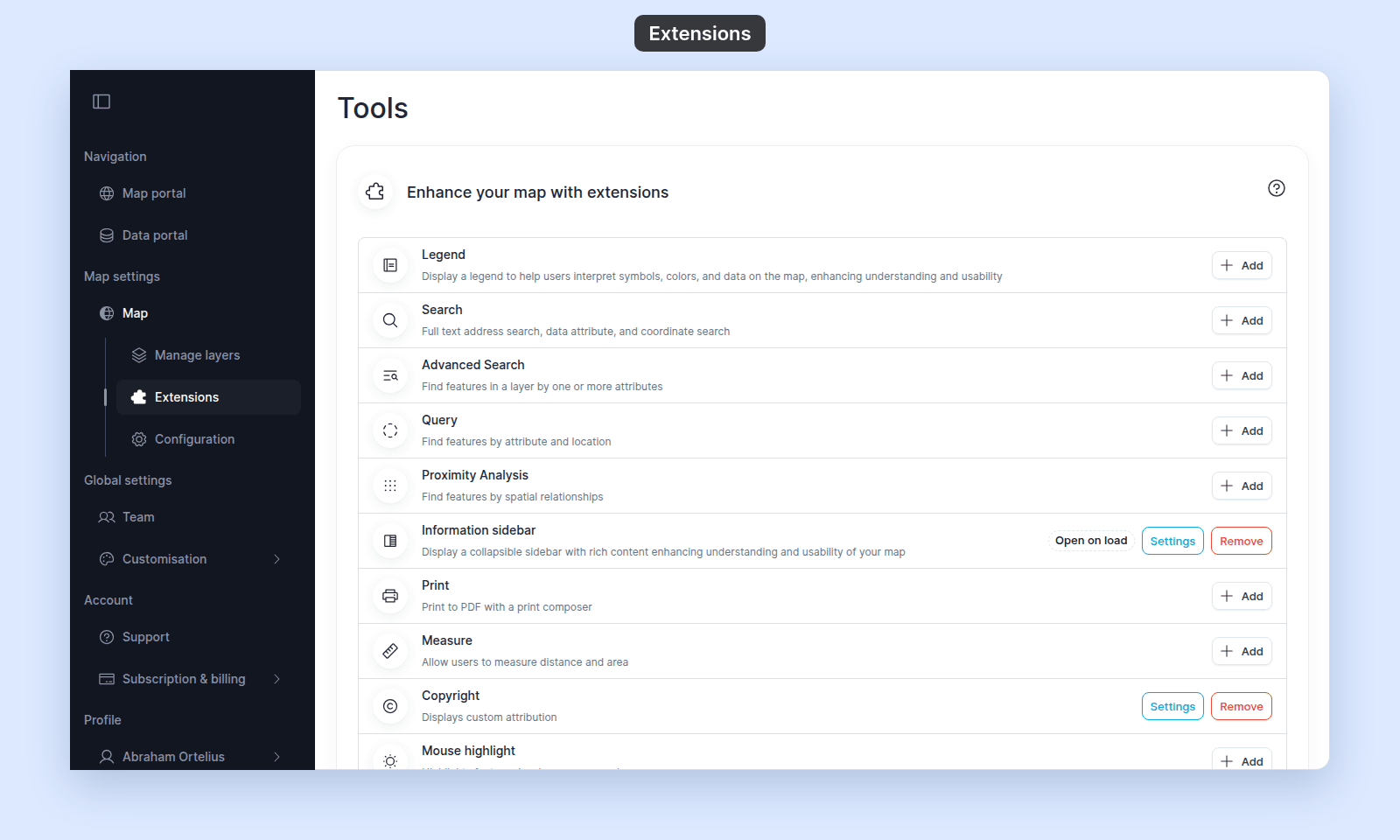 The body of the page is a single card with the title `Enhance your map with extensions`. Inside, a vertical stack lists every tool. Each row has:
- An **icon** for the tool.
- The tool's **name** (for example, `Legend`, `Search`, `Measure`).
- A one-line **description** (for example, `Display a legend to help users interpret symbols, colors, and data on the map…`).
- One or more **buttons** on the right.
### When a tool is off
A single `Add` button on the right. Click it to enable the tool.
For tools with no settings (`Geolocation`, `Street view`, `Mouse position`, `Scale bar`, `Refresh map`, `Sketch`, `Map Help`, `Basemap chooser`, `Share and bookmark`), `Add` enables the tool immediately — no further configuration.
For tools with settings, `Add` routes you to that tool's settings page first. Save the settings to enable the tool. (Cancelling the settings page leaves the tool off.)
### When a tool is on
The row shows two buttons:
- **`Settings`** — only present for tools with configurable options. Opens the tool's settings page.
- **`Remove`** — turns the tool off for this map.
Removing a tool turns it off. For tools with separate settings, removal usually deletes the saved settings and re-adding starts from defaults; the per-tool how-to calls out any exception. Removing doesn't ask for confirmation, so don't do it casually on a published map.
## `Open on load`
A subset of tools support being the *default-open* tool — the panel that opens automatically when a viewer first opens the map. Click a row's `Open on load` chip to set it. The chip then reads `Opens on load`.
The body of the page is a single card with the title `Enhance your map with extensions`. Inside, a vertical stack lists every tool. Each row has:
- An **icon** for the tool.
- The tool's **name** (for example, `Legend`, `Search`, `Measure`).
- A one-line **description** (for example, `Display a legend to help users interpret symbols, colors, and data on the map…`).
- One or more **buttons** on the right.
### When a tool is off
A single `Add` button on the right. Click it to enable the tool.
For tools with no settings (`Geolocation`, `Street view`, `Mouse position`, `Scale bar`, `Refresh map`, `Sketch`, `Map Help`, `Basemap chooser`, `Share and bookmark`), `Add` enables the tool immediately — no further configuration.
For tools with settings, `Add` routes you to that tool's settings page first. Save the settings to enable the tool. (Cancelling the settings page leaves the tool off.)
### When a tool is on
The row shows two buttons:
- **`Settings`** — only present for tools with configurable options. Opens the tool's settings page.
- **`Remove`** — turns the tool off for this map.
Removing a tool turns it off. For tools with separate settings, removal usually deletes the saved settings and re-adding starts from defaults; the per-tool how-to calls out any exception. Removing doesn't ask for confirmation, so don't do it casually on a published map.
## `Open on load`
A subset of tools support being the *default-open* tool — the panel that opens automatically when a viewer first opens the map. Click a row's `Open on load` chip to set it. The chip then reads `Opens on load`.
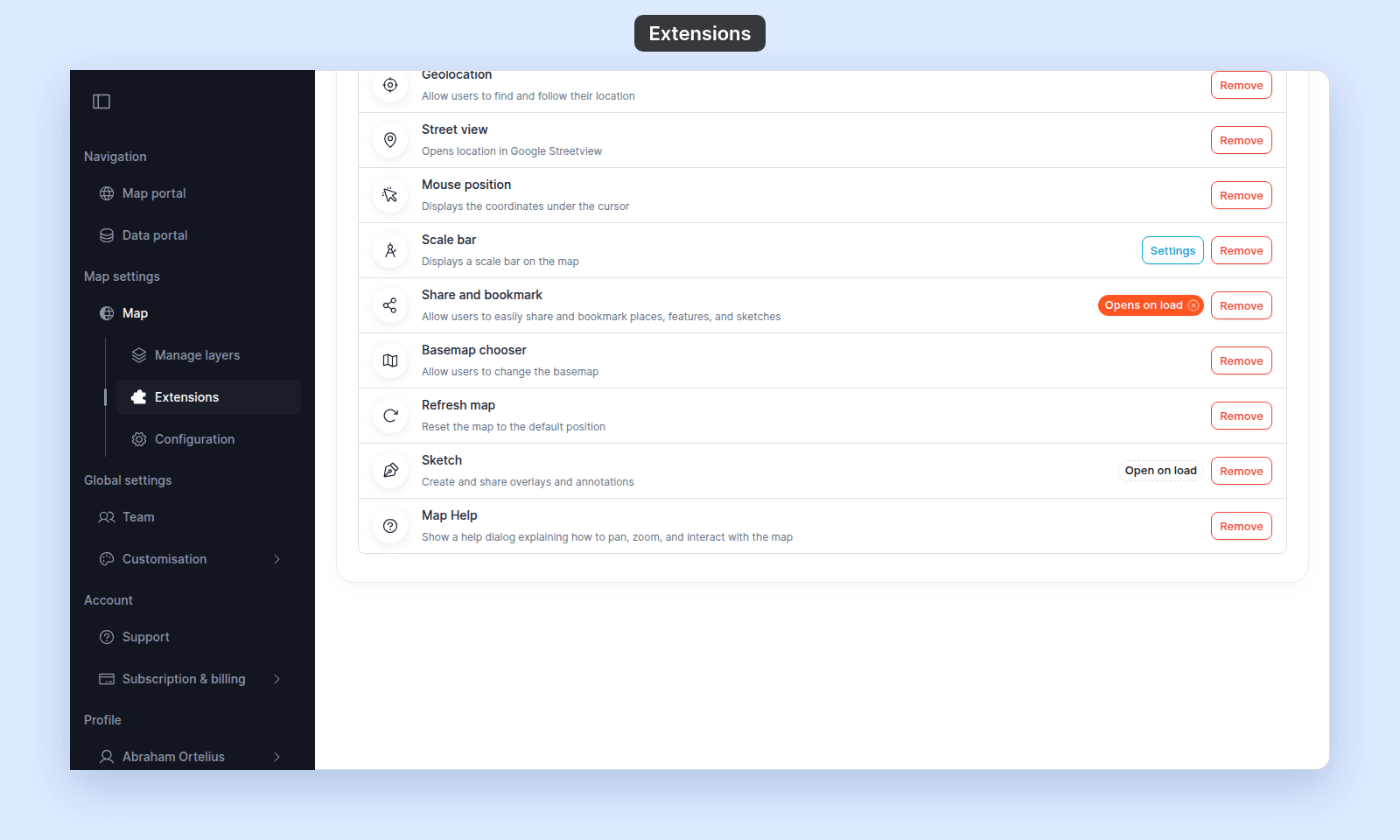 Only **one** tool can open on load. Setting `Open on load` on a second tool moves the chip to that tool and clears it from the first.
Tools that support `Open on load`:
- `Legend`
- `Advanced Search`
- `Query`
- `Proximity Analysis`
- `Information sidebar`
- `Share and bookmark` (under "bookmarks")
- `Sketch`
Other tools (`Search`, `Measure`, `Print`, `Copyright`, etc.) don't support open-on-load — they appear in the toolbar or as a fixed overlay rather than as a panel that can be the default.
If the tool currently set as `Open on load` is later removed, the chip is cleared automatically — viewers don't land on a missing panel.
## Tools with settings vs pure toggles
Tools split into two groups:
- **Tools with settings** (`Settings` button present): `Legend`, `Search`, `Advanced Search`, `Query`, `Proximity Analysis`, `Information sidebar`, `Print`, `Measure`, `Copyright`, `Mouse highlight`, `Scale bar`. Each has a dedicated settings page; the how-to for the tool walks through it.
- **Pure toggles** (no settings, only `Add` / `Remove`): `Geolocation`, `Street view`, `Mouse position`, `Share and bookmark`, `Basemap chooser`, `Refresh map`, `Sketch`, `Map Help`.
## Save behaviour varies by tool
Different settings pages save differently:
- **`Save changes` button at the bottom** — most tools (Legend, Measure, Print, Copyright, Advanced Search, Query, Proximity Analysis, Information sidebar, Mouse highlight, Scale bar). Changes don't take effect until you click the button. Leaving the page with unsaved changes prompts a confirmation dialog with `Save & leave`, `Cancel`, or `Leave without saving`.
- **Implicit save per field** — `Search`. Each toggle, dropdown, and field saves on change with a save indicator next to it. No `Save changes` button.
The per-tool how-to states which model applies.
## Where the Extensions page does not extend to
The Extensions page is **not** the place for:
- **The layer panel** — managing which layers are on the map, their order, default visibility, the default basemap. That's the `Manage layers` sidebar entry; see [Managing layers](/docs/managing-layers).
- **Per-layer styling, formatting, popups** — these live inside each layer's settings panel. See [Styling layers](/docs/styling-layers), [Attribute formatting overview](/docs/formatting-attributes), [Configuring popups](/docs/configuring-popups).
- **The map's custom navigation menu** — the menu of external links, internal modals, and portal pointers shown to viewers in the map chrome. That's on the `Configuration` sidebar entry; see [How to build a custom navigation menu](/docs/map-settings/build-custom-navigation-menu).
- **The map's title, description, initial view, and thumbnail** — see [Map settings](/docs/map-settings).
- **Map access, the public URL, password protection** — see [Map access](/docs/map-access).
- **Account-wide brand colours, logo, custom domain** — see [Customisation](/docs/customisation).
## Permissions
Users with map edit access can open the Extensions page. View-only users see the map but not the admin sidebar.
A user with edit access on a map has full control over the Extensions page — there's no separate gate for individual tools.
Only **one** tool can open on load. Setting `Open on load` on a second tool moves the chip to that tool and clears it from the first.
Tools that support `Open on load`:
- `Legend`
- `Advanced Search`
- `Query`
- `Proximity Analysis`
- `Information sidebar`
- `Share and bookmark` (under "bookmarks")
- `Sketch`
Other tools (`Search`, `Measure`, `Print`, `Copyright`, etc.) don't support open-on-load — they appear in the toolbar or as a fixed overlay rather than as a panel that can be the default.
If the tool currently set as `Open on load` is later removed, the chip is cleared automatically — viewers don't land on a missing panel.
## Tools with settings vs pure toggles
Tools split into two groups:
- **Tools with settings** (`Settings` button present): `Legend`, `Search`, `Advanced Search`, `Query`, `Proximity Analysis`, `Information sidebar`, `Print`, `Measure`, `Copyright`, `Mouse highlight`, `Scale bar`. Each has a dedicated settings page; the how-to for the tool walks through it.
- **Pure toggles** (no settings, only `Add` / `Remove`): `Geolocation`, `Street view`, `Mouse position`, `Share and bookmark`, `Basemap chooser`, `Refresh map`, `Sketch`, `Map Help`.
## Save behaviour varies by tool
Different settings pages save differently:
- **`Save changes` button at the bottom** — most tools (Legend, Measure, Print, Copyright, Advanced Search, Query, Proximity Analysis, Information sidebar, Mouse highlight, Scale bar). Changes don't take effect until you click the button. Leaving the page with unsaved changes prompts a confirmation dialog with `Save & leave`, `Cancel`, or `Leave without saving`.
- **Implicit save per field** — `Search`. Each toggle, dropdown, and field saves on change with a save indicator next to it. No `Save changes` button.
The per-tool how-to states which model applies.
## Where the Extensions page does not extend to
The Extensions page is **not** the place for:
- **The layer panel** — managing which layers are on the map, their order, default visibility, the default basemap. That's the `Manage layers` sidebar entry; see [Managing layers](/docs/managing-layers).
- **Per-layer styling, formatting, popups** — these live inside each layer's settings panel. See [Styling layers](/docs/styling-layers), [Attribute formatting overview](/docs/formatting-attributes), [Configuring popups](/docs/configuring-popups).
- **The map's custom navigation menu** — the menu of external links, internal modals, and portal pointers shown to viewers in the map chrome. That's on the `Configuration` sidebar entry; see [How to build a custom navigation menu](/docs/map-settings/build-custom-navigation-menu).
- **The map's title, description, initial view, and thumbnail** — see [Map settings](/docs/map-settings).
- **Map access, the public URL, password protection** — see [Map access](/docs/map-access).
- **Account-wide brand colours, logo, custom domain** — see [Customisation](/docs/customisation).
## Permissions
Users with map edit access can open the Extensions page. View-only users see the map but not the admin sidebar.
A user with edit access on a map has full control over the Extensions page — there's no separate gate for individual tools.