---
title: "How to publish a map to the web"
description: "Publish a map so people can open it without signing in. Choose Public, Link-only, or Password mode, then copy the link. Changes save as soon as you make them."
sidebar:
label: "Publish to the web"
search:
keywords: [make public, share link, public url]
---
Publishing a map to the web lets people open it without signing in. Choose one of three modes: `Public` is listable on your portal and indexable by search engines, `Link-only` is unlisted with a private link, and `Password` adds a shared password on top of the public link. Manual passwords need at least 6 characters. Regenerating a private link invalidates the old one. Turning `Allow public access` off also clears `Show in public portal` and `Allow search engine indexing`.
## Before you start
- You need permission to share the map. Share access follows edit access.
- Decide whether to list the map publicly or share it by direct link.
- If you use `Password` mode, prepare a password with at least 6 characters.
## Open web publishing
Open the map. In the sidebar, under the map's name, click `Configuration`, then click `Access`.
In `Publish to web`, turn on `Allow public access`. The screen shows `Publishing mode`. Each change saves as soon as you make it.
## Publish a public map
Choose `Public` when anyone with the public link can view the map.
1. Select `Public`.
2. Copy the `Public link`.
3. Turn on `Show in public portal` if the map should appear in the public map directory.
4. Turn on `Allow search engine indexing` if search engines should be allowed to index the map.
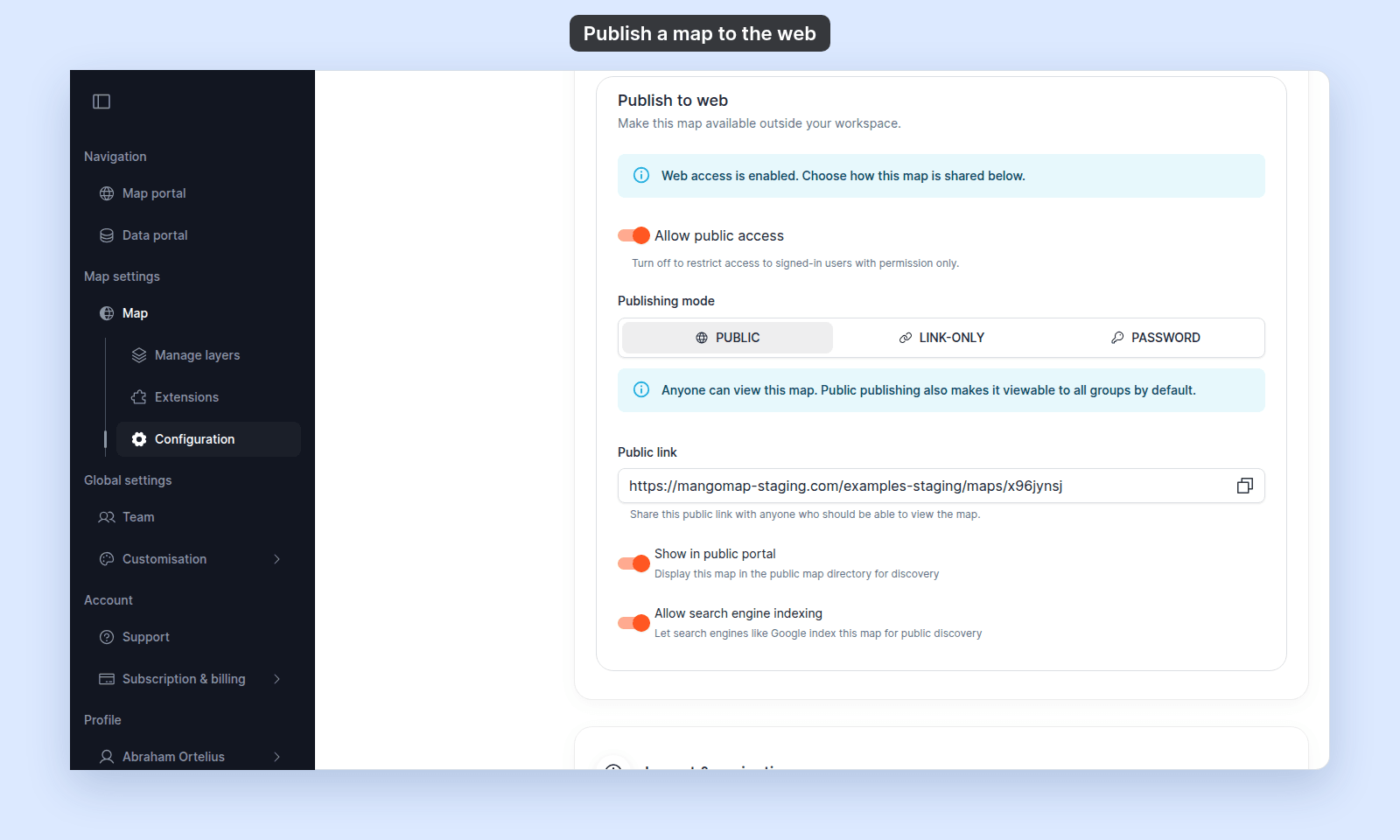 Only `Public` maps with `Show in public portal` enabled appear in the public portal listing.
## Publish a link-only map
Choose `Link-only` when anyone with a private link can view the map, but the map should not appear in the public portal or search engines.
1. Select `Link-only`.
2. Copy the `Private link`.
3. Send the private link to viewers who should have access.
Only `Public` maps with `Show in public portal` enabled appear in the public portal listing.
## Publish a link-only map
Choose `Link-only` when anyone with a private link can view the map, but the map should not appear in the public portal or search engines.
1. Select `Link-only`.
2. Copy the `Private link`.
3. Send the private link to viewers who should have access.
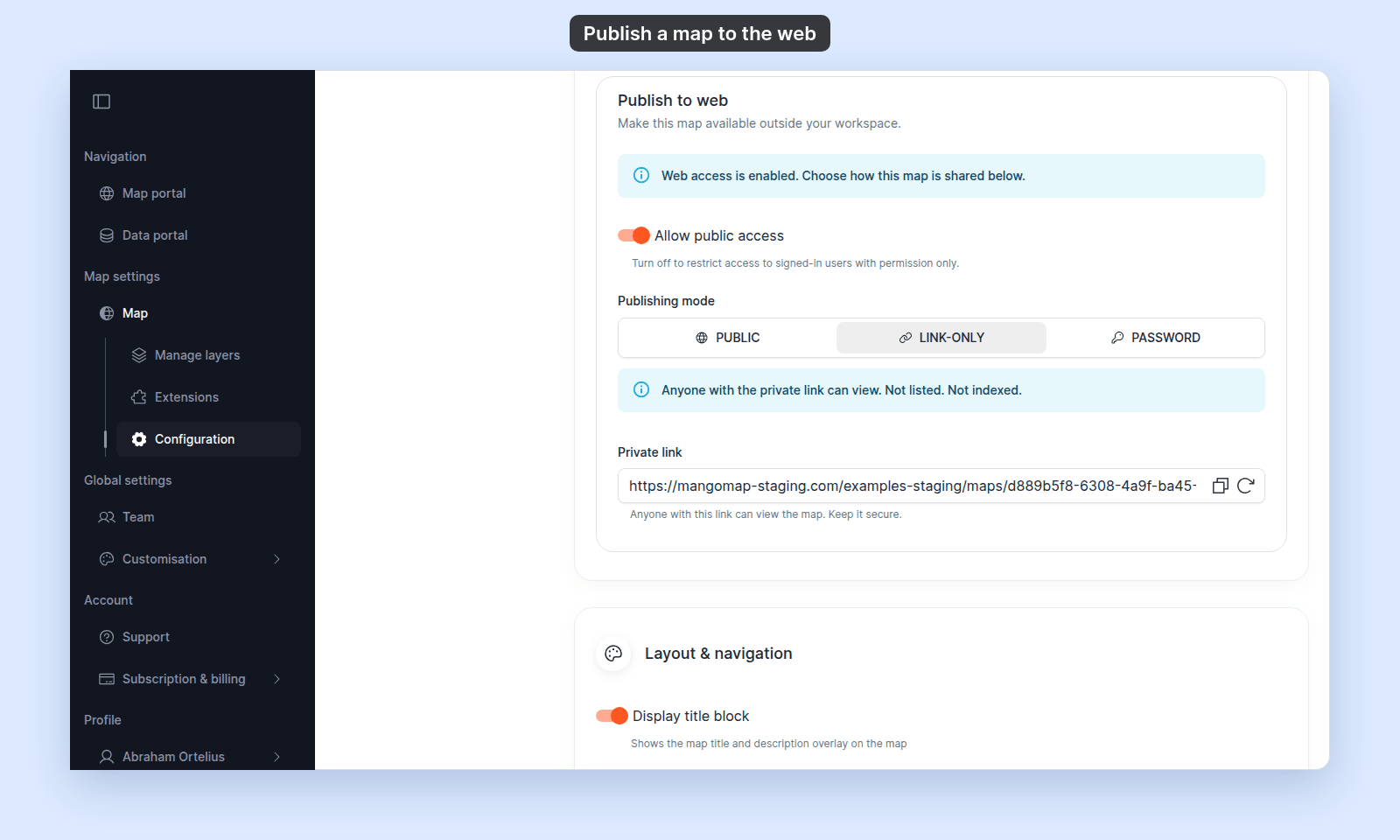 `Link-only` maps are unlisted and not indexed.
## Publish a password-protected map
Choose `Password` when viewers should need both a link and a password.
1. Select `Password`.
2. Copy the `Public link`.
3. Enter or confirm the `Password`.
4. Send viewers both the public link and the password.
`Link-only` maps are unlisted and not indexed.
## Publish a password-protected map
Choose `Password` when viewers should need both a link and a password.
1. Select `Password`.
2. Copy the `Public link`.
3. Enter or confirm the `Password`.
4. Send viewers both the public link and the password.
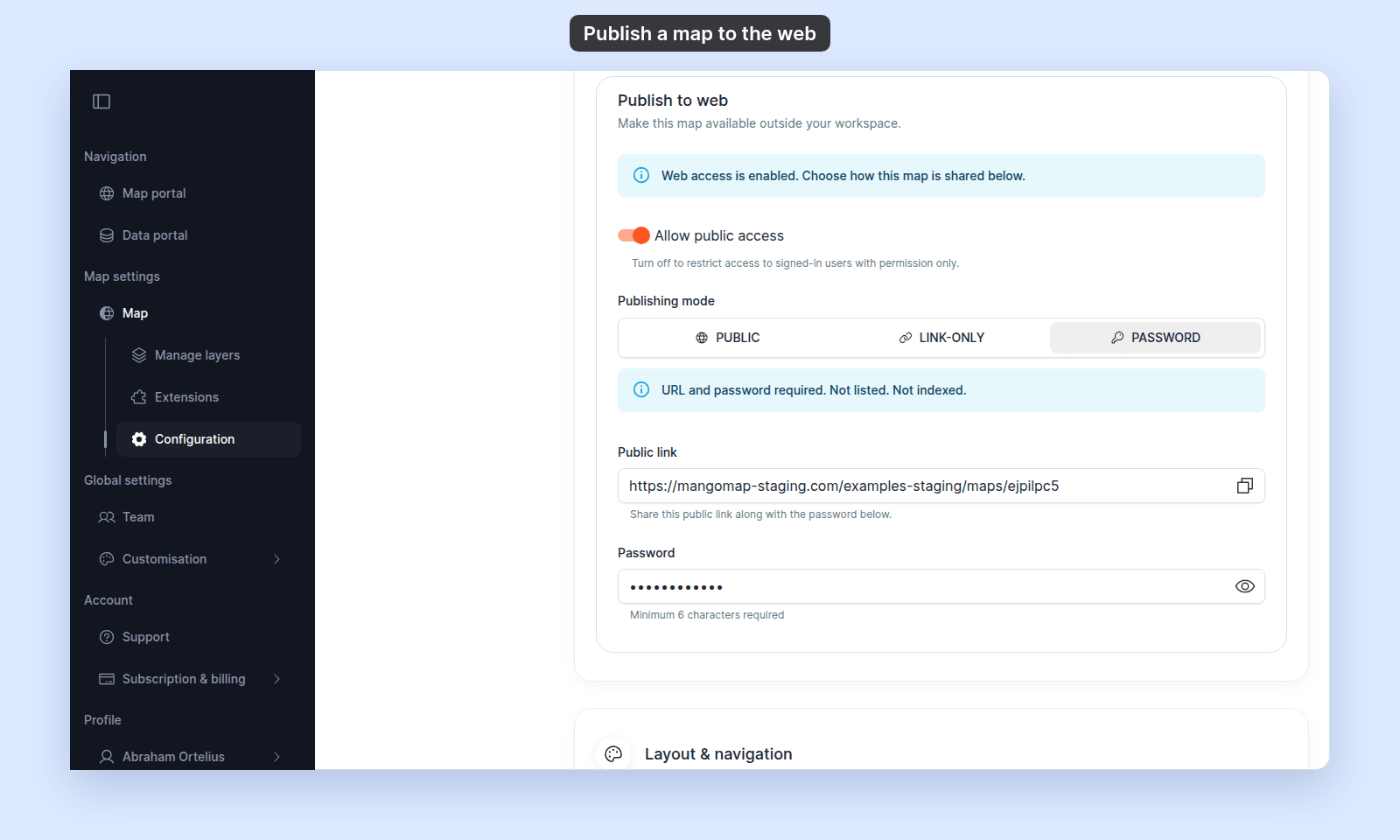 Manual passwords must be at least 6 characters. `Password` maps are unlisted and not indexed.
## Regenerate a private link
Use `Regenerate link` only when the current private link should stop working.
> [!WARNING]
> `Regenerate link` breaks the old private link and every embed that uses it. You cannot undo it.
1. In `Link-only` mode, click `Regenerate link`.
2. Read the `Regenerate Private Link` confirmation dialog.
3. Click `Regenerate Link`.
4. Share the new `Private link`.
Regenerating creates a new private link and invalidates the old one. Anyone using the old link can no longer access the map.
## Take a map offline
Turn off `Allow public access` to restrict the map to signed-in users with permission.
MangoMap also turns off `Show in public portal` and `Allow search engine indexing` when web access is turned off.
## Troubleshooting
**The map is not showing in the public portal.** Confirm the map is in `Public` mode and `Show in public portal` is on. See [Map is not showing in the public portal](/docs/portals/troubleshoot-map-not-in-public-portal).
**The private link no longer works.** The link may have been regenerated. See [Private link no longer works](/docs/map-access/troubleshoot-private-link-not-working).
**The password does not work.** Confirm the map is in `Password` mode and the viewer has the current password. See [Map password is not working](/docs/map-access/troubleshoot-map-password-not-working).
## Related
- [Map access settings](/docs/map-access/map-access-settings)
- [Choose how to share a map](/docs/map-access/choose-how-to-share-a-map)
- [How map access works in MangoMap](/docs/map-access/concepts-map-access)
- [How to configure map access](/docs/map-access/configure-map-access)
- [How to share a map with groups](/docs/map-access/share-map-with-groups)
- [How to embed a map in another website](/docs/map-access/embed-a-map) — for putting a published map into another website via iframe.
- [How to share a map as a PDF](/docs/map-access/share-map-as-pdf) — for sharing a static snapshot instead of a live link.
---
Manual passwords must be at least 6 characters. `Password` maps are unlisted and not indexed.
## Regenerate a private link
Use `Regenerate link` only when the current private link should stop working.
> [!WARNING]
> `Regenerate link` breaks the old private link and every embed that uses it. You cannot undo it.
1. In `Link-only` mode, click `Regenerate link`.
2. Read the `Regenerate Private Link` confirmation dialog.
3. Click `Regenerate Link`.
4. Share the new `Private link`.
Regenerating creates a new private link and invalidates the old one. Anyone using the old link can no longer access the map.
## Take a map offline
Turn off `Allow public access` to restrict the map to signed-in users with permission.
MangoMap also turns off `Show in public portal` and `Allow search engine indexing` when web access is turned off.
## Troubleshooting
**The map is not showing in the public portal.** Confirm the map is in `Public` mode and `Show in public portal` is on. See [Map is not showing in the public portal](/docs/portals/troubleshoot-map-not-in-public-portal).
**The private link no longer works.** The link may have been regenerated. See [Private link no longer works](/docs/map-access/troubleshoot-private-link-not-working).
**The password does not work.** Confirm the map is in `Password` mode and the viewer has the current password. See [Map password is not working](/docs/map-access/troubleshoot-map-password-not-working).
## Related
- [Map access settings](/docs/map-access/map-access-settings)
- [Choose how to share a map](/docs/map-access/choose-how-to-share-a-map)
- [How map access works in MangoMap](/docs/map-access/concepts-map-access)
- [How to configure map access](/docs/map-access/configure-map-access)
- [How to share a map with groups](/docs/map-access/share-map-with-groups)
- [How to embed a map in another website](/docs/map-access/embed-a-map) — for putting a published map into another website via iframe.
- [How to share a map as a PDF](/docs/map-access/share-map-as-pdf) — for sharing a static snapshot instead of a live link.
---