---
title: "How to configure map access"
description: "Set who can open and edit a map from Configuration > Access. Share with groups for signed-in users, or publish with a public link, private link, or password."
sidebar:
label: "Configure map access"
search:
keywords: [password protect, private map, restrict access]
---
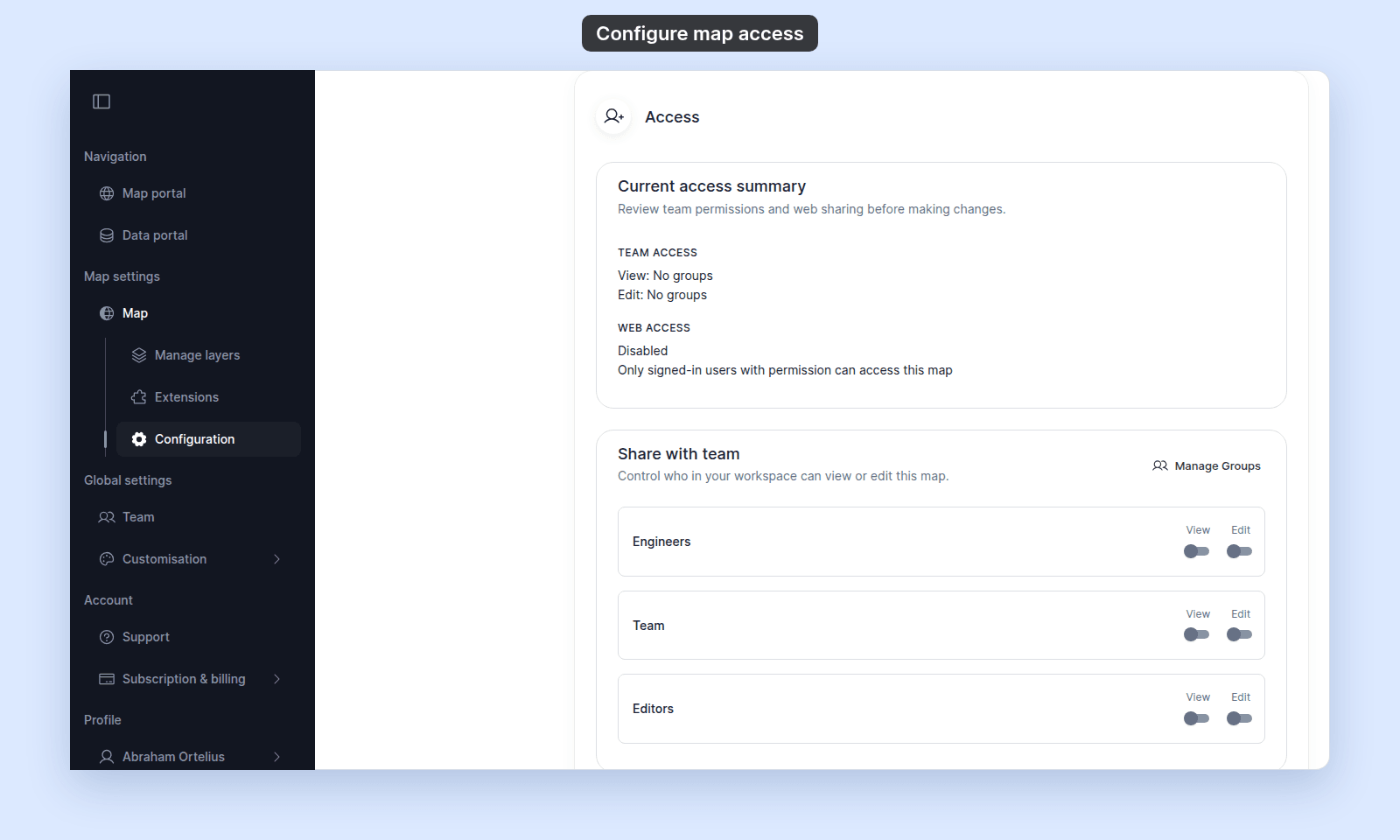
A new map is visible only to you until you grant access in `Configuration > Access`. The page has two cards: `Share with team` toggles `View` or `Edit` per workspace group (for signed-in users), and `Publish to web` makes the map openable without a sign-in via `Public`, `Link-only`, or `Password` mode. Public mode also shows `Show in public portal` and `Allow search engine indexing`. The other modes stay unlisted and out of search results.
## Before you start
- You need permission to share the map. Share access follows edit access.
- The map must already exist.
- If you want to share with groups, create the groups first or use `Create a Group` from the access screen.
## Open the access settings
Open the map. In the sidebar, under the map's name, click `Configuration`, then click `Access`.
The `Current access summary` shows the current `Team access` and `Web access` state before you make changes.
 ## Configure access for signed-in groups
Use `Share with team` when viewers or editors should sign in to MangoMap.
1. In `Share with team`, find the group you want to update.
2. Turn on `View` to let the group view the map.
3. Turn on `Edit` to let the group edit the map.
Each switch saves as soon as you change it. Here, `Team` can view the map and `Editors` can edit it:
## Configure access for signed-in groups
Use `Share with team` when viewers or editors should sign in to MangoMap.
1. In `Share with team`, find the group you want to update.
2. Turn on `View` to let the group view the map.
3. Turn on `Edit` to let the group edit the map.
Each switch saves as soon as you change it. Here, `Team` can view the map and `Editors` can edit it:
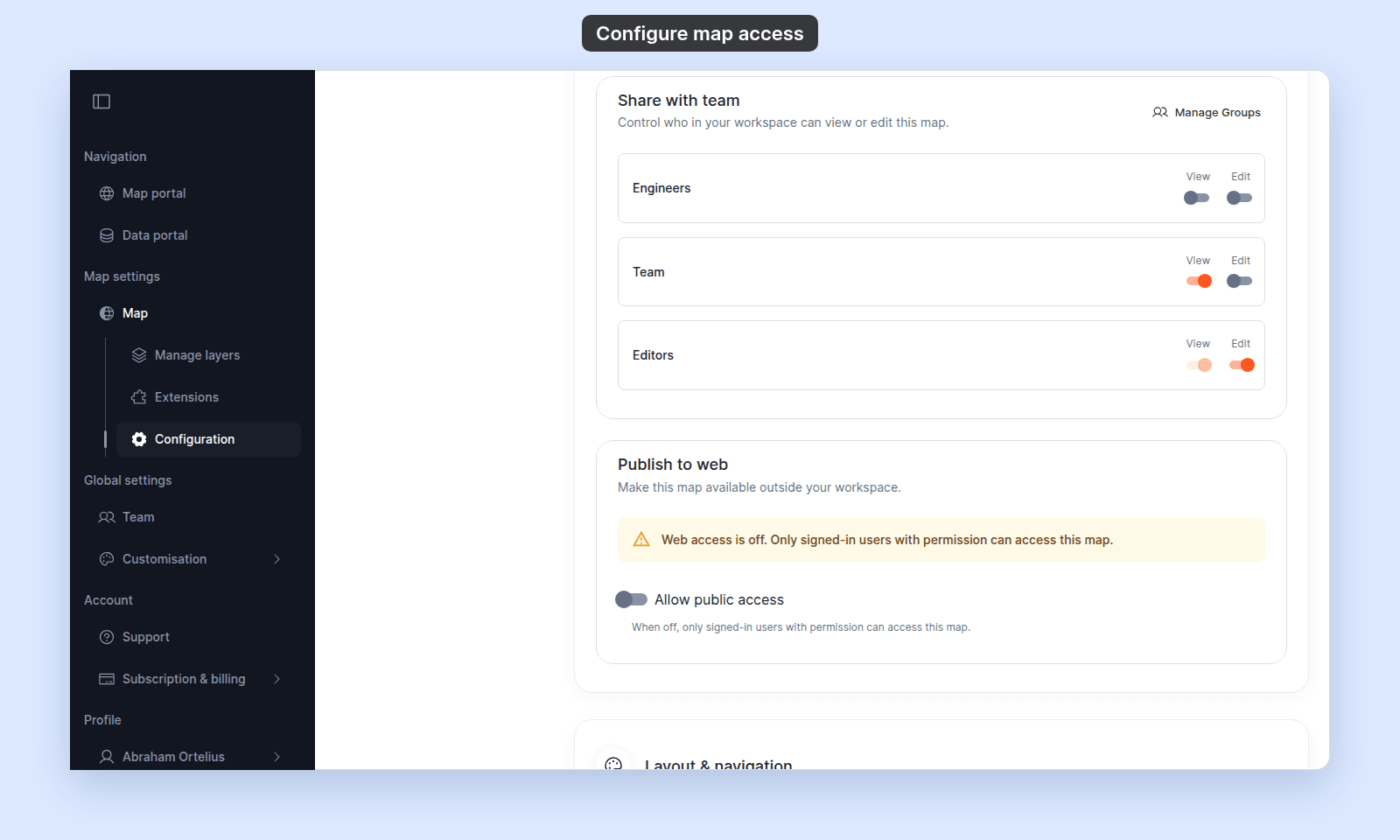 `Edit` access also counts as view access. Through group `Edit`, only members with the `Admin` role can change the map. Other members can open the map but not change it, unless they created it.
If there are no groups, click `Create a Group`. If you need to manage existing groups, click `Manage Groups`.
## Configure access for the web
{/* video-content: id=configure-map-access
Start: The map's fully loaded Configuration page at the top of Map details, with Current access summary visible.
Show:
1. Click Access in the settings navigation.
2. Move to the Publish to web section.
3. Turn on Allow public access only if it is currently off.
4. Focus and click Public access to show the Public publishing mode.
5. Focus Copy public link.
6. Click Copy public link and show the copied confirmation.
End: Hold on the Publish to web controls with Public access and the public link visible.
Exclude: Authentication, loading screens, fixture setup, group permissions,
password or link-only modes, unrelated settings, or disabling public access.
*/}
{/* walkthrough: id=configure-map-access */}
{/* /walkthrough */}
Use `Publish to web` when people outside your workspace should open the map.
1. Turn on `Allow public access`.
2. Under `Publishing mode`, select `Public`, `Link-only`, or `Password`.
3. Copy the link shown for the selected mode.
4. For `Password`, set or confirm the `Password` and share it with the public link.
The link field changes by mode. `Public` and `Password` use `Public link`. `Link-only` uses `Private link`.
## Choose the publishing mode
Choose `Public` when anyone with the public link can view the map and you may want the map to appear in the public portal.
Choose `Link-only` when anyone with the private link can view the map, but the map should stay unlisted and not indexed by search engines.
Choose `Password` when viewers should need both the public link and a password. Password maps are unlisted and not indexed by search engines.
## Control public discovery
If `Publishing mode` is `Public`, use these settings:
- `Show in public portal` displays the map in the public map directory.
- `Allow search engine indexing` lets search engines such as Google index the map.
Only `Public` maps with `Show in public portal` enabled appear in the public portal listing.
## Take a map offline
Turn off `Allow public access` to restrict the map to signed-in users with permission.
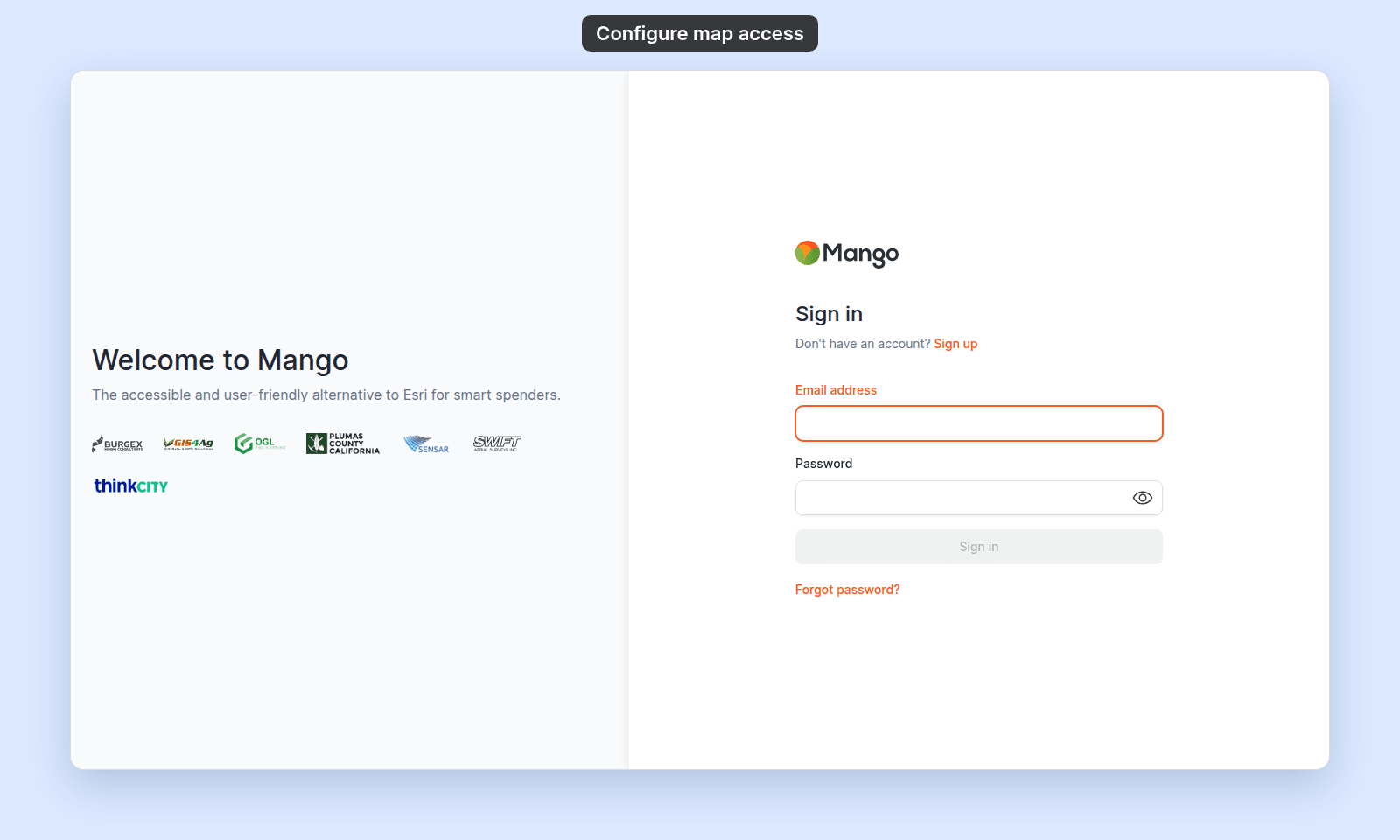
When web access is turned off, MangoMap also turns off `Show in public portal` and `Allow search engine indexing`. A visitor who is not signed in and opens the map goes to the sign-in page:
`Edit` access also counts as view access. Through group `Edit`, only members with the `Admin` role can change the map. Other members can open the map but not change it, unless they created it.
If there are no groups, click `Create a Group`. If you need to manage existing groups, click `Manage Groups`.
## Configure access for the web
{/* video-content: id=configure-map-access
Start: The map's fully loaded Configuration page at the top of Map details, with Current access summary visible.
Show:
1. Click Access in the settings navigation.
2. Move to the Publish to web section.
3. Turn on Allow public access only if it is currently off.
4. Focus and click Public access to show the Public publishing mode.
5. Focus Copy public link.
6. Click Copy public link and show the copied confirmation.
End: Hold on the Publish to web controls with Public access and the public link visible.
Exclude: Authentication, loading screens, fixture setup, group permissions,
password or link-only modes, unrelated settings, or disabling public access.
*/}
{/* walkthrough: id=configure-map-access */}
{/* /walkthrough */}
Use `Publish to web` when people outside your workspace should open the map.
1. Turn on `Allow public access`.
2. Under `Publishing mode`, select `Public`, `Link-only`, or `Password`.
3. Copy the link shown for the selected mode.
4. For `Password`, set or confirm the `Password` and share it with the public link.
The link field changes by mode. `Public` and `Password` use `Public link`. `Link-only` uses `Private link`.
## Choose the publishing mode
Choose `Public` when anyone with the public link can view the map and you may want the map to appear in the public portal.
Choose `Link-only` when anyone with the private link can view the map, but the map should stay unlisted and not indexed by search engines.
Choose `Password` when viewers should need both the public link and a password. Password maps are unlisted and not indexed by search engines.
## Control public discovery
If `Publishing mode` is `Public`, use these settings:
- `Show in public portal` displays the map in the public map directory.
- `Allow search engine indexing` lets search engines such as Google index the map.
Only `Public` maps with `Show in public portal` enabled appear in the public portal listing.
## Take a map offline
Turn off `Allow public access` to restrict the map to signed-in users with permission.
When web access is turned off, MangoMap also turns off `Show in public portal` and `Allow search engine indexing`. A visitor who is not signed in and opens the map goes to the sign-in page:
 ## Troubleshooting
**Access settings are disabled.** You do not have permission to share this map. See [Access settings are disabled](/docs/map-access/troubleshoot-access-settings-disabled).
**The map is not showing in the public portal.** The map must use `Public` mode and have `Show in public portal` enabled. See [Map is not showing in the public portal](/docs/portals/troubleshoot-map-not-in-public-portal).
**A private link stopped working.** The private link may have been regenerated. See [Private link no longer works](/docs/map-access/troubleshoot-private-link-not-working).
**A password does not work.** Confirm the map is in `Password` mode and the viewer has the current password. See [Map password is not working](/docs/map-access/troubleshoot-map-password-not-working).
## Related
- [Map access settings](/docs/map-access/map-access-settings)
- [Choose how to share a map](/docs/map-access/choose-how-to-share-a-map)
- [How map access works in MangoMap](/docs/map-access/concepts-map-access)
- [How to share a map with groups](/docs/map-access/share-map-with-groups)
- [How to publish a map to the web](/docs/map-access/publish-map-to-web)
- [How to embed a map in another website](/docs/map-access/embed-a-map) — iframe a map into another website using the `Embed map` button in the same Access section.
- [How to share a map as a PDF](/docs/map-access/share-map-as-pdf) — share a static snapshot of the current map view via the Print extension.
- [Account roles reference](/docs/account-roles/account-roles-reference) - the canonical "who can do what" matrix for editing and sharing maps.
---
## Troubleshooting
**Access settings are disabled.** You do not have permission to share this map. See [Access settings are disabled](/docs/map-access/troubleshoot-access-settings-disabled).
**The map is not showing in the public portal.** The map must use `Public` mode and have `Show in public portal` enabled. See [Map is not showing in the public portal](/docs/portals/troubleshoot-map-not-in-public-portal).
**A private link stopped working.** The private link may have been regenerated. See [Private link no longer works](/docs/map-access/troubleshoot-private-link-not-working).
**A password does not work.** Confirm the map is in `Password` mode and the viewer has the current password. See [Map password is not working](/docs/map-access/troubleshoot-map-password-not-working).
## Related
- [Map access settings](/docs/map-access/map-access-settings)
- [Choose how to share a map](/docs/map-access/choose-how-to-share-a-map)
- [How map access works in MangoMap](/docs/map-access/concepts-map-access)
- [How to share a map with groups](/docs/map-access/share-map-with-groups)
- [How to publish a map to the web](/docs/map-access/publish-map-to-web)
- [How to embed a map in another website](/docs/map-access/embed-a-map) — iframe a map into another website using the `Embed map` button in the same Access section.
- [How to share a map as a PDF](/docs/map-access/share-map-as-pdf) — share a static snapshot of the current map view via the Print extension.
- [Account roles reference](/docs/account-roles/account-roles-reference) - the canonical "who can do what" matrix for editing and sharing maps.
---