---
title: "An invited user shows `PENDING ACTIVATION`"
description: "An invited user still shows PENDING ACTIVATION on the Users page. Check that they finished the Join form and that the invitation email reached them."
seo:
title: "Invitation stuck pending"
sidebar:
label: "Invitation stuck pending"
---
Enterprise and Agency only
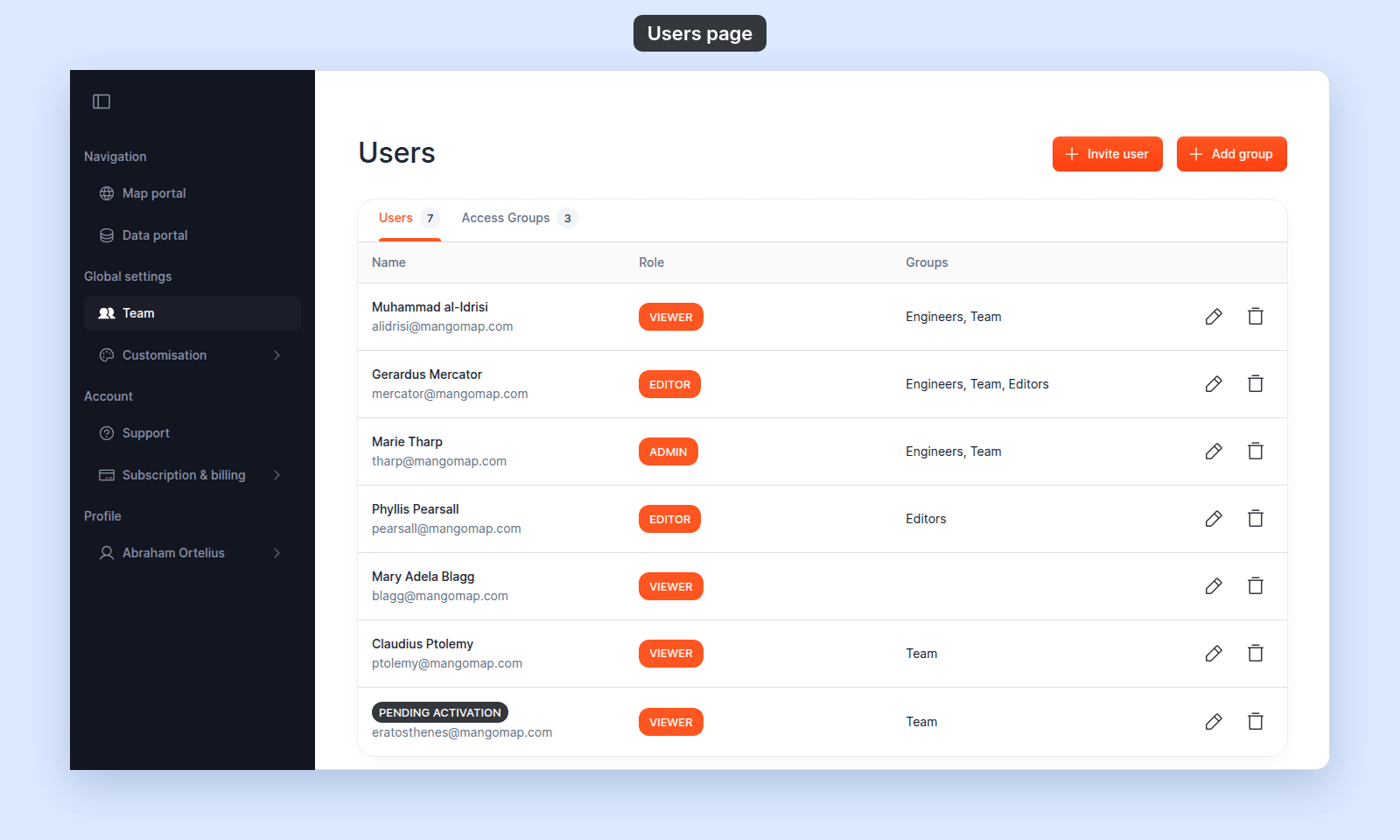
The new user's row still shows `PENDING ACTIVATION`, so the user cannot sign in. The invitee must open the invitation link and submit the `Join` form before the account becomes active.
 ## Most likely cause: the invitee hasn't completed `Join`
A new user becomes active after they:
1. Open the invitation email.
2. Click the link to the `Join [account name]` page.
3. Fill in `Your name`, `Set a password`, and `Re-type password`.
4. Tick the terms checkbox.
5. Click `Join`.
Until step 5 succeeds, the chip stays `PENDING ACTIVATION`.
To verify, ask the invitee whether they received the email and reached the `Join` form. If they have not, walk them through it: see [How to accept an invitation](/docs/managing-team/accept-an-invitation).
## Less common: the email did not reach the invitee
The invitation email might have been blocked, sent to spam, or never delivered.
To verify:
- Ask the invitee to check their spam or quarantine folder for an email from MangoMap.
- Confirm with them that the email address on the invitation matches what they actually use.
To fix:
- There is no resend button on the team UI. Remove the pending row using [How to remove a user](/docs/managing-team/remove-a-user), then send a new invitation using [How to invite a user](/docs/managing-team/invite-a-user). Use the same role and group memberships as before.
## Less common: the invitee is signing in to the wrong account
Some recipients try to sign in directly to MangoMap before completing `Join`. That fails because the account isn't activated yet.
To verify, ask the invitee whether they tried to sign in before clicking the invitation link.
To fix, send them the original invitation link again. Activation must happen on the `Join` form, not on the sign-in page. If the original link is no longer accessible, delete the pending row and re-invite.
## Less common: the invitee is in another MangoMap account
If the invitee is already a MangoMap user under another account, they may sign in to that account by habit and not see your maps or datasets.
To verify, ask the invitee whether they have other MangoMap accounts. After they complete `Join` for your invitation, they need to switch accounts to see yours.
## Pending users and access groups
While a user is `PENDING ACTIVATION`:
- They appear in your `Users` table.
- They count against your seat limits for their assigned role.
- Group memberships set on the original `Invite user` form persist. When they activate, those memberships take effect.
- They can be added to more groups, from [`Update user`](/docs/managing-team/update-a-user) or from the members table in [`Create group`](/docs/managing-team/create-an-access-group) and [`Edit group`](/docs/managing-team/edit-an-access-group).
## If none of the above
Ask support to check the user's invitation status and the email the invitation was sent to. Include the invitee's email and the date the invitation was sent.
## Related
- [How to invite a user](/docs/managing-team/invite-a-user)
- [How to remove a user](/docs/managing-team/remove-a-user)
- [How to accept an invitation](/docs/managing-team/accept-an-invitation) - to share with the invitee
- [Users page](/docs/managing-team/users-page-reference)
## Most likely cause: the invitee hasn't completed `Join`
A new user becomes active after they:
1. Open the invitation email.
2. Click the link to the `Join [account name]` page.
3. Fill in `Your name`, `Set a password`, and `Re-type password`.
4. Tick the terms checkbox.
5. Click `Join`.
Until step 5 succeeds, the chip stays `PENDING ACTIVATION`.
To verify, ask the invitee whether they received the email and reached the `Join` form. If they have not, walk them through it: see [How to accept an invitation](/docs/managing-team/accept-an-invitation).
## Less common: the email did not reach the invitee
The invitation email might have been blocked, sent to spam, or never delivered.
To verify:
- Ask the invitee to check their spam or quarantine folder for an email from MangoMap.
- Confirm with them that the email address on the invitation matches what they actually use.
To fix:
- There is no resend button on the team UI. Remove the pending row using [How to remove a user](/docs/managing-team/remove-a-user), then send a new invitation using [How to invite a user](/docs/managing-team/invite-a-user). Use the same role and group memberships as before.
## Less common: the invitee is signing in to the wrong account
Some recipients try to sign in directly to MangoMap before completing `Join`. That fails because the account isn't activated yet.
To verify, ask the invitee whether they tried to sign in before clicking the invitation link.
To fix, send them the original invitation link again. Activation must happen on the `Join` form, not on the sign-in page. If the original link is no longer accessible, delete the pending row and re-invite.
## Less common: the invitee is in another MangoMap account
If the invitee is already a MangoMap user under another account, they may sign in to that account by habit and not see your maps or datasets.
To verify, ask the invitee whether they have other MangoMap accounts. After they complete `Join` for your invitation, they need to switch accounts to see yours.
## Pending users and access groups
While a user is `PENDING ACTIVATION`:
- They appear in your `Users` table.
- They count against your seat limits for their assigned role.
- Group memberships set on the original `Invite user` form persist. When they activate, those memberships take effect.
- They can be added to more groups, from [`Update user`](/docs/managing-team/update-a-user) or from the members table in [`Create group`](/docs/managing-team/create-an-access-group) and [`Edit group`](/docs/managing-team/edit-an-access-group).
## If none of the above
Ask support to check the user's invitation status and the email the invitation was sent to. Include the invitee's email and the date the invitation was sent.
## Related
- [How to invite a user](/docs/managing-team/invite-a-user)
- [How to remove a user](/docs/managing-team/remove-a-user)
- [How to accept an invitation](/docs/managing-team/accept-an-invitation) - to share with the invitee
- [Users page](/docs/managing-team/users-page-reference)