---
title: "How to remove a user"
description: "Permanently remove a user from the Users tab. They can no longer sign in, they leave every group, and their seat is free. The content they made stays."
sidebar:
label: "Remove a user"
---
Enterprise and Agency only
Removing a user revokes their account access, map and dataset permissions, group memberships, and sign-in access. Use it when someone leaves your organisation or you invited the wrong person.
## Before you start
- You need to be the account owner. Only the user with the `Owner` role can remove users.
- The action happens at once and cannot be undone in the UI. If you remove a user and want them back, you have to invite them again.
- You cannot remove the account owner. The `Users` table does not list the owner.
## Open the Users page
In the navigation, under `Global settings`, click `Team`. Find the user's row in the `Users` tab.
## Delete the user
On the user's row, click the trash icon at the right edge. A confirmation dialog opens:
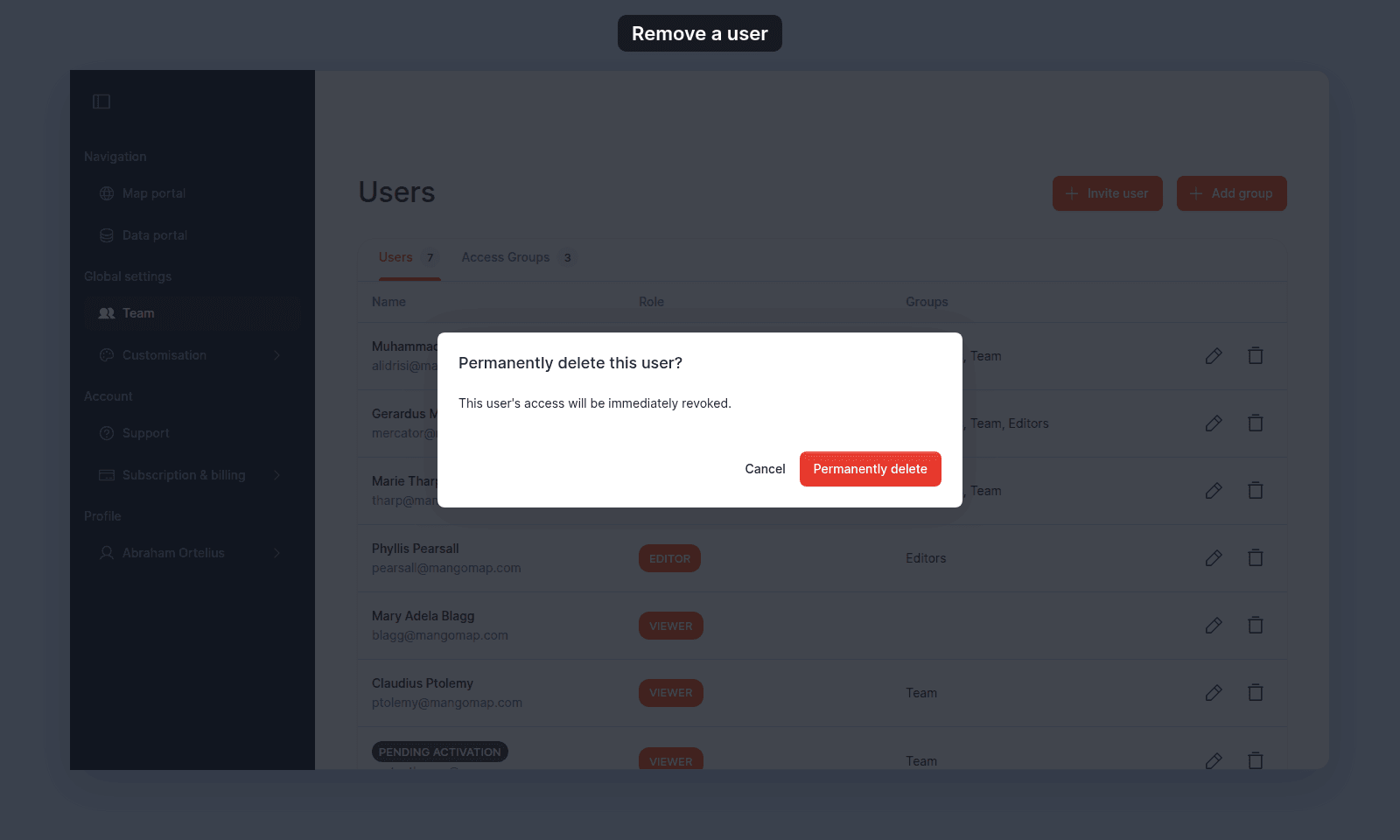 > [!WARNING]
> The dialog does not name the user, so check the row before you confirm. You cannot undo the removal.
Click `Permanently delete` to confirm. The user disappears from the table.
To back out, click `Cancel`. Nothing changes.
## What happens after deletion
- The user can no longer sign in.
- All of their access group memberships are removed. Maps and datasets that granted access through those memberships are no longer accessible to them.
- Any maps or datasets they created stay in your account; deletion does not remove their content.
- Their seat is freed. You can invite a new user in their place if your subscription allows.
## Removing a pending user
A user who has not yet activated (`PENDING ACTIVATION` chip) can be removed the same way. The trash icon is available on their row.
Removing a pending user invalidates their pending invitation. To re-invite them, use [`Invite user`](/docs/managing-team/invite-a-user) with the same email.
## When the owner is not in the table
The `Users` table lists every user except the account owner, so the owner has no row and no trash icon. The owner cannot be removed from the team UI.
## Troubleshooting
**The Users page is blocked.** You are not the account owner. See [The Users or Groups page is blocked](/docs/managing-team/troubleshoot-team-page-access).
**You removed the wrong user.** Open [`Invite user`](/docs/managing-team/invite-a-user) and re-invite them. Their previous group memberships are not restored automatically; add them back during the invite or update them afterwards.
## Related
- [Users page](/docs/managing-team/users-page-reference)
- [How to invite a user](/docs/managing-team/invite-a-user)
- [How to update a user](/docs/managing-team/update-a-user)
- [How team management and account roles work in MangoMap](/docs/managing-team/concepts-team-and-roles)
> [!WARNING]
> The dialog does not name the user, so check the row before you confirm. You cannot undo the removal.
Click `Permanently delete` to confirm. The user disappears from the table.
To back out, click `Cancel`. Nothing changes.
## What happens after deletion
- The user can no longer sign in.
- All of their access group memberships are removed. Maps and datasets that granted access through those memberships are no longer accessible to them.
- Any maps or datasets they created stay in your account; deletion does not remove their content.
- Their seat is freed. You can invite a new user in their place if your subscription allows.
## Removing a pending user
A user who has not yet activated (`PENDING ACTIVATION` chip) can be removed the same way. The trash icon is available on their row.
Removing a pending user invalidates their pending invitation. To re-invite them, use [`Invite user`](/docs/managing-team/invite-a-user) with the same email.
## When the owner is not in the table
The `Users` table lists every user except the account owner, so the owner has no row and no trash icon. The owner cannot be removed from the team UI.
## Troubleshooting
**The Users page is blocked.** You are not the account owner. See [The Users or Groups page is blocked](/docs/managing-team/troubleshoot-team-page-access).
**You removed the wrong user.** Open [`Invite user`](/docs/managing-team/invite-a-user) and re-invite them. Their previous group memberships are not restored automatically; add them back during the invite or update them afterwards.
## Related
- [Users page](/docs/managing-team/users-page-reference)
- [How to invite a user](/docs/managing-team/invite-a-user)
- [How to update a user](/docs/managing-team/update-a-user)
- [How team management and account roles work in MangoMap](/docs/managing-team/concepts-team-and-roles)