---
title: "How to edit an access group"
description: "Rename an access group or change its members from the Access Groups tab. New members get the group's View and Edit access, and removed members lose it."
sidebar:
label: "Edit an access group"
---
Enterprise and Agency only
Renaming a group or changing its members updates every map and dataset that grants the group access. A new member gets the group's `View` and `Edit` permissions. Removing a member removes those permissions unless another group grants them. Only owners can edit groups. The owner stays in every group.
## Before you start
- You need to be the account owner. Only the user with the `Owner` role can edit groups.
- Decide what you're changing. Renaming and changing membership both happen on the same form and save together.
- You can add users with `PENDING ACTIVATION`. They get the group's access when they join.
## Open the edit form
In the navigation, under `Global settings`, click `Team`, then click the `Access Groups` tab.
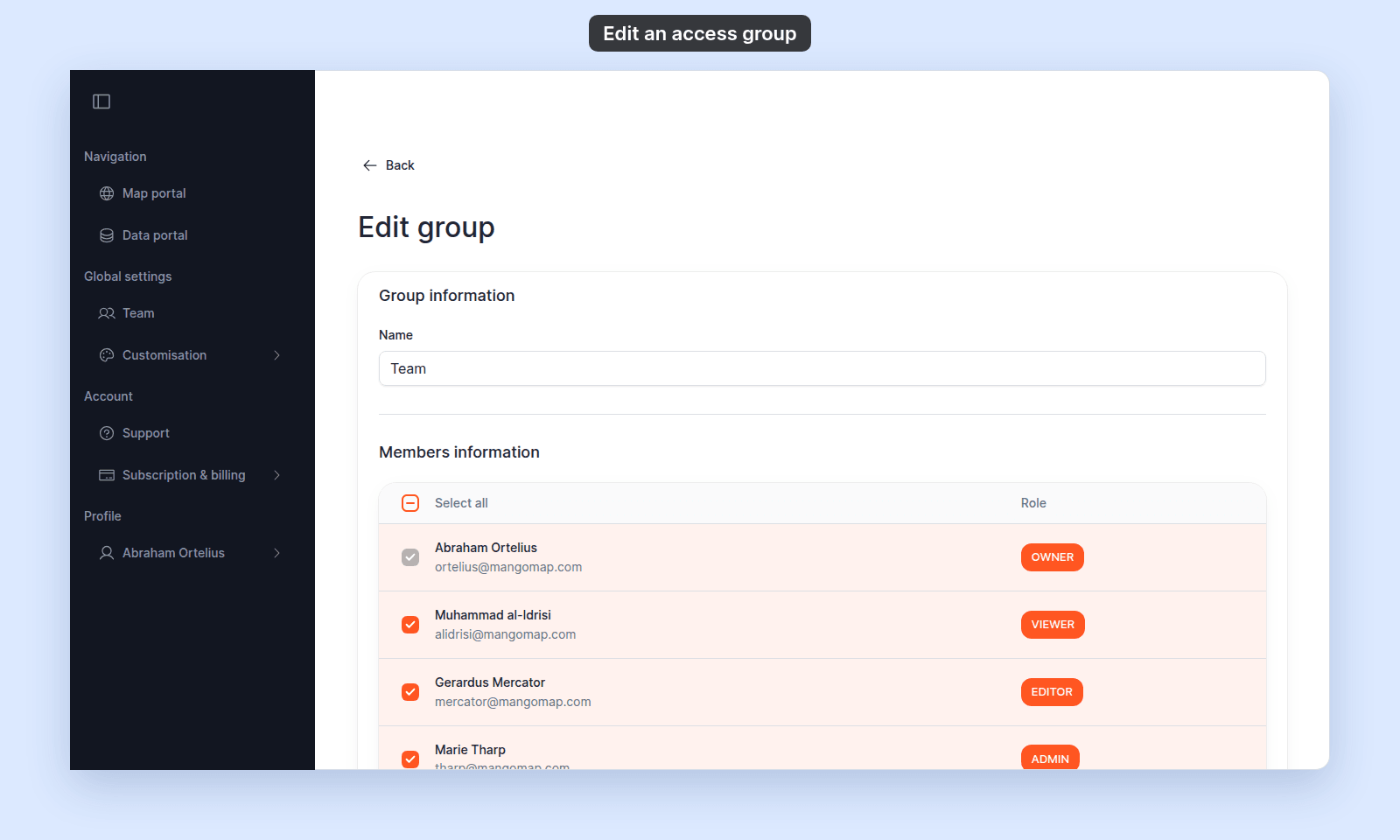
On the group's row, click the pencil icon. The `Edit group` page opens:
 ## Rename the group
In `Group information`, edit `Name`.
Renaming a group does not change which maps or datasets it has access to. The new name appears wherever the group is referenced — in `Share with team` on maps, in `Internal Access` on datasets, and in the `Groups` column on the `Users` table.
## Add or remove members
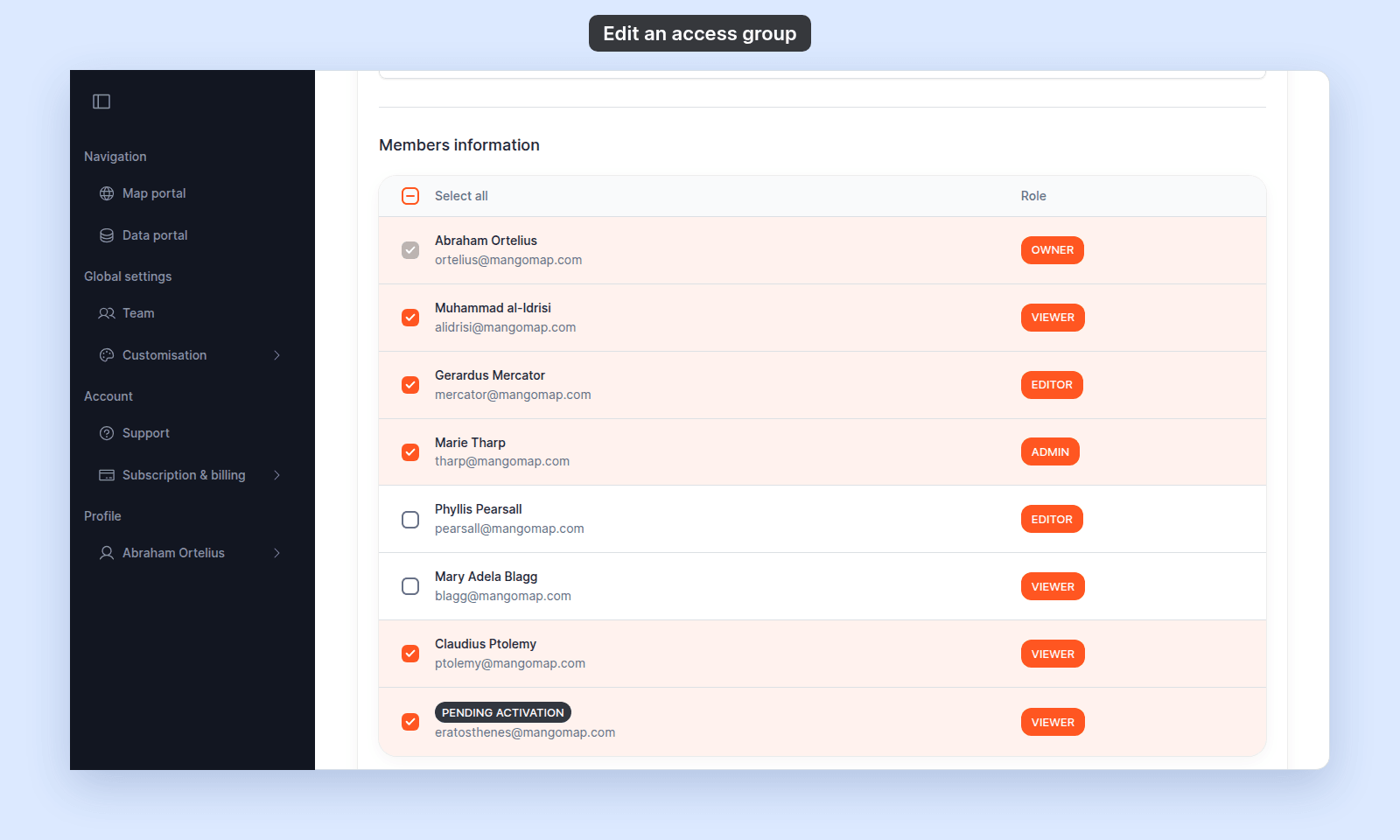
In `Members information`, the table lists every user in the account, and the current members are ticked.
- Tick a checkbox to add a user to the group.
- Untick a checkbox to remove a user from the group.
Use the `Select all` column header to add or remove every user at once.
The owner's row is ticked and greyed out: the owner is in every group and cannot be removed. A `PENDING ACTIVATION` row can be ticked like any other:
## Rename the group
In `Group information`, edit `Name`.
Renaming a group does not change which maps or datasets it has access to. The new name appears wherever the group is referenced — in `Share with team` on maps, in `Internal Access` on datasets, and in the `Groups` column on the `Users` table.
## Add or remove members
In `Members information`, the table lists every user in the account, and the current members are ticked.
- Tick a checkbox to add a user to the group.
- Untick a checkbox to remove a user from the group.
Use the `Select all` column header to add or remove every user at once.
The owner's row is ticked and greyed out: the owner is in every group and cannot be removed. A `PENDING ACTIVATION` row can be ticked like any other:
 ## Save changes
Click `Save changes`. The new name and membership take effect immediately. Maps and datasets that grant the group access now apply that access to the new member set.
To back out without saving, click `Cancel`.
## Effect on maps and datasets
Editing a group does not change the `View` and `Edit` toggles on any map or dataset. What changes is who those toggles apply to:
- Adding a member gives that user every access the group has been granted, across every map and dataset, in one step. If the group has `Edit` on a sensitive dataset, the new member can edit it the moment you save.
- Removing a member revokes every access the group granted them. If they were also a member of another group with the same access, the access stays.
If you want a different shape of access for a particular map or dataset, change the toggles on that item — see [How to share a map with groups](/docs/map-access/share-map-with-groups) and [How to share a dataset with groups](/docs/dataset-access/share-dataset-with-groups). Don't restructure groups for a one-off access change.
## Troubleshooting
**The Access Groups tab is blocked.** You are not the account owner. See [The Users or Groups page is blocked](/docs/managing-team/troubleshoot-team-page-access).
**Members were removed from the group but a teammate still has access.** Check whether they are also in another group with the same access. Permissions add up across groups.
## Related
- [How to create an access group](/docs/managing-team/create-an-access-group)
- [How to delete an access group](/docs/managing-team/delete-an-access-group)
- [How to update a user](/docs/managing-team/update-a-user) - the alternative way to add or remove a single user's group memberships
- [How to share a map with groups](/docs/map-access/share-map-with-groups)
- [How to share a dataset with groups](/docs/dataset-access/share-dataset-with-groups)
## Save changes
Click `Save changes`. The new name and membership take effect immediately. Maps and datasets that grant the group access now apply that access to the new member set.
To back out without saving, click `Cancel`.
## Effect on maps and datasets
Editing a group does not change the `View` and `Edit` toggles on any map or dataset. What changes is who those toggles apply to:
- Adding a member gives that user every access the group has been granted, across every map and dataset, in one step. If the group has `Edit` on a sensitive dataset, the new member can edit it the moment you save.
- Removing a member revokes every access the group granted them. If they were also a member of another group with the same access, the access stays.
If you want a different shape of access for a particular map or dataset, change the toggles on that item — see [How to share a map with groups](/docs/map-access/share-map-with-groups) and [How to share a dataset with groups](/docs/dataset-access/share-dataset-with-groups). Don't restructure groups for a one-off access change.
## Troubleshooting
**The Access Groups tab is blocked.** You are not the account owner. See [The Users or Groups page is blocked](/docs/managing-team/troubleshoot-team-page-access).
**Members were removed from the group but a teammate still has access.** Check whether they are also in another group with the same access. Permissions add up across groups.
## Related
- [How to create an access group](/docs/managing-team/create-an-access-group)
- [How to delete an access group](/docs/managing-team/delete-an-access-group)
- [How to update a user](/docs/managing-team/update-a-user) - the alternative way to add or remove a single user's group memberships
- [How to share a map with groups](/docs/map-access/share-map-with-groups)
- [How to share a dataset with groups](/docs/dataset-access/share-dataset-with-groups)