---
title: "How to create an access group"
description: "Create an access group, name it, and add members from the Add group form on the Team page. Then give the group View or Edit access on each map and dataset."
sidebar:
label: "Create an access group"
---
Enterprise and Agency only
An access group is a named set of users (`Marketing team`, `Field engineers`, `Q3 contractors`). You can grant the group `View` or `Edit` access to maps and datasets with one toggle instead of setting access for each user. Owners only; creating the group doesn't grant any access on its own — you do that in the `Access` section of each map's or dataset's `Configuration` page, and the toggles take effect only when the access groups feature is on your subscription.
{/* video-content: id=create-an-access-group
Start: The Create group form at /groups/create, fully loaded: Group
information with an empty Name, and Members information listing the team
with the owner's row ticked and greyed out.
Show:
1. Type Field Team in Name.
2. Tick Gerardus Mercator in Members information.
3. Tick Phyllis Pearsall.
4. Click Create Group. The Access Groups list opens with Field Team in it.
End: The Access Groups tab with the new Field Team group listed.
Exclude: Login, loading screens, the Users tab, editing or deleting a group,
and the members' email addresses in full.
*/}
{/* walkthrough: id=create-an-access-group */}
{/* /walkthrough */}
## Before you start
- You need to be the account owner. Only the user with the `Owner` role can create groups.
- Decide who should be in the group. You can add users with `PENDING ACTIVATION` too; they get the group's access when they join.
- Decide what the group is for. The group's name is shown in the `Internal Access` section of every map and every dataset, so pick a name that explains the group's purpose: `Marketing team`, `Field engineers`, `Q3 contractors`, not `Group 1`.
- For the group to actually grant access, your subscription must include the access groups feature.
## Open the create form
In the navigation, under `Global settings`, click `Team`. Click `Add group` at the top right. The button is on both the `Users` and `Access Groups` tabs.
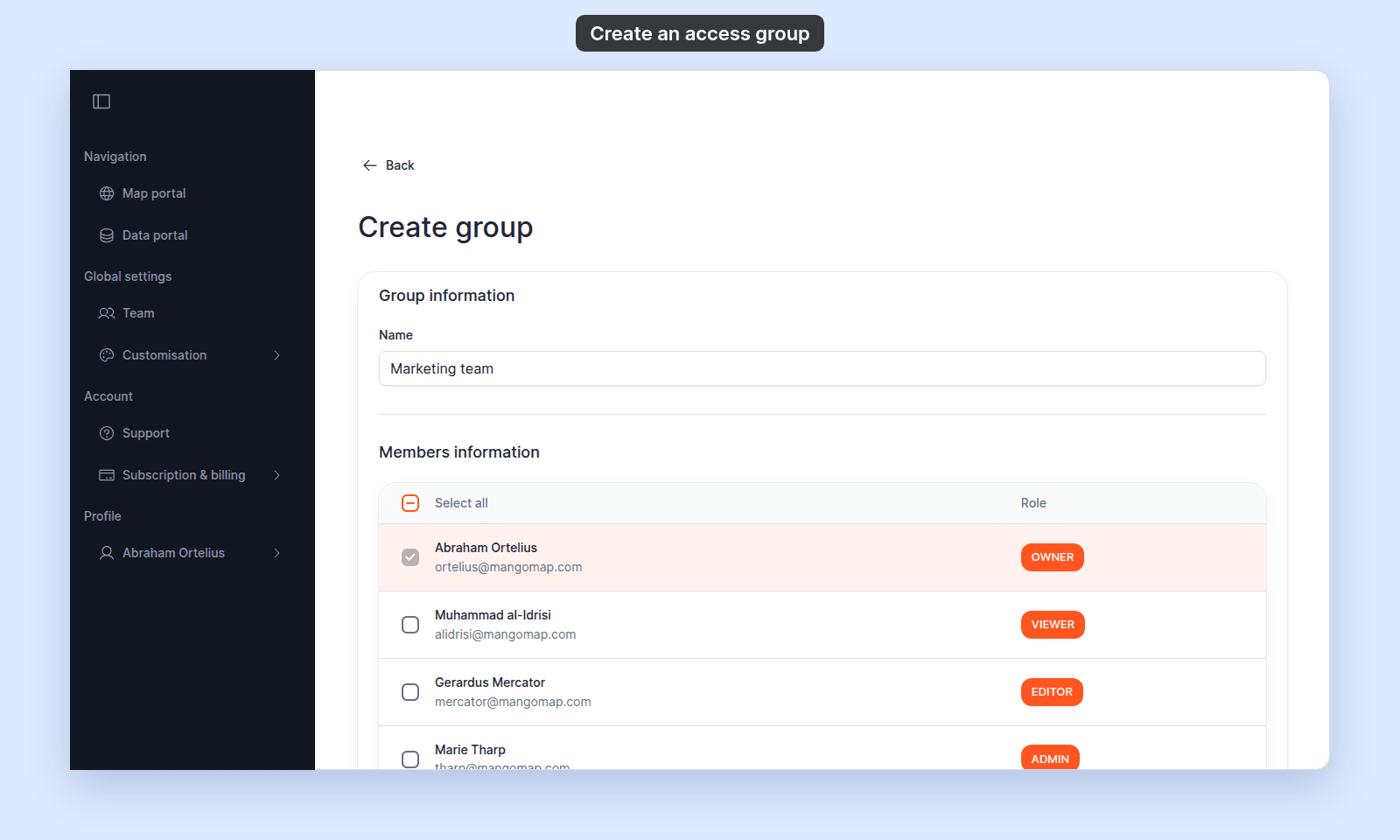
The `Create group` form opens:
 ## Name the group
In `Group information`, enter a name for the group in `Name`.
The name is required. It appears wherever the group is referenced, including in `Internal Access` cards on maps and datasets, and in the `Groups` column on the `Users` table.
## Pick the members
In `Members information`, the table lists every user in the account. Tick the checkbox next to each user you want in the group.
Use the `Select all` column header to add every user at once.
The owner's row is ticked and greyed out. Every group includes the owner; you cannot remove them. A `PENDING ACTIVATION` row can be ticked like any other.
## Save the group
Click `Create group`. The new group appears in the `Access Groups` tab on the `Users` page.
To back out without saving, click `Cancel`.
## Grant the group access to maps or datasets
Creating the group does not give it access to anything yet. To use the group, open a map or dataset's access settings:
- For maps: see [How to share a map with groups](/docs/map-access/share-map-with-groups). Open the map, go to `Configuration` > `Access`, and turn on `View` or `Edit` for the group in `Share with team`.
- For datasets: see [How to share a dataset with groups](/docs/dataset-access/share-dataset-with-groups). Open the dataset, go to `Configuration` > `Access`, and turn on `View` or `Edit` for the group in `Internal Access`.
Each map and dataset has its own access settings; granting a group access on one does not grant it access to others.
## Troubleshooting
**The Add group button is missing or the page is blocked.** You are not the account owner. See [The Users or Groups page is blocked](/docs/managing-team/troubleshoot-team-page-access).
**The group is created but doesn't appear on maps or datasets.** Confirm your subscription includes the access groups feature.
## Related
- [How to edit an access group](/docs/managing-team/edit-an-access-group)
- [How to delete an access group](/docs/managing-team/delete-an-access-group)
- [How to invite a user](/docs/managing-team/invite-a-user)
- [How to update a user](/docs/managing-team/update-a-user) - the alternative way to add an existing user to one or more groups
- [How to share a map with groups](/docs/map-access/share-map-with-groups)
- [How to share a dataset with groups](/docs/dataset-access/share-dataset-with-groups)
## Name the group
In `Group information`, enter a name for the group in `Name`.
The name is required. It appears wherever the group is referenced, including in `Internal Access` cards on maps and datasets, and in the `Groups` column on the `Users` table.
## Pick the members
In `Members information`, the table lists every user in the account. Tick the checkbox next to each user you want in the group.
Use the `Select all` column header to add every user at once.
The owner's row is ticked and greyed out. Every group includes the owner; you cannot remove them. A `PENDING ACTIVATION` row can be ticked like any other.
## Save the group
Click `Create group`. The new group appears in the `Access Groups` tab on the `Users` page.
To back out without saving, click `Cancel`.
## Grant the group access to maps or datasets
Creating the group does not give it access to anything yet. To use the group, open a map or dataset's access settings:
- For maps: see [How to share a map with groups](/docs/map-access/share-map-with-groups). Open the map, go to `Configuration` > `Access`, and turn on `View` or `Edit` for the group in `Share with team`.
- For datasets: see [How to share a dataset with groups](/docs/dataset-access/share-dataset-with-groups). Open the dataset, go to `Configuration` > `Access`, and turn on `View` or `Edit` for the group in `Internal Access`.
Each map and dataset has its own access settings; granting a group access on one does not grant it access to others.
## Troubleshooting
**The Add group button is missing or the page is blocked.** You are not the account owner. See [The Users or Groups page is blocked](/docs/managing-team/troubleshoot-team-page-access).
**The group is created but doesn't appear on maps or datasets.** Confirm your subscription includes the access groups feature.
## Related
- [How to edit an access group](/docs/managing-team/edit-an-access-group)
- [How to delete an access group](/docs/managing-team/delete-an-access-group)
- [How to invite a user](/docs/managing-team/invite-a-user)
- [How to update a user](/docs/managing-team/update-a-user) - the alternative way to add an existing user to one or more groups
- [How to share a map with groups](/docs/map-access/share-map-with-groups)
- [How to share a dataset with groups](/docs/dataset-access/share-dataset-with-groups)