---
title: "How to accept an invitation"
description: "Accept an email invitation to join a MangoMap account. Open the link, enter your name and a password, agree to the terms, then click Join and sign in."
sidebar:
label: "Accept an invitation"
---
You received an invitation email with a link to join a MangoMap account. The form asks for your name, password, and agreement to the terms. After you submit it, you can sign in.
This page is for the person being invited, not for the account owner. If you're the owner and want to invite someone, see [How to invite a user](/docs/managing-team/invite-a-user) instead.
## What you need
- The invitation email from MangoMap, with the link to the `Join` page.
- A password you can remember. Pick one you don't use elsewhere.
## Open the invitation link
Click the link in the invitation email. The page that opens is titled `Join` plus the account's URL name, such as `Join examples-staging`.
If the page does not open, the invitation may have been sent to a different inbox or removed by the account owner. Ask the person who invited you to check the email address and re-send. They cannot resend it. They must delete the pending user and invite you again.
## Fill in the form
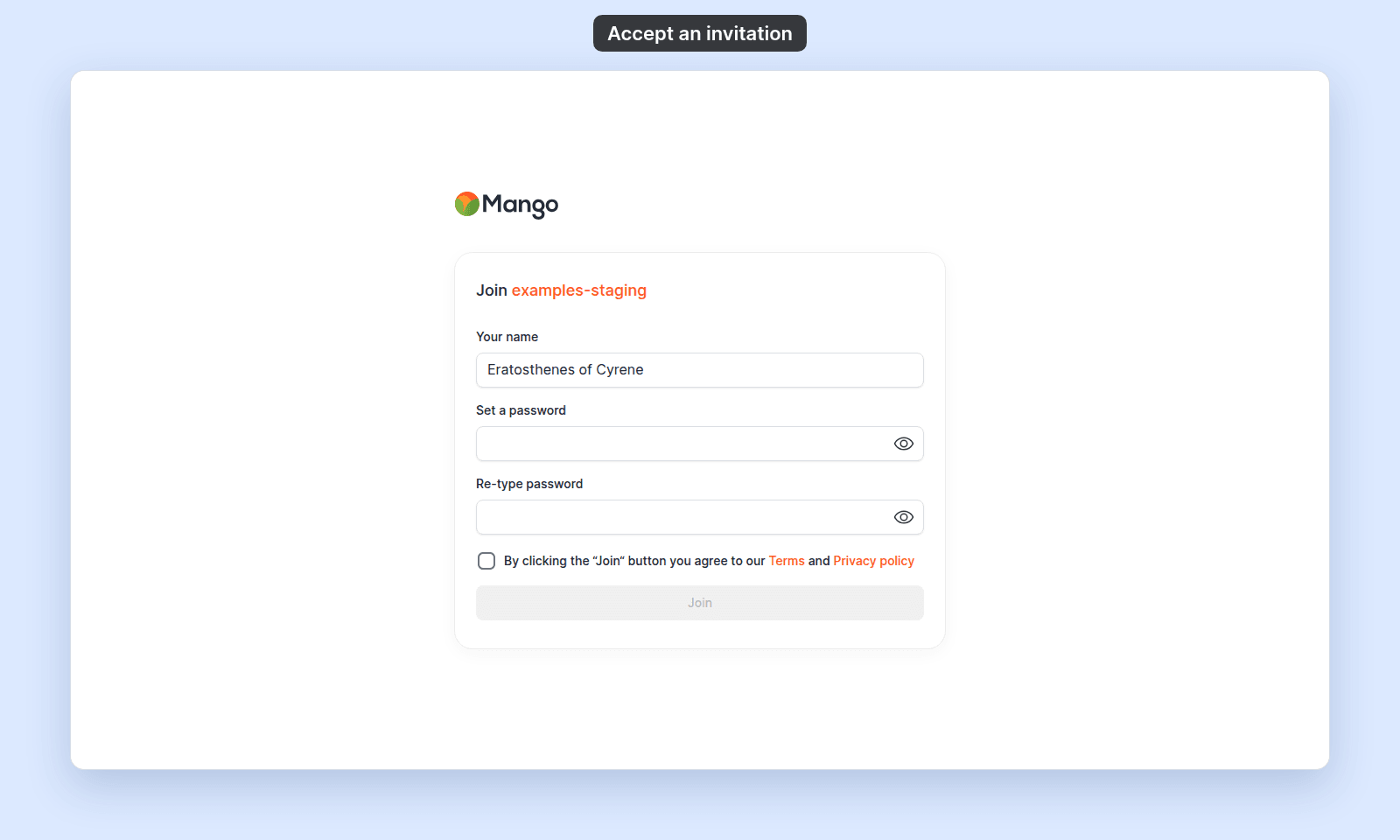 The form has three text fields and a checkbox:
| Field | What to enter |
| --- | --- |
| `Your name` | Your first and last name, which your teammates see in the account. A single word shows `Please enter your first and last name`. |
| `Set a password` | A password for your MangoMap sign-in. |
| `Re-type password` | The same password again. |
| _(checkbox)_ | `By clicking the "Join" button you agree to our Terms and Privacy policy`. |
The checkbox links to the Terms and Privacy policy. Read them if you want. You must tick the checkbox to submit.
## Submit
Click `Join`. MangoMap signs you in and opens the `Map portal` of the account that invited you.
If the button stays disabled, one of the fields is missing or the checkbox is not ticked. Fix the highlighted field and try again.
## After joining
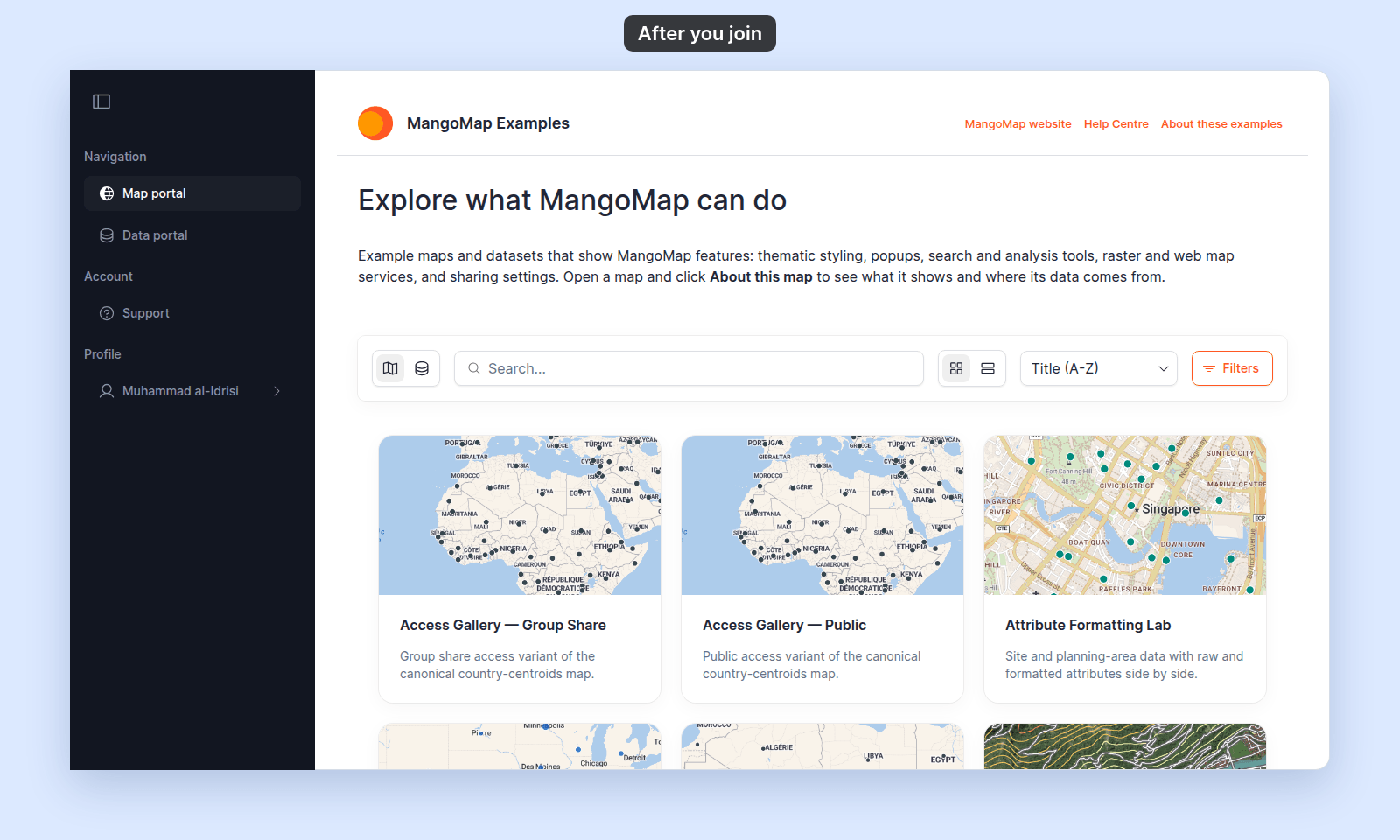
Your account in the workspace switches from `PENDING ACTIVATION` to active. The `Map portal` shows the maps you can open, and your name shows under `Profile` in the navigation:
The form has three text fields and a checkbox:
| Field | What to enter |
| --- | --- |
| `Your name` | Your first and last name, which your teammates see in the account. A single word shows `Please enter your first and last name`. |
| `Set a password` | A password for your MangoMap sign-in. |
| `Re-type password` | The same password again. |
| _(checkbox)_ | `By clicking the "Join" button you agree to our Terms and Privacy policy`. |
The checkbox links to the Terms and Privacy policy. Read them if you want. You must tick the checkbox to submit.
## Submit
Click `Join`. MangoMap signs you in and opens the `Map portal` of the account that invited you.
If the button stays disabled, one of the fields is missing or the checkbox is not ticked. Fix the highlighted field and try again.
## After joining
Your account in the workspace switches from `PENDING ACTIVATION` to active. The `Map portal` shows the maps you can open, and your name shows under `Profile` in the navigation:
 You can now:
- Sign in with the email the invitation was sent to and the password you just set.
- View the maps and datasets that have been shared with the access groups you're in.
- Edit content if your role and group access allow it.
What you can do depends on the role the owner gave you (`Admin`, `Editor`, or `Viewer`) and which access groups you're in. Ask the owner if anything you expect to see is missing.
## Troubleshooting
**The link does not open or shows an error.** The invitation may have been removed or the link expired. Ask the account owner to invite you again. The owner can find your status on their `Users` page; they remove the pending row and re-invite using [How to invite a user](/docs/managing-team/invite-a-user).
**The password is rejected.** The form requires a password that meets MangoMap's complexity rules. Try a longer password with a mix of letters, numbers, and symbols.
**The two password fields don't match.** Re-type the password in both fields. Browser autofill sometimes fills only one — paste it manually if needed.
**You completed `Join` but cannot view anything.** Your role or group memberships may not include the maps and datasets you expect. Ask the account owner to update your access. They can do that from [`Update user`](/docs/managing-team/update-a-user).
## Related
- [How to invite a user](/docs/managing-team/invite-a-user) - for the account owner
- [How team management and account roles work in MangoMap](/docs/managing-team/concepts-team-and-roles)
You can now:
- Sign in with the email the invitation was sent to and the password you just set.
- View the maps and datasets that have been shared with the access groups you're in.
- Edit content if your role and group access allow it.
What you can do depends on the role the owner gave you (`Admin`, `Editor`, or `Viewer`) and which access groups you're in. Ask the owner if anything you expect to see is missing.
## Troubleshooting
**The link does not open or shows an error.** The invitation may have been removed or the link expired. Ask the account owner to invite you again. The owner can find your status on their `Users` page; they remove the pending row and re-invite using [How to invite a user](/docs/managing-team/invite-a-user).
**The password is rejected.** The form requires a password that meets MangoMap's complexity rules. Try a longer password with a mix of letters, numbers, and symbols.
**The two password fields don't match.** Re-type the password in both fields. Browser autofill sometimes fills only one — paste it manually if needed.
**You completed `Join` but cannot view anything.** Your role or group memberships may not include the maps and datasets you expect. Ask the account owner to update your access. They can do that from [`Update user`](/docs/managing-team/update-a-user).
## Related
- [How to invite a user](/docs/managing-team/invite-a-user) - for the account owner
- [How team management and account roles work in MangoMap](/docs/managing-team/concepts-team-and-roles)