---
title: "How to set the default basemap"
description: "Pick the background map that loads for every viewer under Default basemap in the layer panel, and use the Labels, Roads, POIs, and Boundaries chips."
sidebar:
label: "Set the default basemap"
---
Picking a basemap under `Default basemap` sets the background that loads for every viewer. Supported backgrounds also provide `Labels`, `Roads`, `POIs`, and `Boundaries` chips so you can remove competing context. The pick is per-map (not account-wide); for viewers to switch their own session basemap, enable the [Basemap chooser](/docs/map-extensions/enable-the-basemap-chooser) tool.
**[See it on an example map](https://mangomap-staging.com/examples-staging/maps/4jwk0nxy/utilities-showcase)**
Open the Utilities Showcase. Look at the map when it loads. It opens with the `Outdoors` basemap. Point at the basemap thumbnail at the bottom left to see the other basemaps.
## Before you start
- You need edit access to the map.
- Decide which basemap fits the map's purpose before opening the panel — see [Available basemaps](/docs/managing-layers/available-basemaps-reference) for the list with descriptions. Quiet options such as `Smooth` or `Toner` `Lite` work well when data layers carry the colour; `OSM Bright` and `Outdoors` provide more context.
## Open the layer panel
From the map toolbar, open `Manage Layers` to bring up the layer panel.
## Find the Default basemap section
Scroll to the bottom of the layer panel. The `Default basemap` section is at the bottom.
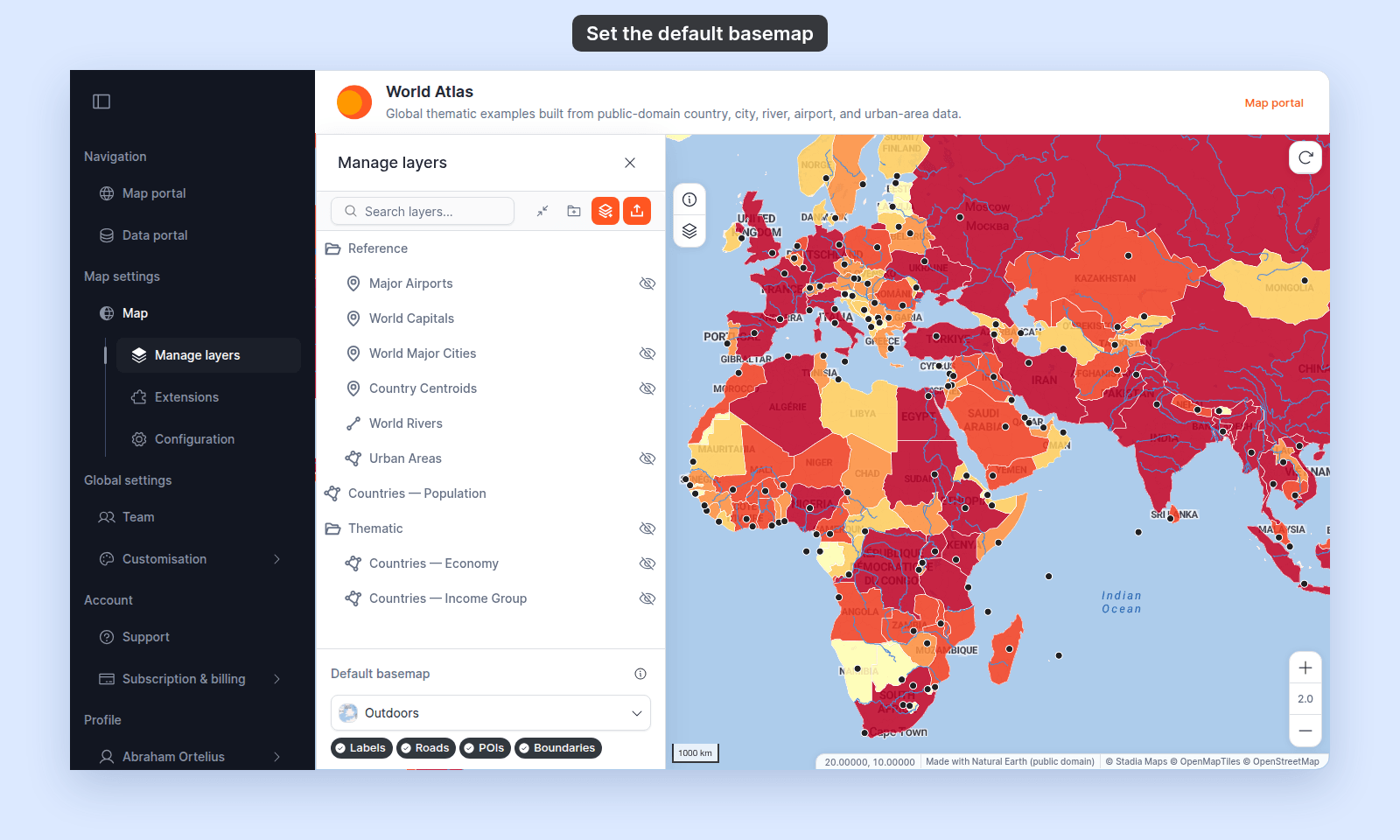 The section shows:
- The header `Default basemap` with an information icon explaining whether viewers can also switch basemaps.
- A dropdown with the current basemap selected (or `Select basemap` if none is configured).
- Variant chips when the selected basemap offers several styles.
- Overlay chips for `Labels`, `Roads`, `POIs`, and `Boundaries` when the selected basemap supports them.
## Pick a basemap
Click the dropdown and choose `Smooth`, `Outdoors`, `Terrain`, `OSM Bright`, `Satellite`, `Toner`, `Watercolor`, or `Colour`. If the option has variants, choose the variant chip that appears below the dropdown.
The map redraws at once and the change saves. Your overlay chip choices carry over to the new basemap.
For a full description of every basemap option, see [Available basemaps](/docs/managing-layers/available-basemaps-reference).
## (Optional) Pick a solid colour
If you picked the `Colour` option in the dropdown, a colour picker appears. Pick a colour. The map redraws with the solid fill.
A solid-colour basemap is useful for editorial-style maps where the basemap shouldn't compete with the data. The four basemap filters don't apply when `Colour` is selected — there's nothing to filter.
## (Optional) simplify the basemap overlays
For supported basemaps, active chips indicate that `Labels`, `Roads`, `POIs`, or `Boundaries` are shown. Click a chip to hide that content; click it again to restore it. A disabled chip is not available for that basemap.
- `Labels` hides the basemap's place, street, water, and landscape names. It doesn't hide points of interest.
- `POIs` hides points of interest and their names.
- The chips change only the basemap. They never hide your own layers or sketches.
`Watercolor` and `Colour` do not offer overlay controls. Each overlay change saves immediately.
## What happens for viewers
If `Map Extensions` allows the basemap chooser, viewers see a basemap chooser in the map toolbar (not the layer panel — viewers don't see the layer panel). They can pick a different basemap for their session only.
The information icon next to the `Default basemap` header tells you which path is active for this map:
The section shows:
- The header `Default basemap` with an information icon explaining whether viewers can also switch basemaps.
- A dropdown with the current basemap selected (or `Select basemap` if none is configured).
- Variant chips when the selected basemap offers several styles.
- Overlay chips for `Labels`, `Roads`, `POIs`, and `Boundaries` when the selected basemap supports them.
## Pick a basemap
Click the dropdown and choose `Smooth`, `Outdoors`, `Terrain`, `OSM Bright`, `Satellite`, `Toner`, `Watercolor`, or `Colour`. If the option has variants, choose the variant chip that appears below the dropdown.
The map redraws at once and the change saves. Your overlay chip choices carry over to the new basemap.
For a full description of every basemap option, see [Available basemaps](/docs/managing-layers/available-basemaps-reference).
## (Optional) Pick a solid colour
If you picked the `Colour` option in the dropdown, a colour picker appears. Pick a colour. The map redraws with the solid fill.
A solid-colour basemap is useful for editorial-style maps where the basemap shouldn't compete with the data. The four basemap filters don't apply when `Colour` is selected — there's nothing to filter.
## (Optional) simplify the basemap overlays
For supported basemaps, active chips indicate that `Labels`, `Roads`, `POIs`, or `Boundaries` are shown. Click a chip to hide that content; click it again to restore it. A disabled chip is not available for that basemap.
- `Labels` hides the basemap's place, street, water, and landscape names. It doesn't hide points of interest.
- `POIs` hides points of interest and their names.
- The chips change only the basemap. They never hide your own layers or sketches.
`Watercolor` and `Colour` do not offer overlay controls. Each overlay change saves immediately.
## What happens for viewers
If `Map Extensions` allows the basemap chooser, viewers see a basemap chooser in the map toolbar (not the layer panel — viewers don't see the layer panel). They can pick a different basemap for their session only.
The information icon next to the `Default basemap` header tells you which path is active for this map:
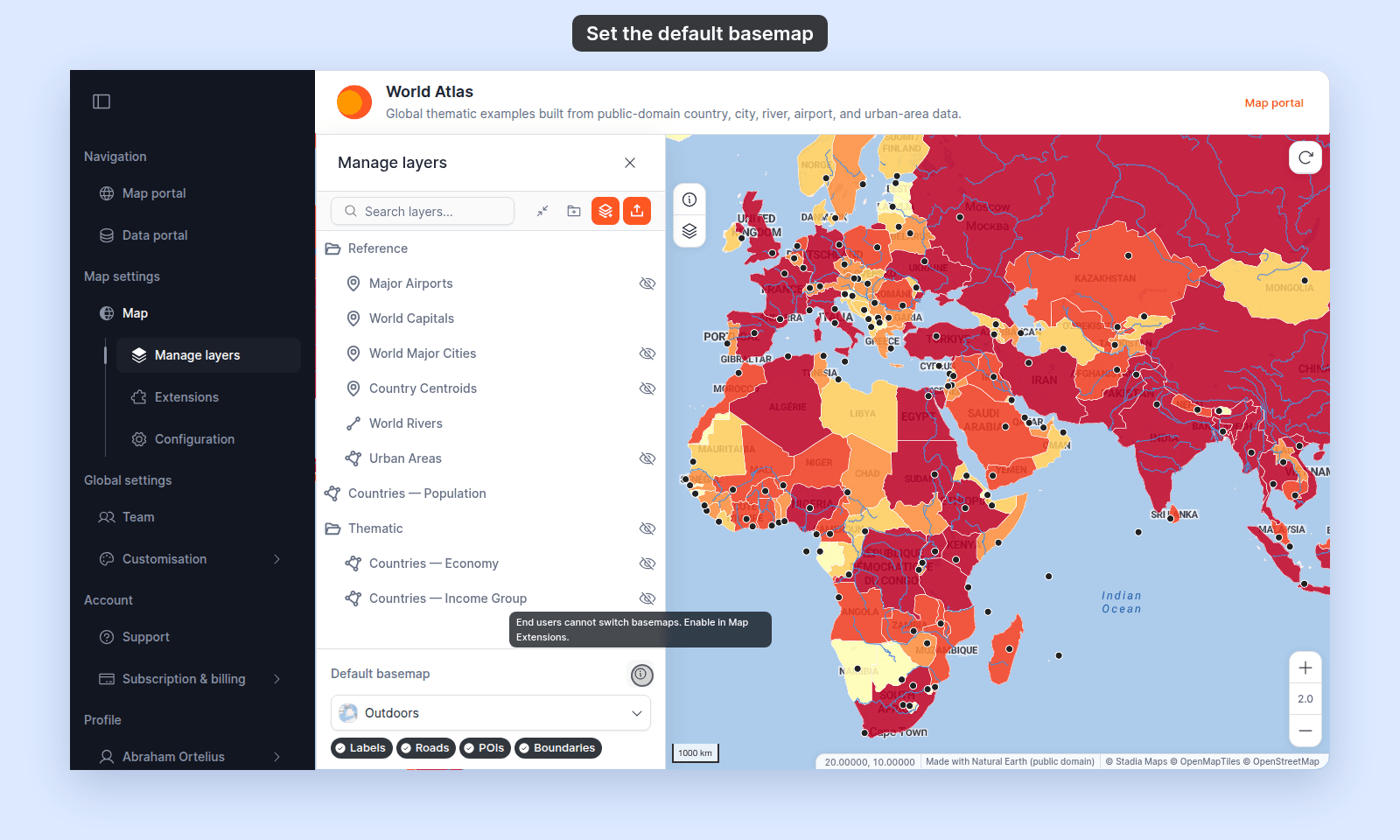 {/* TODO: screenshot - the Default basemap info-icon tooltip with the basemap chooser on ("Basemap switching is available to end users."). Blocked: the layer panel always shows the chooser-off text. */}
- _"Basemap switching is available to end users."_ — viewers can switch their session basemap.
- _"End users cannot switch basemaps. Enable in Map Extensions."_ — viewers see only the basemap you set as default.
## Verify the default
Open the map in a fresh tab (or sign out and view as a viewer). The basemap should match what you saved.
## If the basemap doesn't load
A few common issues:
- **Browser caching.** A hard refresh (Ctrl/Cmd+Shift+R) usually resolves a stale basemap.
## Related
- [Available basemaps](/docs/managing-layers/available-basemaps-reference)
- [Layer panel controls](/docs/managing-layers/layer-panel-reference)
- [How the layer panel works in MangoMap](/docs/managing-layers/concepts-layer-panel)
- [How to set which layers show when the map first loads](/docs/managing-layers/set-default-layer-visibility)
{/* TODO: screenshot - the Default basemap info-icon tooltip with the basemap chooser on ("Basemap switching is available to end users."). Blocked: the layer panel always shows the chooser-off text. */}
- _"Basemap switching is available to end users."_ — viewers can switch their session basemap.
- _"End users cannot switch basemaps. Enable in Map Extensions."_ — viewers see only the basemap you set as default.
## Verify the default
Open the map in a fresh tab (or sign out and view as a viewer). The basemap should match what you saved.
## If the basemap doesn't load
A few common issues:
- **Browser caching.** A hard refresh (Ctrl/Cmd+Shift+R) usually resolves a stale basemap.
## Related
- [Available basemaps](/docs/managing-layers/available-basemaps-reference)
- [Layer panel controls](/docs/managing-layers/layer-panel-reference)
- [How the layer panel works in MangoMap](/docs/managing-layers/concepts-layer-panel)
- [How to set which layers show when the map first loads](/docs/managing-layers/set-default-layer-visibility)