---
title: "How to remove a layer from a map"
description: "Remove a layer from one map with Delete Layer in the layer panel. The dataset stays in your library, and other maps are not affected. You cannot undo it."
sidebar:
label: "Remove a layer"
---
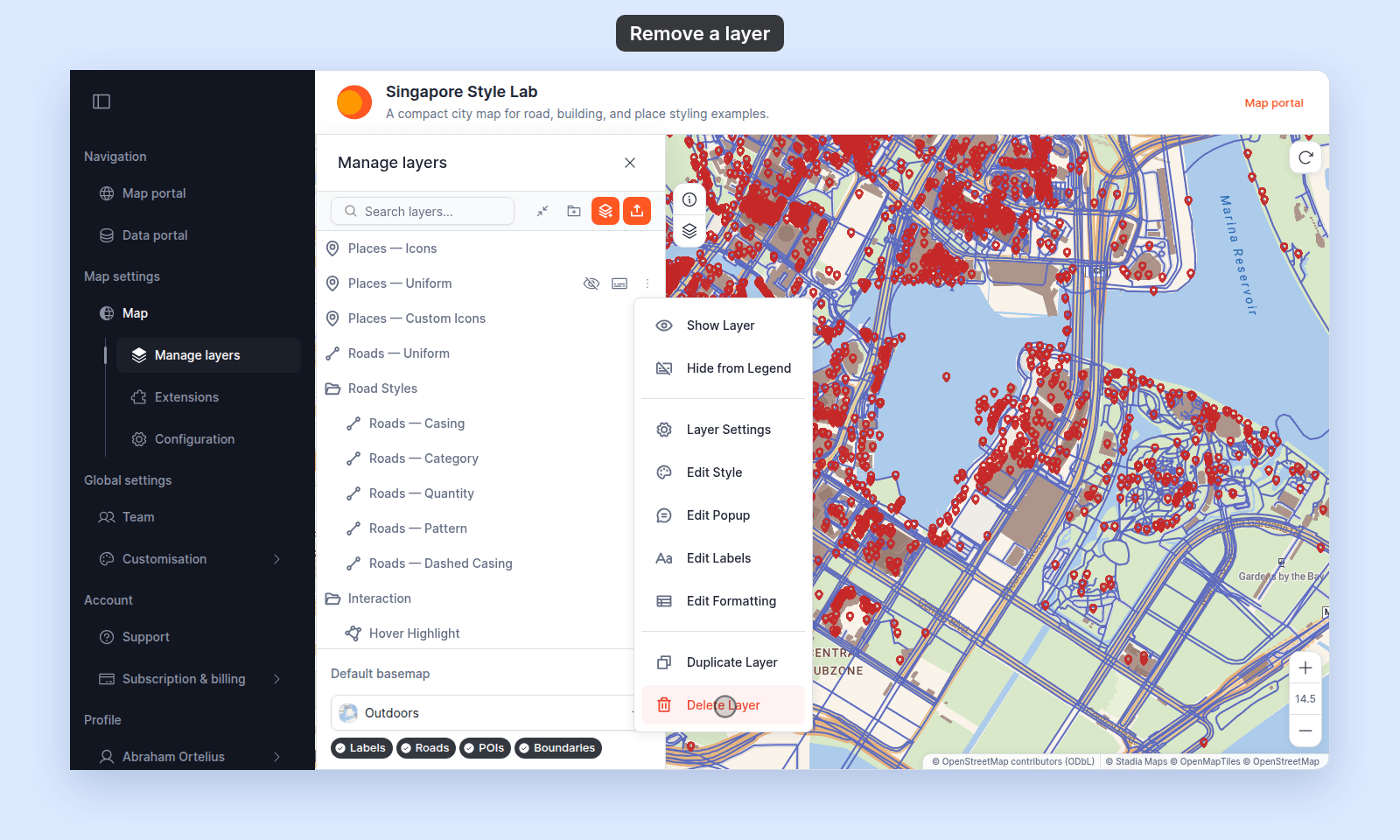
Removing a layer affects only this map. The dataset stays in your library, and other maps remain unchanged. In the layer panel, open the layer's `More actions` menu and pick `Delete Layer`. You cannot undo the deletion. If you add the layer again, it uses default styling, popup, format, and visibility settings.
## Before you start
You need edit access to the map.
## Open the layer panel
From the map toolbar, open `Manage Layers` to bring up the layer panel.
## Pick Delete Layer from the layer's menu
Hover the layer's row and click its `More actions` button (three dots). Pick `Delete Layer`.
 ## Confirm the deletion
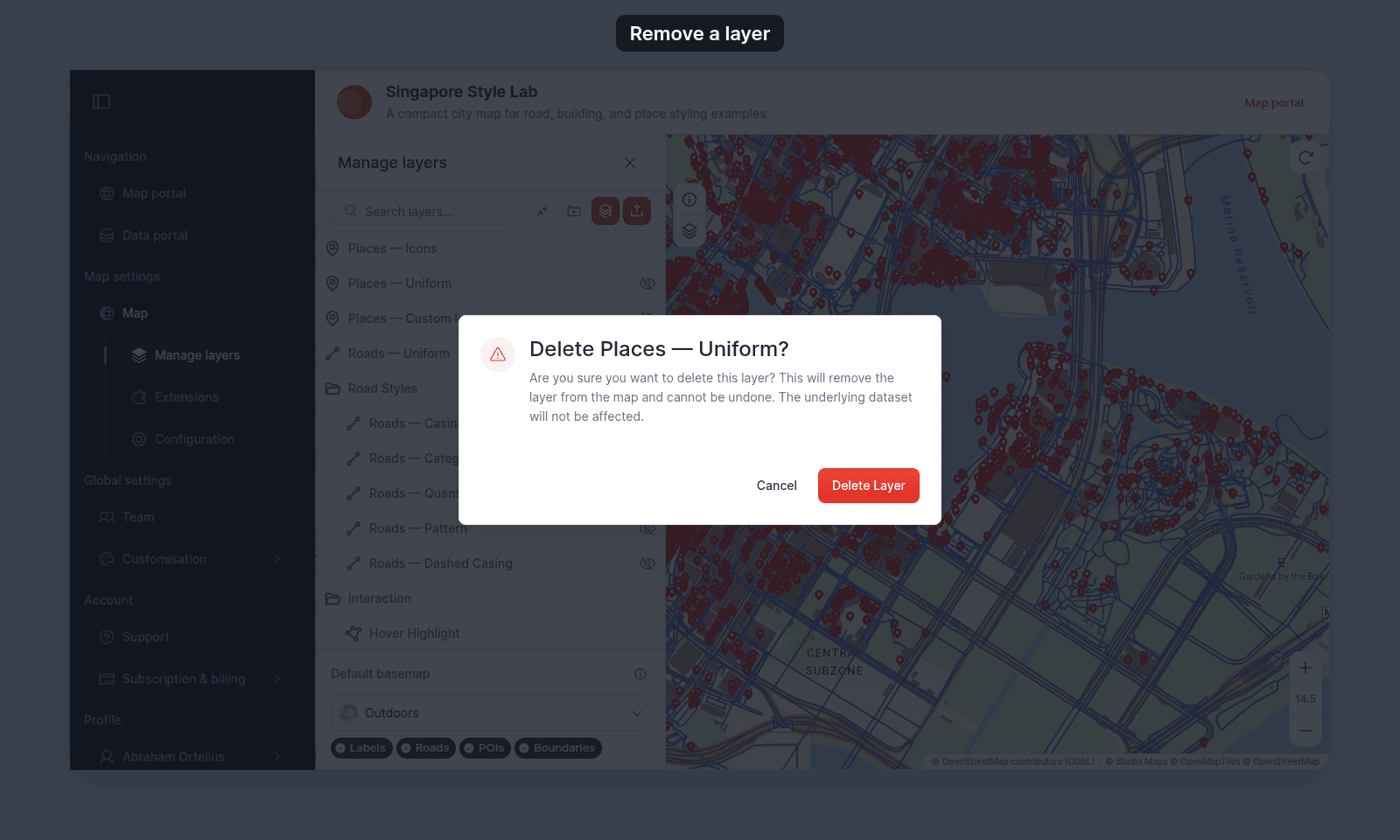
A confirmation dialog asks whether you're sure.
## Confirm the deletion
A confirmation dialog asks whether you're sure.
 > [!WARNING]
> You cannot undo this. To get the layer back, add it again from your data library.
Click `Delete Layer` to confirm. The layer disappears from the panel and the map.
## Re-add the same layer later
Add it back from the data library — see [How to add a layer from your data library](/docs/managing-layers/add-layer-from-library). The dataset is unchanged in the library; the new layer starts with default styling, popup, format, and visibility settings (the previous layer's settings aren't preserved).
If you need to keep the previous layer's configuration but hide it temporarily, toggle the visibility eye instead of deleting — see [How to set which layers show when the map first loads](/docs/managing-layers/set-default-layer-visibility).
## Related
- [How to add a layer from your data library](/docs/managing-layers/add-layer-from-library)
- [How to set which layers show when the map first loads](/docs/managing-layers/set-default-layer-visibility)
- [Layer panel controls](/docs/managing-layers/layer-panel-reference)
> [!WARNING]
> You cannot undo this. To get the layer back, add it again from your data library.
Click `Delete Layer` to confirm. The layer disappears from the panel and the map.
## Re-add the same layer later
Add it back from the data library — see [How to add a layer from your data library](/docs/managing-layers/add-layer-from-library). The dataset is unchanged in the library; the new layer starts with default styling, popup, format, and visibility settings (the previous layer's settings aren't preserved).
If you need to keep the previous layer's configuration but hide it temporarily, toggle the visibility eye instead of deleting — see [How to set which layers show when the map first loads](/docs/managing-layers/set-default-layer-visibility).
## Related
- [How to add a layer from your data library](/docs/managing-layers/add-layer-from-library)
- [How to set which layers show when the map first loads](/docs/managing-layers/set-default-layer-visibility)
- [Layer panel controls](/docs/managing-layers/layer-panel-reference)