---
title: "How to hide a layer from the legend"
description: "Remove a layer's toggle from the legend viewers see while the layer still draws on the map. Use Hide from Legend on a layer or a whole folder."
sidebar:
label: "Hide a layer from the legend"
---
Hiding a layer from the legend keeps it drawing on the map but removes its toggle from the legend list viewers see — useful for always-on context layers (project boundary, watermark) or for locking viewers out of toggling a key data layer off. The legend setting is independent of the visibility eye, so the two combine into four states (visible / in-legend, visible / hidden-from-legend, hidden / in-legend, hidden / hidden-from-legend); folders have the same option and hide every layer inside the legend at once.
## Before you start
- The map must already have the layer. See [How to add a layer from your data library](/docs/managing-layers/add-layer-from-library) if it's empty.
- You need edit access to the map.
- Decide what you want viewers to control. Hiding a layer from the legend takes the toggle out of viewers' hands; if they should be able to switch the layer on or off themselves, leave it in the legend.
## Open the layer panel
From the map toolbar, open `Manage Layers` to bring up the layer panel.
## Toggle the layer's legend visibility
Hover the layer's row in the panel and click its `More actions` button (three dots).
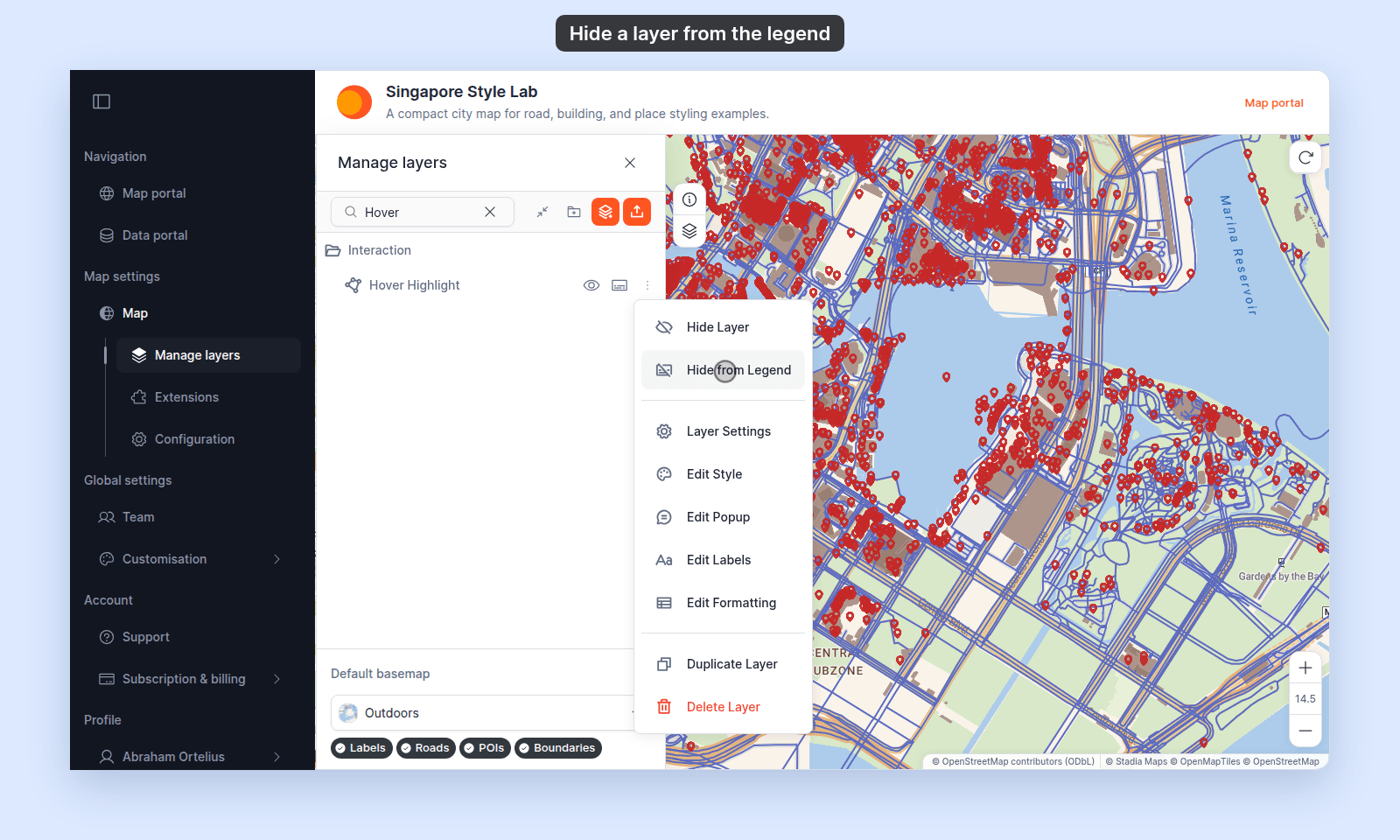 Pick one of:
- **`Hide from Legend`** — the layer disappears from the legend on the live map. It still draws if its visibility eye is on; it doesn't appear in the legend's toggle list.
- **`Show in Legend`** — the layer appears in the legend (this is the default for new layers).
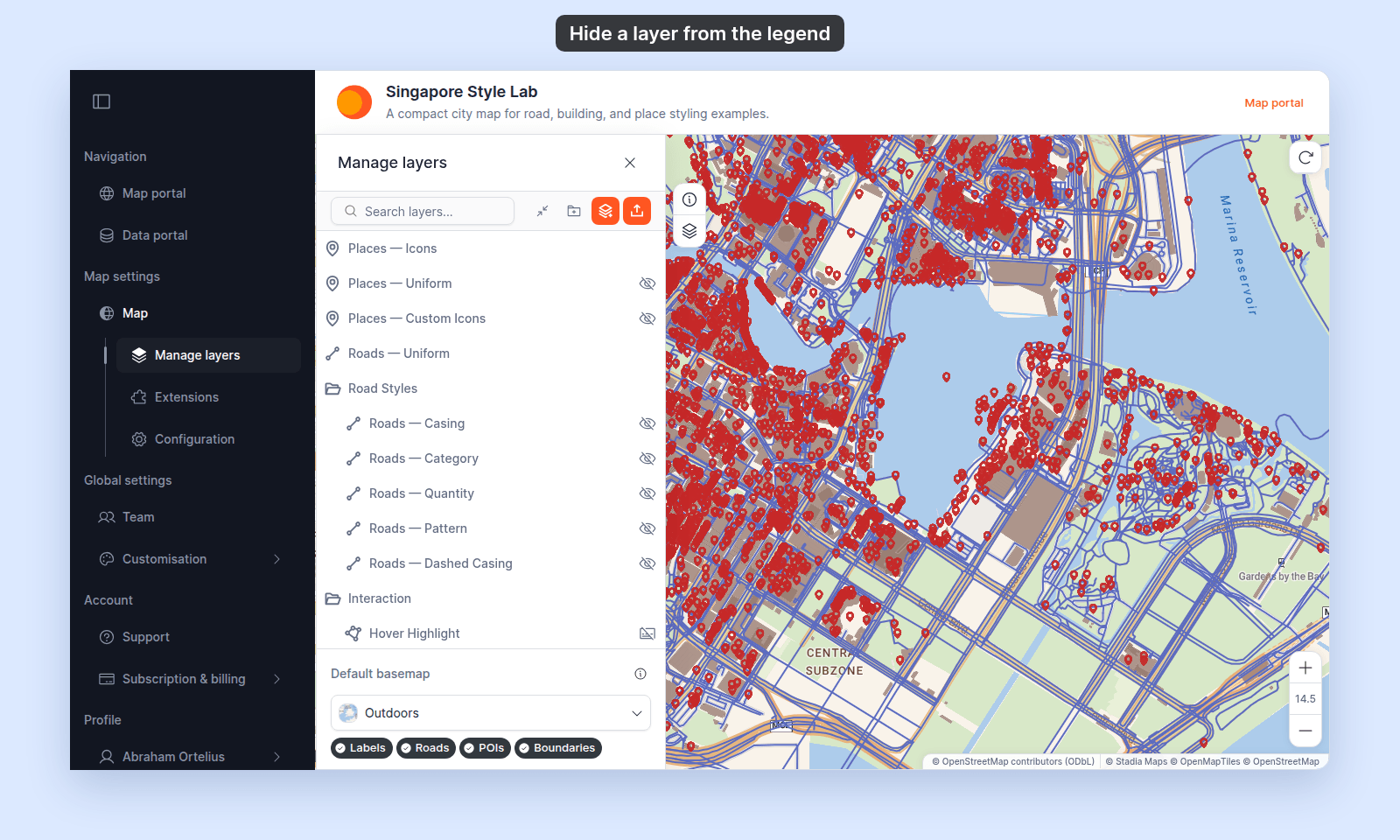
The change saves immediately. There's no separate save step. A layer that is hidden from the legend keeps a crossed-out legend icon on its row.
Pick one of:
- **`Hide from Legend`** — the layer disappears from the legend on the live map. It still draws if its visibility eye is on; it doesn't appear in the legend's toggle list.
- **`Show in Legend`** — the layer appears in the legend (this is the default for new layers).
The change saves immediately. There's no separate save step. A layer that is hidden from the legend keeps a crossed-out legend icon on its row.
 ## Hide a whole folder from the legend
Folders have the same option. In a folder's `More actions` menu, pick `Hide from Legend` to remove the entire folder — and every layer inside — from the legend at once.
This is useful for groups of background layers (basemap-style overlays, reference grids, hidden detail layers) that should be present on the map but invisible to viewers as toggleable items.
## How the four combinations work
The two settings are independent. Here's what each combination does:
| Visible | In Legend | Result for viewers |
| --- | --- | --- |
| On | On | Layer draws on the map. Toggle appears in the legend, set to On. Viewers can hide it. |
| On | Off | Layer draws on the map. No toggle in the legend. Viewers cannot hide it. |
| Off | On | Layer doesn't draw. Toggle appears in the legend, set to Off. Viewers can switch it on. |
| Off | Off | Layer doesn't draw. No toggle in the legend. Viewers can't see or switch the layer. |
The "Off + Off" combination is a hard hide — viewers don't see the layer or any way to enable it. Useful for staging layers you've added to the map but aren't ready to expose yet.
The "On + Off" combination is the always-on overlay pattern — the layer is always part of the map's appearance, and viewers can't turn it off. Useful for boundary lines, watermark overlays, or contextual layers that are part of the design.
## Common patterns
- **Always-on context layer** (visible: On, in legend: Off) — a country boundary, a project area outline, a watermark. Viewers always see it; viewers can't toggle it.
- **Staged-but-hidden** (visible: Off, in legend: Off) — a layer you've added but haven't finished setting up. Hidden from viewers entirely until you switch both back on.
- **Toggleable detail** (visible: Off, in legend: On) — additional context viewers can opt into. The legend toggle invites them to explore.
## Verify by viewing the map
Open the map in a fresh tab (or sign out and view as a viewer would). Check the legend:
- Layers and folders with `Show in Legend` appear as toggle items.
- Layers and folders with `Hide from Legend` don't appear at all — even if they're drawn on the map.
## Related
- [How to set which layers show when the map first loads](/docs/managing-layers/set-default-layer-visibility) — the related but distinct `visible` toggle.
- [How the layer panel works in MangoMap](/docs/managing-layers/concepts-layer-panel) — explains the panel-vs-legend visibility model.
- [Layer panel controls](/docs/managing-layers/layer-panel-reference)
- [How to organise layers into folders](/docs/managing-layers/organise-layers-into-folders)
## Hide a whole folder from the legend
Folders have the same option. In a folder's `More actions` menu, pick `Hide from Legend` to remove the entire folder — and every layer inside — from the legend at once.
This is useful for groups of background layers (basemap-style overlays, reference grids, hidden detail layers) that should be present on the map but invisible to viewers as toggleable items.
## How the four combinations work
The two settings are independent. Here's what each combination does:
| Visible | In Legend | Result for viewers |
| --- | --- | --- |
| On | On | Layer draws on the map. Toggle appears in the legend, set to On. Viewers can hide it. |
| On | Off | Layer draws on the map. No toggle in the legend. Viewers cannot hide it. |
| Off | On | Layer doesn't draw. Toggle appears in the legend, set to Off. Viewers can switch it on. |
| Off | Off | Layer doesn't draw. No toggle in the legend. Viewers can't see or switch the layer. |
The "Off + Off" combination is a hard hide — viewers don't see the layer or any way to enable it. Useful for staging layers you've added to the map but aren't ready to expose yet.
The "On + Off" combination is the always-on overlay pattern — the layer is always part of the map's appearance, and viewers can't turn it off. Useful for boundary lines, watermark overlays, or contextual layers that are part of the design.
## Common patterns
- **Always-on context layer** (visible: On, in legend: Off) — a country boundary, a project area outline, a watermark. Viewers always see it; viewers can't toggle it.
- **Staged-but-hidden** (visible: Off, in legend: Off) — a layer you've added but haven't finished setting up. Hidden from viewers entirely until you switch both back on.
- **Toggleable detail** (visible: Off, in legend: On) — additional context viewers can opt into. The legend toggle invites them to explore.
## Verify by viewing the map
Open the map in a fresh tab (or sign out and view as a viewer would). Check the legend:
- Layers and folders with `Show in Legend` appear as toggle items.
- Layers and folders with `Hide from Legend` don't appear at all — even if they're drawn on the map.
## Related
- [How to set which layers show when the map first loads](/docs/managing-layers/set-default-layer-visibility) — the related but distinct `visible` toggle.
- [How the layer panel works in MangoMap](/docs/managing-layers/concepts-layer-panel) — explains the panel-vs-legend visibility model.
- [Layer panel controls](/docs/managing-layers/layer-panel-reference)
- [How to organise layers into folders](/docs/managing-layers/organise-layers-into-folders)