---
title: "How to add a layer by importing data"
description: "Import a file from the layer panel to add it to your data library and to the current map in one step. You need the Admin role and map edit access."
sidebar:
label: "Add by importing data"
---
Importing a file directly from the layer panel uploads it to your data library AND adds a layer pointing at it to the current map — one workflow with two results — and the layer settings open straight to the `Style` tab once processing completes. Requires the `Admin` account role plus map edit access; same supported formats as standalone import.
## Before you start
- The file must be in a [supported format](/docs/importing-data/supported-formats).
- You need edit access to the map and the `Admin` role on the account (required to import data).
- For a layer that should land in a specific folder, create the folder first. Only the folder's `Add Layer` route below puts the new layer in it.
## Open the layer panel
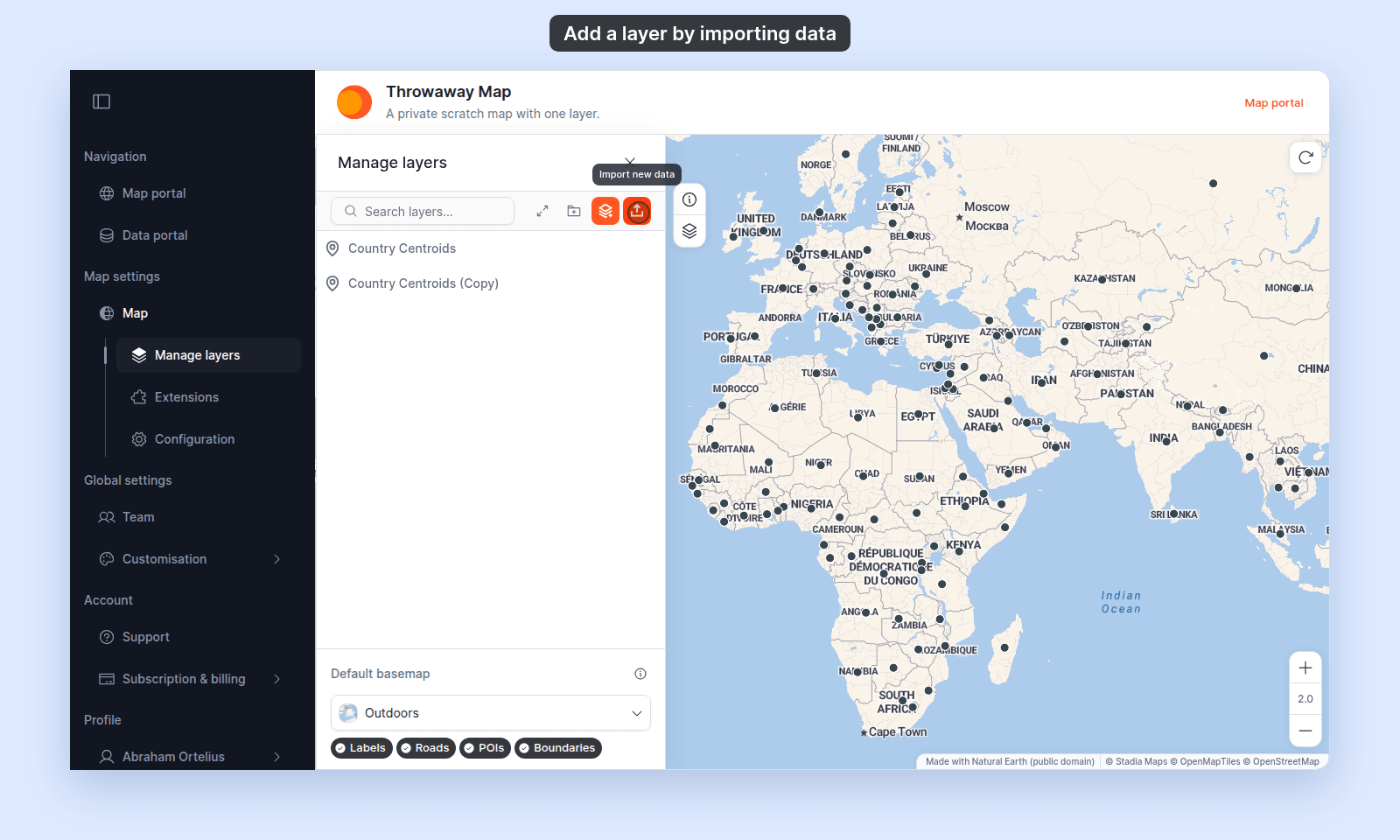
From the map toolbar, open `Manage Layers` to bring up the layer panel.
## Pick an entry point
Three paths reach the import flow with the current map attached:
- **Layer panel control bar → `Import new data`** (upload icon). The layer goes to the top level of the map.
- **Folder `More actions` (⋯) menu → `Upload Dataset`**. The layer also goes to the top level of the map, not into that folder.
- **Add layer modal → `Upload Dataset`**. The button is next to the search box. If you opened the modal from a folder's `More actions` (⋯) → `Add Layer`, the layer goes into that folder. From the stack-plus icon, it goes to the top level.
The flowchart shows where the new layer lands from each entry point:
## Import the file
The import flow is documented in [How importing data works in MangoMap](/docs/importing-data/concepts-importing-data). Pick the format-specific guide for your file type:
- [How to import a CSV](/docs/importing-data/import-csv)
- [How to import a shapefile](/docs/importing-data/import-shapefile)
- [How to import a GeoJSON file](/docs/importing-data/import-geojson)
- [How to import a KML file](/docs/importing-data/import-kml)
- [How to import a MapInfo TAB dataset](/docs/importing-data/import-mapinfo-tab)
- [How to import an Esri File Geodatabase](/docs/importing-data/import-geodatabase)
- [How to import a GeoTIFF](/docs/importing-data/import-geotiff)
- [How to connect a WMS service](/docs/importing-data/connect-a-wms-service)
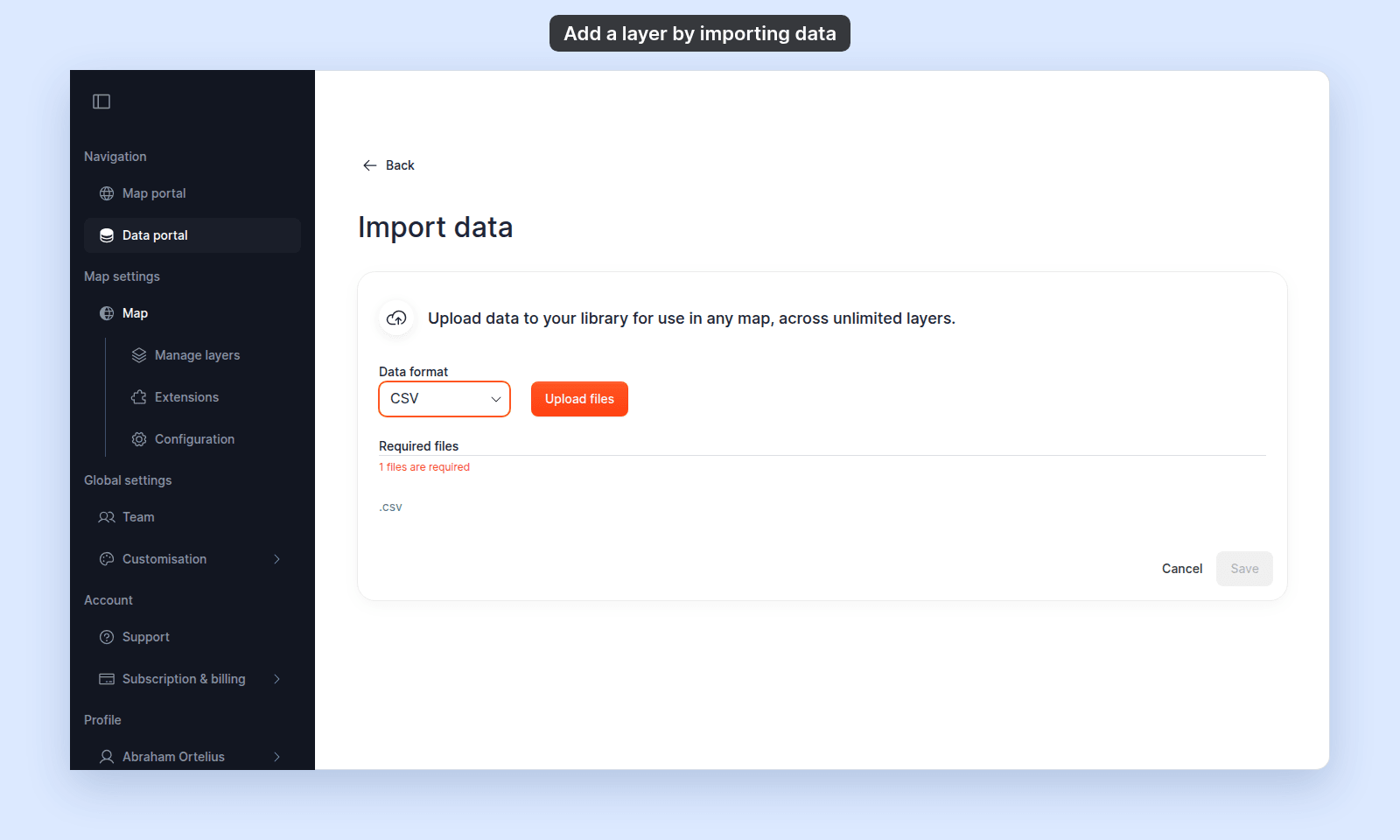
The flow is identical to importing without a map — pick the data format, drop the file(s), name the dataset, and click `Save`. The processing step shows the same `Processing data…` dialog.
## What happens after the import finishes
When the upload and processing complete:
1. The new dataset is added to your account's data library — you can use it on other maps later.
2. A layer pointing at the new dataset is added to the current map. If you started from the `Add layer` modal opened from a folder, the layer lands in that folder.
3. The layer settings panel opens directly to the layer's `Style` tab so you can configure the look immediately.
## If the import fails
The import flow handles its own error messages — see the format-specific how-to and the troubleshooting docs in [Importing data](/docs/importing-data). The most common failures:
- [Storage limit reached](/docs/importing-data/troubleshoot-storage-limit)
- [CSV missing longitude or latitude column](/docs/importing-data/troubleshoot-csv-missing-coordinates)
- [Shapefile missing files](/docs/importing-data/troubleshoot-shapefile-missing-files)
- [Unsupported coordinate system](/docs/importing-data/troubleshoot-unsupported-crs)
If the import fails after the upload, the dataset isn't added to the library and no layer is added to the map. Fix the underlying issue and try again.
## Importing a dataset that already exists
If you import a file that's a duplicate of an existing dataset (same name, same content), MangoMap creates a second dataset — it doesn't deduplicate. The new layer points at the new dataset.
If you want to add an existing dataset to the current map without re-importing, use [How to add a layer from your data library](/docs/managing-layers/add-layer-from-library) instead.
## Related
- [How to add a layer from your data library](/docs/managing-layers/add-layer-from-library)
- [Supported file formats and limits](/docs/importing-data/supported-formats)
- [How importing data works in MangoMap](/docs/importing-data/concepts-importing-data)
- [Layer panel controls](/docs/managing-layers/layer-panel-reference)
- [How to organise layers into folders](/docs/managing-layers/organise-layers-into-folders)
 ## Import the file
The import flow is documented in [How importing data works in MangoMap](/docs/importing-data/concepts-importing-data). Pick the format-specific guide for your file type:
- [How to import a CSV](/docs/importing-data/import-csv)
- [How to import a shapefile](/docs/importing-data/import-shapefile)
- [How to import a GeoJSON file](/docs/importing-data/import-geojson)
- [How to import a KML file](/docs/importing-data/import-kml)
- [How to import a MapInfo TAB dataset](/docs/importing-data/import-mapinfo-tab)
- [How to import an Esri File Geodatabase](/docs/importing-data/import-geodatabase)
- [How to import a GeoTIFF](/docs/importing-data/import-geotiff)
- [How to connect a WMS service](/docs/importing-data/connect-a-wms-service)
The flow is identical to importing without a map — pick the data format, drop the file(s), name the dataset, and click `Save`. The processing step shows the same `Processing data…` dialog.
## Import the file
The import flow is documented in [How importing data works in MangoMap](/docs/importing-data/concepts-importing-data). Pick the format-specific guide for your file type:
- [How to import a CSV](/docs/importing-data/import-csv)
- [How to import a shapefile](/docs/importing-data/import-shapefile)
- [How to import a GeoJSON file](/docs/importing-data/import-geojson)
- [How to import a KML file](/docs/importing-data/import-kml)
- [How to import a MapInfo TAB dataset](/docs/importing-data/import-mapinfo-tab)
- [How to import an Esri File Geodatabase](/docs/importing-data/import-geodatabase)
- [How to import a GeoTIFF](/docs/importing-data/import-geotiff)
- [How to connect a WMS service](/docs/importing-data/connect-a-wms-service)
The flow is identical to importing without a map — pick the data format, drop the file(s), name the dataset, and click `Save`. The processing step shows the same `Processing data…` dialog.
 ## What happens after the import finishes
When the upload and processing complete:
1. The new dataset is added to your account's data library — you can use it on other maps later.
2. A layer pointing at the new dataset is added to the current map. If you started from the `Add layer` modal opened from a folder, the layer lands in that folder.
3. The layer settings panel opens directly to the layer's `Style` tab so you can configure the look immediately.
## If the import fails
The import flow handles its own error messages — see the format-specific how-to and the troubleshooting docs in [Importing data](/docs/importing-data). The most common failures:
- [Storage limit reached](/docs/importing-data/troubleshoot-storage-limit)
- [CSV missing longitude or latitude column](/docs/importing-data/troubleshoot-csv-missing-coordinates)
- [Shapefile missing files](/docs/importing-data/troubleshoot-shapefile-missing-files)
- [Unsupported coordinate system](/docs/importing-data/troubleshoot-unsupported-crs)
If the import fails after the upload, the dataset isn't added to the library and no layer is added to the map. Fix the underlying issue and try again.
## Importing a dataset that already exists
If you import a file that's a duplicate of an existing dataset (same name, same content), MangoMap creates a second dataset — it doesn't deduplicate. The new layer points at the new dataset.
If you want to add an existing dataset to the current map without re-importing, use [How to add a layer from your data library](/docs/managing-layers/add-layer-from-library) instead.
## Related
- [How to add a layer from your data library](/docs/managing-layers/add-layer-from-library)
- [Supported file formats and limits](/docs/importing-data/supported-formats)
- [How importing data works in MangoMap](/docs/importing-data/concepts-importing-data)
- [Layer panel controls](/docs/managing-layers/layer-panel-reference)
- [How to organise layers into folders](/docs/managing-layers/organise-layers-into-folders)
## What happens after the import finishes
When the upload and processing complete:
1. The new dataset is added to your account's data library — you can use it on other maps later.
2. A layer pointing at the new dataset is added to the current map. If you started from the `Add layer` modal opened from a folder, the layer lands in that folder.
3. The layer settings panel opens directly to the layer's `Style` tab so you can configure the look immediately.
## If the import fails
The import flow handles its own error messages — see the format-specific how-to and the troubleshooting docs in [Importing data](/docs/importing-data). The most common failures:
- [Storage limit reached](/docs/importing-data/troubleshoot-storage-limit)
- [CSV missing longitude or latitude column](/docs/importing-data/troubleshoot-csv-missing-coordinates)
- [Shapefile missing files](/docs/importing-data/troubleshoot-shapefile-missing-files)
- [Unsupported coordinate system](/docs/importing-data/troubleshoot-unsupported-crs)
If the import fails after the upload, the dataset isn't added to the library and no layer is added to the map. Fix the underlying issue and try again.
## Importing a dataset that already exists
If you import a file that's a duplicate of an existing dataset (same name, same content), MangoMap creates a second dataset — it doesn't deduplicate. The new layer points at the new dataset.
If you want to add an existing dataset to the current map without re-importing, use [How to add a layer from your data library](/docs/managing-layers/add-layer-from-library) instead.
## Related
- [How to add a layer from your data library](/docs/managing-layers/add-layer-from-library)
- [Supported file formats and limits](/docs/importing-data/supported-formats)
- [How importing data works in MangoMap](/docs/importing-data/concepts-importing-data)
- [Layer panel controls](/docs/managing-layers/layer-panel-reference)
- [How to organise layers into folders](/docs/managing-layers/organise-layers-into-folders)