---
title: "How to import a KML file"
description: "Import one .kml file as a dataset. MangoMap does not accept KMZ archives, so extract the .kml first. Learn how KML styling is handled."
sidebar:
label: "Import a KML file"
search:
keywords: [google earth, google my maps]
---
MangoMap imports one `.kml` file as a dataset. It does not accept KMZ archives. Extract the `.kml` before upload.
## Before you start
- You need an account role of `Admin` or above to import data.
- The file extension must be `.kml`.
- The file must be 5 GB or smaller.
## Open the import page
From the `Data` page, click `Import data`. Or, from a map, open `Manage layers` and click `Import new data` to import directly into that map.
## Pick the format and upload
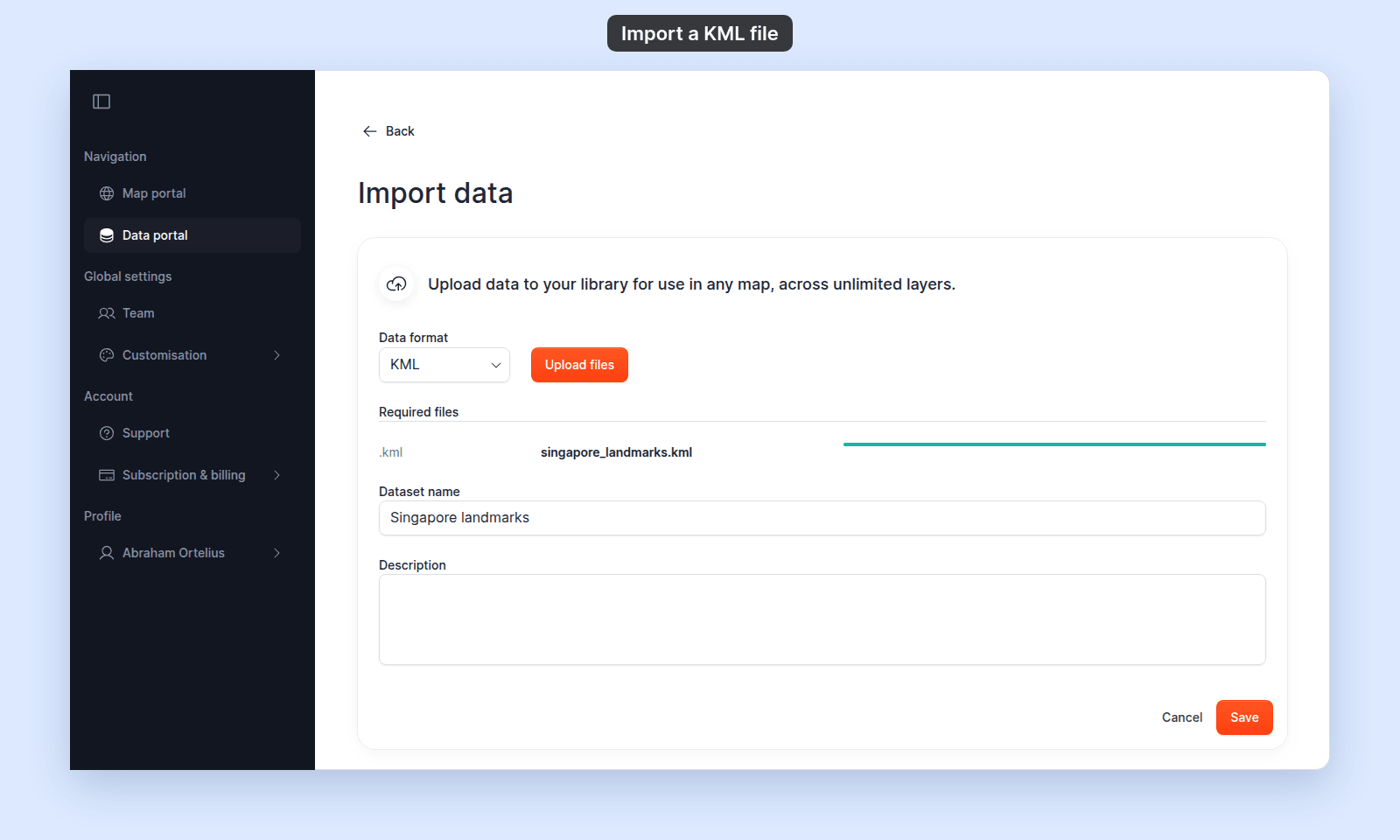
In the `Data format` dropdown, select `KML`. Click `Upload files` and select your `.kml`, or drag it onto the page. Wait until the progress bar is full and green.
 ## Name the dataset and save
- Enter a `Dataset name`. It is required, and MangoMap fills it in from the file name.
- Optionally add a `Description`.
Click `Save`. A `Processing data…` dialog appears while MangoMap reads the file. When processing finishes, you land on the dataset detail page (or back on the map).
## If you only have a `.kmz`
A `.kmz` is a zipped archive containing a `.kml` (and optional images). With `KML` selected, a `.kmz` is turned away with `This data type is not currently supported.` To import the data into MangoMap:
1. Rename the `.kmz` to `.zip`.
2. Extract it.
3. Find the `.kml` inside (often `doc.kml`).
4. Upload that `.kml` to MangoMap.
MangoMap does not preserve images from a KMZ. It imports the geometry and attributes.
## If your KML uses styling
KML files can carry their own styles (colours, icons, line widths). MangoMap imports the geometry and attributes but applies its own default styling. Re-style the layer in MangoMap after import.
## Troubleshooting
**The file imports but features don't appear.** The KML may use `` elements that point to data hosted elsewhere. MangoMap reads only the geometry inside the file itself; linked feeds are not followed. Resolve the network links into a flat KML before importing.
**Storage limit reached.** Your account has run out of storage. See [Storage limit reached when importing](/docs/importing-data/troubleshoot-storage-limit).
## Related
- [Supported file formats and limits](/docs/importing-data/supported-formats)
- [How importing data works in MangoMap](/docs/importing-data/concepts-importing-data)
## Name the dataset and save
- Enter a `Dataset name`. It is required, and MangoMap fills it in from the file name.
- Optionally add a `Description`.
Click `Save`. A `Processing data…` dialog appears while MangoMap reads the file. When processing finishes, you land on the dataset detail page (or back on the map).
## If you only have a `.kmz`
A `.kmz` is a zipped archive containing a `.kml` (and optional images). With `KML` selected, a `.kmz` is turned away with `This data type is not currently supported.` To import the data into MangoMap:
1. Rename the `.kmz` to `.zip`.
2. Extract it.
3. Find the `.kml` inside (often `doc.kml`).
4. Upload that `.kml` to MangoMap.
MangoMap does not preserve images from a KMZ. It imports the geometry and attributes.
## If your KML uses styling
KML files can carry their own styles (colours, icons, line widths). MangoMap imports the geometry and attributes but applies its own default styling. Re-style the layer in MangoMap after import.
## Troubleshooting
**The file imports but features don't appear.** The KML may use `` elements that point to data hosted elsewhere. MangoMap reads only the geometry inside the file itself; linked feeds are not followed. Resolve the network links into a flat KML before importing.
**Storage limit reached.** Your account has run out of storage. See [Storage limit reached when importing](/docs/importing-data/troubleshoot-storage-limit).
## Related
- [Supported file formats and limits](/docs/importing-data/supported-formats)
- [How importing data works in MangoMap](/docs/importing-data/concepts-importing-data)