---
title: "How to edit a feature's attributes"
description: "Change the stored values of one vector feature with Edit attributes. Saving updates the dataset and every map that uses it."
sidebar:
label: "Edit a feature's attributes"
---
Use `Edit attributes` to change one vector feature. Saving updates the dataset and every map that uses it.
## Before you start
- Sign in with permission to edit features in the dataset.
- Use a vector layer with an enabled popup.
- Confirm that a dataset-wide change is intended.
## Open the attribute editor
1. Select the feature on the map.
2. Open the popup's three-dot menu.
3. Click `Edit attributes`.
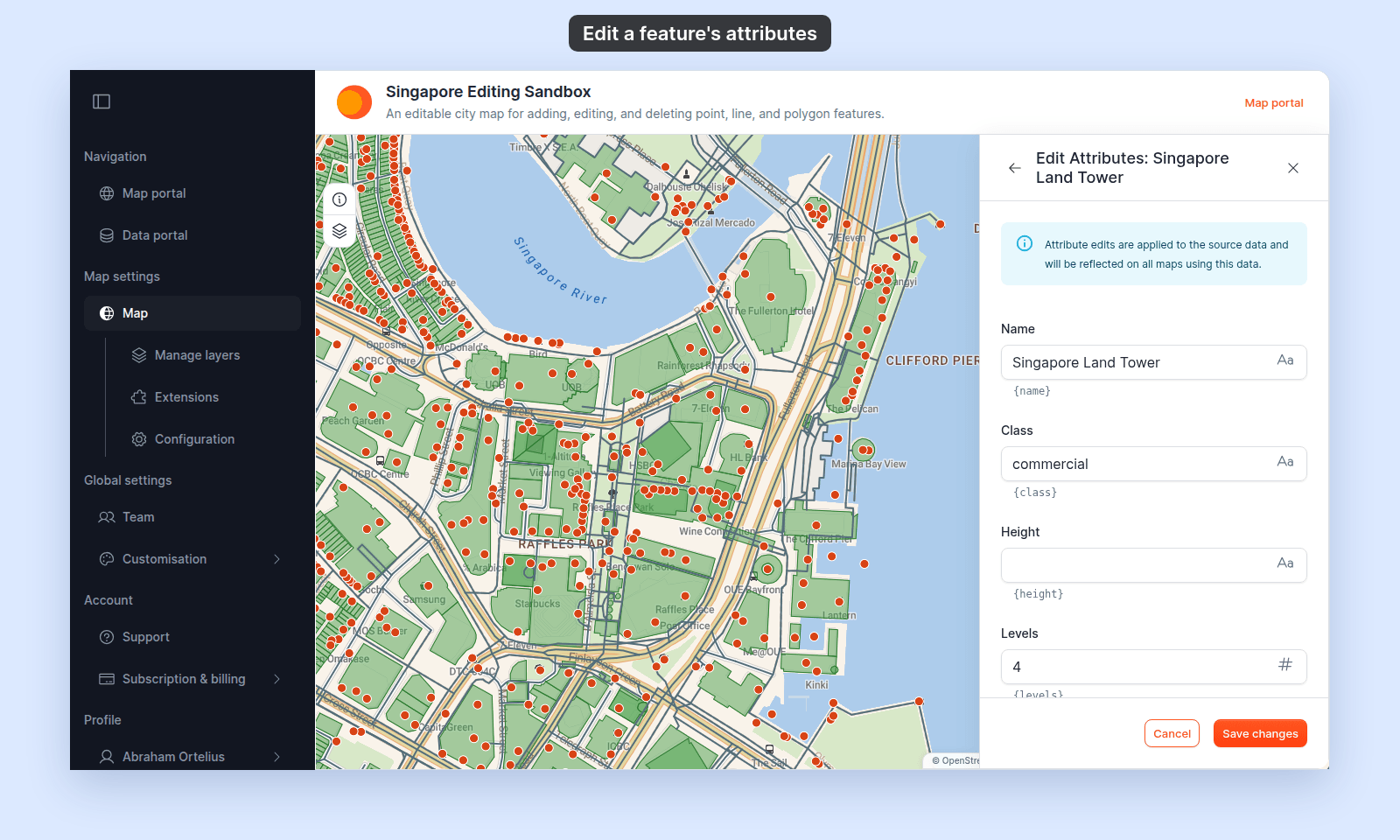
The editor opens on the right with the feature's current values.
 ## Change values
MangoMap picks each field's control:
- **Date picker:** the field has a `Date & Time` format.
- **Number:** the value is a number.
- **Text:** any other field.
Click the calendar icon in a date field to open its picker. The picker shows times in your browser's time zone. Click `OK` to use the new value, or `Cancel` to keep the old one.
## Change values
MangoMap picks each field's control:
- **Date picker:** the field has a `Date & Time` format.
- **Number:** the value is a number.
- **Text:** any other field.
Click the calendar icon in a date field to open its picker. The picker shows times in your browser's time zone. Click `OK` to use the new value, or `Cancel` to keep the old one.
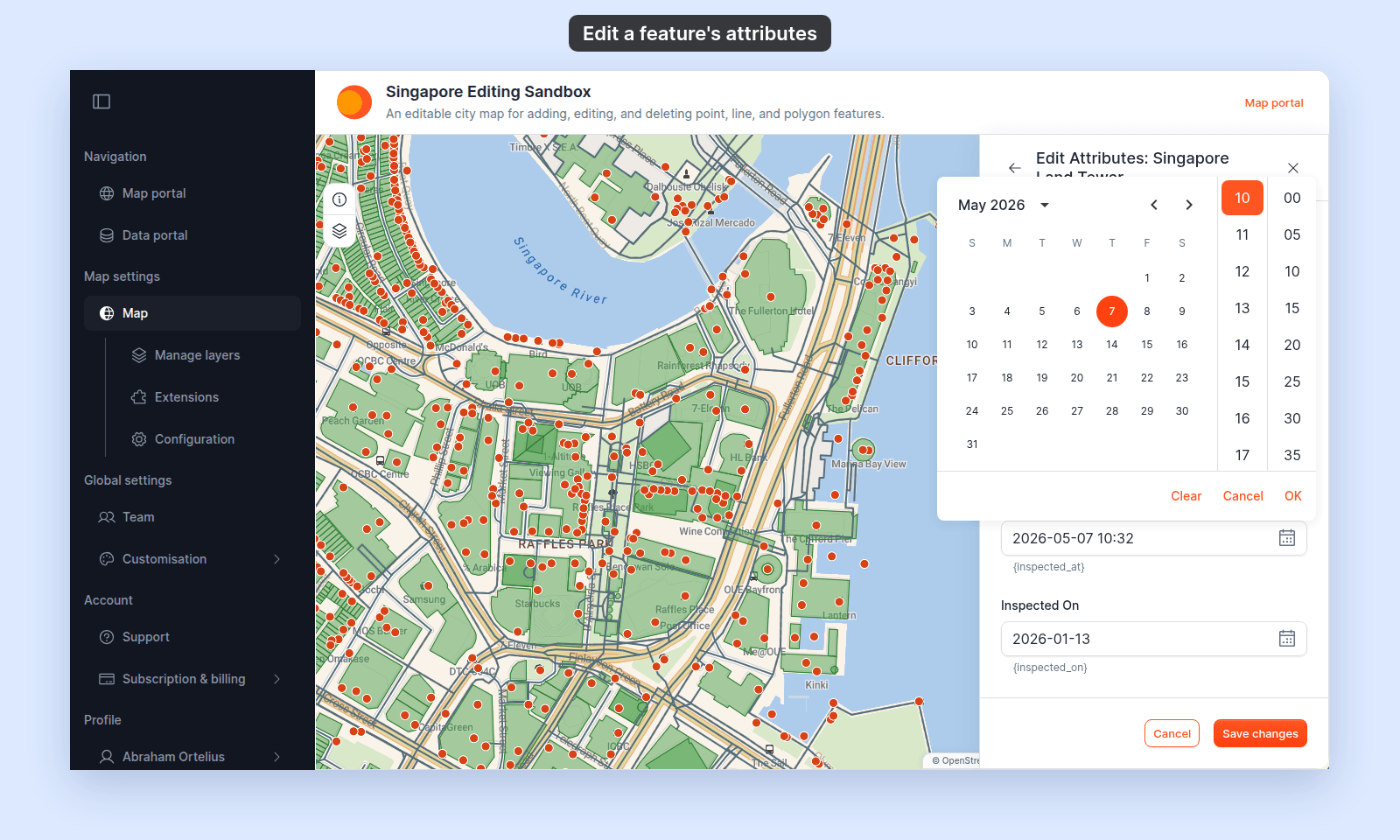 Internal ID and geometry fields are not shown.
## Save or cancel
Click `Save changes` to update the dataset. On success, the editor closes, the feature shows the new values.
Click `Cancel` to discard the unsaved form values.
## If saving fails
- Confirm that your edit permission is still active.
- Check that numeric and date values match the attribute's expected format.
- Retry after restoring the network connection.
If saving fails, the old values stay in place.
## Related
- [How feature editing works](/docs/editing-features/concepts-feature-editing)
- [Edit feature geometry](/docs/editing-features/edit-feature-geometry)
- [Attribute formatting](/docs/formatting-attributes)
- [Feature edit controls](/docs/editing-features/feature-edit-controls-reference)
Internal ID and geometry fields are not shown.
## Save or cancel
Click `Save changes` to update the dataset. On success, the editor closes, the feature shows the new values.
Click `Cancel` to discard the unsaved form values.
## If saving fails
- Confirm that your edit permission is still active.
- Check that numeric and date values match the attribute's expected format.
- Retry after restoring the network connection.
If saving fails, the old values stay in place.
## Related
- [How feature editing works](/docs/editing-features/concepts-feature-editing)
- [Edit feature geometry](/docs/editing-features/edit-feature-geometry)
- [Attribute formatting](/docs/formatting-attributes)
- [Feature edit controls](/docs/editing-features/feature-edit-controls-reference)