---
title: "Dataset access settings are disabled"
description: "Find out why the Public Access and Internal Access switches are greyed out on a dataset, and who can manage dataset access instead."
sidebar:
label: "Access settings disabled"
---
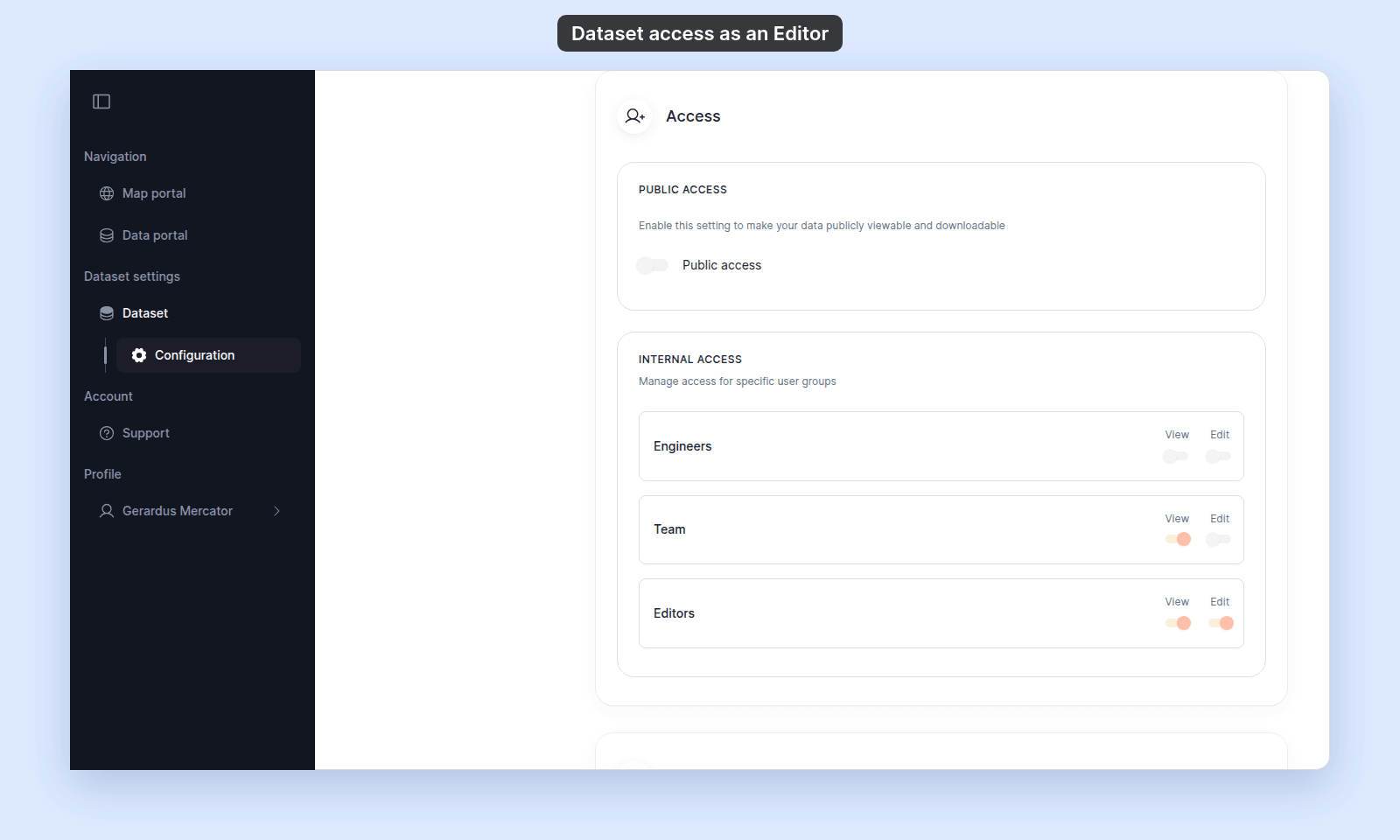
The `Public Access` and `Internal Access` switches are disabled when you can edit the dataset but cannot manage its access settings. You can still view the settings, but you cannot change them. If you cannot edit the dataset at all, the settings do not open.
## Most likely cause: you do not have manage-access permission
You can manage dataset access when you created the dataset, you are the account owner, or you have an `Admin` account role and `Edit` access through a group on the dataset.
If none apply, the switches stay disabled, and `Manage Groups` does not show.
This is what an `Editor` in a group with `Edit` access sees:
 Ask the dataset creator or the account owner to either grant you `Admin` plus group `Edit` access, or to make the access change for you.
## If you do not see `Configuration`
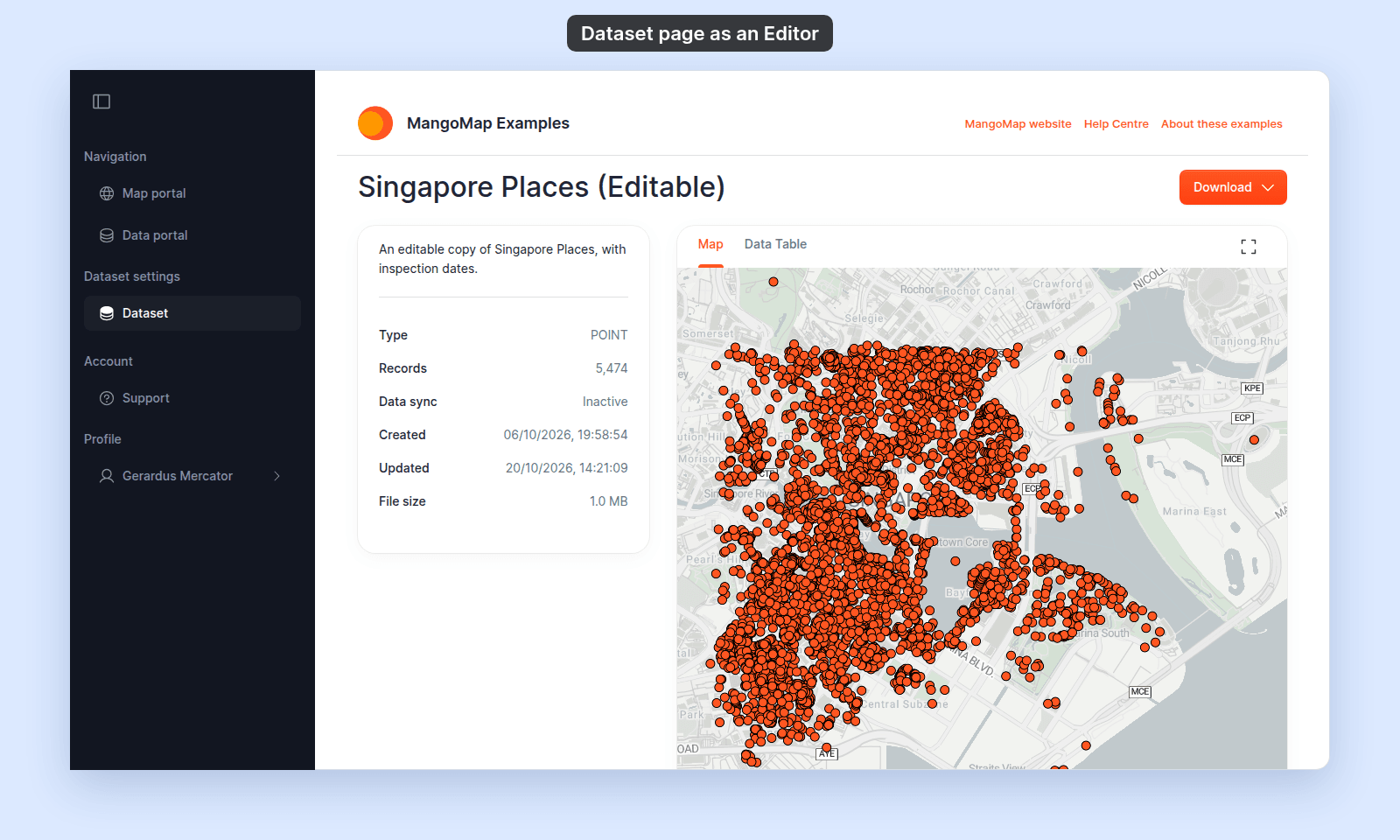
The access settings are on the dataset's `Configuration` page. The sidebar shows `Configuration` under `Dataset` only when you can edit the dataset. If you cannot, a link to the settings page takes you to the Data portal instead. This is what an `Editor` with no group `Edit` access on the dataset sees:
Ask the dataset creator or the account owner to either grant you `Admin` plus group `Edit` access, or to make the access change for you.
## If you do not see `Configuration`
The access settings are on the dataset's `Configuration` page. The sidebar shows `Configuration` under `Dataset` only when you can edit the dataset. If you cannot, a link to the settings page takes you to the Data portal instead. This is what an `Editor` with no group `Edit` access on the dataset sees:
 To edit the dataset, you need an `Editor` (or higher) account role and `Edit` access through a group. To manage its access, you need an `Admin` account role and `Edit` access through a group. Ask the dataset creator or the account owner for the access you need.
## Less common: you are in the wrong account
If you belong to more than one MangoMap account, confirm that you are signed in to the account that owns the dataset.
A dataset is owned by the account that imported it. You cannot manage its access from a different account, even if you have an `Admin` role there.
## Less common: your group lost edit access
`Admin` users only qualify to manage dataset access while they also have `Edit` access through a group on the dataset. If a group's `Edit` switch was turned off, an `Admin` who relied on that group can no longer manage access.
Ask the dataset creator or the account owner to confirm that your group still has `Edit` access for the dataset.
## If none of the above
Ask support to check the dataset ID, your account role, and your group membership. Include the dataset URL and the email address you use to sign in.
## Related
- [How to configure dataset access](/docs/dataset-access/configure-dataset-access)
- [How dataset access works in MangoMap](/docs/dataset-access/concepts-dataset-access)
- [Dataset access settings](/docs/dataset-access/dataset-access-settings)
To edit the dataset, you need an `Editor` (or higher) account role and `Edit` access through a group. To manage its access, you need an `Admin` account role and `Edit` access through a group. Ask the dataset creator or the account owner for the access you need.
## Less common: you are in the wrong account
If you belong to more than one MangoMap account, confirm that you are signed in to the account that owns the dataset.
A dataset is owned by the account that imported it. You cannot manage its access from a different account, even if you have an `Admin` role there.
## Less common: your group lost edit access
`Admin` users only qualify to manage dataset access while they also have `Edit` access through a group on the dataset. If a group's `Edit` switch was turned off, an `Admin` who relied on that group can no longer manage access.
Ask the dataset creator or the account owner to confirm that your group still has `Edit` access for the dataset.
## If none of the above
Ask support to check the dataset ID, your account role, and your group membership. Include the dataset URL and the email address you use to sign in.
## Related
- [How to configure dataset access](/docs/dataset-access/configure-dataset-access)
- [How dataset access works in MangoMap](/docs/dataset-access/concepts-dataset-access)
- [Dataset access settings](/docs/dataset-access/dataset-access-settings)