---
title: "How to share a dataset with groups"
description: "Give workspace groups View or Edit access to a dataset in Internal Access. Group members also need an Editor account role or higher to edit."
sidebar:
label: "Share with groups"
---
Granting a group `View` or `Edit` on `Internal Access` lets its members open or modify the dataset after signing in — `Edit` covers feature edits on maps, dataset updates from a file, sync settings, and dataset properties under one switch, not separate ones. Members also need an account role of `Editor` or higher to actually edit (a `Viewer` with group `Edit` still only sees it), and turning on `Public Access` forces every group's `View` switch on regardless of what you set.
## Before you start
- You need permission to manage access for the dataset. The dataset creator and the account owner always qualify; otherwise you need an `Admin` account role and `Edit` access through a group.
- The groups you want to use should already exist. If no groups exist, `Internal Access` shows `Create a Group`. See [How to create an access group](/docs/managing-team/create-an-access-group).
- Group access is for signed-in users in your workspace. It does not create a public link.
- For a group's members to actually edit, their individual account role must be `Editor` or higher. Granting `Edit` does not raise their account role.
## Open Internal Access
Open the dataset. In the sidebar, under `Dataset`, select `Configuration`, then select `Access` in the page's section list.
`Internal Access` lists every group in your workspace, each with a `View` and an `Edit` switch.
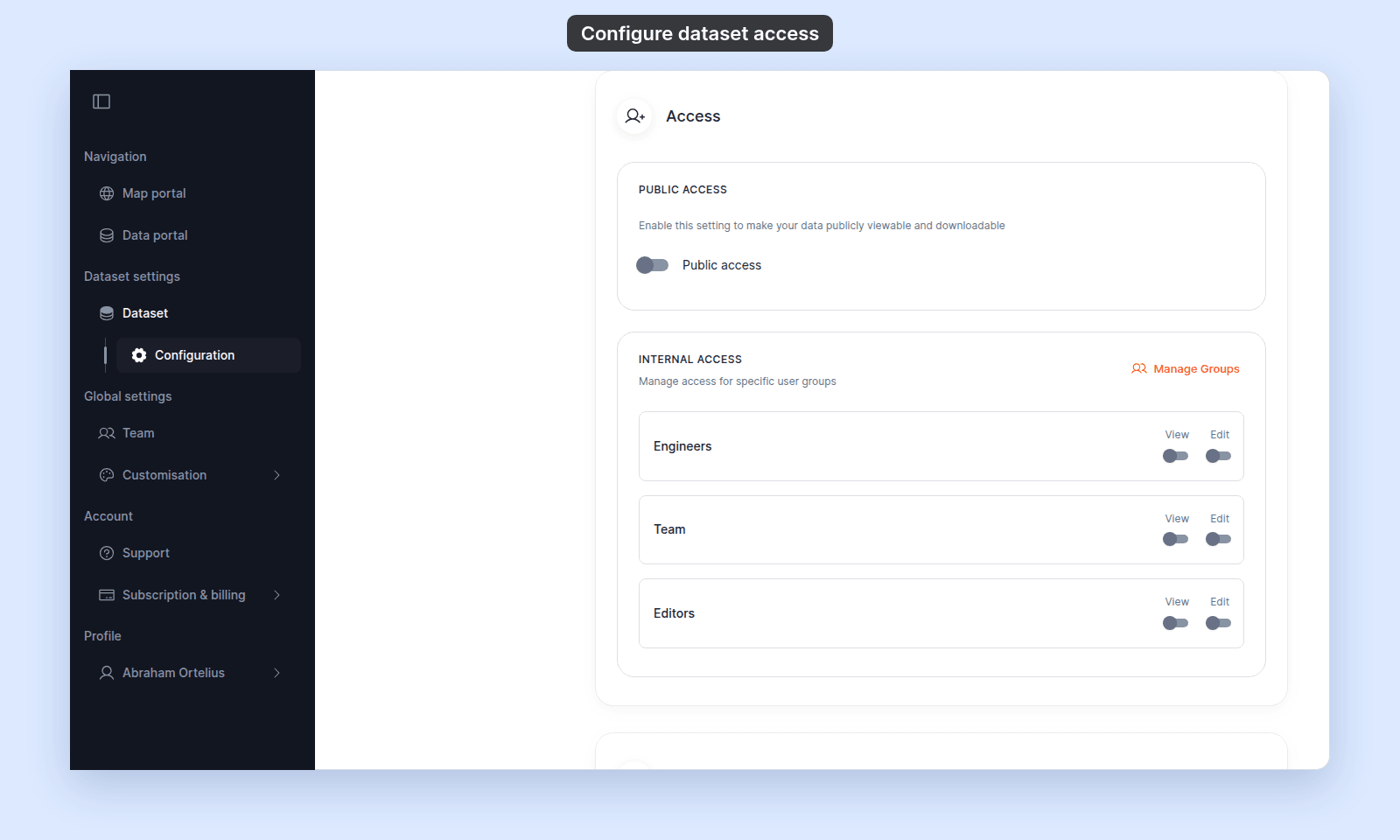 Changes save automatically when you toggle a switch.
## Give a group view access
In `Internal Access`, turn on `View` for the group.
Members of that group can open and read the dataset after signing in. They cannot make changes.
If `Edit` is already on for the group, `View` is already included and the switch is forced on.
## Give a group edit access
In `Internal Access`, turn on `Edit` for the group.
`Edit` includes view access. The group's `View` switch is automatically forced on while `Edit` is on.
Changes save automatically when you toggle a switch.
## Give a group view access
In `Internal Access`, turn on `View` for the group.
Members of that group can open and read the dataset after signing in. They cannot make changes.
If `Edit` is already on for the group, `View` is already included and the switch is forced on.
## Give a group edit access
In `Internal Access`, turn on `Edit` for the group.
`Edit` includes view access. The group's `View` switch is automatically forced on while `Edit` is on.
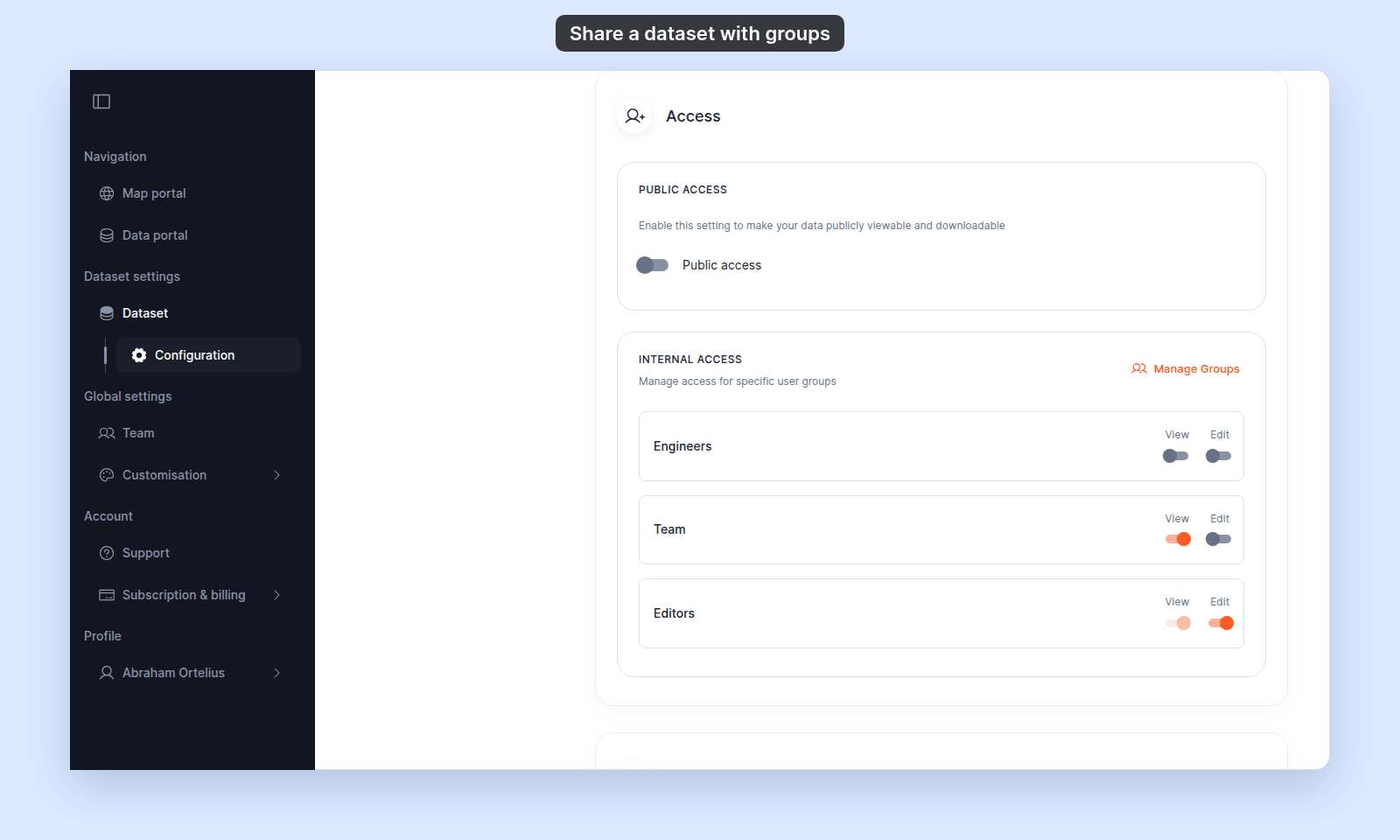 The switch grants `Edit` to the group, but it only takes effect for members whose account role allows editing: `Editor`, `Admin`, or `Owner`. A member with the `Viewer` role still only views the dataset. To let that person edit, change their role first. See [How to update a user](/docs/managing-team/update-a-user).
Members with an editing role can then:
- Edit feature attributes and geometry on maps that use the dataset as a layer (see [Editing features](/docs/editing-features)).
- Update the dataset from a new file in `Configuration` > `Update from file`. See [How to update a dataset from a file](/docs/data-updates/update-a-dataset-from-a-file).
- Change sync settings in `Configuration` > `Sync`.
- Change dataset properties in `Configuration` > `Data details`.
## Remove group access
In `Internal Access`, turn off `View` and `Edit` for the group.
If `Edit` is on, turn it off first. `Edit` includes view access, so `View` stays effectively enabled while `Edit` is enabled.
If `Public access` is on for the dataset, every group's `View` switch is forced on regardless of what you set. To take view access away from a specific group, also turn off `Public access`.
## If you need to create or manage groups
Click `Create a Group` when no groups exist in the empty state. The button opens the [`Create group`](/docs/managing-team/create-an-access-group) form.
Click `Manage Groups` to open the [`Access Groups`](/docs/managing-team/users-page-reference) tab on the `Users` page. Group create, edit, and delete are documented in [Team management](/docs/managing-team).
## Troubleshooting
**The toggles are greyed out.** You do not have permission to manage access for this dataset. See [Dataset access settings are disabled](/docs/dataset-access/troubleshoot-access-settings-disabled).
**A teammate has `Edit` on the group but cannot edit the dataset.** Their account role is probably `Viewer`, or they may not be in the group you think they are. See [A teammate can't edit a dataset I shared with their group](/docs/dataset-access/troubleshoot-cant-edit-dataset).
**A group can view even though `View` is off.** Check whether `Edit` is on, because `Edit` includes view access. Also check whether `Public access` is on for the dataset - public access forces every group's `View` switch on.
## Related
- [Dataset access settings](/docs/dataset-access/dataset-access-settings)
- [How dataset access works in MangoMap](/docs/dataset-access/concepts-dataset-access)
- [How to configure dataset access](/docs/dataset-access/configure-dataset-access)
- [How to share a dataset publicly](/docs/dataset-access/share-dataset-publicly)
- [How feature editing works in MangoMap](/docs/editing-features/concepts-feature-editing)
- [Account roles reference](/docs/account-roles/account-roles-reference) - explains how `Editor` and `Admin` roles combine with group `Edit` access for editing and managing dataset access.
The switch grants `Edit` to the group, but it only takes effect for members whose account role allows editing: `Editor`, `Admin`, or `Owner`. A member with the `Viewer` role still only views the dataset. To let that person edit, change their role first. See [How to update a user](/docs/managing-team/update-a-user).
Members with an editing role can then:
- Edit feature attributes and geometry on maps that use the dataset as a layer (see [Editing features](/docs/editing-features)).
- Update the dataset from a new file in `Configuration` > `Update from file`. See [How to update a dataset from a file](/docs/data-updates/update-a-dataset-from-a-file).
- Change sync settings in `Configuration` > `Sync`.
- Change dataset properties in `Configuration` > `Data details`.
## Remove group access
In `Internal Access`, turn off `View` and `Edit` for the group.
If `Edit` is on, turn it off first. `Edit` includes view access, so `View` stays effectively enabled while `Edit` is enabled.
If `Public access` is on for the dataset, every group's `View` switch is forced on regardless of what you set. To take view access away from a specific group, also turn off `Public access`.
## If you need to create or manage groups
Click `Create a Group` when no groups exist in the empty state. The button opens the [`Create group`](/docs/managing-team/create-an-access-group) form.
Click `Manage Groups` to open the [`Access Groups`](/docs/managing-team/users-page-reference) tab on the `Users` page. Group create, edit, and delete are documented in [Team management](/docs/managing-team).
## Troubleshooting
**The toggles are greyed out.** You do not have permission to manage access for this dataset. See [Dataset access settings are disabled](/docs/dataset-access/troubleshoot-access-settings-disabled).
**A teammate has `Edit` on the group but cannot edit the dataset.** Their account role is probably `Viewer`, or they may not be in the group you think they are. See [A teammate can't edit a dataset I shared with their group](/docs/dataset-access/troubleshoot-cant-edit-dataset).
**A group can view even though `View` is off.** Check whether `Edit` is on, because `Edit` includes view access. Also check whether `Public access` is on for the dataset - public access forces every group's `View` switch on.
## Related
- [Dataset access settings](/docs/dataset-access/dataset-access-settings)
- [How dataset access works in MangoMap](/docs/dataset-access/concepts-dataset-access)
- [How to configure dataset access](/docs/dataset-access/configure-dataset-access)
- [How to share a dataset publicly](/docs/dataset-access/share-dataset-publicly)
- [How feature editing works in MangoMap](/docs/editing-features/concepts-feature-editing)
- [Account roles reference](/docs/account-roles/account-roles-reference) - explains how `Editor` and `Admin` roles combine with group `Edit` access for editing and managing dataset access.