---
title: "How to configure dataset access"
description: "Set public access and give workspace groups View or Edit access to a dataset from its Access section. Imported datasets are private until you do."
sidebar:
label: "Configure dataset access"
---
An imported dataset is private to you by default — no teammate can open it and no public link works until you grant access. The `Access` section under `Configuration` has two cards: `Internal Access` toggles `View` or `Edit` per workspace group (for signed-in users only), and `Public Access` makes the dataset viewable AND downloadable on the open web — there is no view-only public mode, and turning it on forces every group's `View` switch on while it's enabled.
{/* video-content: id=configure-dataset-access
Start: The settings page of the private dataset Access Demo — Private, fully
loaded, scrolled to the top, with Configuration selected in the sidebar.
Show:
1. Click Access in the section list. The page scrolls to the Access section:
Public Access with its switch off, and Internal Access listing the groups
Engineers, Team, and Editors with View and Edit off.
2. Turn on View for Team. The switch saves at once.
3. Turn on Edit for Editors. Its View switch turns on with it and greys out.
4. Turn on Public access. The Public chip appears next to the switch, and
every group's View switch turns on and greys out.
End: The Access section with Public access on, the Public chip showing, Team
with View on, and Editors with Edit on.
Exclude: Login, loading screens, Manage Groups, and any other dataset setting.
*/}
{/* walkthrough: id=configure-dataset-access */}
{/* /walkthrough */}
## Before you start
- You need permission to manage access for the dataset. You qualify if you are the dataset creator, the account owner, or have an `Admin` account role and `Edit` access through a group.
- The dataset must already exist.
- If you want to share with groups, the groups should exist first. The empty state in `Internal Access` offers `Create a Group` if your workspace has no groups yet. See [How to create an access group](/docs/managing-team/create-an-access-group).
- Decide whether the dataset should also be available outside your workspace. If yes, remember that public access enables both viewing and downloading.
## Open the access settings
Open the dataset from the data library. In the sidebar, under `Dataset`, select `Configuration`, then select `Access` in the page's section list.
From a map, you can also click a feature, open the popup's three-dot menu, and click `Edit data access`. The dataset's settings open at `Access` in a new tab.
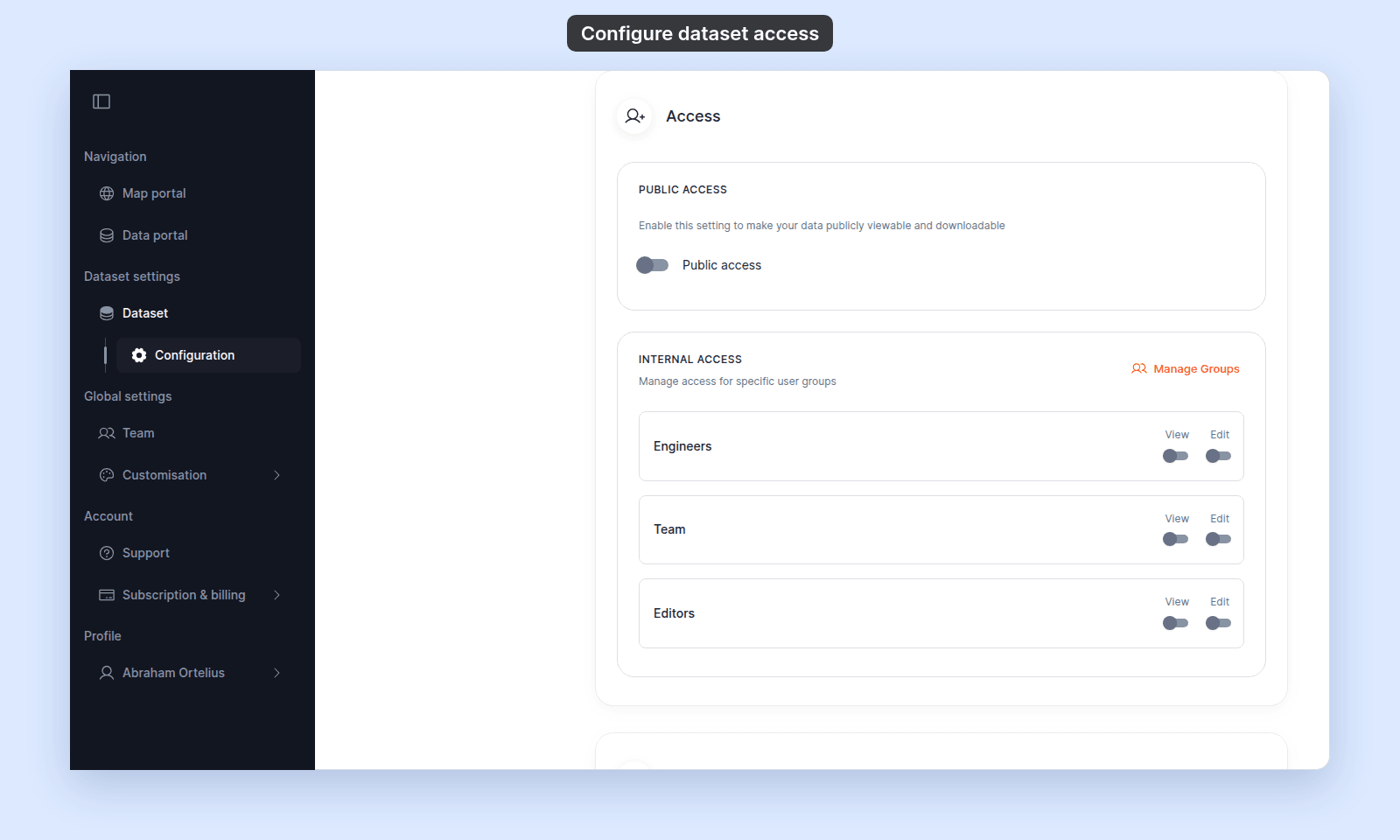 Changes save automatically when you toggle a switch.
## Configure access for the workspace
Use `Internal Access` when teammates should sign in to MangoMap to view or edit the dataset.
1. In `Internal Access`, find the group you want to update.
2. Turn on `View` to let the group view the dataset.
3. Turn on `Edit` to let the group edit the dataset.
`Edit` includes view access. A group with `Edit` enabled can view the dataset even if `View` is off, and `View` is forced on while `Edit` is on.
Editing also requires the group's members to have an account role of `Editor` or higher. A `Viewer` with group `Edit` access can still only view the dataset.
If your workspace has no groups, the empty state shows `Create a Group`. Use `Manage Groups` to open the [`Access Groups` tab on the Users page](/docs/managing-team/users-page-reference) — see [Team management](/docs/managing-team) for group creation and management.
## Configure access for the web
Use `Public Access` when anyone with the URL should open and download the dataset without signing in.
1. In `Public Access`, turn on `Public access`.
2. Confirm that the `Public` chip appears next to the toggle.
When `Public access` is on, every group's `View` switch in `Internal Access` is forced on. The dataset is publicly viewable, so signed-in groups can view it as well. Group `Edit` switches stay independent.
## Take a dataset back to private
Turn off `Public access` to restrict the dataset to signed-in users with view or edit permission.
Turning off `Public access` does not change which groups have `View` or `Edit` access. Group access stays as you set it.
## What `Edit` access lets people do
`Edit` access is granted to the group, but it only takes effect for members whose account role allows editing: `Editor`, `Admin`, or `Owner`. A member with the `Viewer` role gets view access from the switch and nothing more. To let that person edit, change their role first. See [Account roles reference](/docs/account-roles/account-roles-reference) and [How to update a user](/docs/managing-team/update-a-user).
Members with an editing role can then:
- Edit feature attributes and geometry on maps that use the dataset as a layer.
- Update the dataset from a new file in `Configuration` > `Update from file`. See [How to update a dataset from a file](/docs/data-updates/update-a-dataset-from-a-file).
- Change sync settings in `Configuration` > `Sync`. See [How to set up Dropbox sync](/docs/data-updates/set-up-dropbox-sync).
- Change dataset properties in `Configuration` > `Data details`.
## Troubleshooting
**The toggles are greyed out.** You do not have permission to manage access for this dataset. See [Dataset access settings are disabled](/docs/dataset-access/troubleshoot-access-settings-disabled).
**A teammate has `Edit` on the group but cannot edit the dataset.** Their account role is probably `Viewer`. See [A teammate can't edit a dataset I shared with their group](/docs/dataset-access/troubleshoot-cant-edit-dataset).
**A recipient cannot open a public dataset link.** Confirm `Public access` is on and the `Public` chip is showing. See [A public dataset is not accessible to the recipient](/docs/dataset-access/troubleshoot-public-dataset-not-accessible).
## Related
- [Dataset access settings](/docs/dataset-access/dataset-access-settings)
- [How dataset access works in MangoMap](/docs/dataset-access/concepts-dataset-access)
- [How to share a dataset with groups](/docs/dataset-access/share-dataset-with-groups)
- [How to share a dataset publicly](/docs/dataset-access/share-dataset-publicly)
- [Account roles reference](/docs/account-roles/account-roles-reference) - look up what each role can do before changing dataset access.
---
Changes save automatically when you toggle a switch.
## Configure access for the workspace
Use `Internal Access` when teammates should sign in to MangoMap to view or edit the dataset.
1. In `Internal Access`, find the group you want to update.
2. Turn on `View` to let the group view the dataset.
3. Turn on `Edit` to let the group edit the dataset.
`Edit` includes view access. A group with `Edit` enabled can view the dataset even if `View` is off, and `View` is forced on while `Edit` is on.
Editing also requires the group's members to have an account role of `Editor` or higher. A `Viewer` with group `Edit` access can still only view the dataset.
If your workspace has no groups, the empty state shows `Create a Group`. Use `Manage Groups` to open the [`Access Groups` tab on the Users page](/docs/managing-team/users-page-reference) — see [Team management](/docs/managing-team) for group creation and management.
## Configure access for the web
Use `Public Access` when anyone with the URL should open and download the dataset without signing in.
1. In `Public Access`, turn on `Public access`.
2. Confirm that the `Public` chip appears next to the toggle.
When `Public access` is on, every group's `View` switch in `Internal Access` is forced on. The dataset is publicly viewable, so signed-in groups can view it as well. Group `Edit` switches stay independent.
## Take a dataset back to private
Turn off `Public access` to restrict the dataset to signed-in users with view or edit permission.
Turning off `Public access` does not change which groups have `View` or `Edit` access. Group access stays as you set it.
## What `Edit` access lets people do
`Edit` access is granted to the group, but it only takes effect for members whose account role allows editing: `Editor`, `Admin`, or `Owner`. A member with the `Viewer` role gets view access from the switch and nothing more. To let that person edit, change their role first. See [Account roles reference](/docs/account-roles/account-roles-reference) and [How to update a user](/docs/managing-team/update-a-user).
Members with an editing role can then:
- Edit feature attributes and geometry on maps that use the dataset as a layer.
- Update the dataset from a new file in `Configuration` > `Update from file`. See [How to update a dataset from a file](/docs/data-updates/update-a-dataset-from-a-file).
- Change sync settings in `Configuration` > `Sync`. See [How to set up Dropbox sync](/docs/data-updates/set-up-dropbox-sync).
- Change dataset properties in `Configuration` > `Data details`.
## Troubleshooting
**The toggles are greyed out.** You do not have permission to manage access for this dataset. See [Dataset access settings are disabled](/docs/dataset-access/troubleshoot-access-settings-disabled).
**A teammate has `Edit` on the group but cannot edit the dataset.** Their account role is probably `Viewer`. See [A teammate can't edit a dataset I shared with their group](/docs/dataset-access/troubleshoot-cant-edit-dataset).
**A recipient cannot open a public dataset link.** Confirm `Public access` is on and the `Public` chip is showing. See [A public dataset is not accessible to the recipient](/docs/dataset-access/troubleshoot-public-dataset-not-accessible).
## Related
- [Dataset access settings](/docs/dataset-access/dataset-access-settings)
- [How dataset access works in MangoMap](/docs/dataset-access/concepts-dataset-access)
- [How to share a dataset with groups](/docs/dataset-access/share-dataset-with-groups)
- [How to share a dataset publicly](/docs/dataset-access/share-dataset-publicly)
- [Account roles reference](/docs/account-roles/account-roles-reference) - look up what each role can do before changing dataset access.
---