---
title: "How to update a dataset from a file"
description: "Replace a dataset's features with a new file and keep its maps, access, and URL. The new file must keep the same geometry type and every existing column."
sidebar:
label: "Update a dataset from a file"
---
When the source data changes, update the existing dataset instead of importing a new one. Open the dataset's settings, drop the new file (or files, for multipart formats) onto the `Update from file` section, and the existing dataset is replaced. Maps, group access, and the dataset URL stay the same; only the rows or features inside the dataset are replaced.
## Before you start
- You need `Edit` access on the dataset. That's: you created it, you're the account owner, or you have an `Editor` (or higher) account role plus `Edit` access through a group on the dataset. See [How dataset access works in MangoMap](/docs/dataset-access/concepts-dataset-access).
- The dataset must be one of the supported formats: `CSV`, `GeoJSON`, `KML`, `Shapefile`, or `TAB`. `GeoTIFF` (raster) and `WMS` datasets cannot be updated from a file — the section doesn't appear for those.
- Have the new file (or files) ready. For `Shapefile`, you need all four sidecar files (`.shp`, `.dbf`, `.shx`, `.prj`). For `TAB`, you need `.dat`, `.id`, `.map`, `.tab`. CSV, GeoJSON, and KML are single files.
- The new file must hold one layer. A file with several layers is refused. Export the layer you need to its own file first.
- The new file must have the same geometry type as the dataset: point, line, or polygon. Single and multi-part shapes count as the same type, so a `MultiPolygon` file can update a polygon dataset. A file with a different type is refused.
- The new file must keep every column the dataset already has. It can add new columns. Column names match without regard to capital letters. A file that drops or renames a column is refused.
- If a column's values change type (for example, numbers now stored as text), expect to revisit styles that use it. See [How data updates work in MangoMap](/docs/data-updates/concepts-data-updates) for what's preserved and what can break.
## Open Update from file
1. Open the dataset from the data library.
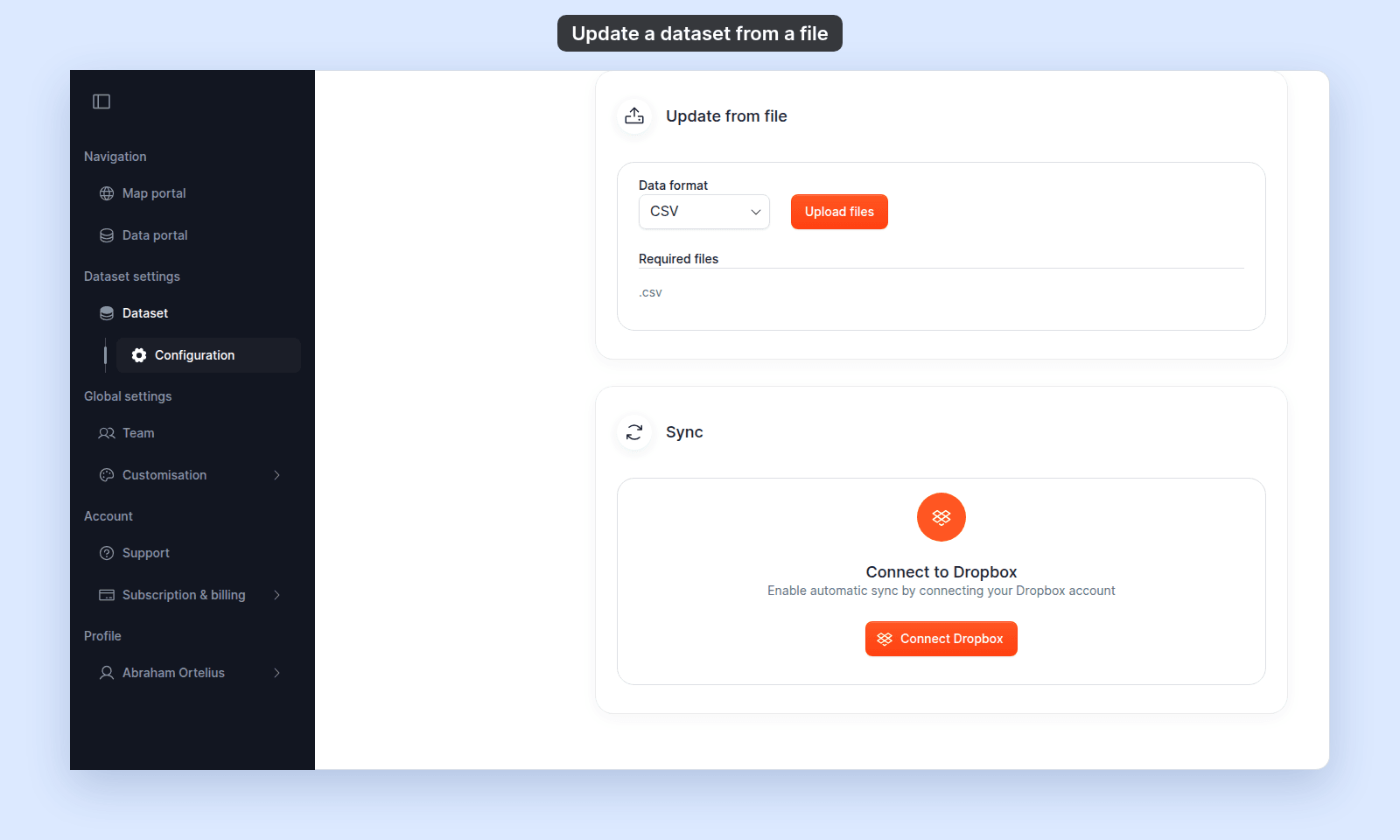
2. In the dataset's sidebar, click `Configuration`.
3. Pick `Update from file`.
 ## Pick the file format
In the `Data format` dropdown, pick `CSV`, `GeoJSON`, `KML`, `Shapefile`, or `Tab`. The dropdown defaults to the dataset's existing format if it's one of the five.
You're not locked to the original format — a dataset originally imported as `Shapefile` can be updated from `GeoJSON`, for example. MangoMap uses this choice to read the new file.
The `Required files` list updates to show the extensions the format expects.
## Add the file (or files)
Choose one method:
- **Click `Upload files`** to open your computer's file picker, then select the file or files.
- **Drag and drop** the file or files anywhere into the section card.
For single-file formats (`CSV`, `GeoJSON`, `KML`), one file is enough. The upload starts as soon as you drop it.
For multipart formats (`Shapefile`, `TAB`), you need to provide every required extension. Drop them all at once, or drop them one at a time. The upload starts when all required files are present. If you drop only some, each file shows in its row, and `4 files are required` shows under `Required files`. Each missing row shows `File missing` with an `Upload` button. Click `Upload` to add that file.
## Watch the progress
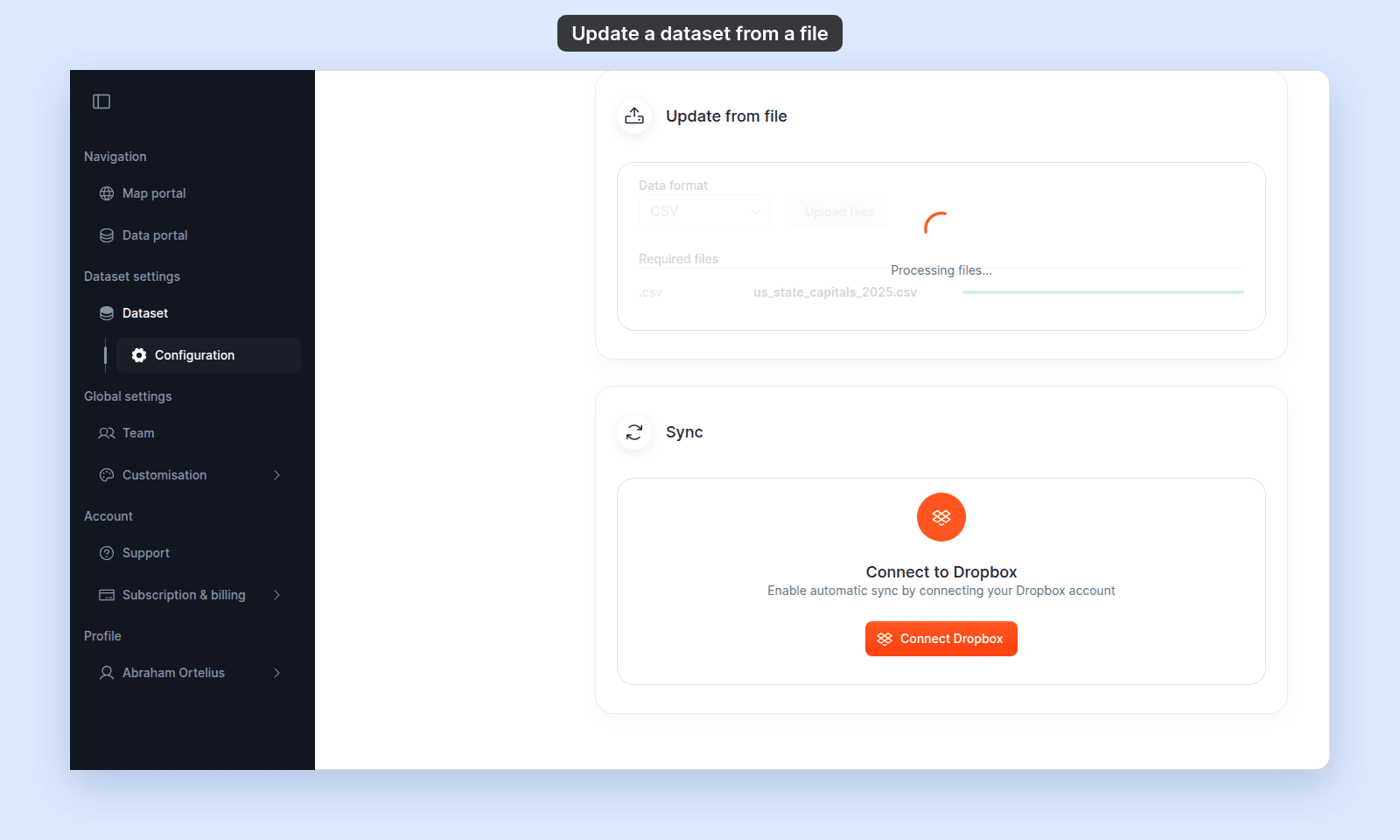
Each file you add gets a progress bar in its `Required files` row. When every file is uploaded, `Processing files...` shows over the card.
## Pick the file format
In the `Data format` dropdown, pick `CSV`, `GeoJSON`, `KML`, `Shapefile`, or `Tab`. The dropdown defaults to the dataset's existing format if it's one of the five.
You're not locked to the original format — a dataset originally imported as `Shapefile` can be updated from `GeoJSON`, for example. MangoMap uses this choice to read the new file.
The `Required files` list updates to show the extensions the format expects.
## Add the file (or files)
Choose one method:
- **Click `Upload files`** to open your computer's file picker, then select the file or files.
- **Drag and drop** the file or files anywhere into the section card.
For single-file formats (`CSV`, `GeoJSON`, `KML`), one file is enough. The upload starts as soon as you drop it.
For multipart formats (`Shapefile`, `TAB`), you need to provide every required extension. Drop them all at once, or drop them one at a time. The upload starts when all required files are present. If you drop only some, each file shows in its row, and `4 files are required` shows under `Required files`. Each missing row shows `File missing` with an `Upload` button. Click `Upload` to add that file.
## Watch the progress
Each file you add gets a progress bar in its `Required files` row. When every file is uploaded, `Processing files...` shows over the card.
 MangoMap then processes the file. A dialog stays open while it works. Stay on the page until it closes.
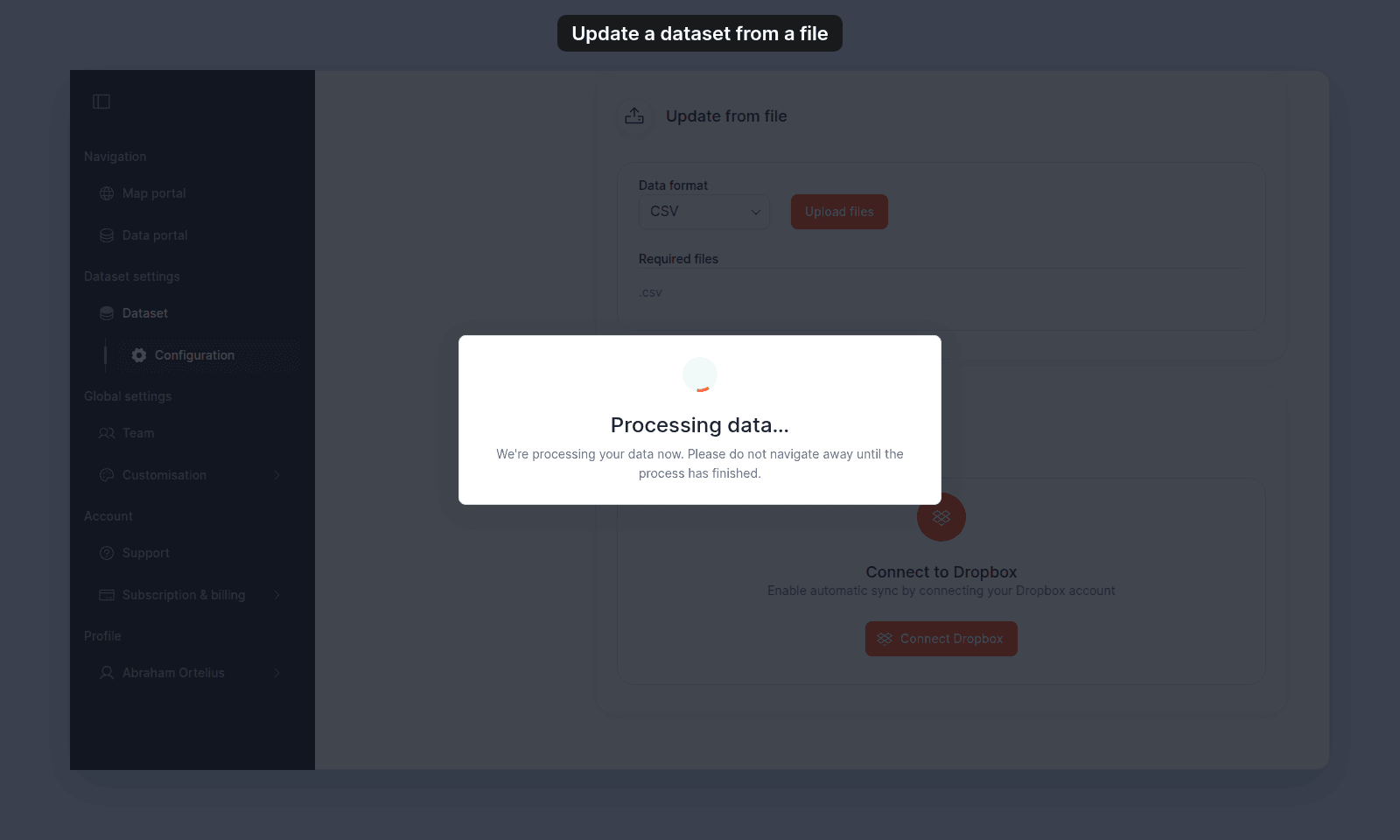 When processing ends, the dialog closes and the message `Dataset updated successfully!` appears. If it fails, the dialog shows `Processing failed` and the reason. See [A file update failed](/docs/data-updates/troubleshoot-update-from-file-failed).
## Replace a file before uploading
If you dropped the wrong file:
- Click `Remove files` (visible while files are pending and no upload is in progress) to clear the selection.
- Or add a file with the same name. It replaces the file you added before.
- For multipart formats, add more files to fill the missing rows. A file with the same extension but a different name does not replace the first one. To swap it, click `Remove files` and add the set again.
## What happens after the update
- Maps using the dataset as a layer pick up the new content the next time someone opens them. You do not need to refresh existing maps.
- Styles and popups on maps using the dataset stay configured, because every existing column is still there. New columns are available to add. If a column's values changed type, a style that uses it can break — open the affected map and re-bind it.
- Everything else about the dataset stays as it was.
## If the dataset shows invalid geometries
After an update, the dataset's details can show a count of features with invalid geometry. Examples are shapes that cross themselves and rings that don't close. MangoMap imports these features as they are and doesn't repair them. They still display, but area and overlay results for them may be wrong.
To fix them, repair the geometry in a desktop GIS (for example, QGIS's `Fix geometries` tool), then update the dataset from the repaired file. See [Dataset view reference](/docs/dataset-view/dataset-view-reference).
## What if Sync was active
If the dataset had Dropbox sync active, a manual `Update from file` upload wins for now — the dataset shows your uploaded content. The next change to the synced files in Dropbox will overwrite your manual update.
To stop syncing entirely, disconnect Dropbox before re-uploading. See [How to change or disconnect Dropbox sync](/docs/data-updates/change-or-disconnect-dropbox-sync).
## Troubleshooting
**The file is rejected as the wrong type.** The dropzone shows `Invalid file type. Please upload [.ext1, .ext2, …] files.` Check that the file extension matches the format you picked. CSVs need `.csv`, not `.txt`. Shapefiles need every sidecar.
**The upload fails.** An error message appears, such as `Failed to upload files. Please try again.` See [A file update failed](/docs/data-updates/troubleshoot-update-from-file-failed).
**The `Processing failed` dialog says the file contains several layers.** The message reads `This file contains [N] layers ([layer names]). Please upload a single-layer file for this dataset.` Export the layer you need to its own file, then upload that file.
**The `Processing failed` dialog says the dataset contains different geometry.** The message reads `This dataset contains [point|line|polygon] data, but the uploaded file contains …`. Upload a file with the same geometry type, or import the file as a new dataset.
**The `Processing failed` dialog says `Missing required columns: …`.** The new file dropped or renamed the columns listed. Add them back to the file and upload again.
**The dialog says `Connection error. Please refresh the page.`** The page lost its connection. Refresh the dataset settings page; the upload may still complete in the background. If the dataset doesn't update after a minute, retry from a fresh page.
**The section doesn't appear in the dataset's sidebar.** The dataset is a `GeoTIFF` or `WMS` type. Those formats don't support file re-upload; replace by importing a new dataset.
**A teammate has `Edit` on the dataset's group but can't see this section.** Their account role is below `Editor`. See [A teammate can't edit a dataset I shared with their group](/docs/dataset-access/troubleshoot-cant-edit-dataset).
## Related
- [Data updates reference](/docs/data-updates/data-updates-reference)
- [How data updates work in MangoMap](/docs/data-updates/concepts-data-updates)
- [How to set up Dropbox sync](/docs/data-updates/set-up-dropbox-sync) - the alternative for files maintained in Dropbox.
- [How dataset access works in MangoMap](/docs/dataset-access/concepts-dataset-access)
- [Importing data](/docs/importing-data) - for the original import flow.
When processing ends, the dialog closes and the message `Dataset updated successfully!` appears. If it fails, the dialog shows `Processing failed` and the reason. See [A file update failed](/docs/data-updates/troubleshoot-update-from-file-failed).
## Replace a file before uploading
If you dropped the wrong file:
- Click `Remove files` (visible while files are pending and no upload is in progress) to clear the selection.
- Or add a file with the same name. It replaces the file you added before.
- For multipart formats, add more files to fill the missing rows. A file with the same extension but a different name does not replace the first one. To swap it, click `Remove files` and add the set again.
## What happens after the update
- Maps using the dataset as a layer pick up the new content the next time someone opens them. You do not need to refresh existing maps.
- Styles and popups on maps using the dataset stay configured, because every existing column is still there. New columns are available to add. If a column's values changed type, a style that uses it can break — open the affected map and re-bind it.
- Everything else about the dataset stays as it was.
## If the dataset shows invalid geometries
After an update, the dataset's details can show a count of features with invalid geometry. Examples are shapes that cross themselves and rings that don't close. MangoMap imports these features as they are and doesn't repair them. They still display, but area and overlay results for them may be wrong.
To fix them, repair the geometry in a desktop GIS (for example, QGIS's `Fix geometries` tool), then update the dataset from the repaired file. See [Dataset view reference](/docs/dataset-view/dataset-view-reference).
## What if Sync was active
If the dataset had Dropbox sync active, a manual `Update from file` upload wins for now — the dataset shows your uploaded content. The next change to the synced files in Dropbox will overwrite your manual update.
To stop syncing entirely, disconnect Dropbox before re-uploading. See [How to change or disconnect Dropbox sync](/docs/data-updates/change-or-disconnect-dropbox-sync).
## Troubleshooting
**The file is rejected as the wrong type.** The dropzone shows `Invalid file type. Please upload [.ext1, .ext2, …] files.` Check that the file extension matches the format you picked. CSVs need `.csv`, not `.txt`. Shapefiles need every sidecar.
**The upload fails.** An error message appears, such as `Failed to upload files. Please try again.` See [A file update failed](/docs/data-updates/troubleshoot-update-from-file-failed).
**The `Processing failed` dialog says the file contains several layers.** The message reads `This file contains [N] layers ([layer names]). Please upload a single-layer file for this dataset.` Export the layer you need to its own file, then upload that file.
**The `Processing failed` dialog says the dataset contains different geometry.** The message reads `This dataset contains [point|line|polygon] data, but the uploaded file contains …`. Upload a file with the same geometry type, or import the file as a new dataset.
**The `Processing failed` dialog says `Missing required columns: …`.** The new file dropped or renamed the columns listed. Add them back to the file and upload again.
**The dialog says `Connection error. Please refresh the page.`** The page lost its connection. Refresh the dataset settings page; the upload may still complete in the background. If the dataset doesn't update after a minute, retry from a fresh page.
**The section doesn't appear in the dataset's sidebar.** The dataset is a `GeoTIFF` or `WMS` type. Those formats don't support file re-upload; replace by importing a new dataset.
**A teammate has `Edit` on the dataset's group but can't see this section.** Their account role is below `Editor`. See [A teammate can't edit a dataset I shared with their group](/docs/dataset-access/troubleshoot-cant-edit-dataset).
## Related
- [Data updates reference](/docs/data-updates/data-updates-reference)
- [How data updates work in MangoMap](/docs/data-updates/concepts-data-updates)
- [How to set up Dropbox sync](/docs/data-updates/set-up-dropbox-sync) - the alternative for files maintained in Dropbox.
- [How dataset access works in MangoMap](/docs/dataset-access/concepts-dataset-access)
- [Importing data](/docs/importing-data) - for the original import flow.