---
title: "A file update failed"
description: "Find out why Update from file failed — wrong extension, several layers, different geometry type, missing columns, or a processing error — and fix the file."
---
You opened `Update from file` and added a new file, but the update failed before MangoMap replaced the dataset. Common causes include a wrong extension, a missing companion file, a lost connection, or invalid data. The dataset keeps its previous content when an update fails.
## Most likely cause: the file extension didn't match the format
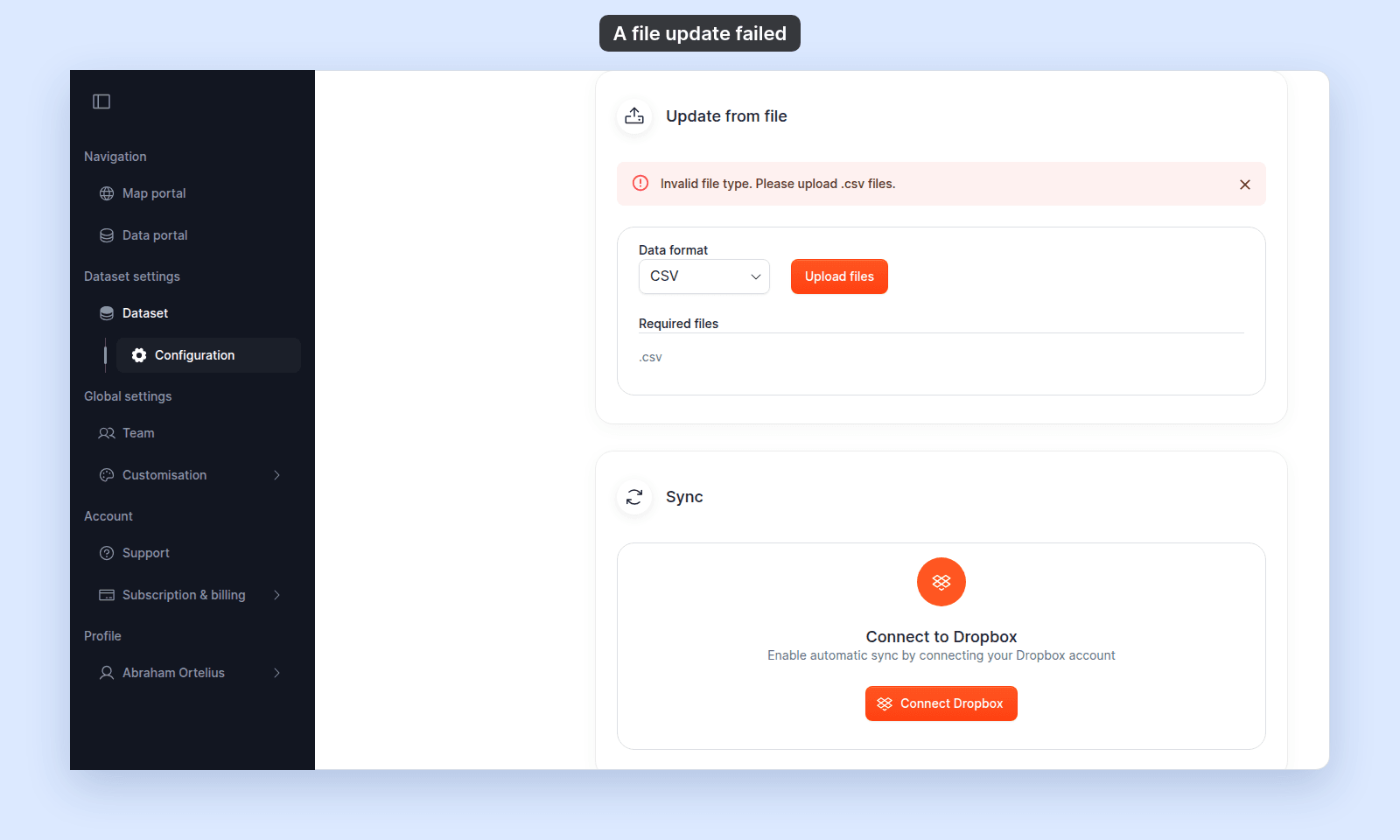
The section validates dropped files against the selected `Data format`. If the extensions don't match, the section shows:
> `Invalid file type. Please upload .ext1, .ext2, … files.`
 To fix:
- Confirm the `Data format` dropdown matches what your file actually is. A `.csv` file needs `Data format` set to `CSV`; a `.geojson` needs `GeoJSON`; etc.
- For `Shapefile`, all four files (`.shp`, `.dbf`, `.shx`, `.prj`) are required. For `Tab`, all four `.dat`, `.id`, `.map`, `.tab` files are required.
- If your file is named `data.json`, MangoMap won't accept it as `GeoJSON`. Rename it to `data.geojson` first. The contents have to be valid GeoJSON for the import to succeed; the rename alone isn't enough if the file is just plain JSON.
## Common: the new file has a different geometry type
The `Processing failed` dialog shows:
> `This dataset contains [point|line|polygon] data, but the uploaded file contains [point|line|polygon] data. Upload a file with matching geometry, or create a new dataset.`
To fix:
- Confirm the `Data format` dropdown matches what your file actually is. A `.csv` file needs `Data format` set to `CSV`; a `.geojson` needs `GeoJSON`; etc.
- For `Shapefile`, all four files (`.shp`, `.dbf`, `.shx`, `.prj`) are required. For `Tab`, all four `.dat`, `.id`, `.map`, `.tab` files are required.
- If your file is named `data.json`, MangoMap won't accept it as `GeoJSON`. Rename it to `data.geojson` first. The contents have to be valid GeoJSON for the import to succeed; the rename alone isn't enough if the file is just plain JSON.
## Common: the new file has a different geometry type
The `Processing failed` dialog shows:
> `This dataset contains [point|line|polygon] data, but the uploaded file contains [point|line|polygon] data. Upload a file with matching geometry, or create a new dataset.`
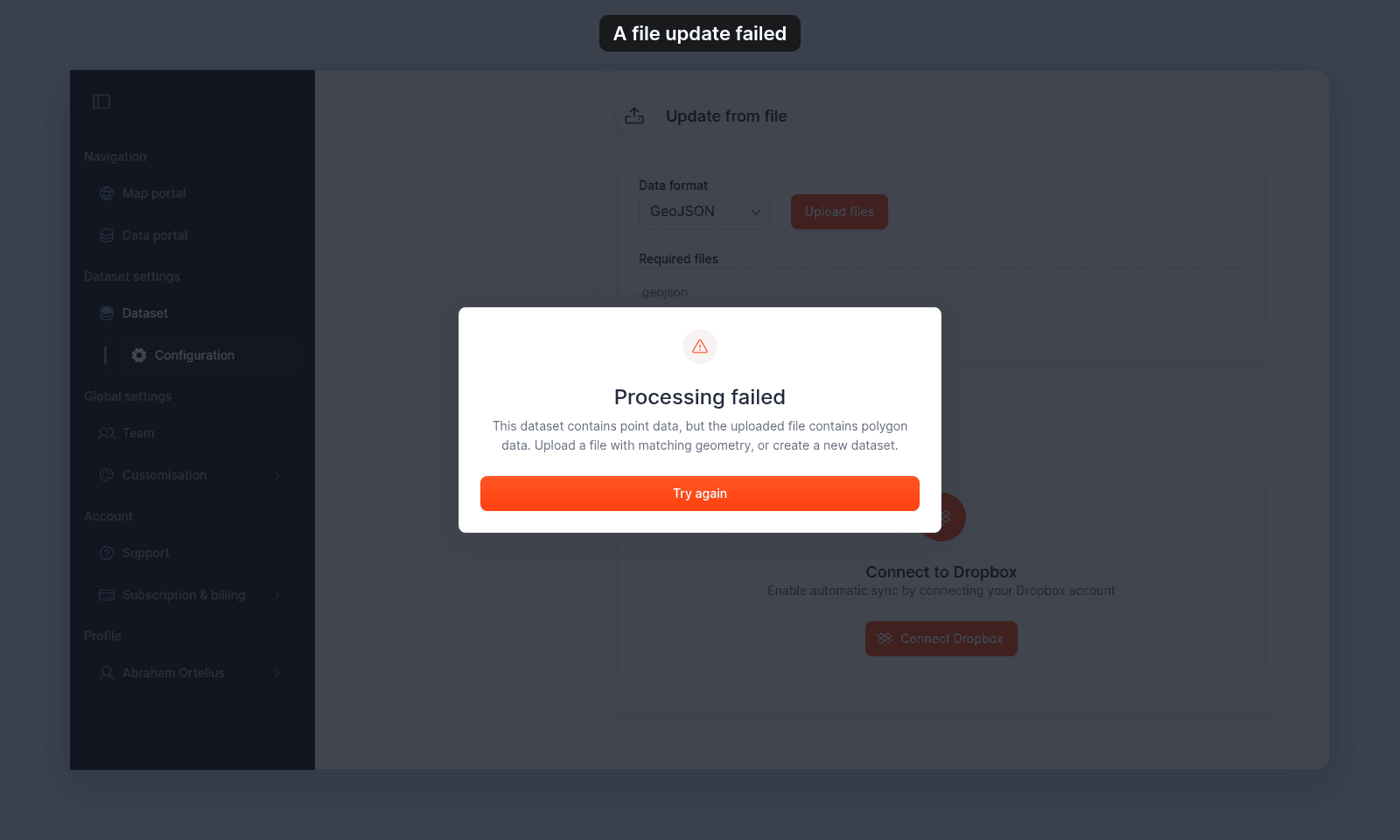 A dataset keeps its geometry type, because every map's style for it is built for that type. Single and multi-part shapes count as the same type, so a `MultiLineString` file can update a line dataset.
To fix:
- Check the file in a GIS tool and export only the matching geometry type.
- To change geometry type, [import the file as a new dataset](/docs/importing-data) and switch maps over to it.
## Common: the new file is missing columns
The `Processing failed` dialog shows:
> `Missing required columns: "column_a", "column_b"`
A dataset keeps its geometry type, because every map's style for it is built for that type. Single and multi-part shapes count as the same type, so a `MultiLineString` file can update a line dataset.
To fix:
- Check the file in a GIS tool and export only the matching geometry type.
- To change geometry type, [import the file as a new dataset](/docs/importing-data) and switch maps over to it.
## Common: the new file is missing columns
The `Processing failed` dialog shows:
> `Missing required columns: "column_a", "column_b"`
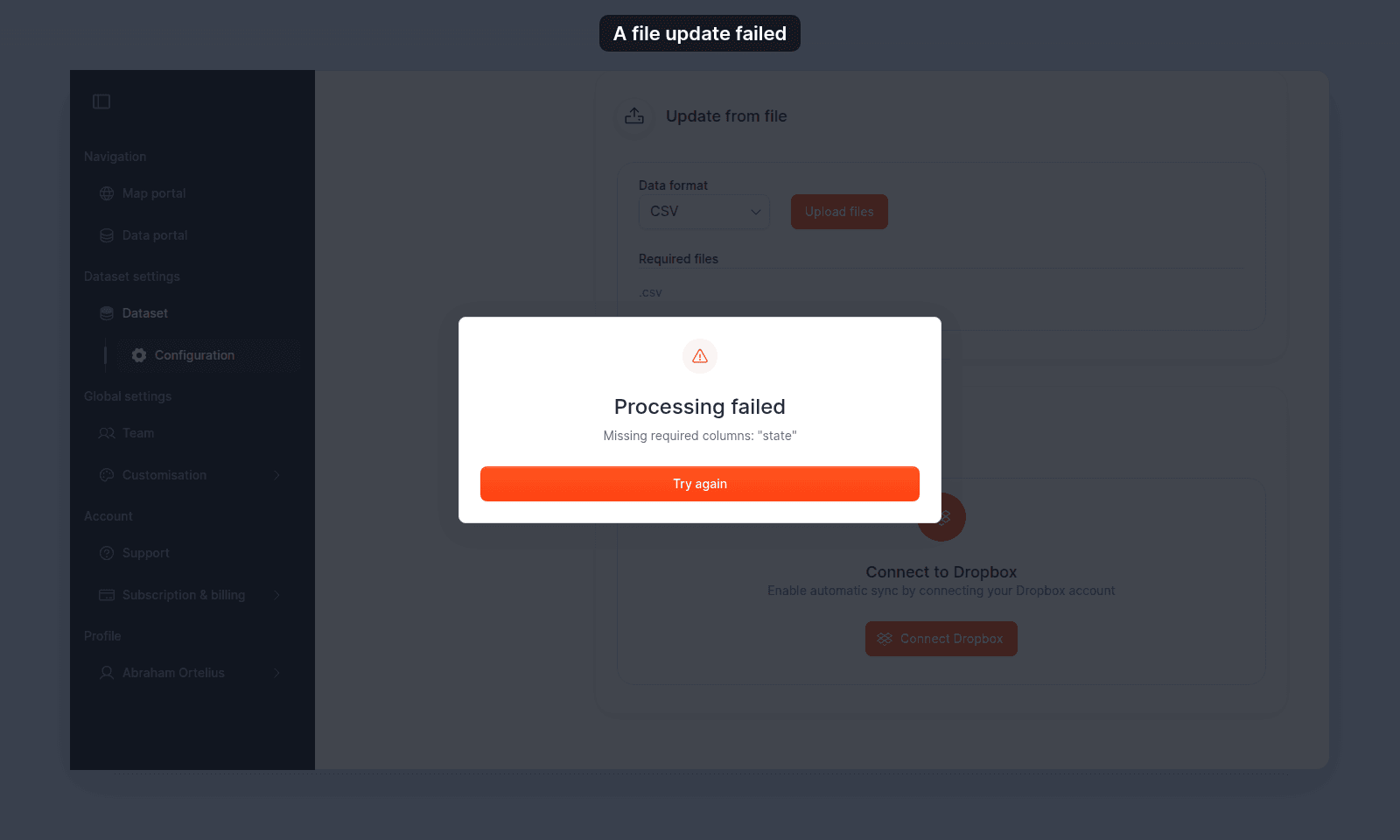 The new file must keep every column the dataset already has. It can add columns, and names match without regard to capital letters.
To fix:
- Add the listed columns back to the file. If a column was renamed, change it back to the old name.
- Upload the file again.
## Less common: the new file has more than one layer
The `Processing failed` dialog shows:
> `This file contains [N] layers ([layer names]). Please upload a single-layer file for this dataset.`
A dataset holds one layer, so MangoMap can't choose which of the file's layers to use. The message lists the layers it found. If only one of the file's layers imports, MangoMap uses that layer and doesn't show this message.
To fix:
- Open the file in a GIS tool and export the layer you need to its own file.
- Upload that file.
- To keep the other layers, [import each one as a new dataset](/docs/importing-data).
## Less common: a multipart upload is missing a file
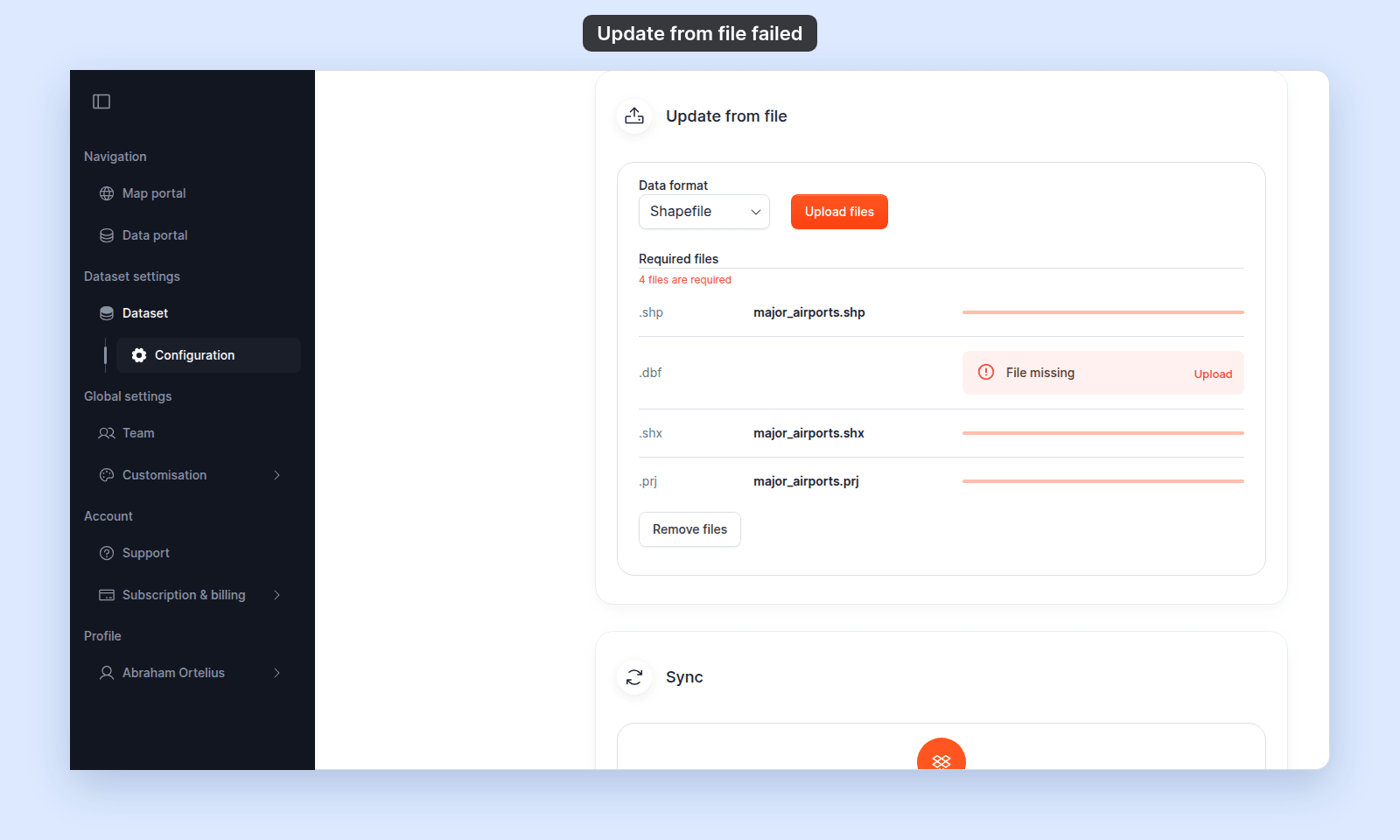
For `Shapefile` and `Tab`, the upload starts only when the section has every required file. If you add only some of them, the section lists the files you added and shows `4 files are required` under `Required files`. Each empty row shows `File missing` with an `Upload` button. Nothing uploads until the set is complete.
The new file must keep every column the dataset already has. It can add columns, and names match without regard to capital letters.
To fix:
- Add the listed columns back to the file. If a column was renamed, change it back to the old name.
- Upload the file again.
## Less common: the new file has more than one layer
The `Processing failed` dialog shows:
> `This file contains [N] layers ([layer names]). Please upload a single-layer file for this dataset.`
A dataset holds one layer, so MangoMap can't choose which of the file's layers to use. The message lists the layers it found. If only one of the file's layers imports, MangoMap uses that layer and doesn't show this message.
To fix:
- Open the file in a GIS tool and export the layer you need to its own file.
- Upload that file.
- To keep the other layers, [import each one as a new dataset](/docs/importing-data).
## Less common: a multipart upload is missing a file
For `Shapefile` and `Tab`, the upload starts only when the section has every required file. If you add only some of them, the section lists the files you added and shows `4 files are required` under `Required files`. Each empty row shows `File missing` with an `Upload` button. Nothing uploads until the set is complete.
 To fix:
- Click `Upload` on a `File missing` row, or click `Upload files`, and pick the missing file. It merges with the files you already added, and the upload then starts with all of them. You don't have to add the other files again.
- To start again, click `Remove files`.
- If you're missing a sidecar entirely (e.g. you have `.shp`, `.dbf`, `.shx` but no `.prj`), generate or recover the missing file before re-uploading. QGIS or `ogr2ogr` can re-create most sidecars from a complete shapefile if you have one.
## Less common: the upload completed but processing failed
The `Processing failed` dialog opens with another message, or with `Connection error. Please refresh the page.`
The upload reached MangoMap but processing didn't finish. Possible causes:
- The file is malformed in a way MangoMap's parser rejects (unreadable encoding for CSV, broken shapefile sidecars, or no readable features).
- Your connection dropped during processing.
- A server error.
To verify:
- Refresh the dataset settings page. The upload may still complete in the background; the page reloads with the new content.
- If the dataset still shows the old content after a minute, the processing failed.
To fix:
- Open the file in QGIS or another GIS tool to confirm it's structurally valid.
- For CSVs, check that the file is UTF-8 and that any longitude/latitude columns parse as numbers.
- For shapefiles, make sure the sidecars are consistent (all four describe the same data).
- Try the upload again from a fresh browser tab.
- If retries keep failing, contact support and include the dataset URL and the file you tried to upload.
## Less common: the new file's columns broke a map
The upload succeeded and the dataset has the new content, but maps using the dataset look different — a style is missing, a popup shows blank fields, a quantity-driven layer collapses to one colour.
This isn't strictly a failure of the update. MangoMap refuses a file that drops or renames a column, so the cause is a column whose values changed:
- A quantity-driven style references a column that's now `Text` instead of `Integer`.
- A category style references a column whose values changed, so the old categories no longer match.
To fix:
- Open the affected map.
- Re-bind the style or popup to a column that exists in the new file.
See [Styling layers](/docs/styling-layers) for restyling and [Configuring popups](/docs/configuring-popups) for re-binding popup attributes.
## Less common: you don't have Edit access
The `Update from file` section is hidden for users who don't have `Edit` access on the dataset. If the section isn't visible to a teammate who needs to update the dataset:
- Confirm their account role is `Editor` or higher. `Viewer` users can't see the section even with group `Edit` access.
- Confirm a group they're in has `Edit` enabled on the dataset. See [How to share a dataset with groups](/docs/dataset-access/share-dataset-with-groups).
## If the dataset's sidebar doesn't show Update from file at all
The dataset is `GeoTIFF` or `WMS`. Those formats don't support file re-upload. If the source has changed, import a new dataset and switch maps over to it. There's no in-place update path for raster or WMS datasets.
## If none of the above
Ask support to check the failed upload. Include:
- The dataset URL.
- The file (or files) you tried to upload.
- The exact error message you saw.
## Related
- [How to update a dataset from a file](/docs/data-updates/update-a-dataset-from-a-file)
- [Data updates reference](/docs/data-updates/data-updates-reference)
- [Importing data](/docs/importing-data) - troubleshooting docs there cover format-specific issues like CSV encoding and CRS.
To fix:
- Click `Upload` on a `File missing` row, or click `Upload files`, and pick the missing file. It merges with the files you already added, and the upload then starts with all of them. You don't have to add the other files again.
- To start again, click `Remove files`.
- If you're missing a sidecar entirely (e.g. you have `.shp`, `.dbf`, `.shx` but no `.prj`), generate or recover the missing file before re-uploading. QGIS or `ogr2ogr` can re-create most sidecars from a complete shapefile if you have one.
## Less common: the upload completed but processing failed
The `Processing failed` dialog opens with another message, or with `Connection error. Please refresh the page.`
The upload reached MangoMap but processing didn't finish. Possible causes:
- The file is malformed in a way MangoMap's parser rejects (unreadable encoding for CSV, broken shapefile sidecars, or no readable features).
- Your connection dropped during processing.
- A server error.
To verify:
- Refresh the dataset settings page. The upload may still complete in the background; the page reloads with the new content.
- If the dataset still shows the old content after a minute, the processing failed.
To fix:
- Open the file in QGIS or another GIS tool to confirm it's structurally valid.
- For CSVs, check that the file is UTF-8 and that any longitude/latitude columns parse as numbers.
- For shapefiles, make sure the sidecars are consistent (all four describe the same data).
- Try the upload again from a fresh browser tab.
- If retries keep failing, contact support and include the dataset URL and the file you tried to upload.
## Less common: the new file's columns broke a map
The upload succeeded and the dataset has the new content, but maps using the dataset look different — a style is missing, a popup shows blank fields, a quantity-driven layer collapses to one colour.
This isn't strictly a failure of the update. MangoMap refuses a file that drops or renames a column, so the cause is a column whose values changed:
- A quantity-driven style references a column that's now `Text` instead of `Integer`.
- A category style references a column whose values changed, so the old categories no longer match.
To fix:
- Open the affected map.
- Re-bind the style or popup to a column that exists in the new file.
See [Styling layers](/docs/styling-layers) for restyling and [Configuring popups](/docs/configuring-popups) for re-binding popup attributes.
## Less common: you don't have Edit access
The `Update from file` section is hidden for users who don't have `Edit` access on the dataset. If the section isn't visible to a teammate who needs to update the dataset:
- Confirm their account role is `Editor` or higher. `Viewer` users can't see the section even with group `Edit` access.
- Confirm a group they're in has `Edit` enabled on the dataset. See [How to share a dataset with groups](/docs/dataset-access/share-dataset-with-groups).
## If the dataset's sidebar doesn't show Update from file at all
The dataset is `GeoTIFF` or `WMS`. Those formats don't support file re-upload. If the source has changed, import a new dataset and switch maps over to it. There's no in-place update path for raster or WMS datasets.
## If none of the above
Ask support to check the failed upload. Include:
- The dataset URL.
- The file (or files) you tried to upload.
- The exact error message you saw.
## Related
- [How to update a dataset from a file](/docs/data-updates/update-a-dataset-from-a-file)
- [Data updates reference](/docs/data-updates/data-updates-reference)
- [Importing data](/docs/importing-data) - troubleshooting docs there cover format-specific issues like CSV encoding and CRS.