---
title: "Dropbox sync failed or stopped working"
description: "Find out why a Dropbox-synced dataset shows Sync failed or stops picking up changes, such as an invalid file or a revoked Dropbox connection, and fix it."
seo:
title: "Fix Dropbox sync that failed"
sidebar:
label: "Dropbox sync failed"
---
Enterprise and Agency only
A dataset that used Dropbox sync now shows `Sync failed: [error message]` on the `Sync` card, or the synced files have stopped picking up changes despite changes happening in Dropbox. Sync usually fails because: a file in Dropbox that no longer parses, a Dropbox account that has revoked MangoMap's access, or a connection to Dropbox that has expired and needs re-authorisation.
## Most likely cause: the synced file is invalid
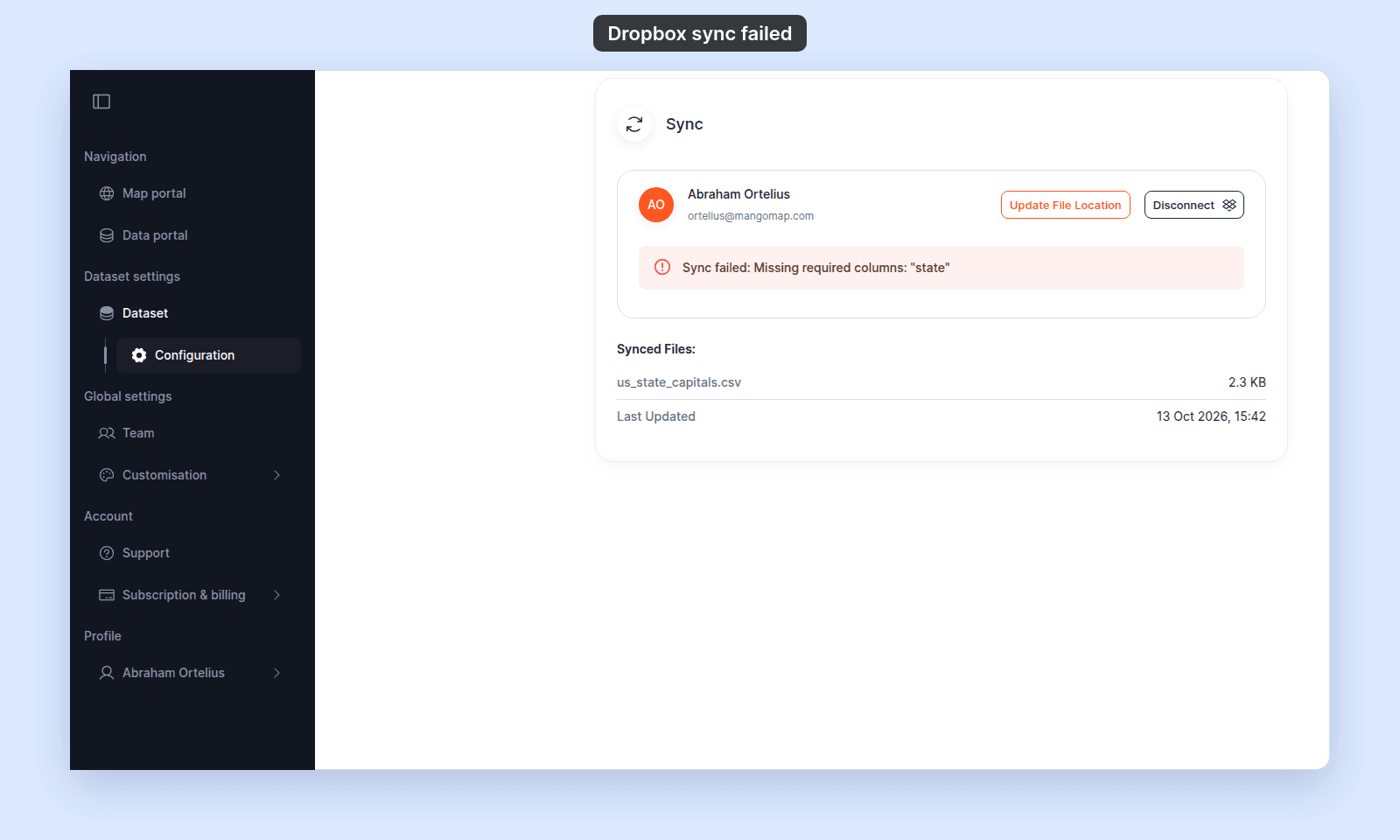
When MangoMap pulls a synced file and can't use it, the sync fails and the card shows `Sync failed: [error message]` in place of `Sync is active`. The message says what went wrong. The dataset keeps the data from the last good sync, and `Last Updated` under `Synced Files` still shows that sync. Here the file in Dropbox lost its `state` column:
 Sync runs the same checks as `Update from file`. Common reasons a previously-good file fails after an edit in Dropbox:
- A column the dataset already has was dropped or renamed. The message reads `Missing required columns: …`. Put the listed columns back.
- The file now holds more than one layer. The message reads `This file contains [N] layers (…). Please upload a single-layer file for this dataset.` Keep only one layer in the synced file.
- The file now holds a different geometry type. The message reads `This dataset contains [point|line|polygon] data, but the uploaded file contains …`. Keep the dataset's geometry type, or import the file as a new dataset.
- A CSV was saved as a non-UTF-8 encoding (Excel sometimes writes Windows-1252).
- A shapefile was edited but a sidecar wasn't updated (e.g. `.shp` changed but `.dbf` didn't).
To verify:
- Read the error message in the alert.
- Open the file in Dropbox and check whether it's structurally valid.
To fix:
- Edit the file in Dropbox to fix the issue, then save again. The next change triggers a fresh sync.
- If you can't fix the source file, restore an older version from Dropbox's version history. MangoMap re-syncs whatever's in Dropbox now.
- As a last resort, [disconnect Dropbox sync](/docs/data-updates/change-or-disconnect-dropbox-sync) and update the dataset manually with [Update from file](/docs/data-updates/update-a-dataset-from-a-file).
## Less common: the Dropbox app authorisation was revoked
If you (or the person who connected Dropbox) revoked MangoMap's access from inside Dropbox's account settings, MangoMap can't read the files. Sync stops; the next attempt fails.
To verify:
- Sign in to Dropbox and check `Connected apps` (under your Dropbox account settings). MangoMap should be in the list.
- If MangoMap isn't listed, the app's authorisation was revoked.
To fix:
- Re-authorise. In MangoMap, click `Disconnect` on the `Sync` card to clear the stale connection. Then click `Connect Dropbox` and sign in to Dropbox and approve access again. Re-pick the files.
## Less common: the file was moved or deleted in Dropbox
If the synced file is renamed or moved to a different folder in Dropbox, MangoMap can't find it. Sync fails on the next change.
To verify:
- In Dropbox, look in the original location for the file. If it's gone, find it elsewhere or check your trash.
To fix:
- Move the file back to its original location, or
- In MangoMap, click `Update File Location` on the active `Sync` card and pick the file from its new location. See [How to change or disconnect Dropbox sync](/docs/data-updates/change-or-disconnect-dropbox-sync).
## Less common: you ran out of MangoMap storage
If your subscription's storage limit was exceeded by a sync that brought in a much larger file, the sync fails. The dataset doesn't accept content that puts you over the limit.
To verify:
- Open `Subscription summary` (`Subscription & billing` > `Subscription summary`) and check the `Storage` tile.
To fix:
- Free space by deleting unused datasets, or upgrade `Storage` add-ons. See [How to manage your subscription](/docs/subscription-and-billing/manage-your-subscription).
- After making space, edit the file in Dropbox to trigger a fresh sync. (A no-op edit is enough.)
## Less common: the subscription no longer includes the Dropbox integration
If your subscription was downgraded to a tier without the Dropbox integration, sync stops working even though the connection details are still in place.
To verify:
- On the `Sync` card, the controls may be disabled or behave differently.
- Check your current subscription on `Subscription summary`.
To fix:
- Upgrade the subscription back to a tier that includes the Dropbox integration, or
- Disconnect Dropbox and switch to manual `Update from file` updates.
## When the sync card shows nothing wrong but data isn't updating
Two cases:
- **The file in Dropbox isn't actually changing.** Sync only runs in response to changes. If the file modification time isn't updating in Dropbox, MangoMap doesn't see anything to sync. Check Dropbox's file history.
- **The sync hasn't yet completed.** Large files take time. Refresh the dataset settings page and check the `Last Updated` timestamp under `Synced Files`.
## If sync just won't start at all
If Dropbox is connected but sync does not start:
- Check that you've selected every required file. The card shows `[N] files are required` when the set is incomplete.
- Click `Update File Location` to reopen the chooser and confirm your selection.
## If none of these checks
Ask support. Include:
- The dataset URL.
- The exact `Sync failed:` message from the card.
- A note about whether the file in Dropbox has been edited recently.
- The Dropbox account email used for the connection.
## Related
- [How to set up Dropbox sync](/docs/data-updates/set-up-dropbox-sync)
- [How to change or disconnect Dropbox sync](/docs/data-updates/change-or-disconnect-dropbox-sync)
- [How to update a dataset from a file](/docs/data-updates/update-a-dataset-from-a-file) - the manual fallback when sync isn't working.
- [Data updates reference](/docs/data-updates/data-updates-reference)
Sync runs the same checks as `Update from file`. Common reasons a previously-good file fails after an edit in Dropbox:
- A column the dataset already has was dropped or renamed. The message reads `Missing required columns: …`. Put the listed columns back.
- The file now holds more than one layer. The message reads `This file contains [N] layers (…). Please upload a single-layer file for this dataset.` Keep only one layer in the synced file.
- The file now holds a different geometry type. The message reads `This dataset contains [point|line|polygon] data, but the uploaded file contains …`. Keep the dataset's geometry type, or import the file as a new dataset.
- A CSV was saved as a non-UTF-8 encoding (Excel sometimes writes Windows-1252).
- A shapefile was edited but a sidecar wasn't updated (e.g. `.shp` changed but `.dbf` didn't).
To verify:
- Read the error message in the alert.
- Open the file in Dropbox and check whether it's structurally valid.
To fix:
- Edit the file in Dropbox to fix the issue, then save again. The next change triggers a fresh sync.
- If you can't fix the source file, restore an older version from Dropbox's version history. MangoMap re-syncs whatever's in Dropbox now.
- As a last resort, [disconnect Dropbox sync](/docs/data-updates/change-or-disconnect-dropbox-sync) and update the dataset manually with [Update from file](/docs/data-updates/update-a-dataset-from-a-file).
## Less common: the Dropbox app authorisation was revoked
If you (or the person who connected Dropbox) revoked MangoMap's access from inside Dropbox's account settings, MangoMap can't read the files. Sync stops; the next attempt fails.
To verify:
- Sign in to Dropbox and check `Connected apps` (under your Dropbox account settings). MangoMap should be in the list.
- If MangoMap isn't listed, the app's authorisation was revoked.
To fix:
- Re-authorise. In MangoMap, click `Disconnect` on the `Sync` card to clear the stale connection. Then click `Connect Dropbox` and sign in to Dropbox and approve access again. Re-pick the files.
## Less common: the file was moved or deleted in Dropbox
If the synced file is renamed or moved to a different folder in Dropbox, MangoMap can't find it. Sync fails on the next change.
To verify:
- In Dropbox, look in the original location for the file. If it's gone, find it elsewhere or check your trash.
To fix:
- Move the file back to its original location, or
- In MangoMap, click `Update File Location` on the active `Sync` card and pick the file from its new location. See [How to change or disconnect Dropbox sync](/docs/data-updates/change-or-disconnect-dropbox-sync).
## Less common: you ran out of MangoMap storage
If your subscription's storage limit was exceeded by a sync that brought in a much larger file, the sync fails. The dataset doesn't accept content that puts you over the limit.
To verify:
- Open `Subscription summary` (`Subscription & billing` > `Subscription summary`) and check the `Storage` tile.
To fix:
- Free space by deleting unused datasets, or upgrade `Storage` add-ons. See [How to manage your subscription](/docs/subscription-and-billing/manage-your-subscription).
- After making space, edit the file in Dropbox to trigger a fresh sync. (A no-op edit is enough.)
## Less common: the subscription no longer includes the Dropbox integration
If your subscription was downgraded to a tier without the Dropbox integration, sync stops working even though the connection details are still in place.
To verify:
- On the `Sync` card, the controls may be disabled or behave differently.
- Check your current subscription on `Subscription summary`.
To fix:
- Upgrade the subscription back to a tier that includes the Dropbox integration, or
- Disconnect Dropbox and switch to manual `Update from file` updates.
## When the sync card shows nothing wrong but data isn't updating
Two cases:
- **The file in Dropbox isn't actually changing.** Sync only runs in response to changes. If the file modification time isn't updating in Dropbox, MangoMap doesn't see anything to sync. Check Dropbox's file history.
- **The sync hasn't yet completed.** Large files take time. Refresh the dataset settings page and check the `Last Updated` timestamp under `Synced Files`.
## If sync just won't start at all
If Dropbox is connected but sync does not start:
- Check that you've selected every required file. The card shows `[N] files are required` when the set is incomplete.
- Click `Update File Location` to reopen the chooser and confirm your selection.
## If none of these checks
Ask support. Include:
- The dataset URL.
- The exact `Sync failed:` message from the card.
- A note about whether the file in Dropbox has been edited recently.
- The Dropbox account email used for the connection.
## Related
- [How to set up Dropbox sync](/docs/data-updates/set-up-dropbox-sync)
- [How to change or disconnect Dropbox sync](/docs/data-updates/change-or-disconnect-dropbox-sync)
- [How to update a dataset from a file](/docs/data-updates/update-a-dataset-from-a-file) - the manual fallback when sync isn't working.
- [Data updates reference](/docs/data-updates/data-updates-reference)