---
title: "How to set up Dropbox sync"
description: "Connect a dataset to Dropbox so changes to the selected files update it automatically. Works for CSV, GeoJSON, KML, Shapefile, and TAB datasets."
sidebar:
label: "Set up Dropbox sync"
---
Connect a dataset to Dropbox so changes to selected files update it automatically. CSV, GeoJSON, KML, Shapefile, and MapInfo TAB datasets support sync; GeoTIFF and WMS datasets do not.
Enterprise and Agency only
## Before you start
- You need `Edit` access on the dataset. See [How dataset access works in MangoMap](/docs/dataset-access/concepts-dataset-access).
- The dataset must be one of the supported formats: `CSV`, `GeoJSON`, `KML`, `Shapefile`, or `TAB`. `GeoTIFF` (raster) and `WMS` datasets don't have a `Sync` section.
- Your subscription must include Dropbox. If it does not, `Connect Dropbox` opens an upgrade prompt. See [How subscription and billing work in MangoMap](/docs/subscription-and-billing/concepts-subscription-and-billing).
- The source files need to live in a Dropbox folder you can access with the Dropbox account you'll connect.
- For `Shapefile` and `TAB`, all sidecar files must be in the same Dropbox folder so you can pick them together.
## Open the Sync section
1. Open the dataset from the data library.
2. In the dataset's sidebar, click `Configuration`.
3. Pick `Sync`.
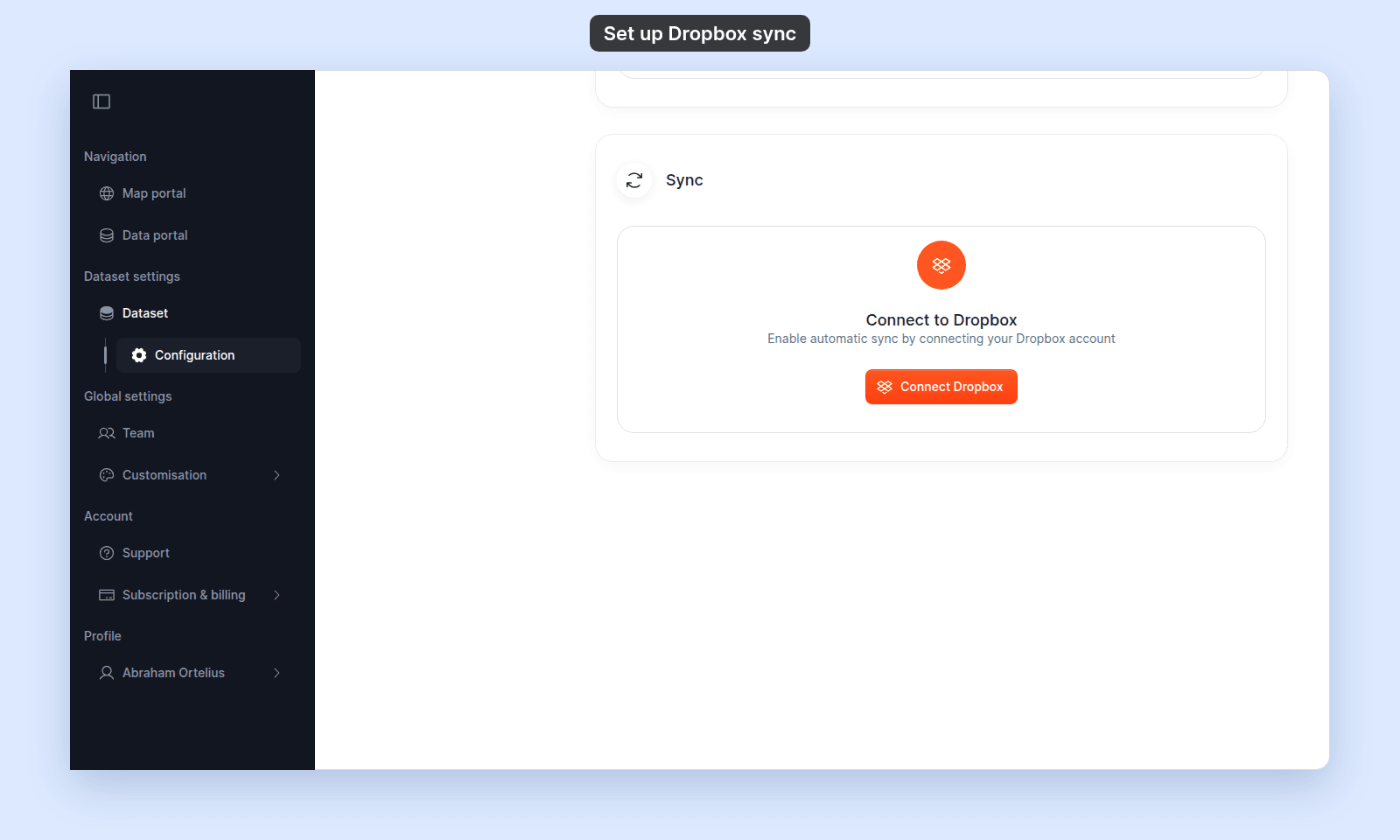
Before you connect Dropbox, the section has one button:
 ## Connect Dropbox
Click `Connect Dropbox`. MangoMap redirects you to Dropbox. Sign in if needed and approve access; Dropbox then returns you to this dataset's settings. The `Sync` section now shows your Dropbox account and the controls to pick files:
## Connect Dropbox
Click `Connect Dropbox`. MangoMap redirects you to Dropbox. Sign in if needed and approve access; Dropbox then returns you to this dataset's settings. The `Sync` section now shows your Dropbox account and the controls to pick files:
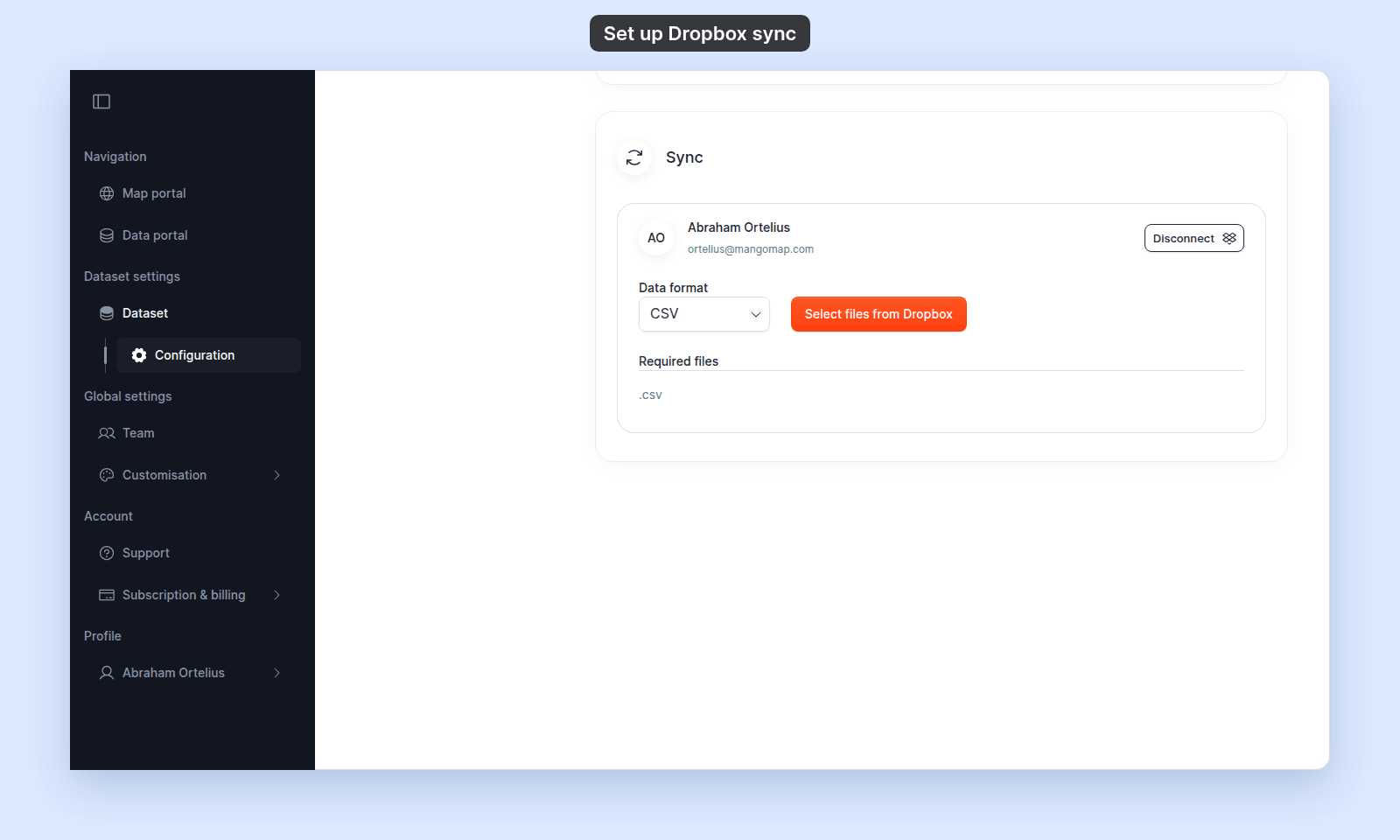 If your subscription doesn't include the Dropbox integration, clicking `Connect Dropbox` shows an upgrade prompt instead. MangoMap makes the connection after your subscription includes the feature.
Set up sync separately for each dataset you want Dropbox to update.
## Pick the data format
Open the `Data format` dropdown and pick `CSV`, `GeoJSON`, `KML`, `Shapefile`, or `Tab`. The default is the dataset's existing format if it's one of the five, and `Shapefile` otherwise.
The format you pick decides which file extensions the Dropbox file chooser will filter for. Picking `Shapefile` only shows `.shp`, `.dbf`, `.shx`, `.prj` files; picking `CSV` only shows `.csv`.
## Select the files in Dropbox
Click `Select files from Dropbox`. The Dropbox file chooser opens with the right extension filter applied.
For single-file formats:
- Pick the one file.
- Confirm in the chooser.
For multipart formats:
- Pick every file in the set, in any order.
- Confirm in the chooser.
The chooser closes and the `Required files` list in the `Sync` section fills with the file names you picked.
If you select only some of the required files, the section keeps the partial set and shows `[N] files are required` under the `Required files` heading. Each missing row shows `File missing` with a `Select` button. Click `Select` or `Select files from Dropbox` again and pick the whole set.
## Sync activates automatically
As soon as every required file is present, MangoMap starts the first sync.
While the first sync runs, the `Processing data…` dialog stays open. Do not leave the page until it closes. When the sync is done, the dialog closes and MangoMap shows `Dataset updated successfully!`. If the files cannot be used, the dialog shows `Processing failed` with the reason. See [Dropbox sync failed or stopped working](/docs/data-updates/troubleshoot-dropbox-sync-failed).
After the first sync, the `Sync` section shows that sync is active, with the synced files and the time of the last update:
If your subscription doesn't include the Dropbox integration, clicking `Connect Dropbox` shows an upgrade prompt instead. MangoMap makes the connection after your subscription includes the feature.
Set up sync separately for each dataset you want Dropbox to update.
## Pick the data format
Open the `Data format` dropdown and pick `CSV`, `GeoJSON`, `KML`, `Shapefile`, or `Tab`. The default is the dataset's existing format if it's one of the five, and `Shapefile` otherwise.
The format you pick decides which file extensions the Dropbox file chooser will filter for. Picking `Shapefile` only shows `.shp`, `.dbf`, `.shx`, `.prj` files; picking `CSV` only shows `.csv`.
## Select the files in Dropbox
Click `Select files from Dropbox`. The Dropbox file chooser opens with the right extension filter applied.
For single-file formats:
- Pick the one file.
- Confirm in the chooser.
For multipart formats:
- Pick every file in the set, in any order.
- Confirm in the chooser.
The chooser closes and the `Required files` list in the `Sync` section fills with the file names you picked.
If you select only some of the required files, the section keeps the partial set and shows `[N] files are required` under the `Required files` heading. Each missing row shows `File missing` with a `Select` button. Click `Select` or `Select files from Dropbox` again and pick the whole set.
## Sync activates automatically
As soon as every required file is present, MangoMap starts the first sync.
While the first sync runs, the `Processing data…` dialog stays open. Do not leave the page until it closes. When the sync is done, the dialog closes and MangoMap shows `Dataset updated successfully!`. If the files cannot be used, the dialog shows `Processing failed` with the reason. See [Dropbox sync failed or stopped working](/docs/data-updates/troubleshoot-dropbox-sync-failed).
After the first sync, the `Sync` section shows that sync is active, with the synced files and the time of the last update:
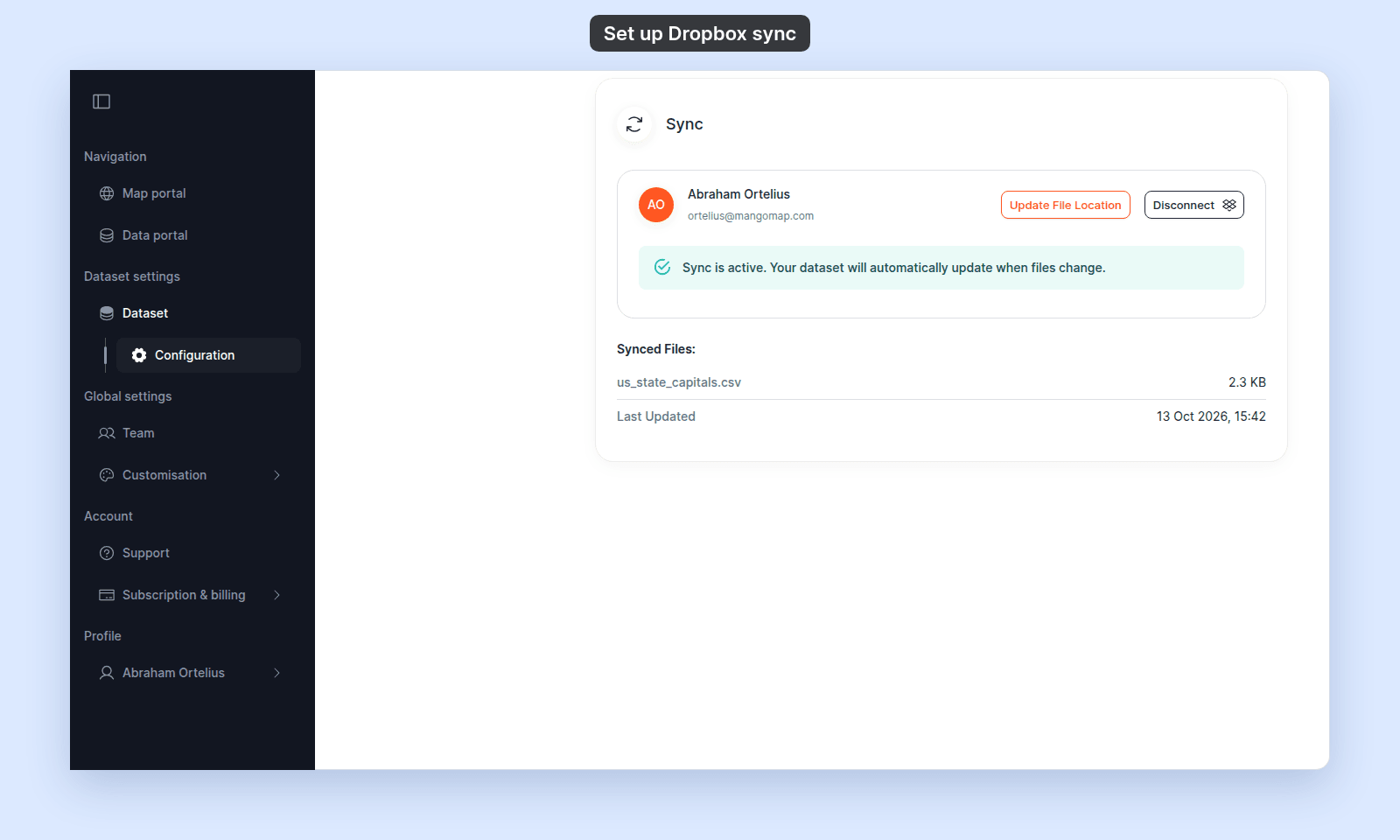 Use `Update File Location` later to pick different files, and `Disconnect` to stop sync.
## What happens going forward
After setup:
- When a synced file changes in Dropbox, MangoMap updates the dataset within about 10 minutes and runs the same checks as the first sync.
- The dataset's URL, group access, name, and other settings stay the same — only the data inside it changes.
- Maps show the new data the next time they are opened.
- If the new files fail the checks, the `Sync` card shows `Sync failed: …` and the dataset keeps its previous data.
- The `Synced Files` panel's `Last Updated` field updates with each successful sync.
## Switching files later
To sync a different set of files (e.g. a new shapefile in a different Dropbox folder), use `Update File Location`. See [How to change or disconnect Dropbox sync](/docs/data-updates/change-or-disconnect-dropbox-sync).
## Troubleshooting
**`Connect Dropbox` opens an upgrade prompt instead of the OAuth flow.** Your subscription doesn't include the Dropbox integration. See [How subscription and billing work in MangoMap](/docs/subscription-and-billing/concepts-subscription-and-billing).
**Dropbox returns you to MangoMap but the section still says `Connect to Dropbox`.** The authorisation did not complete. Click `Connect Dropbox` and try again.
**The Dropbox file chooser doesn't show the file you want.** The chooser filters by the selected `Data format`'s required extensions. If your file's extension doesn't match, change `Data format` first or rename the file in Dropbox to use the correct extension.
**`Sync failed: [error message]` alert.** See [Dropbox sync failed or stopped working](/docs/data-updates/troubleshoot-dropbox-sync-failed).
**The section doesn't appear in the dataset's sidebar.** The dataset is `GeoTIFF` or `WMS`. Those formats don't support sync.
## Related
- [Data updates reference](/docs/data-updates/data-updates-reference)
- [How to change or disconnect Dropbox sync](/docs/data-updates/change-or-disconnect-dropbox-sync)
- [How to update a dataset from a file](/docs/data-updates/update-a-dataset-from-a-file) - the manual alternative.
- [How data updates work in MangoMap](/docs/data-updates/concepts-data-updates)
Use `Update File Location` later to pick different files, and `Disconnect` to stop sync.
## What happens going forward
After setup:
- When a synced file changes in Dropbox, MangoMap updates the dataset within about 10 minutes and runs the same checks as the first sync.
- The dataset's URL, group access, name, and other settings stay the same — only the data inside it changes.
- Maps show the new data the next time they are opened.
- If the new files fail the checks, the `Sync` card shows `Sync failed: …` and the dataset keeps its previous data.
- The `Synced Files` panel's `Last Updated` field updates with each successful sync.
## Switching files later
To sync a different set of files (e.g. a new shapefile in a different Dropbox folder), use `Update File Location`. See [How to change or disconnect Dropbox sync](/docs/data-updates/change-or-disconnect-dropbox-sync).
## Troubleshooting
**`Connect Dropbox` opens an upgrade prompt instead of the OAuth flow.** Your subscription doesn't include the Dropbox integration. See [How subscription and billing work in MangoMap](/docs/subscription-and-billing/concepts-subscription-and-billing).
**Dropbox returns you to MangoMap but the section still says `Connect to Dropbox`.** The authorisation did not complete. Click `Connect Dropbox` and try again.
**The Dropbox file chooser doesn't show the file you want.** The chooser filters by the selected `Data format`'s required extensions. If your file's extension doesn't match, change `Data format` first or rename the file in Dropbox to use the correct extension.
**`Sync failed: [error message]` alert.** See [Dropbox sync failed or stopped working](/docs/data-updates/troubleshoot-dropbox-sync-failed).
**The section doesn't appear in the dataset's sidebar.** The dataset is `GeoTIFF` or `WMS`. Those formats don't support sync.
## Related
- [Data updates reference](/docs/data-updates/data-updates-reference)
- [How to change or disconnect Dropbox sync](/docs/data-updates/change-or-disconnect-dropbox-sync)
- [How to update a dataset from a file](/docs/data-updates/update-a-dataset-from-a-file) - the manual alternative.
- [How data updates work in MangoMap](/docs/data-updates/concepts-data-updates)