---
title: How to remove Mango branding
description: "Hide Mango logos, badges, and page-title branding from your maps, admin pages, and sign-in page with one toggle. Only the account owner can use it."
sidebar:
label: "Remove Mango branding"
search:
keywords: [white label, powered by, hide logo]
---
The `Remove Mango branding` toggle hides Mango logos and branding from your maps, admin pages, and sign-in page. Use it when you want the account to carry only your brand.
## Before you start
- You need to be the account owner. Only the user with the `Owner` role can open the `Domain & whitelabel` page.
1. **Open the page**
In the admin sidebar, open `Global settings` > `Customisation` > `Domain & whitelabel`.
The page has two cards. The `Whitelabel Settings` card holds the toggle.
2. **Turn the toggle on**
In `Whitelabel Settings`, turn on `Remove Mango branding`.
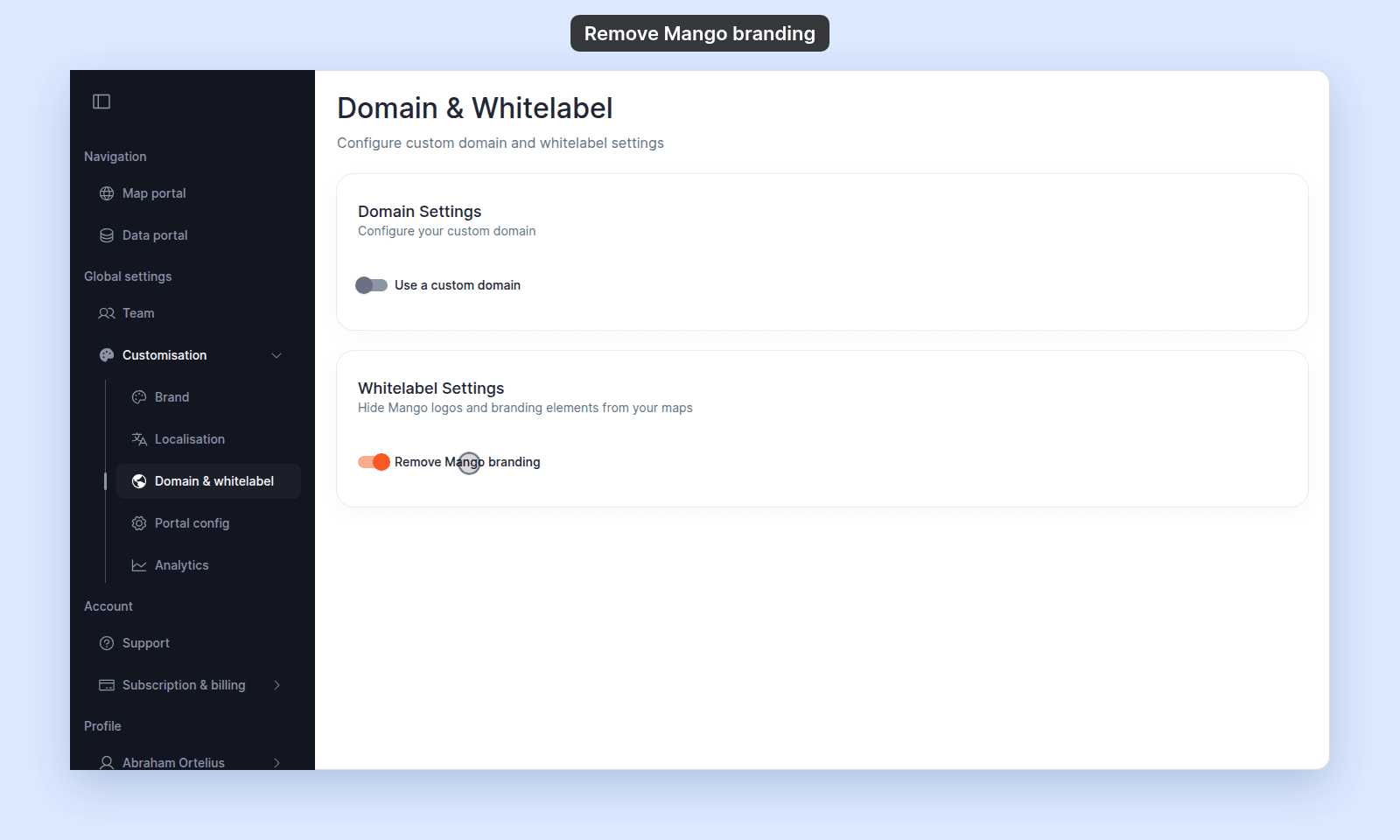 Remove Mango branding turned on
The change applies to every map in the account.
3. **Check what changes**
`Remove Mango branding` changes what every user and visitor of the account sees, signed in or not. Your own branding from the `Brand` page stays. Use this toggle with `Brand` to give the account a fully whitelabelled look.
- **Admin sidebar:** the Mango logo at the top is hidden.
- **Maps:** the Mango badge at the bottom left of the map is hidden.
- **Page titles:** the browser tab title ends with your company name, not `Mango GIS`.
- **Tab icon:** your logo, cropped to a centred square. If the account has no logo, there is no icon.
- **Sign-in page:** the account's sign-in page, `//sign-in`, shows your logo, or no logo if the account has none. This is the same with the toggle on or off: the sign-in page never shows the Mango logo.
- **Custom domain:** if you [connected a custom domain](/docs/customisation/connect-a-custom-domain), visitors who open a `mangomap.com` link to the account go to your domain, and the share links MangoMap gives you use your domain.
On a map, compare the top of the admin sidebar and the bottom left of the map:
Remove Mango branding turned on
The change applies to every map in the account.
3. **Check what changes**
`Remove Mango branding` changes what every user and visitor of the account sees, signed in or not. Your own branding from the `Brand` page stays. Use this toggle with `Brand` to give the account a fully whitelabelled look.
- **Admin sidebar:** the Mango logo at the top is hidden.
- **Maps:** the Mango badge at the bottom left of the map is hidden.
- **Page titles:** the browser tab title ends with your company name, not `Mango GIS`.
- **Tab icon:** your logo, cropped to a centred square. If the account has no logo, there is no icon.
- **Sign-in page:** the account's sign-in page, `//sign-in`, shows your logo, or no logo if the account has none. This is the same with the toggle on or off: the sign-in page never shows the Mango logo.
- **Custom domain:** if you [connected a custom domain](/docs/customisation/connect-a-custom-domain), visitors who open a `mangomap.com` link to the account go to your domain, and the share links MangoMap gives you use your domain.
On a map, compare the top of the admin sidebar and the bottom left of the map:
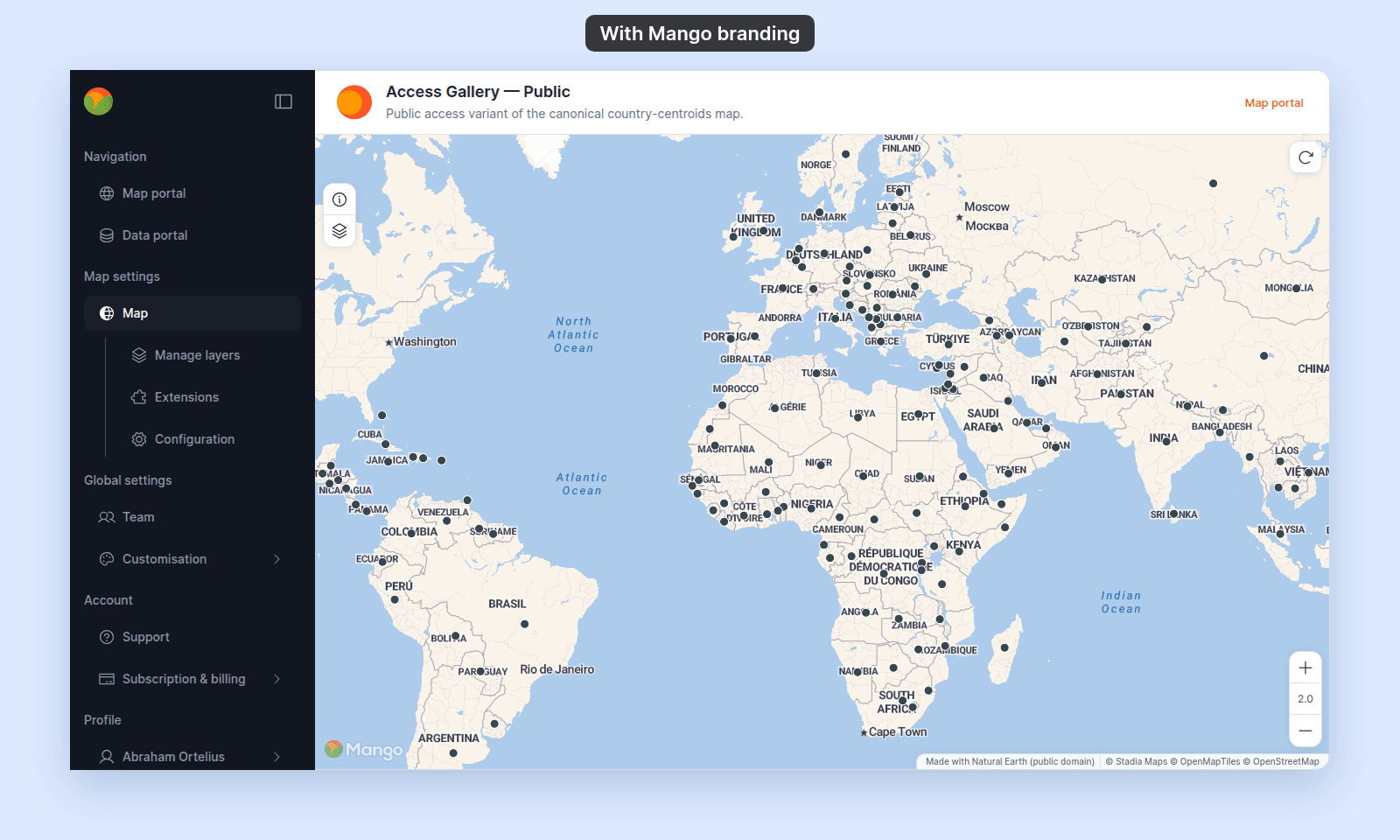 The same map with Mango branding
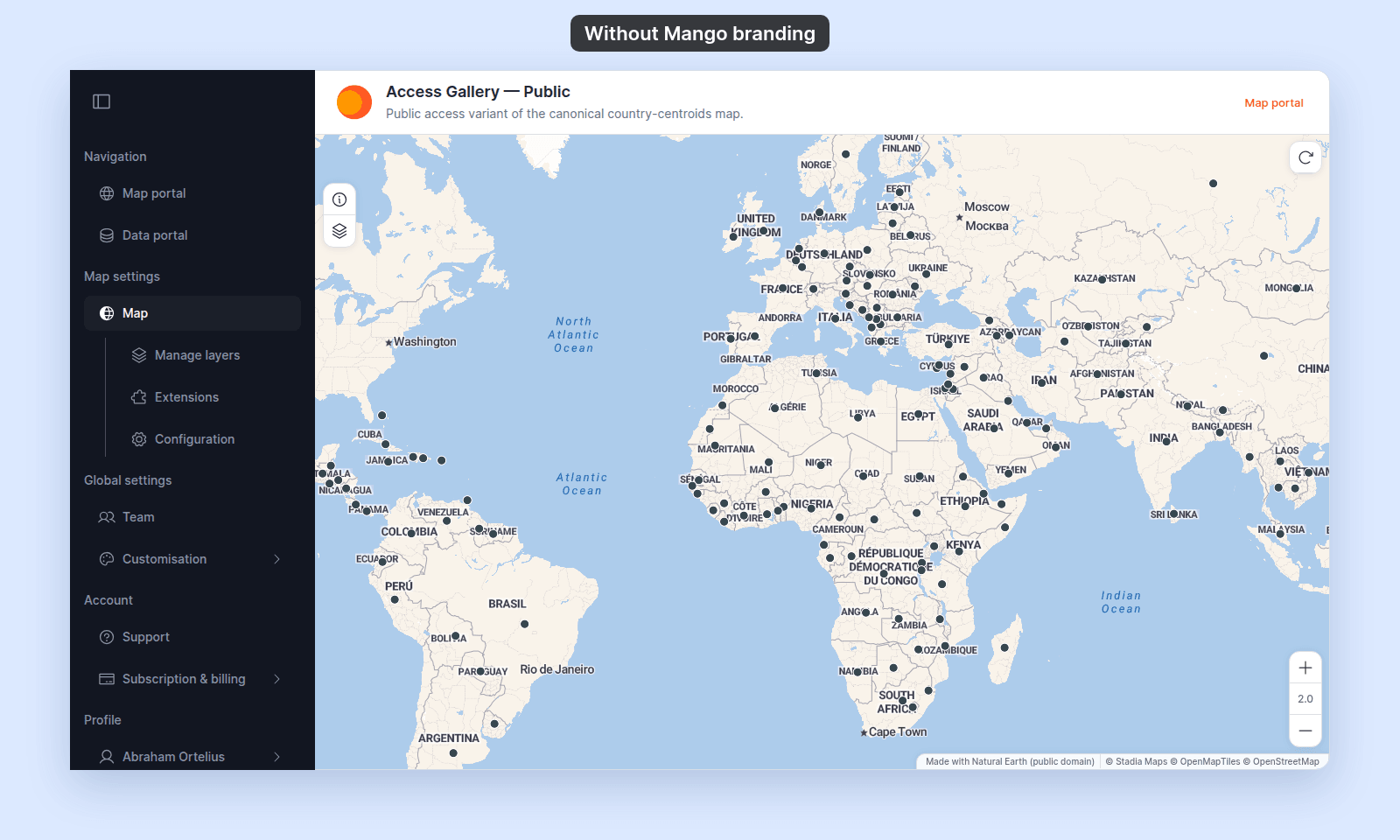 The same map with Remove Mango branding on
To set the logo, see [How to set your brand logo and colours](/docs/customisation/set-brand-logo-and-colours).
When you sign out, MangoMap returns you to the sign-in page you used. Sign in on `//sign-in` (on your custom domain, if you have one) so that you come back to your branded page and not the MangoMap sign-in page.
4. **Turn the toggle off**
To restore Mango branding, turn `Remove Mango branding` off. Existing tabs may keep showing the previous state until reload.
## Troubleshooting
**The Domain & whitelabel page is blocked**
You are not the account owner. See [The Customisation menu is blocked](/docs/customisation/troubleshoot-customisation-menu-blocked).
**The toggle saves but Mango branding still shows on a map**
Reload the map.
## Related
- [How to connect a custom domain](/docs/customisation/connect-a-custom-domain) - the other toggle on this page.
- [How to set your brand logo and colours](/docs/customisation/set-brand-logo-and-colours) - what to set after removing Mango branding.
- [Customisation menu reference](/docs/customisation/customisation-menu-reference)
The same map with Remove Mango branding on
To set the logo, see [How to set your brand logo and colours](/docs/customisation/set-brand-logo-and-colours).
When you sign out, MangoMap returns you to the sign-in page you used. Sign in on `//sign-in` (on your custom domain, if you have one) so that you come back to your branded page and not the MangoMap sign-in page.
4. **Turn the toggle off**
To restore Mango branding, turn `Remove Mango branding` off. Existing tabs may keep showing the previous state until reload.
## Troubleshooting
**The Domain & whitelabel page is blocked**
You are not the account owner. See [The Customisation menu is blocked](/docs/customisation/troubleshoot-customisation-menu-blocked).
**The toggle saves but Mango branding still shows on a map**
Reload the map.
## Related
- [How to connect a custom domain](/docs/customisation/connect-a-custom-domain) - the other toggle on this page.
- [How to set your brand logo and colours](/docs/customisation/set-brand-logo-and-colours) - what to set after removing Mango branding.
- [Customisation menu reference](/docs/customisation/customisation-menu-reference)