---
title: How to localise the text on your portal, maps, and dataset pages
description: "Replace MangoMap's wording across the portal, maps, and dataset pages. Turn on Enable Localisation, edit the labels, and reload to see the change."
seo:
title: "Localise portal text"
sidebar:
label: "Localise portal text"
---
Localisation lets you replace the words MangoMap uses across every map, dataset page, and the public portal. Changes save as you type and take effect on the next page reload.
**Good to know**
Turning the master toggle off keeps your overrides. They stop applying until you turn it back on.
## Before you start
- You need to be the account owner. Only the user with the `Owner` role can open the `Localisation` page.
- Decide whether you want to override text at all. With `Enable Localisation` off, MangoMap shows its built-in labels and your overrides have no effect.
- Localisation is account-wide. You cannot set different labels per map or portal.
1. **Open the Localisation page**
In the admin sidebar, open `Global settings` > `Customisation` > `Localisation`.
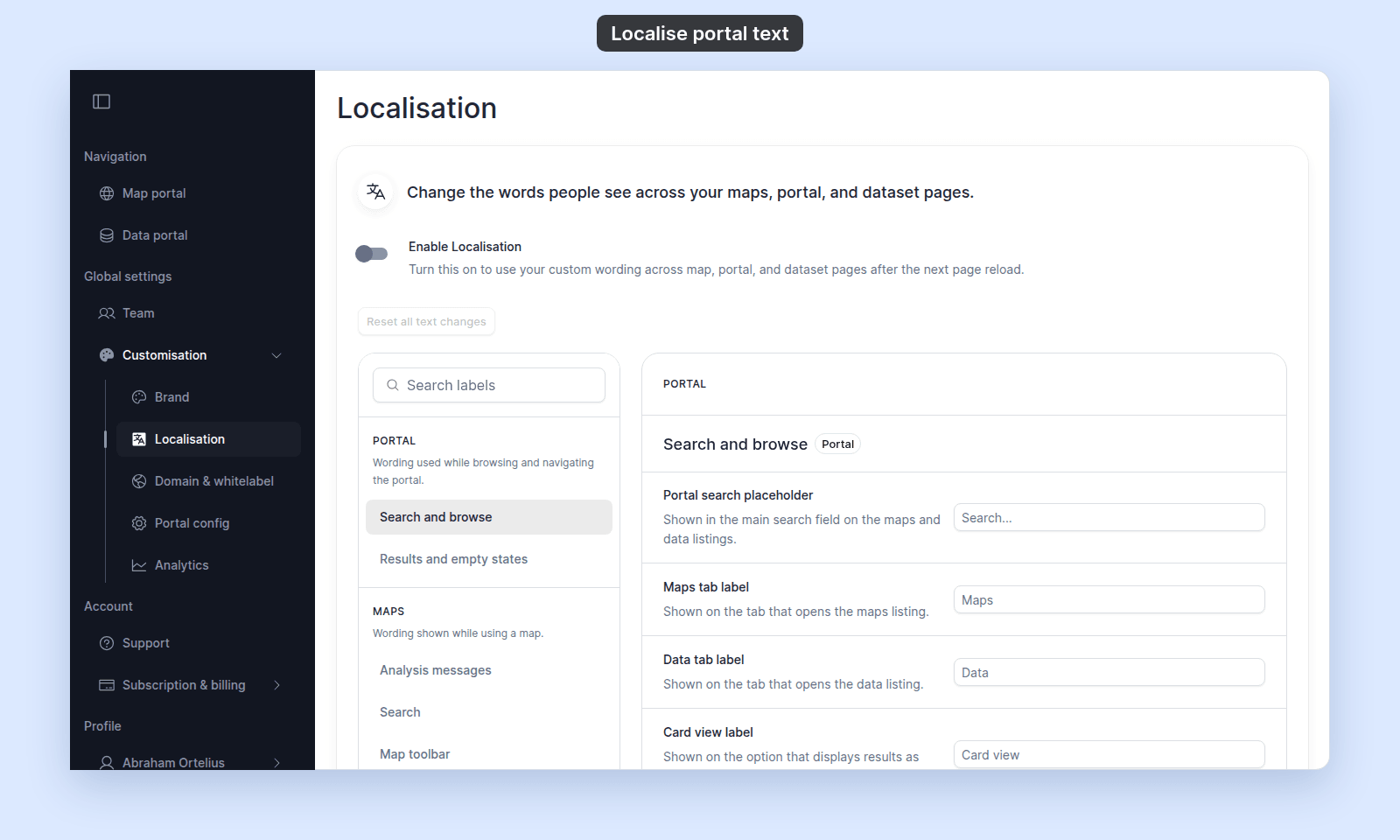 Localisation page with master toggle, Reset all text changes button, and panels
Use the side panel to choose a section, then edit its labels in the detail panel.
2. **Turn localisation on**
Find the `Enable Localisation` toggle near the top of the page.
Localisation page with master toggle, Reset all text changes button, and panels
Use the side panel to choose a section, then edit its labels in the detail panel.
2. **Turn localisation on**
Find the `Enable Localisation` toggle near the top of the page.
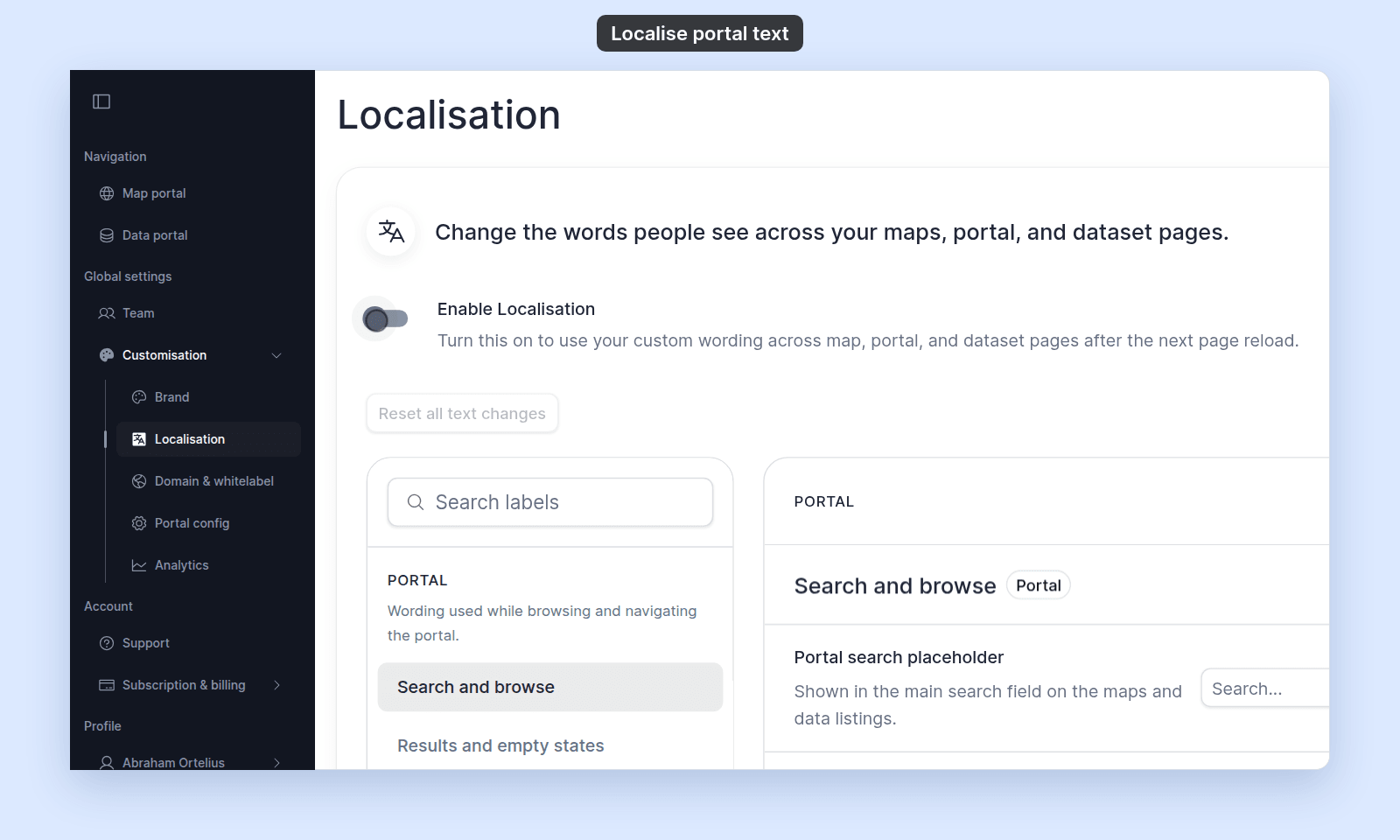 Enable Localisation toggle with its helper text
Click the toggle. Until you change a label, nothing else changes; built-in labels stay in place.
3. **Find and override a label**
The side panel groups labels into four sections:
| Area | Description |
| --- | --- |
| `Portal` | `Wording used while browsing and navigating the portal.` |
| `Maps` | `Wording shown while using a map.` |
| `Dataset` | `Wording shown on dataset pages.` |
| `Shared` | `Generic labels reused across multiple areas.` |
Click an area to load its labels in the detail panel. Or use the `Search labels` field at the top of the side panel to search across all areas.
To override a label, click into the field, type your replacement text, and click away. Your change saves automatically. An empty field shows the original text. To go back to the original text for one label, click the `X` in its field.
Enable Localisation toggle with its helper text
Click the toggle. Until you change a label, nothing else changes; built-in labels stay in place.
3. **Find and override a label**
The side panel groups labels into four sections:
| Area | Description |
| --- | --- |
| `Portal` | `Wording used while browsing and navigating the portal.` |
| `Maps` | `Wording shown while using a map.` |
| `Dataset` | `Wording shown on dataset pages.` |
| `Shared` | `Generic labels reused across multiple areas.` |
Click an area to load its labels in the detail panel. Or use the `Search labels` field at the top of the side panel to search across all areas.
To override a label, click into the field, type your replacement text, and click away. Your change saves automatically. An empty field shows the original text. To go back to the original text for one label, click the `X` in its field.
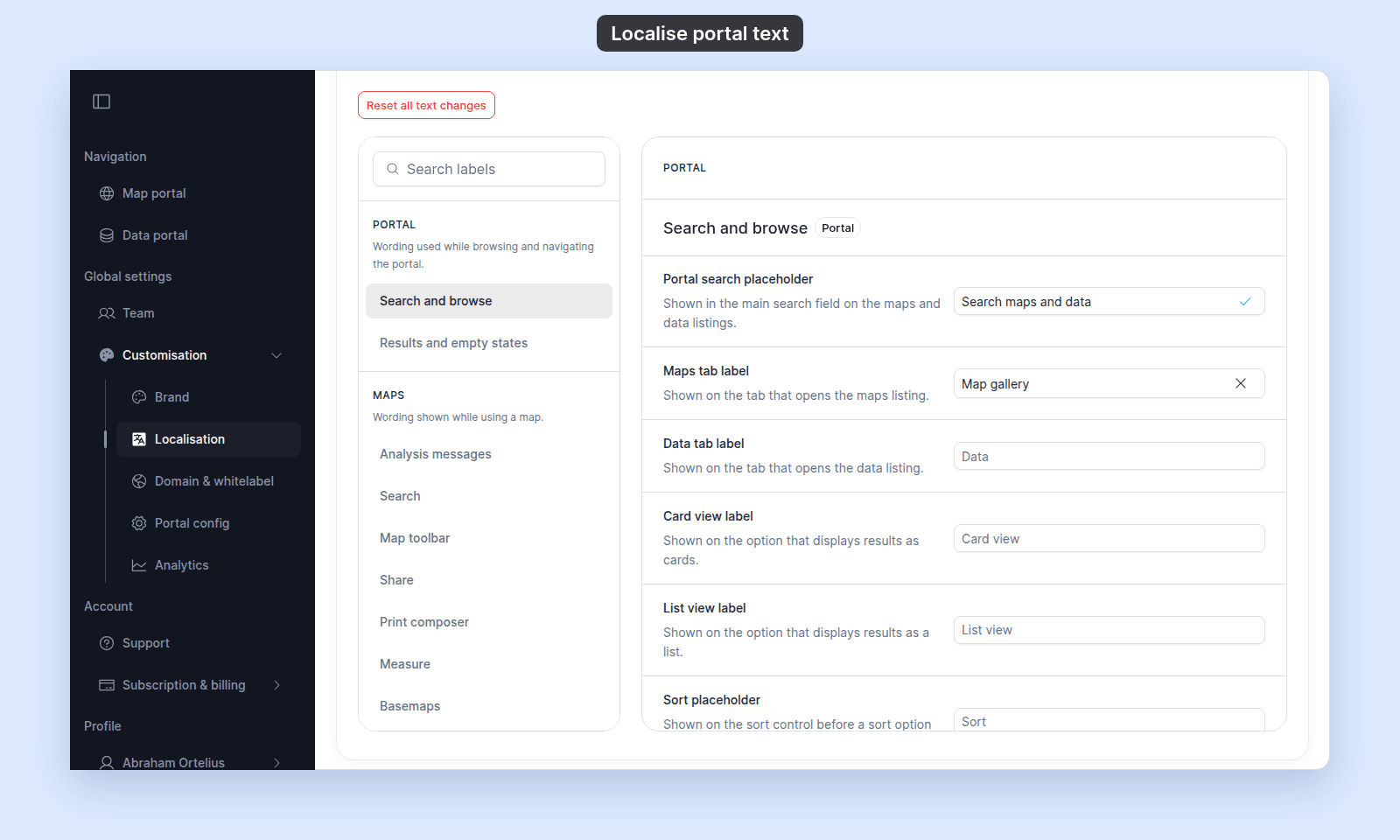 Search and browse labels: a saved change, an override, and an original label
4. **Reset all overrides**
To wipe every override at once and return every label to its original wording, click `Reset all text changes`. In the dialog, click `Reset all text changes` again to confirm, or `Keep changes` to cancel.
> [!WARNING]
> The reset happens at once, and you cannot undo it.
Search and browse labels: a saved change, an override, and an original label
4. **Reset all overrides**
To wipe every override at once and return every label to its original wording, click `Reset all text changes`. In the dialog, click `Reset all text changes` again to confirm, or `Keep changes` to cancel.
> [!WARNING]
> The reset happens at once, and you cannot undo it.
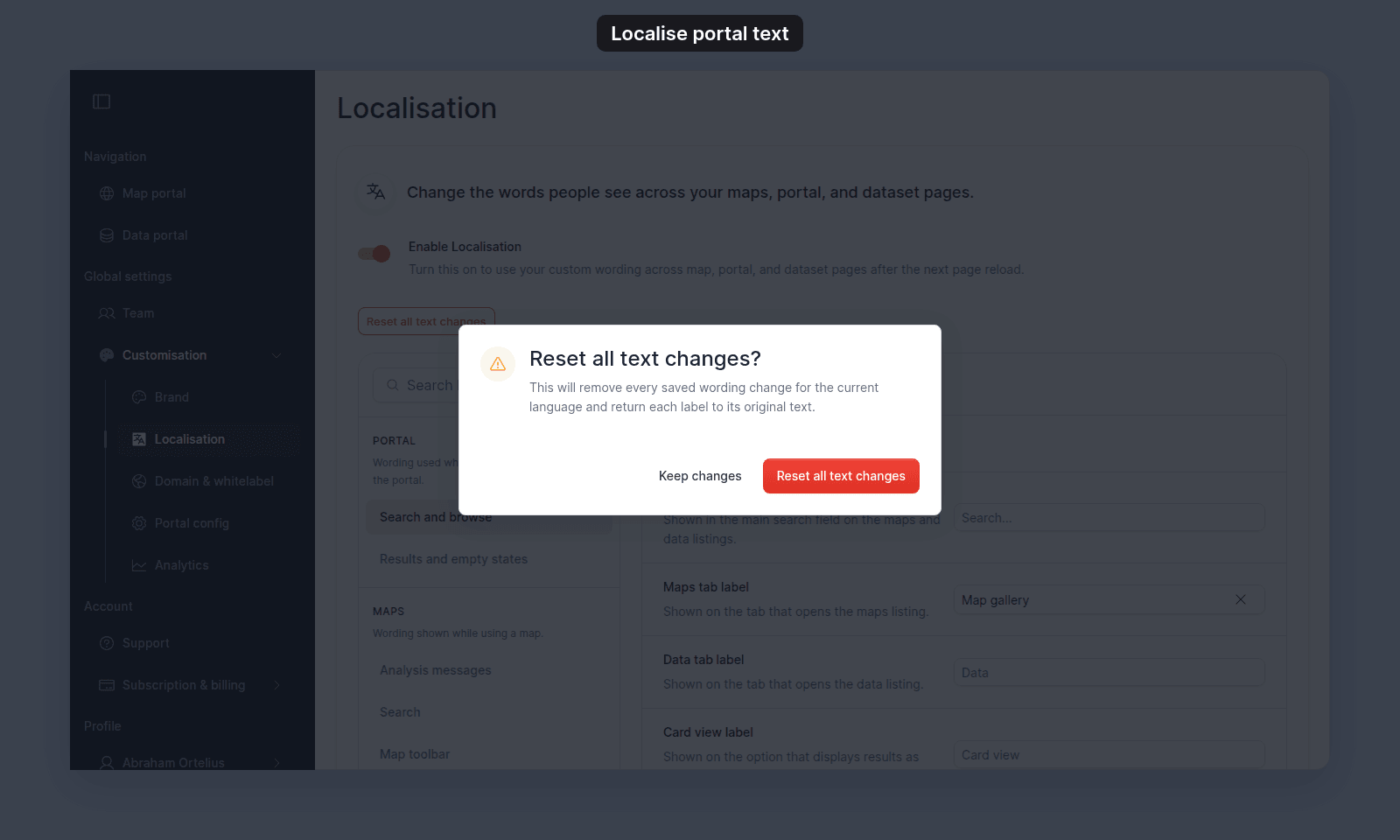 Reset all text changes confirmation
## Saving
If a save fails, reload the page and try again.
## Troubleshooting
**The Localisation page is blocked**
You are not the account owner. See [The Customisation menu is blocked](/docs/customisation/troubleshoot-customisation-menu-blocked).
**Overrides save but don't show on a map or dataset**
Reload the map or dataset page. Existing tabs stay on the previous text until reload.
**You can't find a label**
Use the `Search labels` field across all areas. If nothing matches, the label may not be one MangoMap exposes for override.
## Related
- [Customisation menu reference](/docs/customisation/customisation-menu-reference)
- [How customisation works in MangoMap](/docs/customisation/concepts-customisation)
- [How to configure the portal](/docs/customisation/configure-the-portal) - sets the portal's name, layout, and copy directly (no override needed).
Reset all text changes confirmation
## Saving
If a save fails, reload the page and try again.
## Troubleshooting
**The Localisation page is blocked**
You are not the account owner. See [The Customisation menu is blocked](/docs/customisation/troubleshoot-customisation-menu-blocked).
**Overrides save but don't show on a map or dataset**
Reload the map or dataset page. Existing tabs stay on the previous text until reload.
**You can't find a label**
Use the `Search labels` field across all areas. If nothing matches, the label may not be one MangoMap exposes for override.
## Related
- [Customisation menu reference](/docs/customisation/customisation-menu-reference)
- [How customisation works in MangoMap](/docs/customisation/concepts-customisation)
- [How to configure the portal](/docs/customisation/configure-the-portal) - sets the portal's name, layout, and copy directly (no override needed).