---
title: How to configure the portal
description: Set the public portal name, default layout, default map and data sort order, banner, footer, and navigation. Changes save as you go.
sidebar:
label: "Configure the portal"
---
The public portal — the page visitors see when they land on your account without picking a specific map — gets its name, default layout (`List` or `Grid`), default sort order, banner, and footer from `Portal config`. Changes save automatically as you type.
## Before you start
- You need to be the account owner. Only the user with the `Owner` role can open the `Portal config` page.
- Have the copy ready: portal name, banner title and body, footer text.
- Decide between `List` and `Grid` for the default layout. Visitors can switch between them, but the default is what they see first.
- Decide how the `Maps` and `Data` pages sort when a visitor opens them. If you don't set a sort, they sort by `Title (A-Z)`.
1. **Open the Portal config page**
In the admin sidebar, open `Global settings` > `Customisation` > `Portal config`.
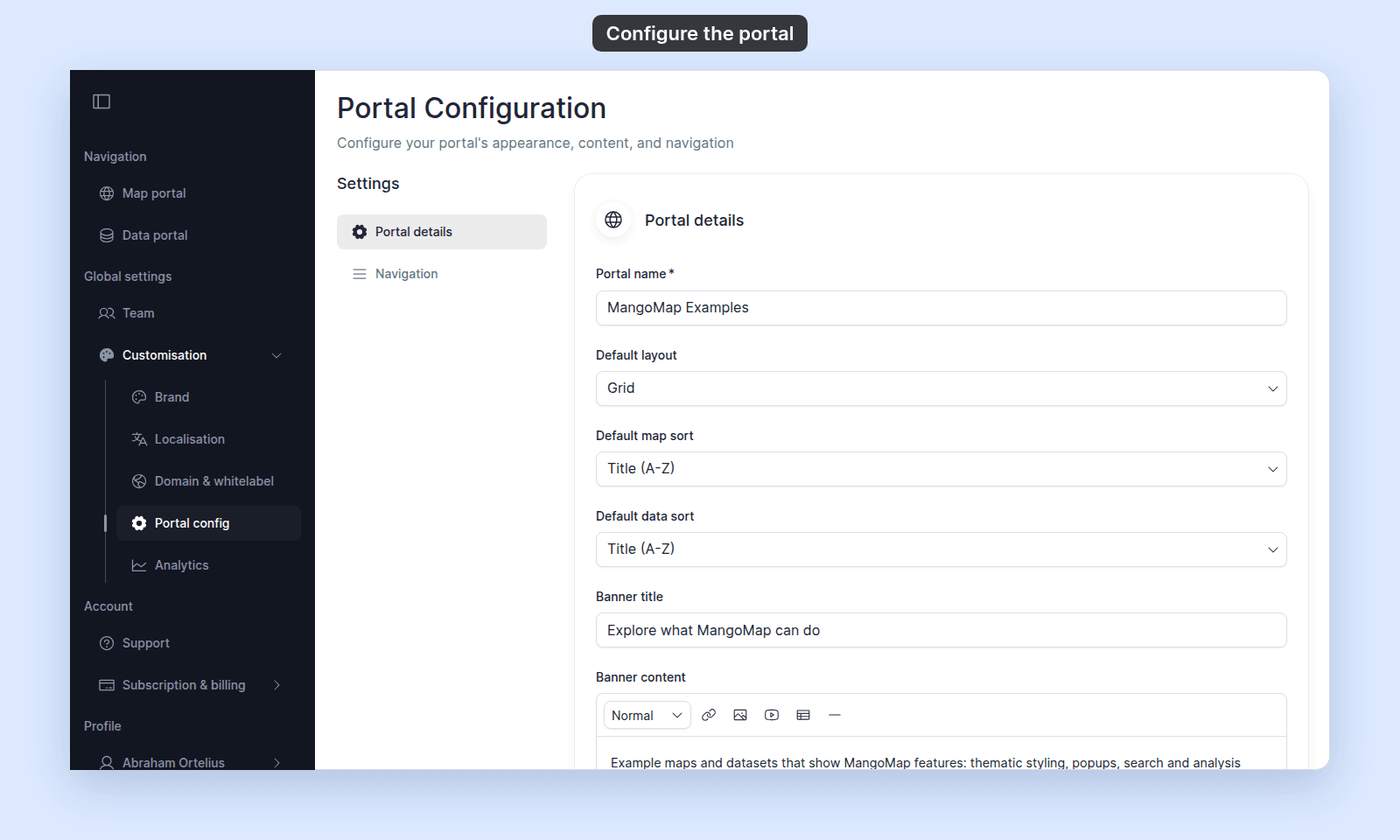 Portal settings page showing Portal details and Navigation sections
2. **Set the portal name and default layout**
In `Portal details`, edit `Portal name`. The field is required. Enter the name visitors should see.
The portal name appears in the portal's header. An empty name shows up as a blank header.
Open the `Default layout` menu and pick one:
- `List` — maps are shown as a vertical list.
- `Grid` — maps are shown as cards arranged in a grid.
The choice is the default. Visitors can switch between layouts on the portal itself.
3. **Set the default sort order**
Open the `Default map sort` menu and pick the order for the `Maps` page.
Open the `Default data sort` menu and pick the order for the `Data` page. It also offers `Size (smallest first)` and `Size (biggest first)`.
The default applies to the public portal and to the signed-in `Maps` and `Data` pages. A viewer who picks a different sort keeps their own choice for the rest of the session.
4. **Edit the banner and footer**
The banner is the prominent area at the top of the portal.
In `Banner title`, type the headline.
Portal settings page showing Portal details and Navigation sections
2. **Set the portal name and default layout**
In `Portal details`, edit `Portal name`. The field is required. Enter the name visitors should see.
The portal name appears in the portal's header. An empty name shows up as a blank header.
Open the `Default layout` menu and pick one:
- `List` — maps are shown as a vertical list.
- `Grid` — maps are shown as cards arranged in a grid.
The choice is the default. Visitors can switch between layouts on the portal itself.
3. **Set the default sort order**
Open the `Default map sort` menu and pick the order for the `Maps` page.
Open the `Default data sort` menu and pick the order for the `Data` page. It also offers `Size (smallest first)` and `Size (biggest first)`.
The default applies to the public portal and to the signed-in `Maps` and `Data` pages. A viewer who picks a different sort keeps their own choice for the rest of the session.
4. **Edit the banner and footer**
The banner is the prominent area at the top of the portal.
In `Banner title`, type the headline.
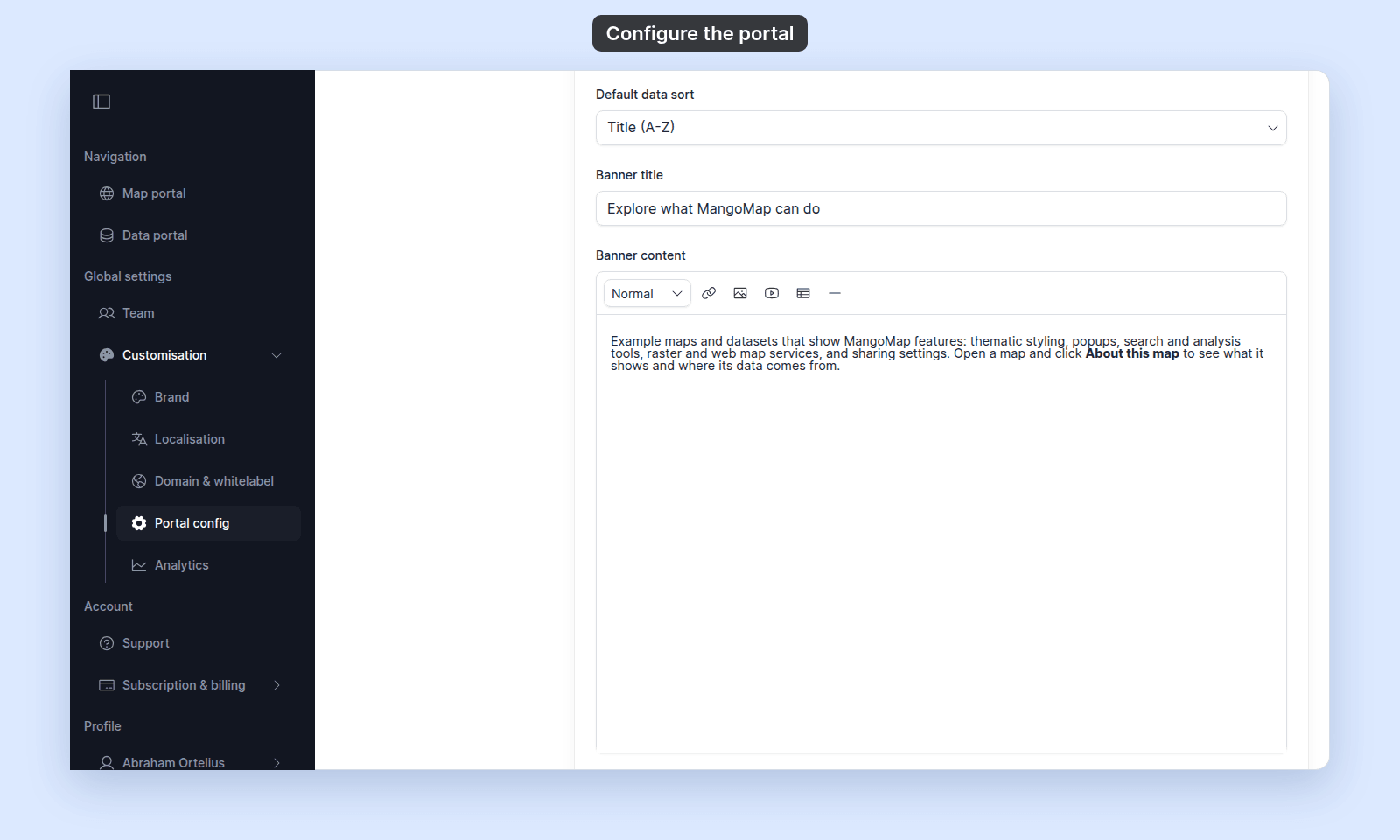 Banner content rich-text editor and its formatting toolbar
In `Banner content`, type the body copy. The field is a rich-text editor — it supports headings, bold, italic, strike, blockquote, bullet lists, ordered lists, links, images, YouTube embeds, tables, text alignment, horizontal rules, undo, and redo.
In `Footer`, type the text shown at the bottom of every portal page.
5. **Configure navigation**
The `Navigation` section in the side nav holds the navigation builder for the portal's header. Toggle `Use navigation` on, then add items in the builder.
The editor is the same builder used for a map's custom navigation menu. Every change (toggle, add, edit, drag-reorder, enable, delete) saves immediately. The portal's item-type set is a subset of the map's:
- `Link` — an external URL.
- `Email Link` — a pre-filled email.
- `Modal` — a dialog with rich-text content.
- `Terms Modal` — a terms-of-service or legal-notice dialog.
6. **Save the changes**
The portal page saves automatically. You do not need a `Save` button. Each field shows its own save state.
Banner content rich-text editor and its formatting toolbar
In `Banner content`, type the body copy. The field is a rich-text editor — it supports headings, bold, italic, strike, blockquote, bullet lists, ordered lists, links, images, YouTube embeds, tables, text alignment, horizontal rules, undo, and redo.
In `Footer`, type the text shown at the bottom of every portal page.
5. **Configure navigation**
The `Navigation` section in the side nav holds the navigation builder for the portal's header. Toggle `Use navigation` on, then add items in the builder.
The editor is the same builder used for a map's custom navigation menu. Every change (toggle, add, edit, drag-reorder, enable, delete) saves immediately. The portal's item-type set is a subset of the map's:
- `Link` — an external URL.
- `Email Link` — a pre-filled email.
- `Modal` — a dialog with rich-text content.
- `Terms Modal` — a terms-of-service or legal-notice dialog.
6. **Save the changes**
The portal page saves automatically. You do not need a `Save` button. Each field shows its own save state.
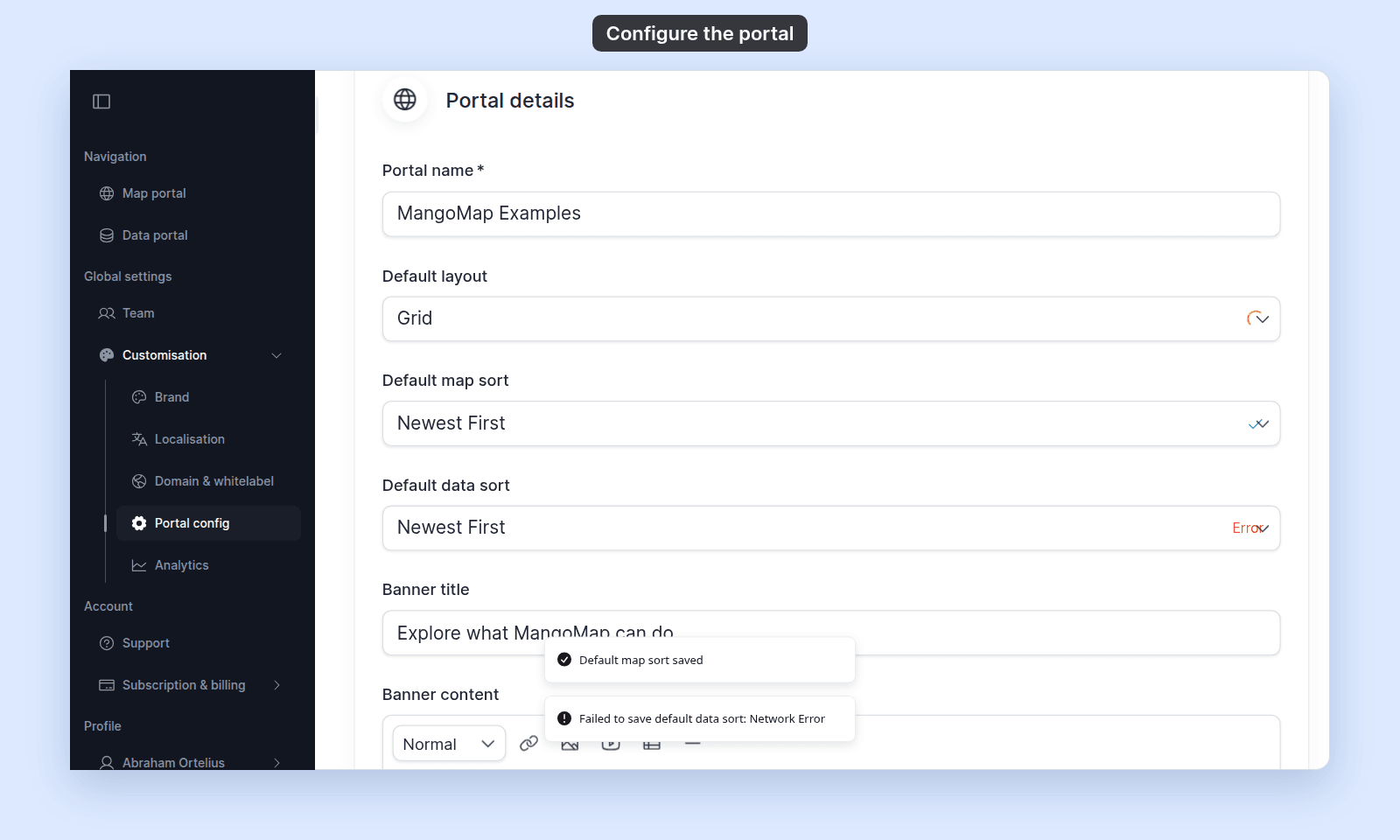 Save indicators: saving, saved, and failed
If a save fails, reload the page to return to the last saved state and try again.
## Troubleshooting
**The Portal config page is blocked**
You are not the account owner. See [The Customisation menu is blocked](/docs/customisation/troubleshoot-customisation-menu-blocked).
**The portal shows a blank header**
The `Portal name` field is empty. Set it.
**A change doesn't appear on the portal**
Reload the portal page to see the latest values.
**You want to change wording that isn't on this page**
Use `Localisation` to override built-in labels. See [How to localise the text on your portal, maps, and dataset pages](/docs/customisation/localise-text).
## Related
- [Customisation menu reference](/docs/customisation/customisation-menu-reference)
- [How to set your brand logo and colours](/docs/customisation/set-brand-logo-and-colours) - the logo shown on portal pages.
- [How to localise the text on your portal, maps, and dataset pages](/docs/customisation/localise-text) - for words MangoMap controls, not your own copy.
Save indicators: saving, saved, and failed
If a save fails, reload the page to return to the last saved state and try again.
## Troubleshooting
**The Portal config page is blocked**
You are not the account owner. See [The Customisation menu is blocked](/docs/customisation/troubleshoot-customisation-menu-blocked).
**The portal shows a blank header**
The `Portal name` field is empty. Set it.
**A change doesn't appear on the portal**
Reload the portal page to see the latest values.
**You want to change wording that isn't on this page**
Use `Localisation` to override built-in labels. See [How to localise the text on your portal, maps, and dataset pages](/docs/customisation/localise-text).
## Related
- [Customisation menu reference](/docs/customisation/customisation-menu-reference)
- [How to set your brand logo and colours](/docs/customisation/set-brand-logo-and-colours) - the logo shown on portal pages.
- [How to localise the text on your portal, maps, and dataset pages](/docs/customisation/localise-text) - for words MangoMap controls, not your own copy.