---
title: "How to write a custom popup template"
description: "Design one popup layout for every feature on a layer, with text, links, images, and per-feature values. Set Type to Custom to start."
sidebar:
label: "Write a custom template"
---
A custom popup is a designed template that every feature renders with its own values substituted in — layout, headings, branding, images, tables, and links stay consistent across the layer while `{field_name}` variables fill with each feature's data. Open the layer's `Popup` tab, set `Type` to `Custom`, and design the template in the text editor.
**[See it on an example map](https://mangomap-staging.com/examples-staging/maps/v3x5ki1y/singapore-popup-studio)**
Open the Singapore Popup Studio. The `Sites — Custom Template` layer is on when the map opens. Click a site. Its popup shows a photo, a status line, a table, a revenue chart, and contact links.
## Before you start
- The layer must be a vector layer (point, line, or polygon).
- Plan what's going in the popup. Custom popups render the same template for every feature, so the design choices apply across the whole layer.
## Open the Popup tab
In the layer panel, click the `Popup` tab.
## Set Type to Custom
In the `Type` dropdown, select `Custom`.
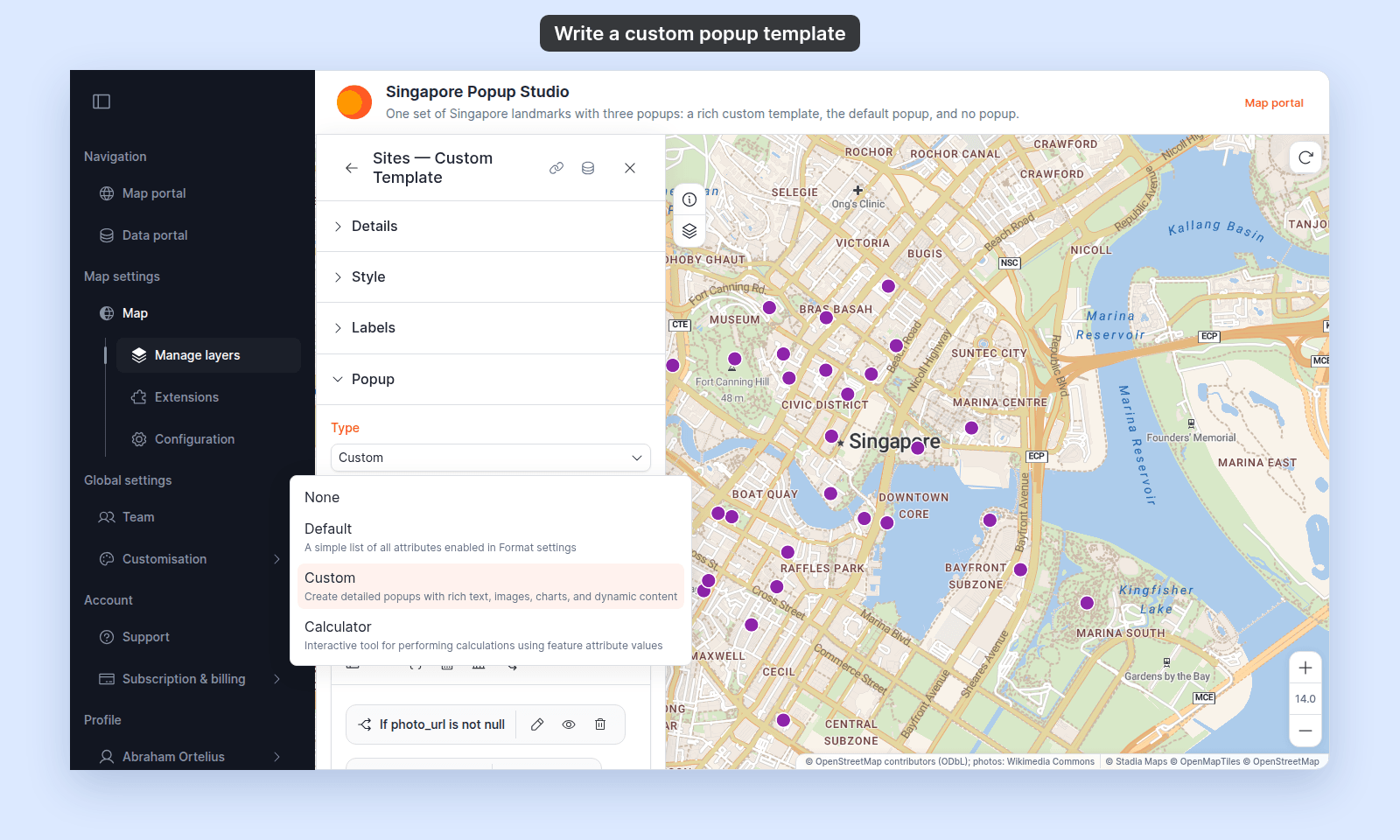 The popup editor opens below the dropdown, pre-filled with an auto-generated template that lists every attribute on the layer.
## (Optional) Set the Title
The `Title` field above the editor sets the popup header. It accepts text and `{field_name}` variables. Click `Insert simple variable` at the right edge of the field to insert a variable; for example, `{name}` makes the title show the feature's `name` value.
## Format text with the toolbar
Hover over a toolbar button to see its name. These toolbar controls format text:
- `Font` — pick `Normal` or a heading level from `H1` to `H6`.
- `Text colour` and `Background colour` — colour pickers for the selected text.
- `Insert horizontal rule` — add a divider line.
Two more menus appear inside the editor as you work:
- **Select some text** to show `Bold`, `Italic`, `Strikethrough`, `Bullet list`, `Ordered list`, `Align left`, `Align centre`, `Align right`, and `Justify`.
- **Click an empty line** to show `Heading 1`, `Heading 2`, `Heading 3`, `Bullet list`, and `Ordered list`. The menu opens below the cursor. It does not open on a line that holds a chip.
The rest of the toolbar adds richer content: `Set link`, `Insert image`, `Insert YouTube video`, `Insert iframe`, `Insert table`, `Insert simple variable`, `Insert equation`, `Insert chart`, and `Insert conditional`. See the how-tos linked below.
## Add a hyperlink
1. Select the text you want to link.
2. Click `Set link`. The `Add Link` dialog opens.
3. Leave `Link type` set to `Web link`.
4. Type or paste the `URL`.
5. Click `Add Link`.
If you type a web address without `https://`, such as `example.com`, the dialog adds it when you save. A web link opens in a new tab, unless you clear `Open in new tab`.
Links accept `{field_name}` variables in the URL, so each feature can link to its own page or file. For example, to link each feature to its own PDF report:
```text
https://example.com/reports/{report_id}.pdf
```
If an attribute holds the full address, such as `{report_url}`, use only that variable.
To start an email, a phone call, or a text message instead, set `Link type` to `Email`, `Phone`, or `SMS`. See [How to add an email link to a custom popup](/docs/configuring-popups/add-email-links-to-popup) and [How to add a call or message link to a custom popup](/docs/configuring-popups/add-call-or-message-links-to-popup).
To turn the link into a button, tick `Display as button` in the same dialog. See [How to add an interactive button to a custom popup](/docs/configuring-popups/add-interactive-buttons-to-popup).
## Save your changes
Click `Save Changes` at the bottom right of the editor.
The editor doesn't auto-save. If you navigate away with unsaved changes you lose them, so save after each meaningful edit.
## Reset to the auto-generated template
If you've made changes you want to throw away, click `Reset to defaults` above the editor. A dialog asks you to confirm.
The popup editor opens below the dropdown, pre-filled with an auto-generated template that lists every attribute on the layer.
## (Optional) Set the Title
The `Title` field above the editor sets the popup header. It accepts text and `{field_name}` variables. Click `Insert simple variable` at the right edge of the field to insert a variable; for example, `{name}` makes the title show the feature's `name` value.
## Format text with the toolbar
Hover over a toolbar button to see its name. These toolbar controls format text:
- `Font` — pick `Normal` or a heading level from `H1` to `H6`.
- `Text colour` and `Background colour` — colour pickers for the selected text.
- `Insert horizontal rule` — add a divider line.
Two more menus appear inside the editor as you work:
- **Select some text** to show `Bold`, `Italic`, `Strikethrough`, `Bullet list`, `Ordered list`, `Align left`, `Align centre`, `Align right`, and `Justify`.
- **Click an empty line** to show `Heading 1`, `Heading 2`, `Heading 3`, `Bullet list`, and `Ordered list`. The menu opens below the cursor. It does not open on a line that holds a chip.
The rest of the toolbar adds richer content: `Set link`, `Insert image`, `Insert YouTube video`, `Insert iframe`, `Insert table`, `Insert simple variable`, `Insert equation`, `Insert chart`, and `Insert conditional`. See the how-tos linked below.
## Add a hyperlink
1. Select the text you want to link.
2. Click `Set link`. The `Add Link` dialog opens.
3. Leave `Link type` set to `Web link`.
4. Type or paste the `URL`.
5. Click `Add Link`.
If you type a web address without `https://`, such as `example.com`, the dialog adds it when you save. A web link opens in a new tab, unless you clear `Open in new tab`.
Links accept `{field_name}` variables in the URL, so each feature can link to its own page or file. For example, to link each feature to its own PDF report:
```text
https://example.com/reports/{report_id}.pdf
```
If an attribute holds the full address, such as `{report_url}`, use only that variable.
To start an email, a phone call, or a text message instead, set `Link type` to `Email`, `Phone`, or `SMS`. See [How to add an email link to a custom popup](/docs/configuring-popups/add-email-links-to-popup) and [How to add a call or message link to a custom popup](/docs/configuring-popups/add-call-or-message-links-to-popup).
To turn the link into a button, tick `Display as button` in the same dialog. See [How to add an interactive button to a custom popup](/docs/configuring-popups/add-interactive-buttons-to-popup).
## Save your changes
Click `Save Changes` at the bottom right of the editor.
The editor doesn't auto-save. If you navigate away with unsaved changes you lose them, so save after each meaningful edit.
## Reset to the auto-generated template
If you've made changes you want to throw away, click `Reset to defaults` above the editor. A dialog asks you to confirm.
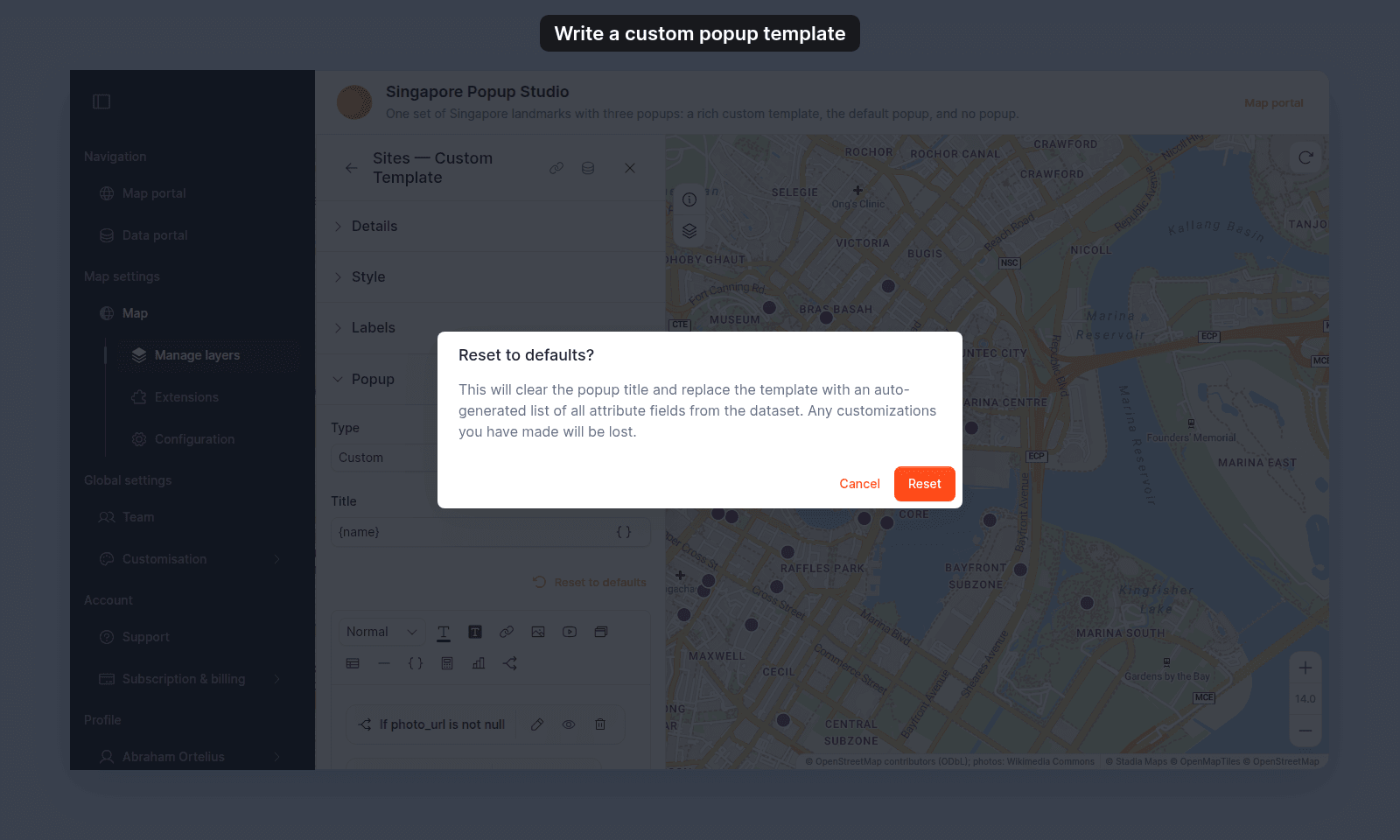 Click `Reset` to clear the title and regenerate the template from the layer's current attribute list. The reset updates the layer immediately — there's no separate `Save Changes` step after reset.
## Preview the popup
Open the map and click a feature on the layer. The popup renders the template with that feature's attribute values substituted into any variables.
## What to read next
The basic editor covers text. For everything else, head to the per-content-type how-tos:
- [How to insert attribute values into a custom popup](/docs/configuring-popups/insert-attribute-values-into-popup) — `{field_name}` variables.
- [How to add an image to a custom popup](/docs/configuring-popups/add-images-to-popup)
- [How to add a table to a custom popup](/docs/configuring-popups/add-tables-to-popup)
- [How to embed a YouTube video in a custom popup](/docs/configuring-popups/embed-youtube-in-popup)
- [How to embed an iframe in a custom popup](/docs/configuring-popups/embed-iframe-in-popup)
- [How to embed a video file in a custom popup](/docs/configuring-popups/embed-a-video-file-in-popup)
- [How to add dynamic content to a custom popup](/docs/configuring-popups/add-dynamic-content-to-popup) — equations, charts, conditionals, interactive buttons.
## Related
- [Popup tab controls](/docs/configuring-popups/popup-reference)
- [How popups work in MangoMap](/docs/configuring-popups/concepts-popups)
- [How to use the default popup](/docs/configuring-popups/use-default-popup)
Click `Reset` to clear the title and regenerate the template from the layer's current attribute list. The reset updates the layer immediately — there's no separate `Save Changes` step after reset.
## Preview the popup
Open the map and click a feature on the layer. The popup renders the template with that feature's attribute values substituted into any variables.
## What to read next
The basic editor covers text. For everything else, head to the per-content-type how-tos:
- [How to insert attribute values into a custom popup](/docs/configuring-popups/insert-attribute-values-into-popup) — `{field_name}` variables.
- [How to add an image to a custom popup](/docs/configuring-popups/add-images-to-popup)
- [How to add a table to a custom popup](/docs/configuring-popups/add-tables-to-popup)
- [How to embed a YouTube video in a custom popup](/docs/configuring-popups/embed-youtube-in-popup)
- [How to embed an iframe in a custom popup](/docs/configuring-popups/embed-iframe-in-popup)
- [How to embed a video file in a custom popup](/docs/configuring-popups/embed-a-video-file-in-popup)
- [How to add dynamic content to a custom popup](/docs/configuring-popups/add-dynamic-content-to-popup) — equations, charts, conditionals, interactive buttons.
## Related
- [Popup tab controls](/docs/configuring-popups/popup-reference)
- [How popups work in MangoMap](/docs/configuring-popups/concepts-popups)
- [How to use the default popup](/docs/configuring-popups/use-default-popup)