---
title: "How to use the default popup"
description: "Show every visible attribute in a simple list when viewers click a feature, with labels and formats from the Format tab."
sidebar:
label: "Use the default popup"
search:
keywords: [pop-up, pop up, info window]
---
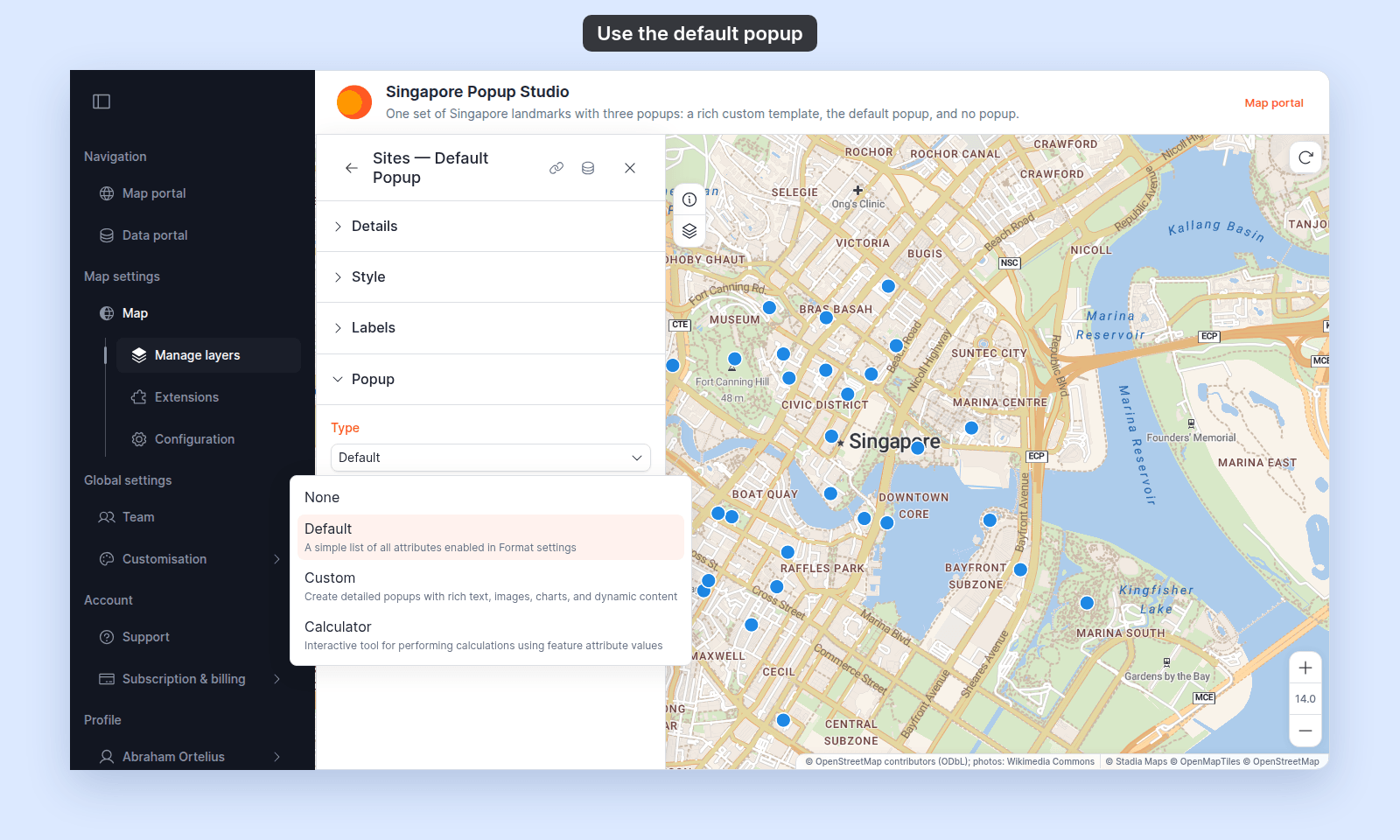
The default popup shows each visible attribute in a flat list when a viewer clicks a feature. Labels and formatting come from the `Format` tab, so you do not maintain a template. Open the layer's `Popup` tab and set `Type` to `Default`. The layout is a flat list with no two-column rows or headings, and attributes that hold an image URL show as images above the list. For another layout, switch to `Custom` (see [How to write a custom popup template](/docs/configuring-popups/write-custom-popup-template)).
**[See it on an example map](https://mangomap-staging.com/examples-staging/maps/v3x5ki1y/singapore-popup-studio)**
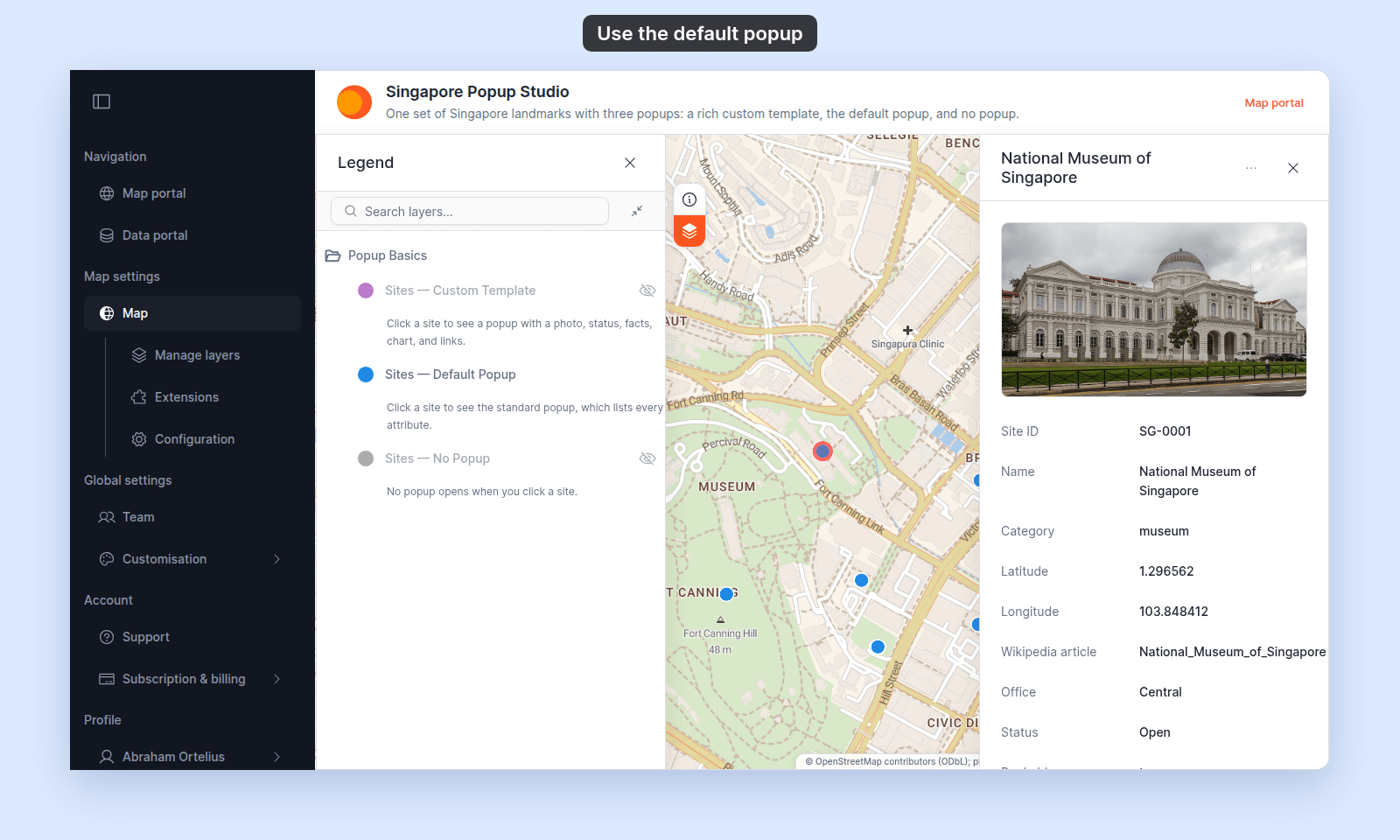
Open the Singapore Popup Studio. In the legend, turn on `Sites — Default Popup` and turn off `Sites — Custom Template`. Click a site. Its popup lists every attribute, with readable names, units, and dates.
## Before you start
- The layer must be a vector layer (point, line, or polygon).
- Decide which attributes belong in the popup before you start, and how each should be labelled and formatted. The default popup mirrors the Format tab exactly — there's no popup-side override.
## Set up the Format tab first
The default popup is wired to the Format tab's three per-attribute controls:
- **Alias** — the label shown in the popup. Hidden if you leave it empty (the field name is used).
- **Format** — number, currency, date, or measurement formatting applied to the value.
- **Visibility** — whether the attribute appears in the popup at all.
Open the `Format` tab and set the alias, format, and visibility for each attribute you want in the popup. Toggle off the visibility eye for any attribute that shouldn't appear. See [How to format a number column](/docs/formatting-attributes/format-numbers), [How to rename an attribute label](/docs/formatting-attributes/rename-attribute), and [How to hide an attribute from popups](/docs/formatting-attributes/hide-attribute) for the per-control workflows.
## Open the Popup tab
In the layer panel, click the `Popup` tab.
## Set Type to Default
In the `Type` dropdown, select `Default`.
 ## (Optional) Set the Title
Below the type dropdown, the `Title` field gives the popup a header. Type the header text — for example, `Park details` for a parks layer.
The title supports `{field_name}` variables for per-feature titles. For example, `{name}` makes each popup's header show that feature's `name` value. Insert variables by clicking `Insert simple variable` at the right edge of the field.
## Verify the popup
Open the map and click a feature on the layer. The popup header shows the title, or the feature's name if you set no title. Below it is a list of every visible attribute, labelled by alias, formatted per the Format tab.
This is the default popup for one site, with the site photo above the list:
## (Optional) Set the Title
Below the type dropdown, the `Title` field gives the popup a header. Type the header text — for example, `Park details` for a parks layer.
The title supports `{field_name}` variables for per-feature titles. For example, `{name}` makes each popup's header show that feature's `name` value. Insert variables by clicking `Insert simple variable` at the right edge of the field.
## Verify the popup
Open the map and click a feature on the layer. The popup header shows the title, or the feature's name if you set no title. Below it is a list of every visible attribute, labelled by alias, formatted per the Format tab.
This is the default popup for one site, with the site photo above the list:
 ## If an attribute is showing up that shouldn't
Open the Format tab and toggle the visibility eye off for that attribute. Hidden attributes don't appear in the default popup. Image attributes are the exception; see the next section.
## If an attribute holds an image URL
An attribute shows as an image at the top of the popup, not as a row in the list, when its value is a web address that:
- starts with `http://` or `https://`,
- has no spaces, and
- ends in `.jpg`, `.jpeg`, `.png`, `.gif`, `.webp`, or `.svg`. A query string after the extension is fine, as in `photo.jpg?w=400`.
Other text that ends in an image extension stays a row in the list. Examples are a photo credit such as `Photo by Jane Doe, museum_front.jpg`, and a file name such as `logo.png`.
The default popup shows up to 3 images per feature:
- With more than one image, viewers move between them with the `Previous feature image` and `Next feature image` arrows.
- If an image can't load, viewers see `Image failed to load` and a `Retry` button.
- A web page address that ends in an image extension also counts as an image, and it fails to load. An example is a Wikimedia `File:` page. Use the address of the image file itself.
Image attributes show even when their visibility eye is off on the `Format` tab. To leave an image out, or to place it somewhere else, switch to a `Custom` popup. See [How to add an image to a custom popup](/docs/configuring-popups/add-images-to-popup).
Other web addresses that start with `http://` or `https://` show as links. They open in a new tab.
## If an attribute looks unformatted
Set the format on the Format tab. The default popup respects whatever format you choose — `Number → Integer` and `Number → Rounded` both round to the nearest whole number, `Currency`, `Date & Time`, and `Measurement`. See [Attribute format controls](/docs/formatting-attributes/attribute-format-reference) for the full list.
## If you need a layout other than a flat list
The default popup is always a flat list. For two-column tables, headings, images placed where you want them, charts, or custom layouts, switch to `Custom` mode — see [How to write a custom popup template](/docs/configuring-popups/write-custom-popup-template).
## Related
- [Popup tab controls](/docs/configuring-popups/popup-reference)
- [How popups work in MangoMap](/docs/configuring-popups/concepts-popups)
- [Attribute format controls](/docs/formatting-attributes/attribute-format-reference)
- [How to write a custom popup template](/docs/configuring-popups/write-custom-popup-template)
## If an attribute is showing up that shouldn't
Open the Format tab and toggle the visibility eye off for that attribute. Hidden attributes don't appear in the default popup. Image attributes are the exception; see the next section.
## If an attribute holds an image URL
An attribute shows as an image at the top of the popup, not as a row in the list, when its value is a web address that:
- starts with `http://` or `https://`,
- has no spaces, and
- ends in `.jpg`, `.jpeg`, `.png`, `.gif`, `.webp`, or `.svg`. A query string after the extension is fine, as in `photo.jpg?w=400`.
Other text that ends in an image extension stays a row in the list. Examples are a photo credit such as `Photo by Jane Doe, museum_front.jpg`, and a file name such as `logo.png`.
The default popup shows up to 3 images per feature:
- With more than one image, viewers move between them with the `Previous feature image` and `Next feature image` arrows.
- If an image can't load, viewers see `Image failed to load` and a `Retry` button.
- A web page address that ends in an image extension also counts as an image, and it fails to load. An example is a Wikimedia `File:` page. Use the address of the image file itself.
Image attributes show even when their visibility eye is off on the `Format` tab. To leave an image out, or to place it somewhere else, switch to a `Custom` popup. See [How to add an image to a custom popup](/docs/configuring-popups/add-images-to-popup).
Other web addresses that start with `http://` or `https://` show as links. They open in a new tab.
## If an attribute looks unformatted
Set the format on the Format tab. The default popup respects whatever format you choose — `Number → Integer` and `Number → Rounded` both round to the nearest whole number, `Currency`, `Date & Time`, and `Measurement`. See [Attribute format controls](/docs/formatting-attributes/attribute-format-reference) for the full list.
## If you need a layout other than a flat list
The default popup is always a flat list. For two-column tables, headings, images placed where you want them, charts, or custom layouts, switch to `Custom` mode — see [How to write a custom popup template](/docs/configuring-popups/write-custom-popup-template).
## Related
- [Popup tab controls](/docs/configuring-popups/popup-reference)
- [How popups work in MangoMap](/docs/configuring-popups/concepts-popups)
- [Attribute format controls](/docs/formatting-attributes/attribute-format-reference)
- [How to write a custom popup template](/docs/configuring-popups/write-custom-popup-template)