---
title: "How to embed a video file in a custom popup"
description: "Play an MP4 or WebM video file in a custom popup with the Insert iframe button. Use one video for every feature or a different video for each one."
seo:
title: "Embed a video file in a popup"
sidebar:
label: "Embed a video file"
search:
keywords: [mp4, webm, video player, html5 video]
---
Paste the address of an `.mp4` or `.webm` file into `Insert iframe`, and the popup plays it in a video player. MangoMap does not host the file: it must be at a public `https://` address, such as your own web server.
**[See it on an example map](https://mangomap-staging.com/examples-staging/maps/y4h0ctdr/popup-media-logic-lab)**
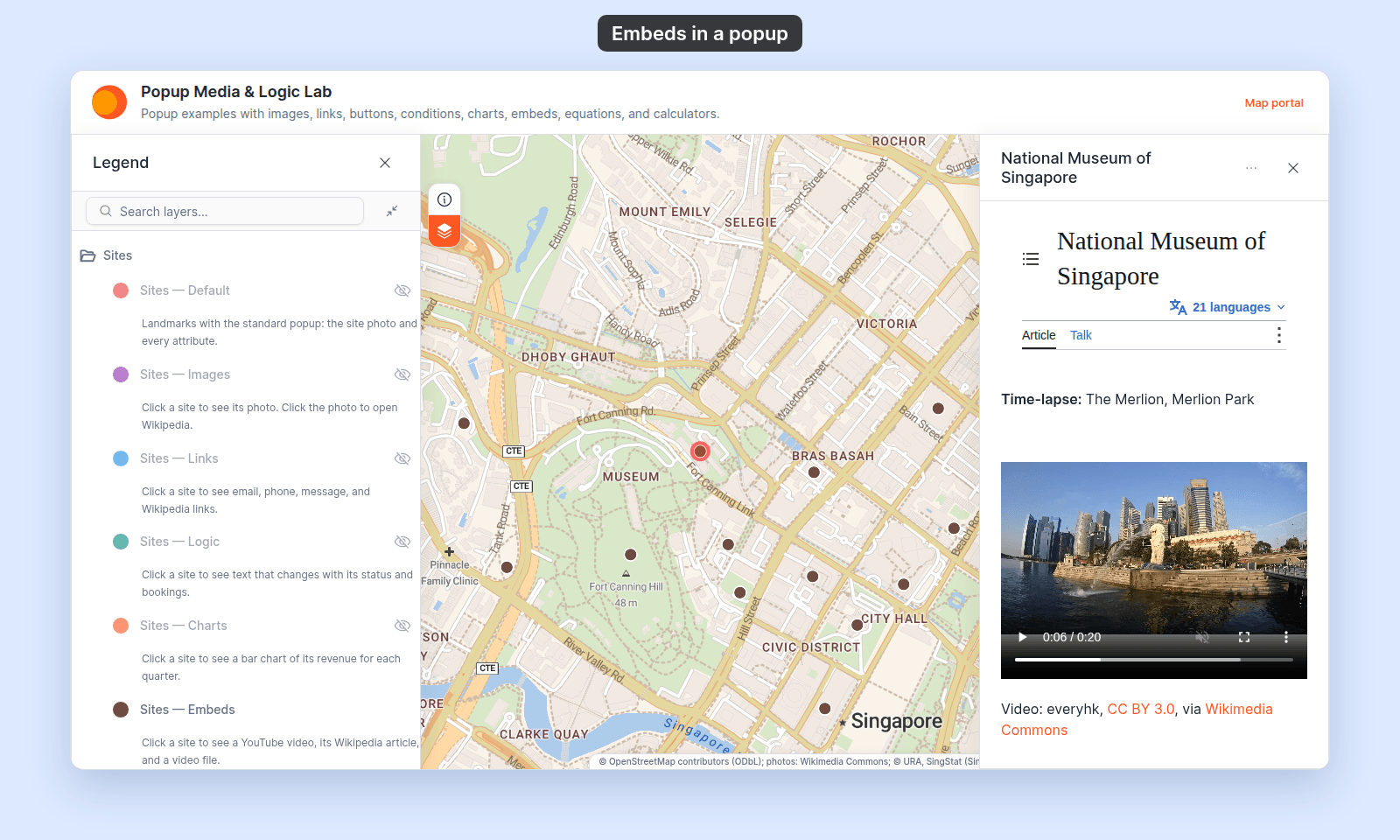
Open the Popup Media & Logic Lab. In the legend, turn on `Sites — Embeds` and turn off `Sites — Default`. Click a site. Its popup shows a video player with the Merlion time-lapse video file.
## Before you start
- The popup type must be `Custom`. See [How to write a custom popup template](/docs/configuring-popups/write-custom-popup-template).
- You need a public `https://` address whose path ends in `.mp4` or `.webm`.
- For a YouTube video, use `Insert YouTube video` instead. See [How to embed a YouTube video in a custom popup](/docs/configuring-popups/embed-youtube-in-popup).
## Insert the video
1. In the Custom popup editor, place the cursor where you want the video.
2. Click `Insert iframe` in the toolbar.
3. Paste the video file's address into `Embed URL`.
4. Set `Height (pixels)` if you want the player taller or shorter. The default is 300.
5. Press `Enter` or click `Embed`.
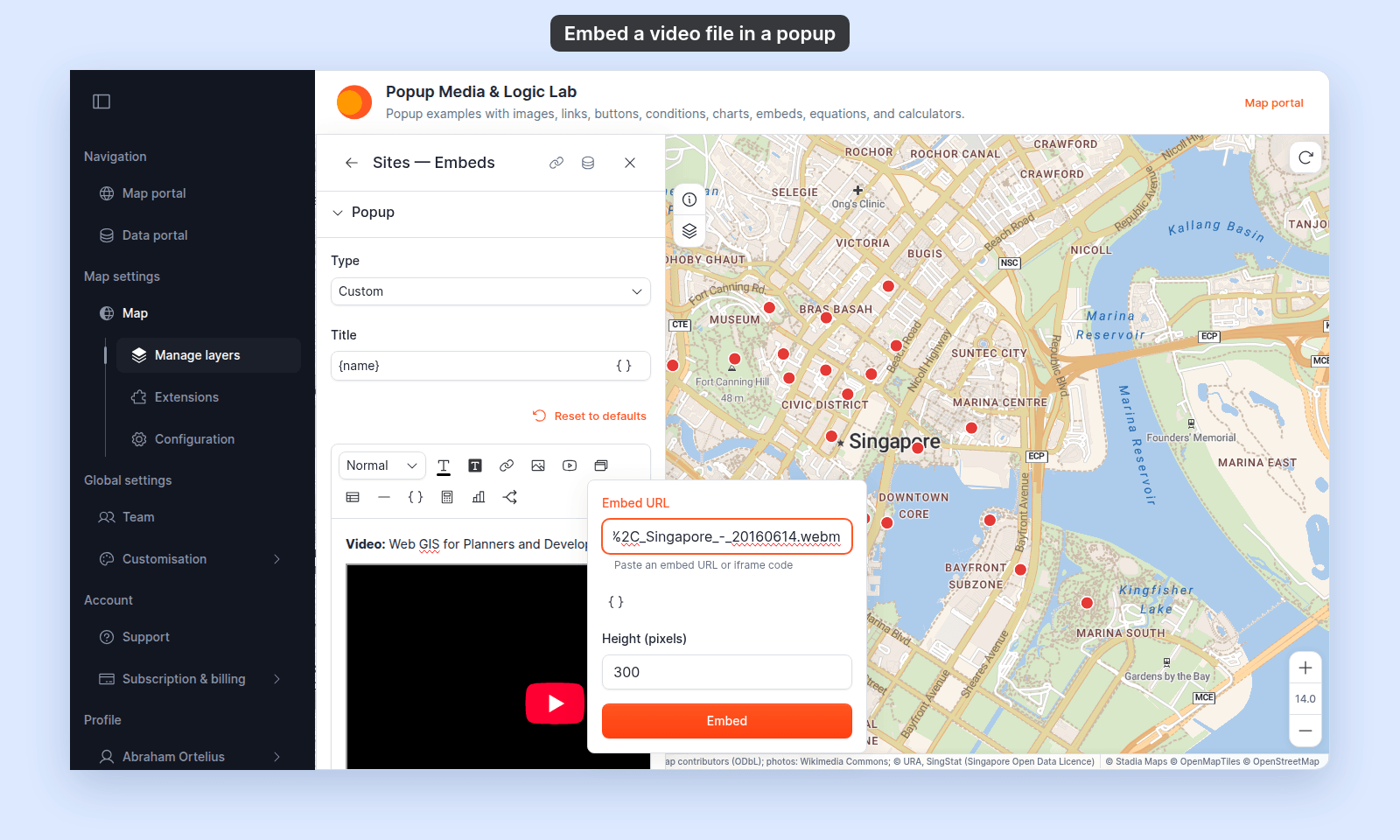 The editor inserts a video player. The player fills the popup's width, shows its controls, and does not start on its own.
## Use the same video for every feature
Paste a fixed address. The same video plays in every feature's popup.
## Use a different video per feature
Put a `{field_name}` variable in the address. Click `Insert simple variable` in the dialog to add one at the cursor, or type it. For example, with an attribute `slug`:
```text
https://example.com/videos/{slug}.mp4
```
The editor cannot load an address that still has a variable in it, so it shows a dashed box with `Embed:` and the address. The popup fills in each feature's value. If the attribute is empty for a feature, that feature's popup leaves the player out.
## Check the video
Save the popup, then click a feature on the map and play the video:
The editor inserts a video player. The player fills the popup's width, shows its controls, and does not start on its own.
## Use the same video for every feature
Paste a fixed address. The same video plays in every feature's popup.
## Use a different video per feature
Put a `{field_name}` variable in the address. Click `Insert simple variable` in the dialog to add one at the cursor, or type it. For example, with an attribute `slug`:
```text
https://example.com/videos/{slug}.mp4
```
The editor cannot load an address that still has a variable in it, so it shows a dashed box with `Embed:` and the address. The popup fills in each feature's value. If the attribute is empty for a feature, that feature's popup leaves the player out.
## Check the video
Save the popup, then click a feature on the map and play the video:
 ## If the video doesn't play
- **The address starts with `http://`.** The dialog refuses it with `Use an HTTPS embed URL from an external site`. Use the `https://` address.
- **The address does not end in `.mp4` or `.webm`.** The dialog embeds it as a web page, not a player. Use the address of the file itself.
- **The file host blocks other sites.** Some hosts refuse to serve files to other websites. Open the popup on the map to test the address before you rely on it.
## Save the popup
After inserting the video, click `Save Changes` at the bottom right of the editor.
## Related
- [How to embed an iframe in a custom popup](/docs/configuring-popups/embed-iframe-in-popup) — the same dialog, and the address rules
- [How to embed a YouTube video in a custom popup](/docs/configuring-popups/embed-youtube-in-popup)
- [How to insert attribute values into a custom popup](/docs/configuring-popups/insert-attribute-values-into-popup)
- [Popup tab controls](/docs/configuring-popups/popup-reference)
## If the video doesn't play
- **The address starts with `http://`.** The dialog refuses it with `Use an HTTPS embed URL from an external site`. Use the `https://` address.
- **The address does not end in `.mp4` or `.webm`.** The dialog embeds it as a web page, not a player. Use the address of the file itself.
- **The file host blocks other sites.** Some hosts refuse to serve files to other websites. Open the popup on the map to test the address before you rely on it.
## Save the popup
After inserting the video, click `Save Changes` at the bottom right of the editor.
## Related
- [How to embed an iframe in a custom popup](/docs/configuring-popups/embed-iframe-in-popup) — the same dialog, and the address rules
- [How to embed a YouTube video in a custom popup](/docs/configuring-popups/embed-youtube-in-popup)
- [How to insert attribute values into a custom popup](/docs/configuring-popups/insert-attribute-values-into-popup)
- [Popup tab controls](/docs/configuring-popups/popup-reference)