---
title: "How to build a calculator popup"
description: "Build a calculator popup that gives viewers a form and combines their inputs with each feature's attributes. Set up the title, input fields, and formula."
sidebar:
label: "Build a calculator popup"
---
A calculator popup gives viewers a form, then combines their inputs with each feature's attributes. Examples include `Total fertiliser needed for this field` and `Travel time along this route`. Open the layer's `Popup` tab, set `Type` to `Calculator`, and complete three steps: title and button text, input fields, and formula; inputs are referenced as `{form_1}`, `{form_2}` etc. in the formula, alongside layer attributes via `{field_name}` — the same syntax as the [equation extension](/docs/configuring-popups/add-equations-to-popup).
**[See it on an example map](https://mangomap-staging.com/examples-staging/maps/y4h0ctdr/popup-media-logic-lab)**
Open the Popup Media & Logic Lab. In the legend, turn on `Planning Areas — Calculator`. Click an area. Type a number in `Application rate (kg/ha)` and click `Calculate` to see the total fertiliser.
## Before you start
- The layer must be a vector layer (point, line, or polygon).
- Plan the inputs and formula before opening the wizard. Clear inputs make later changes easier.
- For full formula syntax, see [Calculator formula syntax](/docs/configuring-popups/calculator-formula-reference). The wizard's Step 3 uses the same syntax. For worked operator and function examples, see [How to use operators and functions in equations](/docs/configuring-popups/use-operators-and-functions-in-equations).
## Open the Popup tab
In the layer panel, click the `Popup` tab.
## Set Type to Calculator
Click `Type`, then click `Calculator`.
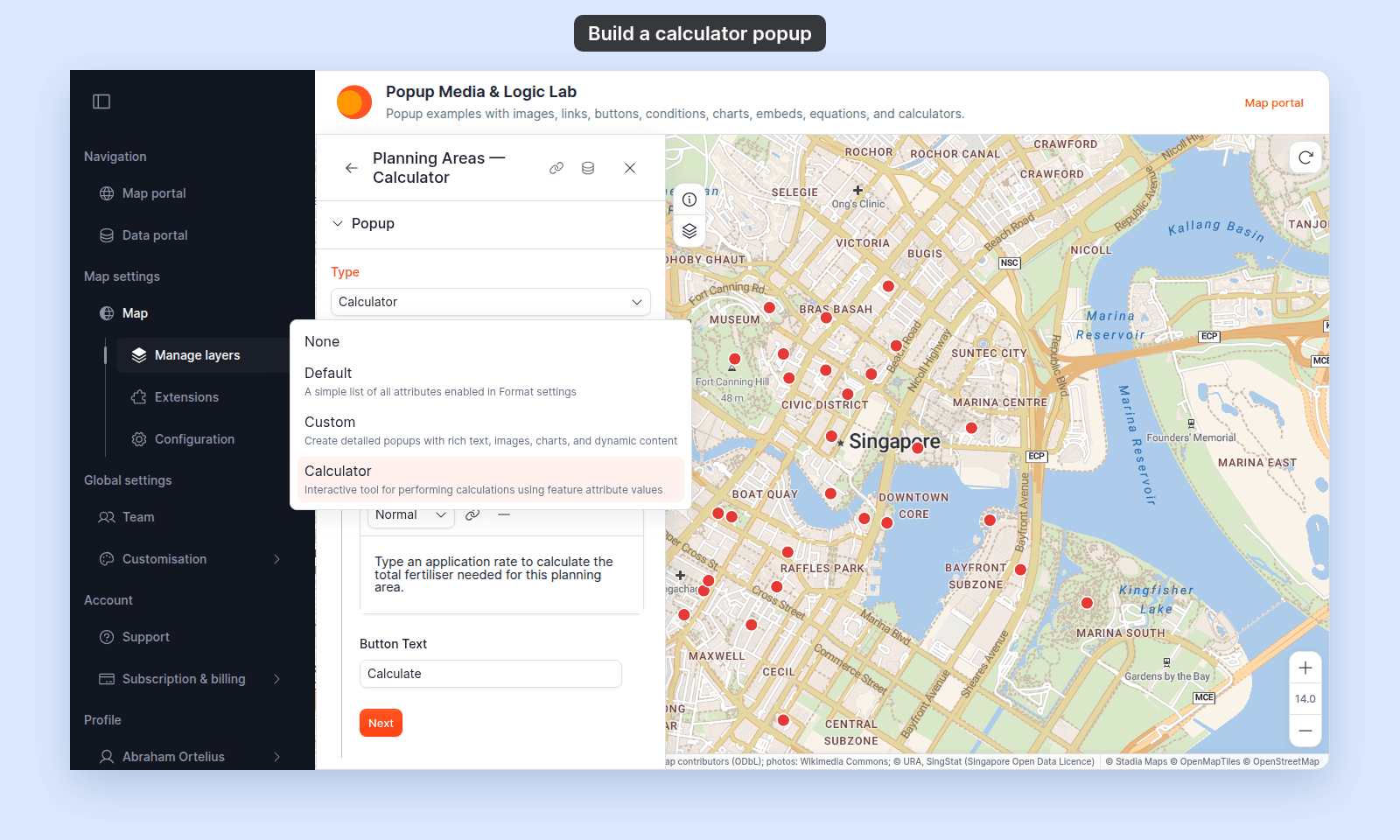 A wizard with three steps appears below `Type`:
- **Step 1** — Title, Description & Button Text
- **Step 2** — Input Fields
- **Step 3** — Calculation Formula
Click any step heading to open it. You can complete the steps in any order. The changes in a step save when you click `Next`, another step heading, or `Save`.
## (Optional) Set the Title
Above the wizard, the unified `Title` field gives the calculator popup a header. It accepts text and `{field_name}` variables. For per-feature titles, insert a variable using the button at the right edge of the field.
## Step 1 — Title, Description & Button Text
This step configures the calculator's header content as viewers see it.
### Description & Instructions
Describe the calculator's purpose and how to use it. You can use paragraphs, headings, bold, italic, lists, links, and horizontal rules.
A wizard with three steps appears below `Type`:
- **Step 1** — Title, Description & Button Text
- **Step 2** — Input Fields
- **Step 3** — Calculation Formula
Click any step heading to open it. You can complete the steps in any order. The changes in a step save when you click `Next`, another step heading, or `Save`.
## (Optional) Set the Title
Above the wizard, the unified `Title` field gives the calculator popup a header. It accepts text and `{field_name}` variables. For per-feature titles, insert a variable using the button at the right edge of the field.
## Step 1 — Title, Description & Button Text
This step configures the calculator's header content as viewers see it.
### Description & Instructions
Describe the calculator's purpose and how to use it. You can use paragraphs, headings, bold, italic, lists, links, and horizontal rules.
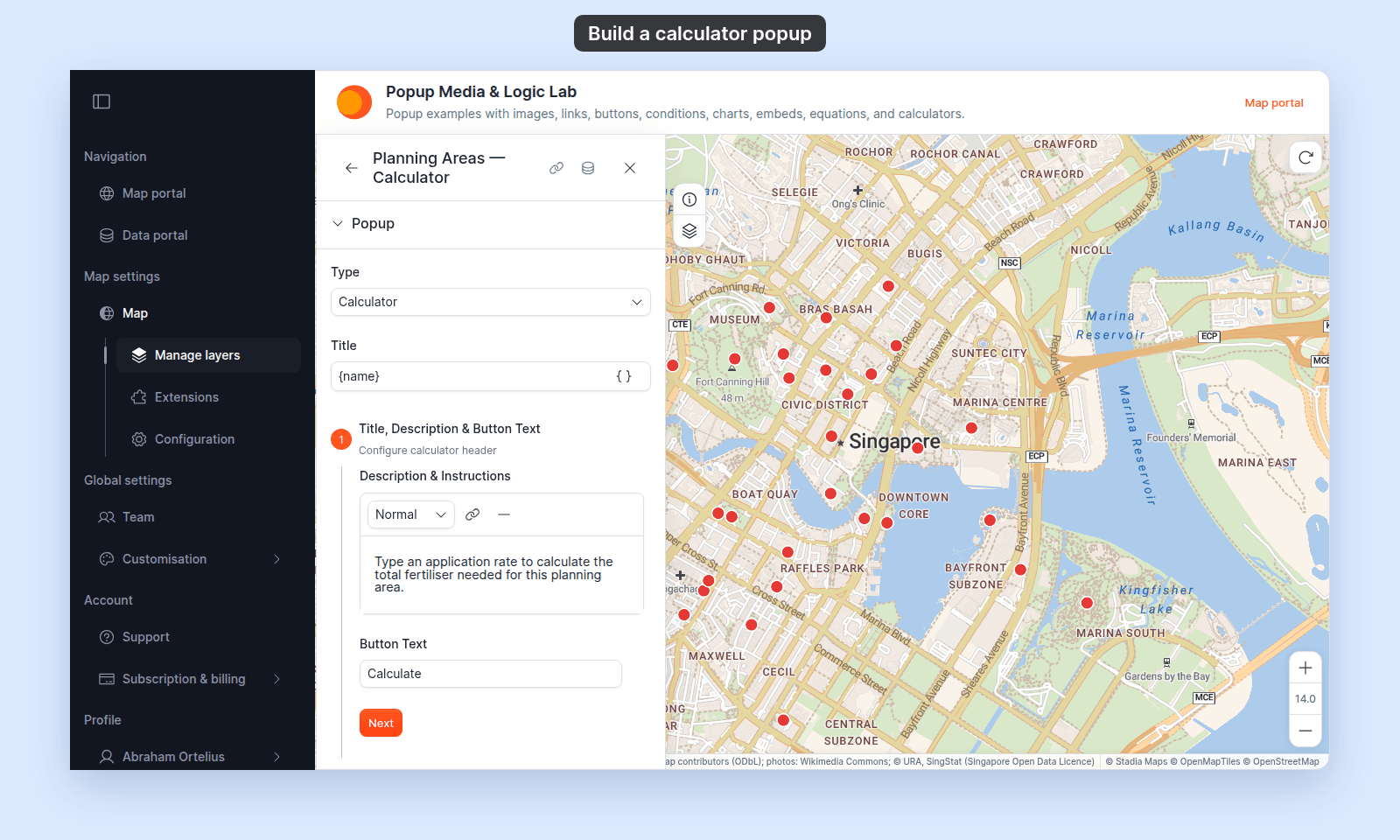 On a new calculator, the default content is `Enter calculation instructions...`. Replace it with something specific:
> _"Enter the field area in hectares and the desired application rate. The calculator returns the total fertiliser needed."_
### Button Text
The label on the button viewers click to compute the result. Default: `Calculate`.
Choose text that matches the calculator's purpose:
- `Calculate Total`
- `Estimate Travel Time`
- `Compute Yield`
## Step 2 — Input Fields
This step sets up the form fields viewers will fill in.
### Add fields
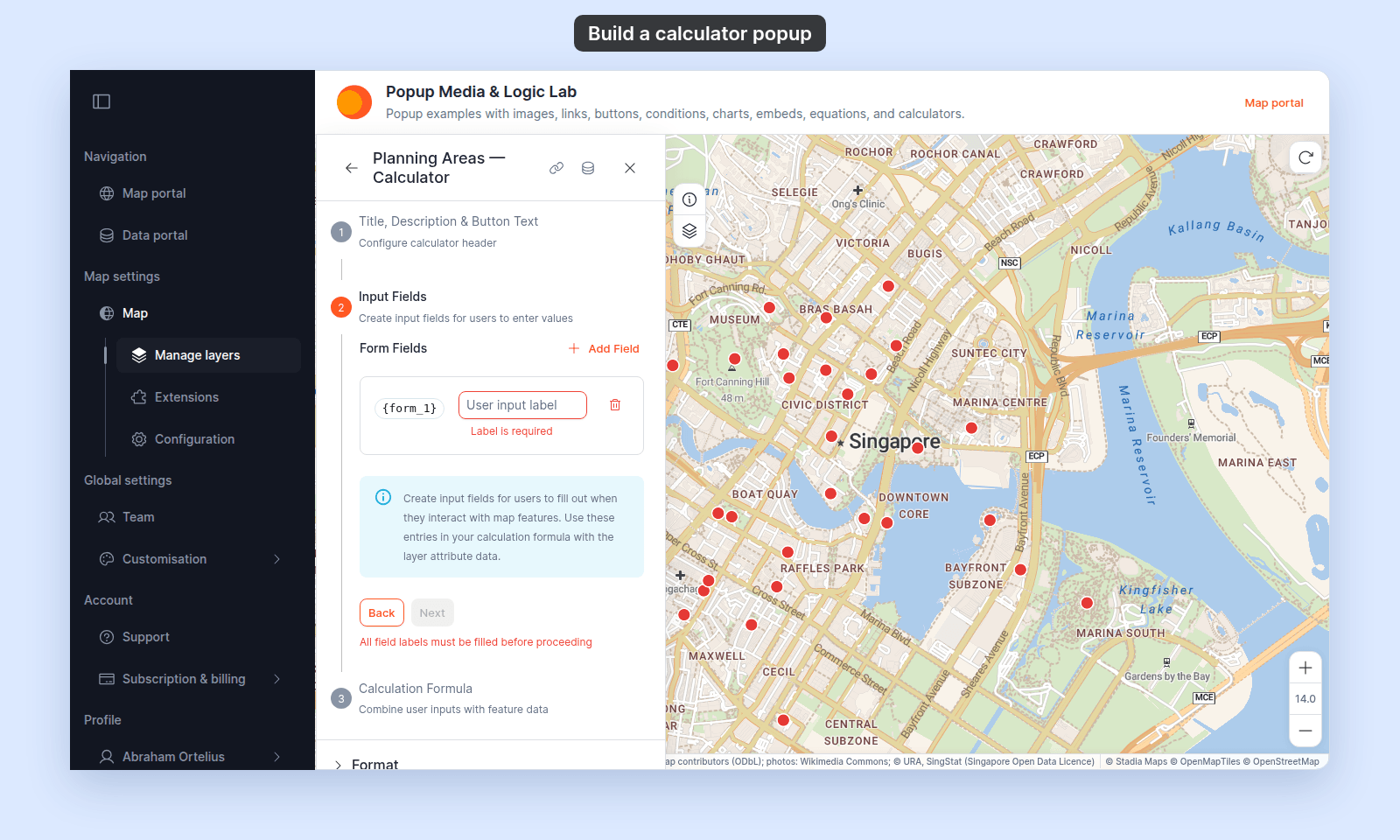
The wizard starts with one form field. Use the `Add Field` button at the top right of the field list to add more. Each field gets an auto-incrementing ID — `form_1`, `form_2`, `form_3`, and so on. The ID shows in a monospace chip next to each field's row.
### Label each field
Type the label viewers will see in the form — for example, `Field area (ha)` or `Application rate (kg/ha)`.
Every field needs a label. While a label is empty, you cannot click `Next`:
On a new calculator, the default content is `Enter calculation instructions...`. Replace it with something specific:
> _"Enter the field area in hectares and the desired application rate. The calculator returns the total fertiliser needed."_
### Button Text
The label on the button viewers click to compute the result. Default: `Calculate`.
Choose text that matches the calculator's purpose:
- `Calculate Total`
- `Estimate Travel Time`
- `Compute Yield`
## Step 2 — Input Fields
This step sets up the form fields viewers will fill in.
### Add fields
The wizard starts with one form field. Use the `Add Field` button at the top right of the field list to add more. Each field gets an auto-incrementing ID — `form_1`, `form_2`, `form_3`, and so on. The ID shows in a monospace chip next to each field's row.
### Label each field
Type the label viewers will see in the form — for example, `Field area (ha)` or `Application rate (kg/ha)`.
Every field needs a label. While a label is empty, you cannot click `Next`:
 ### Field types
Form fields always show as numeric inputs to viewers — the calculator's formula expects numeric values, so text or select-list inputs aren't supported.
### Remove a field
The bin icon next to each field deletes it. The last remaining field can't be removed (the bin button is disabled when there's only one).
### Reference fields in your formula
The chip next to each label shows the variable to use in Step 3:
- The first field is `{form_1}`.
- The second is `{form_2}`.
- And so on.
## Step 3 — Calculation Formula
This step writes the formula that turns inputs and feature attributes into the result.
### Write the formula
The formula editor accepts:
- **Layer attributes** — `{field_name}` references any attribute on the layer. The variable insertion button lists them.
- **User inputs** — `{form_1}`, `{form_2}`, etc., matching Step 2's fields. The user-input variable insertion button lists them.
- **Equations** — click `Insert equation` and type the calculation in the equation editor.
The formula runs for each feature, so it cannot use layer-wide functions such as `sum` or `avg`. For aggregations across a set of features, use the Query or Proximity Analysis report tools.
A typical formula shows `Total fertiliser: kg`:
1. Type `Total fertiliser: `.
2. Click `Insert equation`, type `{area} * {form_1}`, and click `Insert Equation`.
3. Type ` kg`.
This runs for each feature: the feature's `{area}` (in whatever the layer stores) multiplied by the user's `{form_1}` input (the application rate).
### Save
Click `Save` at the bottom of Step 3. The full calculator settings save to the layer. To revisit any step, click its heading; the wizard re-opens that step's content for editing.
## How it renders for viewers
When a viewer clicks a feature on the map, the calculator popup shows:
1. The title (if set).
2. The description and instructions from Step 1.
3. The form fields from Step 2 — each with its label.
4. The `Button Text` button from Step 1.
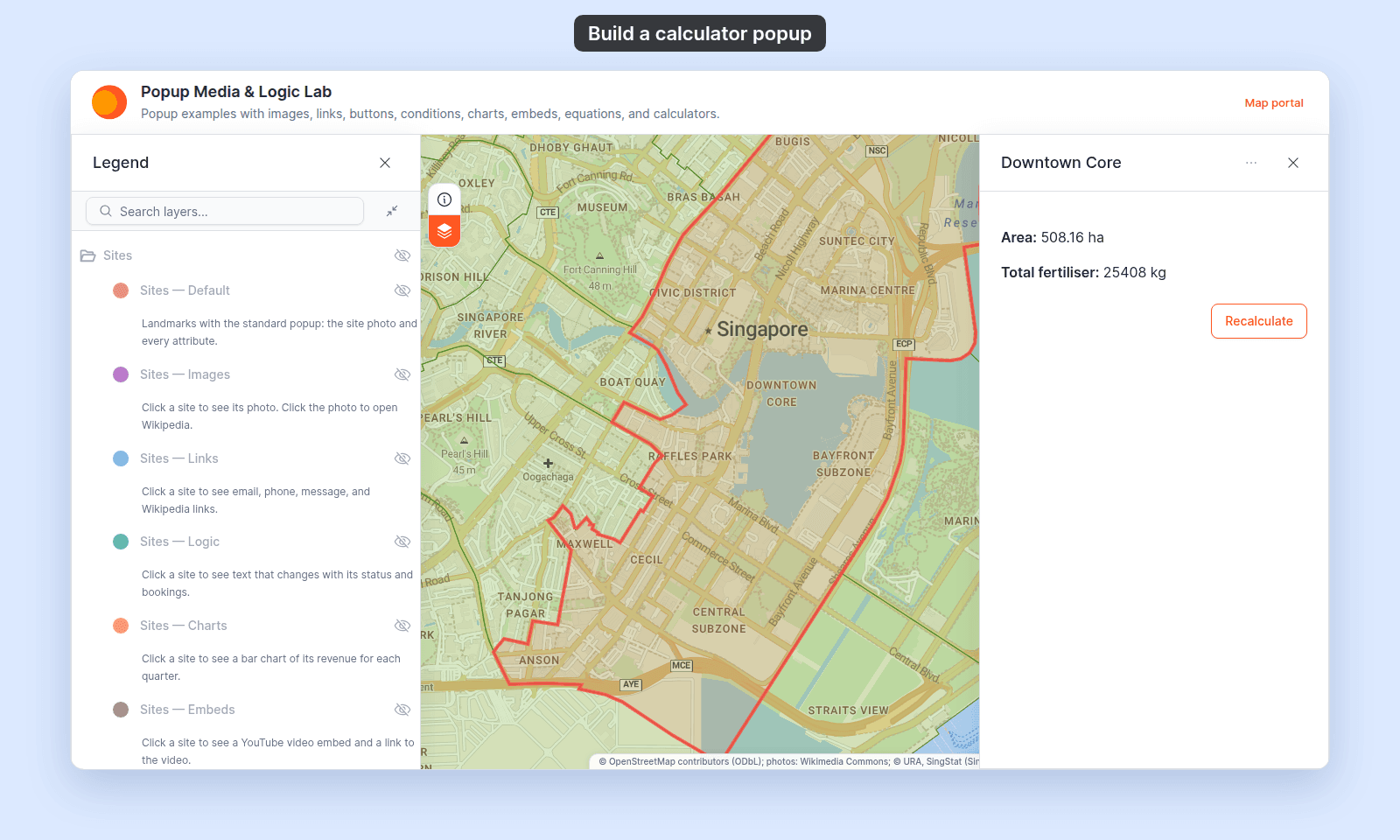
After the viewer clicks the button, the description and the form are replaced by the result of Step 3's formula and a `Recalculate` button.
`Recalculate` brings the form back, empty, so the viewer can try other values.
Closing the popup clears the form and the result. If the viewer clicks another feature while a result shows, the popup keeps that result, which belongs to the first feature. Click `Recalculate` to get an empty form for the new feature.
{/* TODO: product - A calculator result carries over when the viewer clicks another feature with the popup open: the title changes but the old result and Recalculate stay (seen on staging 2026-10-22; ../mangomap packages/mangomap-ui/src/components/tool-panel/tools/popup/custom/custom-popup-panel.tsx:104-116 keeps calculator state in useState with no reset when the feature changes). When fixed, replace the paragraph above with: The form resets when the viewer clicks another feature. */}
## Verify the calculator
Open the map and click a feature. Fill in the form, click the button, and check the result against your expectations.
{/* video-content: id=calculator-popup-in-use
Start: Popup Media & Logic Lab as a visitor (signed out), with the Legend open,
Planning Areas — Calculator shown, the site points hidden, and the Downtown
Core planning area in the open map area.
Show:
1. Click inside the Downtown Core planning area. The calculator popup opens
with its description, the Application rate (kg/ha) field, and Calculate.
2. Type 50 in Application rate (kg/ha).
3. Click Calculate. The popup shows Area and Total fertiliser for Downtown
Core, and a Recalculate button.
End: The calculator result in the popup.
Exclude: Authentication, loading screens, the legend toggles that set up the
layers, and the map editor.
*/}
{/* walkthrough: id=calculator-popup-in-use */}
{/* /walkthrough */}
### Field types
Form fields always show as numeric inputs to viewers — the calculator's formula expects numeric values, so text or select-list inputs aren't supported.
### Remove a field
The bin icon next to each field deletes it. The last remaining field can't be removed (the bin button is disabled when there's only one).
### Reference fields in your formula
The chip next to each label shows the variable to use in Step 3:
- The first field is `{form_1}`.
- The second is `{form_2}`.
- And so on.
## Step 3 — Calculation Formula
This step writes the formula that turns inputs and feature attributes into the result.
### Write the formula
The formula editor accepts:
- **Layer attributes** — `{field_name}` references any attribute on the layer. The variable insertion button lists them.
- **User inputs** — `{form_1}`, `{form_2}`, etc., matching Step 2's fields. The user-input variable insertion button lists them.
- **Equations** — click `Insert equation` and type the calculation in the equation editor.
The formula runs for each feature, so it cannot use layer-wide functions such as `sum` or `avg`. For aggregations across a set of features, use the Query or Proximity Analysis report tools.
A typical formula shows `Total fertiliser: kg`:
1. Type `Total fertiliser: `.
2. Click `Insert equation`, type `{area} * {form_1}`, and click `Insert Equation`.
3. Type ` kg`.
This runs for each feature: the feature's `{area}` (in whatever the layer stores) multiplied by the user's `{form_1}` input (the application rate).
### Save
Click `Save` at the bottom of Step 3. The full calculator settings save to the layer. To revisit any step, click its heading; the wizard re-opens that step's content for editing.
## How it renders for viewers
When a viewer clicks a feature on the map, the calculator popup shows:
1. The title (if set).
2. The description and instructions from Step 1.
3. The form fields from Step 2 — each with its label.
4. The `Button Text` button from Step 1.
After the viewer clicks the button, the description and the form are replaced by the result of Step 3's formula and a `Recalculate` button.
`Recalculate` brings the form back, empty, so the viewer can try other values.
Closing the popup clears the form and the result. If the viewer clicks another feature while a result shows, the popup keeps that result, which belongs to the first feature. Click `Recalculate` to get an empty form for the new feature.
{/* TODO: product - A calculator result carries over when the viewer clicks another feature with the popup open: the title changes but the old result and Recalculate stay (seen on staging 2026-10-22; ../mangomap packages/mangomap-ui/src/components/tool-panel/tools/popup/custom/custom-popup-panel.tsx:104-116 keeps calculator state in useState with no reset when the feature changes). When fixed, replace the paragraph above with: The form resets when the viewer clicks another feature. */}
## Verify the calculator
Open the map and click a feature. Fill in the form, click the button, and check the result against your expectations.
{/* video-content: id=calculator-popup-in-use
Start: Popup Media & Logic Lab as a visitor (signed out), with the Legend open,
Planning Areas — Calculator shown, the site points hidden, and the Downtown
Core planning area in the open map area.
Show:
1. Click inside the Downtown Core planning area. The calculator popup opens
with its description, the Application rate (kg/ha) field, and Calculate.
2. Type 50 in Application rate (kg/ha).
3. Click Calculate. The popup shows Area and Total fertiliser for Downtown
Core, and a Recalculate button.
End: The calculator result in the popup.
Exclude: Authentication, loading screens, the legend toggles that set up the
layers, and the map editor.
*/}
{/* walkthrough: id=calculator-popup-in-use */}
{/* /walkthrough */}
 If the result is wrong:
- Recheck the formula in Step 3 (especially attribute names and operator precedence).
- Recheck that user input fields are referenced correctly (`{form_1}`, not `form_1`).
- Use the [equation editor](/docs/configuring-popups/add-equations-to-popup)'s `Preview` to test small parts of the formula in isolation.
## When to use Calculator vs. an equation in a Custom popup
Calculator popups are interactive — the result depends on what the viewer types in. Use them when:
- The calculation requires user input (rates, durations, multipliers the viewer brings).
- The output is the point of the popup, not a side detail.
For static calculations (a ratio, a derived measure that's the same for every viewer), use the equation extension in a Custom popup. See [How to add a calculated value to a custom popup](/docs/configuring-popups/add-equations-to-popup).
## Related
- [Calculator formula syntax](/docs/configuring-popups/calculator-formula-reference)
- [How to use operators and functions in equations](/docs/configuring-popups/use-operators-and-functions-in-equations)
- [Popup tab controls](/docs/configuring-popups/popup-reference)
- [How popups work in MangoMap](/docs/configuring-popups/concepts-popups)
- [How to add a calculated value to a custom popup](/docs/configuring-popups/add-equations-to-popup)
- [Attribute format controls](/docs/formatting-attributes/attribute-format-reference)
If the result is wrong:
- Recheck the formula in Step 3 (especially attribute names and operator precedence).
- Recheck that user input fields are referenced correctly (`{form_1}`, not `form_1`).
- Use the [equation editor](/docs/configuring-popups/add-equations-to-popup)'s `Preview` to test small parts of the formula in isolation.
## When to use Calculator vs. an equation in a Custom popup
Calculator popups are interactive — the result depends on what the viewer types in. Use them when:
- The calculation requires user input (rates, durations, multipliers the viewer brings).
- The output is the point of the popup, not a side detail.
For static calculations (a ratio, a derived measure that's the same for every viewer), use the equation extension in a Custom popup. See [How to add a calculated value to a custom popup](/docs/configuring-popups/add-equations-to-popup).
## Related
- [Calculator formula syntax](/docs/configuring-popups/calculator-formula-reference)
- [How to use operators and functions in equations](/docs/configuring-popups/use-operators-and-functions-in-equations)
- [Popup tab controls](/docs/configuring-popups/popup-reference)
- [How popups work in MangoMap](/docs/configuring-popups/concepts-popups)
- [How to add a calculated value to a custom popup](/docs/configuring-popups/add-equations-to-popup)
- [Attribute format controls](/docs/formatting-attributes/attribute-format-reference)