---
title: "How to add an email link to a custom popup"
description: "Add a link to a custom popup that starts an email in the viewer's email app, sent to one address or to each feature's own address, with a subject."
seo:
title: "Add an email link to a popup"
sidebar:
label: "Add an email link"
search:
keywords: [mailto, e-mail, contact link, email address, subject line]
---
Add an email link to a custom popup, and viewers can click it to start an email in their own email app, with the address and subject filled in. A feature with no email address still shows the link, so hide the link on those features with a conditional.
**[See it on an example map](https://mangomap-staging.com/examples-staging/maps/y4h0ctdr/popup-media-logic-lab)**
Open the Popup Media & Logic Lab. In the legend, turn on `Sites — Links` and turn off `Sites — Default`. Click a site. Its popup shows an `Email this office` link.
## Before you start
- The popup type must be `Custom`. See [How to write a custom popup template](/docs/configuring-popups/write-custom-popup-template).
- For a different address on each feature, the dataset needs an attribute that holds the email address. To add one, add a column to your source file and [update the dataset from the file](/docs/data-updates/update-a-dataset-from-a-file).
## Use one address for every feature
1. In the Custom popup editor, place the cursor where you want the address.
2. Type the email address, for example `sales@example.com`.
3. Type a space.
The address becomes an email link. Every feature's popup shows the same address. To add a subject or a message, click the link, click `Edit`, and follow [Add a subject or a message](#add-a-subject-or-a-message).
## Use a different address for each feature
Each value in the attribute is one email address:
| office | email |
| --- | --- |
| Central | `central+sg-0001@example.com` |
| South | `south+sg-0002@example.com` |
1. In the Custom popup editor, place the cursor where you want the link.
2. Click `Set link` in the toolbar.
3. Set `Link type` to `Email`.
4. Click `Insert simple variable` at the end of the `Email address` field.
5. Choose the attribute that holds the address.
6. In `Link Text (optional)`, type the words viewers click, for example `Email this office`.
7. Click `Add Link`.
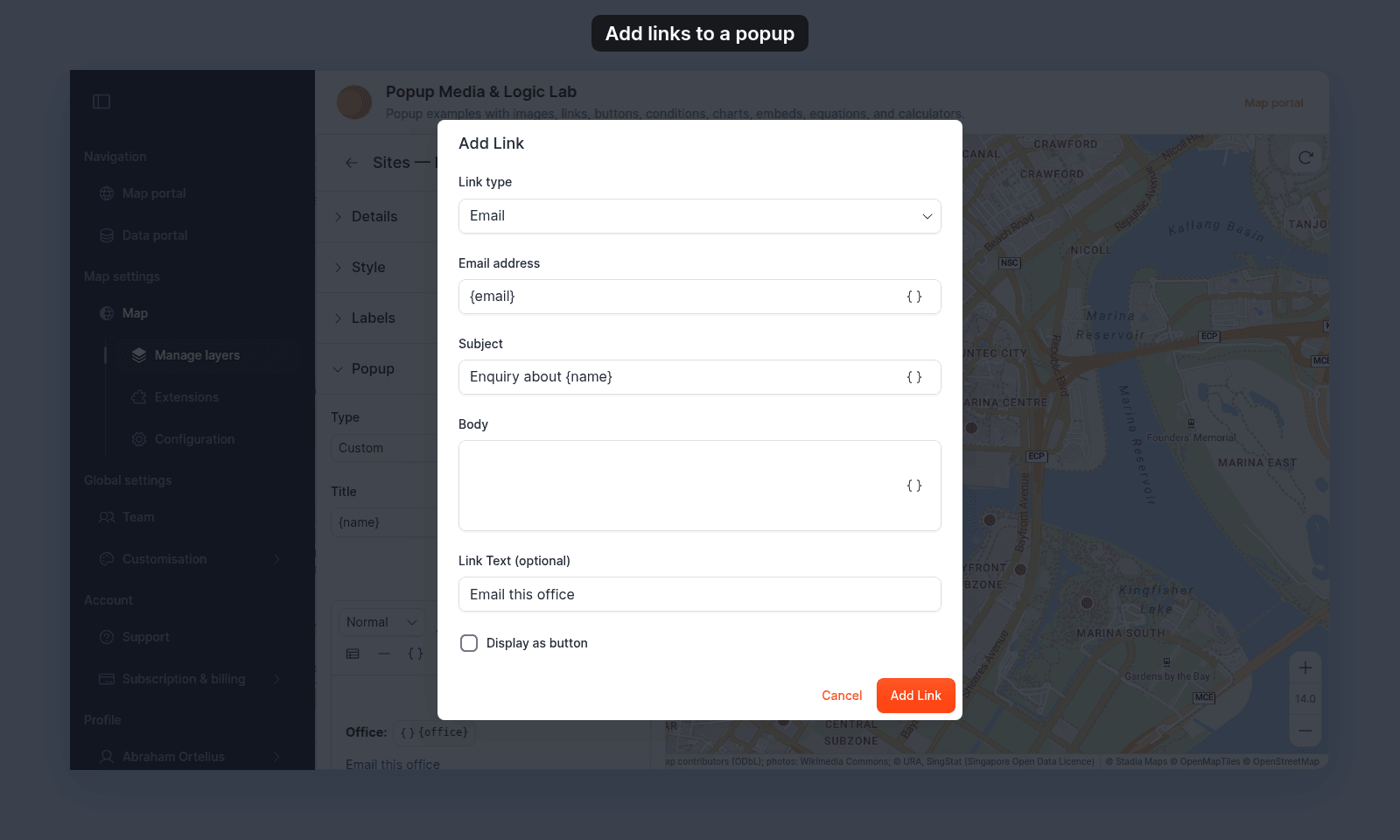 Always fill in `Link Text (optional)`. If you leave it empty, the popup shows the link itself, such as `mailto:{email}`, as the link text.
If the attribute already holds a complete email link that starts with `mailto:`, insert it the same way. The link still works. Leave `Subject` and `Body` empty, because the stored link carries its own.
## Add a subject or a message
In the same dialog, type the subject in `Subject` and the message in `Body`. Type plain text, with line breaks if you want them. MangoMap encodes the spaces and punctuation for you.
`Subject` and `Body` each have their own `Insert simple variable` button, so the email can name the feature:
```text
Enquiry about {name}
```
You can also paste a complete email link, such as `mailto:sales@example.com?subject=Opening%20hours`, into the `Email address` field. The dialog takes the subject and the message out of the link and puts them in `Subject` and `Body`.
## If some features have no email address
When the attribute is empty, the link still shows, but the email it starts has no usable address. Wrap the link in a [conditional](/docs/configuring-popups/add-conditional-content-to-popup) that shows it only when the attribute has a value.
## Check the link
Click `Save Changes` at the bottom right of the editor. Click a feature on the map, then click the link. A new email opens in the viewer's default email app, with the address, subject, and message filled in.
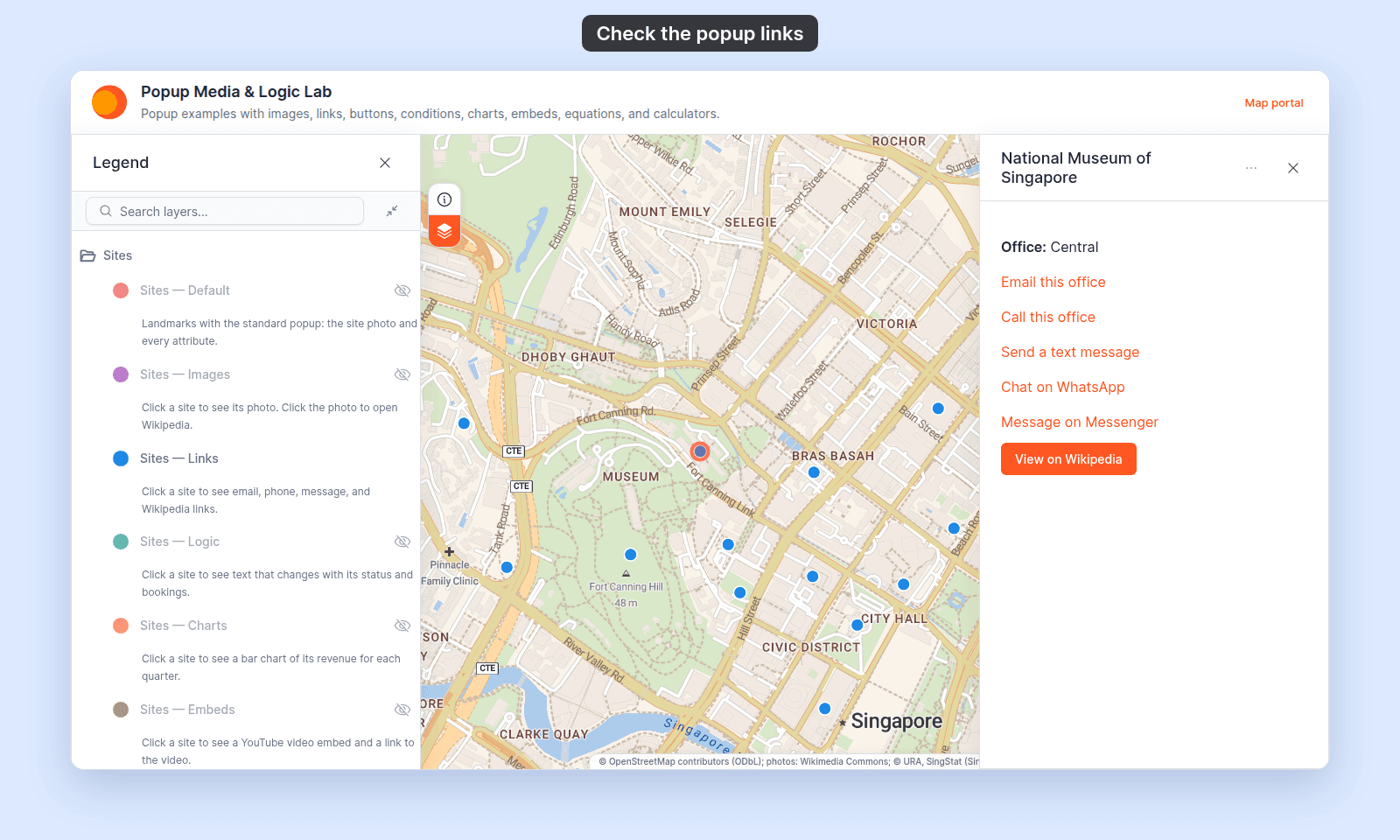
In this example popup, `Email this office` is the email link:
Always fill in `Link Text (optional)`. If you leave it empty, the popup shows the link itself, such as `mailto:{email}`, as the link text.
If the attribute already holds a complete email link that starts with `mailto:`, insert it the same way. The link still works. Leave `Subject` and `Body` empty, because the stored link carries its own.
## Add a subject or a message
In the same dialog, type the subject in `Subject` and the message in `Body`. Type plain text, with line breaks if you want them. MangoMap encodes the spaces and punctuation for you.
`Subject` and `Body` each have their own `Insert simple variable` button, so the email can name the feature:
```text
Enquiry about {name}
```
You can also paste a complete email link, such as `mailto:sales@example.com?subject=Opening%20hours`, into the `Email address` field. The dialog takes the subject and the message out of the link and puts them in `Subject` and `Body`.
## If some features have no email address
When the attribute is empty, the link still shows, but the email it starts has no usable address. Wrap the link in a [conditional](/docs/configuring-popups/add-conditional-content-to-popup) that shows it only when the attribute has a value.
## Check the link
Click `Save Changes` at the bottom right of the editor. Click a feature on the map, then click the link. A new email opens in the viewer's default email app, with the address, subject, and message filled in.
In this example popup, `Email this office` is the email link:
 ## If the dialog shows an error
- **`Enter a valid email address.`** The `Email address` field holds something that is not one email address, such as a name or two addresses. Type one address, or insert a variable.
- **`This link type is not supported.`** The field starts with a kind of link that popups do not support, such as `ftp:`. Popup links can be web, email, phone, or text message links only.
## Related
- [How to add a call or message link to a custom popup](/docs/configuring-popups/add-call-or-message-links-to-popup)
- [How to add an interactive button to a custom popup](/docs/configuring-popups/add-interactive-buttons-to-popup) — to show the email link as a button
- [How to insert attribute values into a custom popup](/docs/configuring-popups/insert-attribute-values-into-popup)
- [How to show or hide content based on a feature's attributes](/docs/configuring-popups/add-conditional-content-to-popup)
- [Popup tab controls](/docs/configuring-popups/popup-reference) — every field in the `Set link` dialog
- [How to update a dataset from a file](/docs/data-updates/update-a-dataset-from-a-file) — to add the email address column
## If the dialog shows an error
- **`Enter a valid email address.`** The `Email address` field holds something that is not one email address, such as a name or two addresses. Type one address, or insert a variable.
- **`This link type is not supported.`** The field starts with a kind of link that popups do not support, such as `ftp:`. Popup links can be web, email, phone, or text message links only.
## Related
- [How to add a call or message link to a custom popup](/docs/configuring-popups/add-call-or-message-links-to-popup)
- [How to add an interactive button to a custom popup](/docs/configuring-popups/add-interactive-buttons-to-popup) — to show the email link as a button
- [How to insert attribute values into a custom popup](/docs/configuring-popups/insert-attribute-values-into-popup)
- [How to show or hide content based on a feature's attributes](/docs/configuring-popups/add-conditional-content-to-popup)
- [Popup tab controls](/docs/configuring-popups/popup-reference) — every field in the `Set link` dialog
- [How to update a dataset from a file](/docs/data-updates/update-a-dataset-from-a-file) — to add the email address column